


The Waitlist feature in Kilo allows Athletes to ‘reserve’ a class that is at capacity with the capability of being added to the class when/if an Athlete cancels a reservation.
- Note
If a reserved Athlete cancels in advance and within the cancellation window, the next Athlete on the waitlist will automatically bump up into the upcoming class.
Athletes who are on the Waitlist will not utilize a credit allocation.
Athletes must have available credits to join the waitlist.
Set the number of allowed athletes on your waitlist in your Account Settings in Kilo
For Athletes: Join the Waitlist for an Event
Log in to the Kilo - Members app.
Click the "Classes" tab to make a reservation
Click “Add to Waitlist”
The waitlist reservation will be viewable in the “Reservations - Upcoming” tab with the tag “Waitlisted”, along with the number on the waitlist (i.e. Waitlisted #1).
An athlete can view and edit upcoming reservations, including Waitlist reservations.
For Athletes: Remove a Waitlist Reservation
Log in to Kilo - Member app
Click “Schedule”
Click “Leave Waitlist” and confirm leaving the waitlist
The Schedule will update automatically and remove the session from “Reservations"
If the Athlete attempts to remove their reservations outside of the 'cancellation window,' the "Leave Waitlist" option will be unavailable. The Athlete will need to reach out to Staff and request to be manually removed from the waitlist.
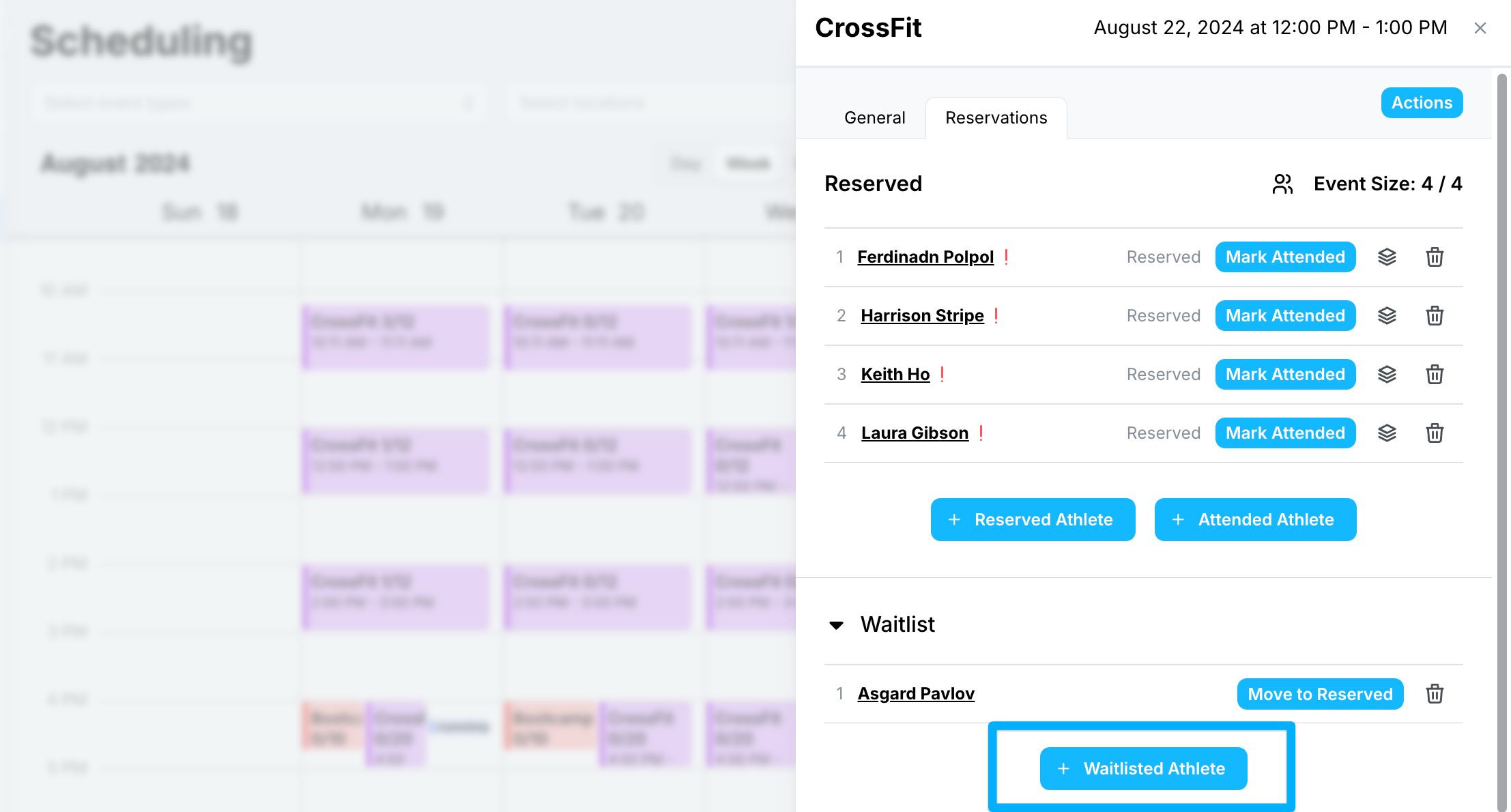
For Admin/Staff: Adding an Athlete to the Waitlist
Go to the Schedule in your Kilo account
Click on the class event that the Athlete would like to join
Select the Reservation tab
Click the Waitlist drop-down
Select '+ Waitlist Athlete'
Search for and select the Athlete
Save
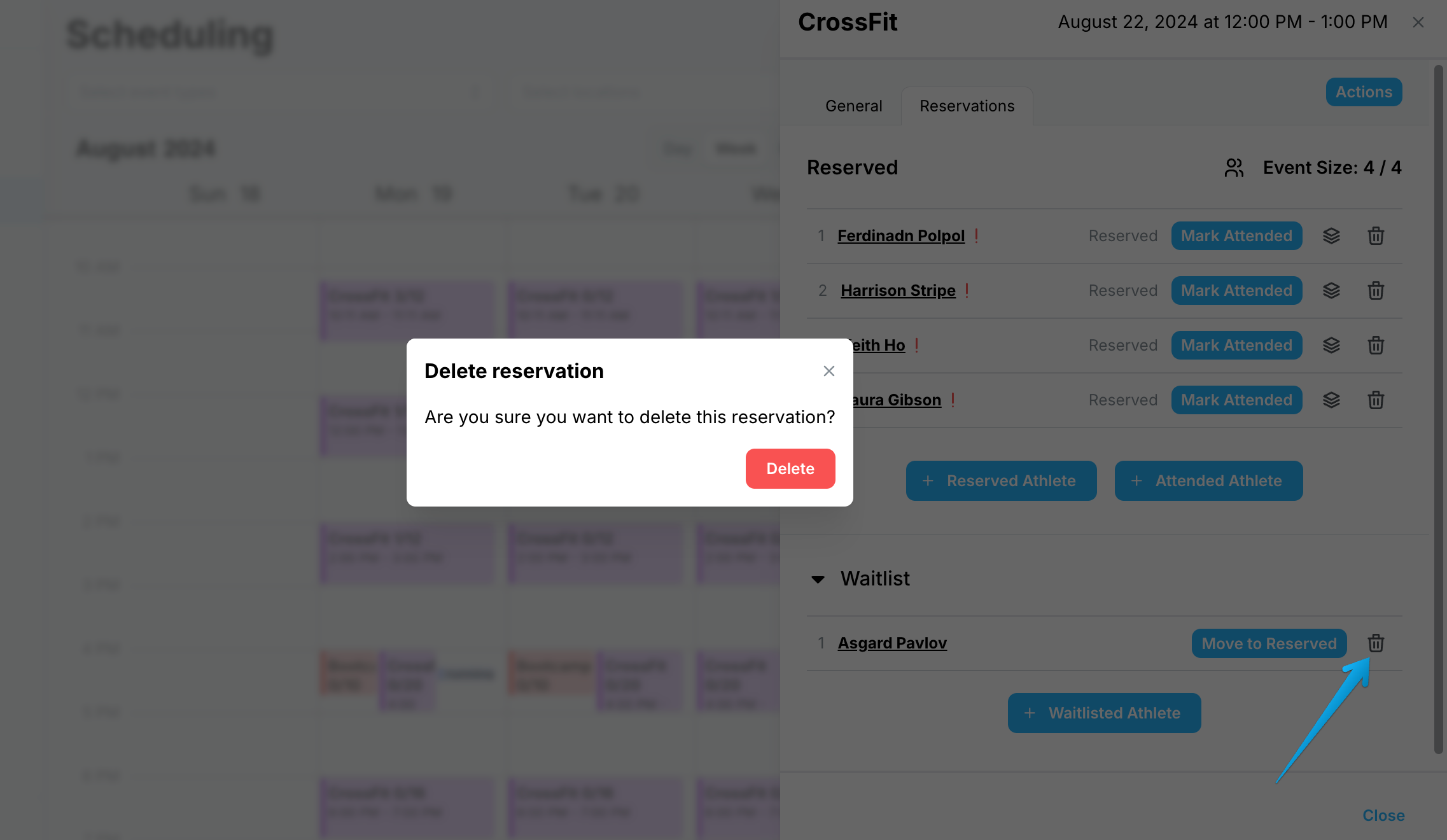
For Admin/Staff: Remove an Athlete from the Waitlist
Go to the Schedule in your Kilo account
Click on the relevant class event
Select the Reservation tab
Click the Waitlist drop-down
Click the trash can icon to the right of the Athlete's name
Confirm that you'd like to delete the waitlist reservation
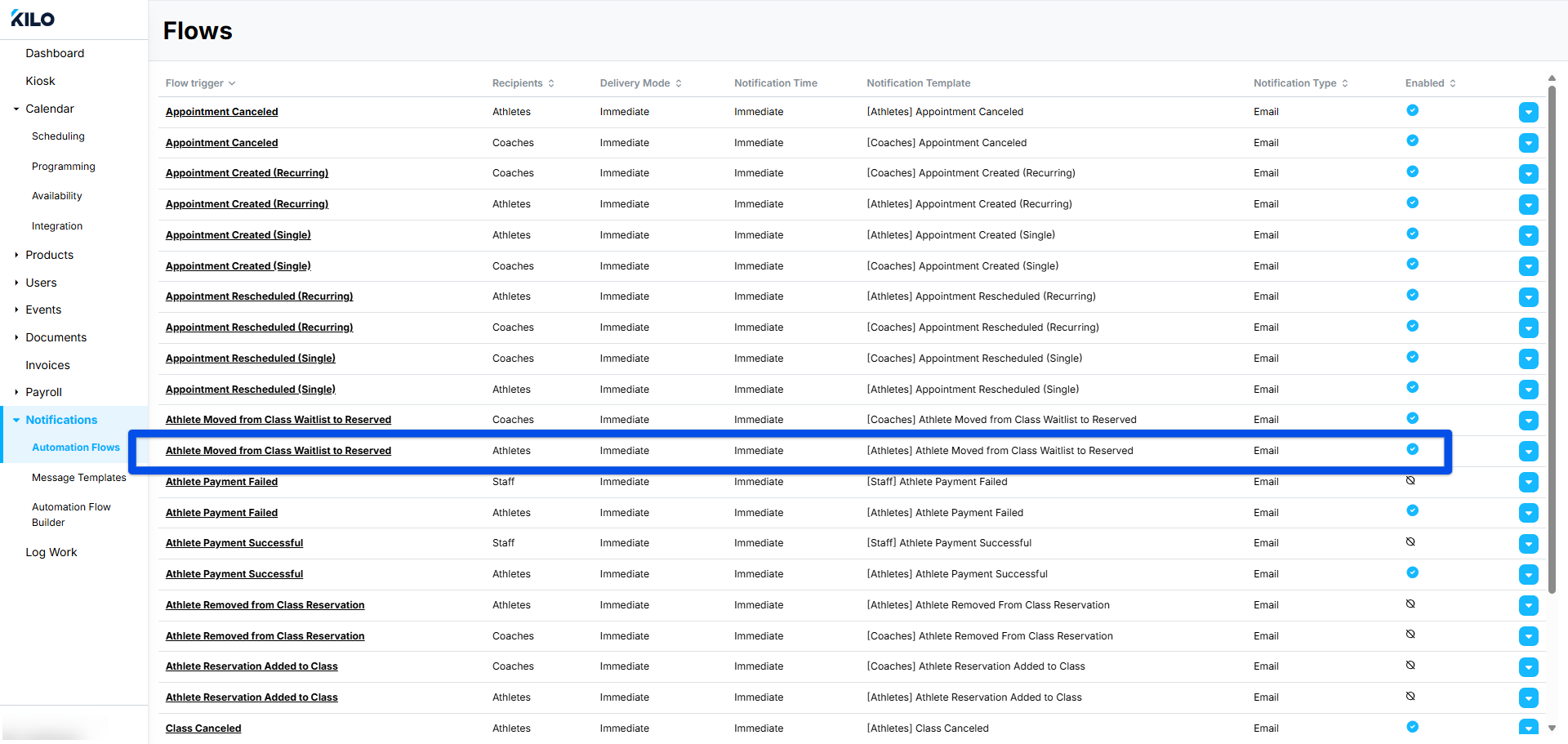
Waitlist Notifications
Athletes can receive an email notification when moving from the waitlist to reserved when Notifications have been enabled. To enable, go to
The circle will turn blue when enabled.
Athletes can receive an SMS message notification by setting up a new Flow. This Help Article provides the steps to set up a new Flow automation.
For further questions about the Waitlist in Kilo, email our Support team at hello@usekilo.com.