


When an athlete can't reserve a class, or has a reservation that can't be checked in, start by looking at the credits on their package. In Kilo GMS, a credit is allocated the moment a reservation is made, so a package's credits can be fully committed to upcoming classes before the athlete has attended any of them. This article covers how to see where a package's credits are going and how to resolve reservations that come up short.
What you can do with this article
See how many of a package's credits are already allocated
See exactly which reservations are using a package's credits
Find reservations that were made without a credit
Free up a credit and assign it to an uncredited reservation
Why can't an athlete reserve a class when their package is still active?
Their package's credits are most likely already allocated to other reservations. Kilo GMS allocates a credit when the reservation is made, before the athlete checks in. An athlete on a 12-credit package with 7 upcoming reservations has 5 credits available, even if they haven't attended a single class yet this period.
Allocating credits at reservation time means every reserved spot in your classes is backed by a credit the athlete has paid for. Athletes can't hold spots across more classes than their package covers, so class capacity stays open for athletes who plan to attend. When an athlete's plans change, they cancel the reservation they no longer need, the credit returns to their package right away, and they can book the class they want.
How do I see which reservations are using a package's credits?
Go to Users → Athletes and open the athlete's profile.
Select the Packages tab.
Click the package to open its details.
In the package details, find Credit Usage under Dispensations. The counter (for example, 7 / 12) shows how many of the period's credits are allocated, and Validity shows the dates the credits cover.
Select the Attendance tab.
The Attendance tab inside the package lists every reservation using that package's credits, past and upcoming. A check in the Credited column means the reservation is using one of the package's credits, whether or not the athlete has attended yet.
The package counts credited reservations only. A reservation made without a credit doesn't appear in Credit Usage or on the package's Attendance tab, so a package showing 12 / 12 can still have uncredited reservations in the same period.
How do I find reservations without a credit?
Staff and admins can reserve an athlete for a class even when the athlete has no credit available. When you add the athlete to a single class, Kilo GMS warns that the reservation will be uncredited. Saving anyway creates the reservation without a credit, and an uncredited reservation can't be checked in.
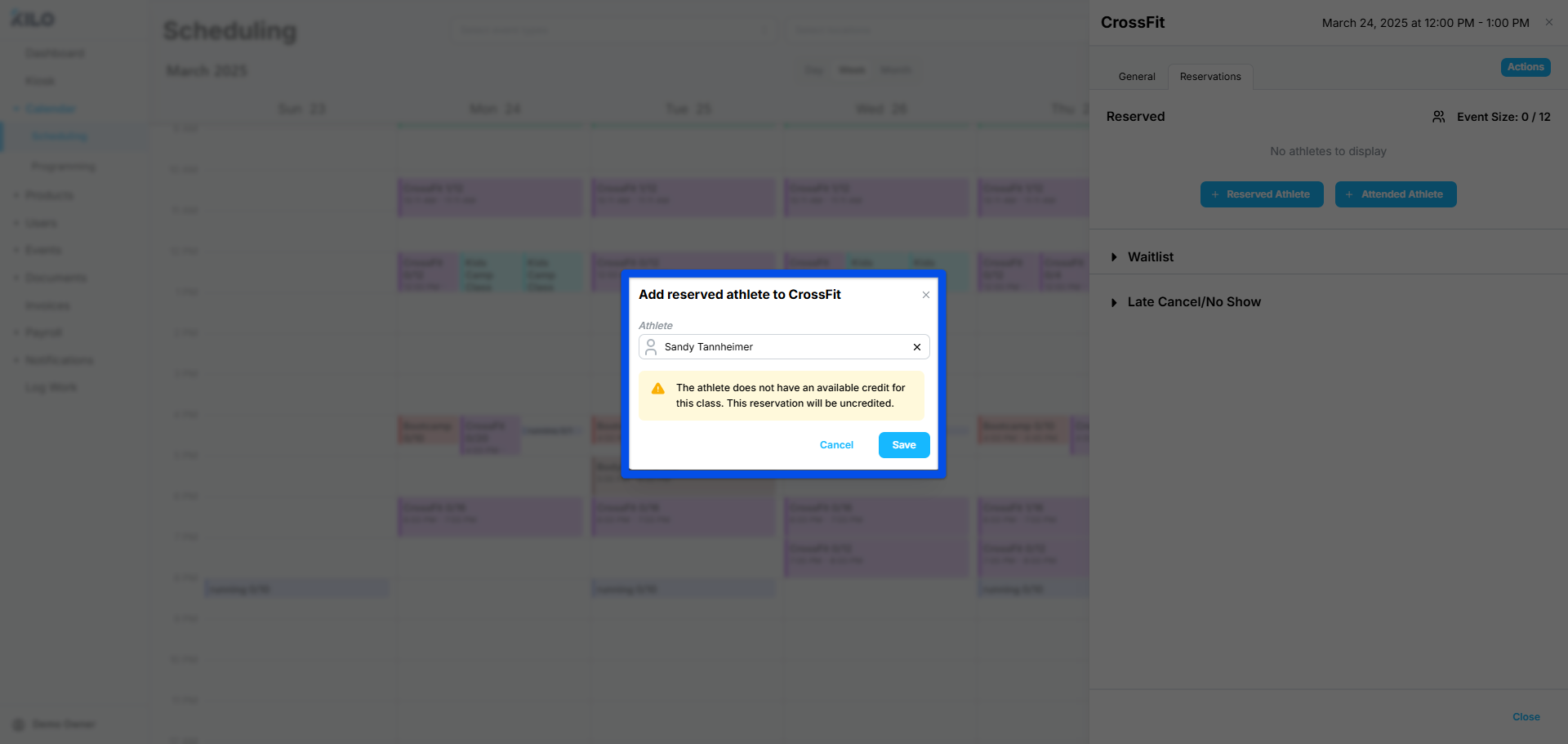
To see how many uncredited reservations your gym has in total, check Total Uncredited Reservations in the Reservations tile on your Dashboard.
Because uncredited reservations don't appear at the package level, look for a specific athlete's on their profile:
Open the package and note the dates under Validity in the Dispensations table.
Close the package details and select the Reservations tab on the athlete's profile.
Set the date range filter to match the package's validity dates.
Check the Credited column. A crossed-out circle in that column marks a reservation without a credit.
The Bulk Added column on the same tab shows which reservations were created with Bulk Reservation, which helps when you're tracing where an extra reservation came from. For reserving athletes who don't have a package and booking uncredited appointments, see Uncredited Reservations Explained.
Bulk reservations and monthly packages
Staff and admins can reserve a recurring class for an athlete in bulk, such as every Monday, Wednesday, and Friday for several months ahead. For the full steps, see Bulk-Reserve an Athlete for Multiple Class Dates. Bulk reservations follow the calendar week by week, while a monthly package dispenses a fixed number of credits each credit period. A one-month credit period runs 28–31 days, so the same weekly pattern lands on a different number of days from one period to the next. Three classes a week fills 12 days in some periods and 13 or 14 in others.
When the pattern produces more reservations in a period than the package has credits, the extra reservations are made without a credit. Bulk Reservation doesn't display the uncredited warning, so check the athlete's Reservations tab after any bulk reservation.
For example, an athlete has a monthly package with 12 credits and is bulk-reserved for every Monday, Wednesday, and Friday. In a credit period that contains 13 of those days, 12 reservations are credited and one is not. The package shows 12 / 12, and the uncredited reservation can't be checked in when the athlete arrives for that class.
If an athlete keeps a fixed weekly schedule and you want it to line up with their credits every period, consider a package that runs in 4-week periods. Every 4-week period contains exactly 12 Mondays, Wednesdays, and Fridays, so a 12-credit package and a three-day-a-week schedule match in every period. Monthly packages work too, as long as you check each period for uncredited reservations.
After bulk reserving an athlete on a monthly package, filter their Reservations tab to each credit period's validity dates and check the Credited column.
How do I free up a credit for an uncredited reservation?
Cancel an upcoming reservation the athlete doesn't plan to attend, then assign the freed credit to the uncredited reservation. The credit returns to the package immediately, and the next reservation the athlete makes uses it right away. Athletes can cancel and rebook their own reservations in the Kilo app, within your gym's reservation rules.
To remove a reservation on the athlete's behalf:
Open the athlete's profile and select the Reservations tab.
Find the reservation the athlete doesn't plan to attend.
Click the red garbage can icon in the Delete column and confirm.
Removing a reservation deletes it and returns the credit to the package. If the athlete contacted you to cancel and you want the cancellation recorded, open the class on Calendar → Scheduling, click the blue dropdown next to the athlete, and select Mark Late Cancel instead. Whether a late cancellation returns the credit depends on the Deduct credit for late cancellation setting in your Reservation, Waitlist, and Cancellation Settings.
To assign the freed credit to an uncredited reservation right away:
On the athlete's Reservations tab, find the reservation with the crossed-out circle in the Credited column.
Click the crossed-out circle. The credit is assigned and the circle changes to a check.
NoteThe same circle works in both directions. Hovering over a credited reservation's check shows Remove credit, and clicking it takes the credit off that reservation and returns it to the package.
If you don't assign it manually, Kilo GMS assigns available credits to uncredited reservations each night, in chronological order, for reservations within 30 days. A new reservation made before then uses the freed credit first.
Frequently asked questions
Does a reservation use a credit before the athlete checks in?
Yes. The credit is allocated when the reservation is made. Checking in confirms attendance, and the credit was already counted when the athlete reserved.
Why does a package show 12 / 12 when the athlete has more reservations than that?
The package counts credited reservations only. Any reservation beyond the package's credits is uncredited and doesn't appear in Credit Usage or on the package's Attendance tab. Check the Credited column on the athlete's Reservations tab for reservations within the package's validity dates.
Can staff reserve an athlete who has no credits left?
Yes. When you add an athlete to a single class, Kilo GMS warns that the reservation will be uncredited, and you can save it anyway. Bulk Reservation creates uncredited reservations without a warning. The athlete can't check in to an uncredited reservation until it's credited.
Will an uncredited reservation get a credit on its own?
Yes, if a credit is available and the reservation is within 30 days. Kilo GMS assigns available credits to uncredited reservations each night, in chronological order. To assign one immediately, click the crossed-out circle in the Credited column on the athlete's Reservations tab.
Why does the Kilo app show fewer credits than the athlete expects?
The Kilo app counts credits allocated to upcoming reservations as used. An athlete with a 12-credit package and 7 upcoming reservations sees "5 credits available now," even before attending any of those 7 classes. Athletes can see their package details and credit usage under My Account → My Packages in the Kilo app.
What else can stop an athlete from reserving a class?
Your gym's reservation settings can block a reservation even when the athlete has credits. In your Reservation, Waitlist, and Cancellation Settings, check these:
Time before a class when reservations will be accepted: the athlete is trying to book further ahead than this window allows
Time before a class when reservations will no longer be accepted: booking has closed for a class that's about to start
Limit athletes to one class reservation per day: the athlete already has a class reserved that day
Disable athlete reservations if they have a past due bill: the athlete has an unpaid invoice that's past due
How far ahead can athletes reserve classes?
Athletes can reserve within your gym's reservation window, using credits from their active package and, when auto-renew is on, their upcoming package. The window is set by Time before a class when reservations will be accepted in your Reservation, Waitlist, and Cancellation Settings. For example, an athlete whose package runs from the 6th of one month to the 5th of the next, with auto-renew on, can also reserve classes in the following period, as long as each class falls inside the reservation window. Staff and admins can reserve outside the reservation window when needed.
Why can't I check an athlete in to a class they reserved?
The reservation most likely has no credit. Find it on the athlete's Reservations tab, free up a credit by removing a reservation the athlete won't attend, then click the crossed-out circle in the Credited column to assign the credit.
Helpful tips
Check Credit Usage and the package's Attendance tab first whenever an athlete says they still have credits left
Check the profile's Reservations tab too, since uncredited reservations don't appear at the package level
Watch Total Uncredited Reservations on your Dashboard to catch uncredited reservations before athletes arrive for class
Read the uncredited warning before saving a staff reservation, and plan how the athlete will get a credit before that class
Encourage athletes to cancel reservations they won't use so the credit and the class spot both open up
Consider 4-week packages for athletes who keep a fixed weekly schedule
If you have questions about reservations and credits in Kilo GMS, our Support team is happy to help. Reach us at hello@usekilo.com.