


Bulk Reservation lets you reserve an athlete for the same class across many dates in a single action. Instead of opening each class on the calendar and adding the athlete one at a time, you select the days of the week and a date range, and Kilo GMS books every matching class at once.
Bulk Reservation is a staff tool for classes. Athletes cannot create one for themselves in the Kilo - Members app.
What you can do with bulk reservations
Reserve an athlete for the same class across a range of dates
Select several days of the week in one reservation
Book up to one year ahead
Preview every class before you confirm
Review an athlete's upcoming reservations in one place
Filter and remove future reservations in a single action
Reserve an athlete for multiple class dates
Go to Calendar → Scheduling.
Click the class you want to reserve the athlete for.
Open the Reservations tab.
Click + Reserved Athlete if the athlete is not already reserved for this class.
Click the blue action menu and select Bulk Reservation if the athlete is already reserved for this class.
Select the days of the week the athlete attends.
Set the date range. You can book up to one year ahead.
Review the preview of every class the athlete will be reserved for.
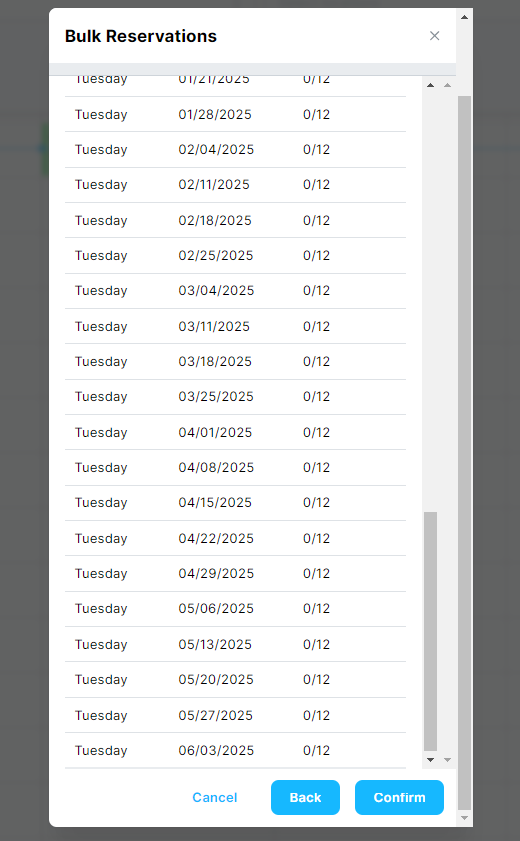
Click Confirm.
The athlete is reserved for every class in the preview.
View an athlete's upcoming reservations
Open the Athlete Profile.
Click the Reservations tab.
This tab lists every upcoming class the athlete is reserved for.
Reservations vs. Attendance: which tab should you use?
Reservations tab | Attendance tab |
|---|---|
Shows upcoming classes | Shows past classes |
Used to add or remove future bookings | Used to review check-ins and attendance history |
Where you manage bulk reservations | Where you track attendance milestones |
Listed by upcoming date | Most recent sessions appear at the top |
Keeping the two separate means removing a future booking never touches an athlete's attendance record.
Remove bulk reservations
Open the Athlete Profile.
Click the Reservations tab.
Filter by day of the week, reservation type, or date range to find the bookings you want to remove.
Select the reservations to remove.
Click the red garbage can icon.
Confirm the deletion.
Removing a reservation only affects the athlete's booking. The class itself stays on the calendar for everyone else reserved in it.
Frequently asked questions
What happens to an athlete's future reservations if I change or cancel their package?
Future reservations stay in place. Changing an athlete's package, canceling a package, or removing an upcoming package does not remove the classes they are already booked into. This is deliberate, so an athlete switching packages does not silently lose a month of bookings. If the reservations should come out, remove them yourself from the Reservations tab on the athlete's profile.
Will the athlete get a notification for every class I book or remove?
Yes, if the matching notification flow is turned on. With Athlete Added to Class Reservation or Athlete Removed from Class Reservation enabled, a bulk action can send one message per class, which can mean dozens of emails or texts at once. To avoid that:
Turn off the relevant notification flow.
Create or remove the reservations.
Wait a few moments.
Turn the notification flow back on.
Can an athlete bulk-reserve themselves in the Kilo app?
No. Bulk Reservation is available to owners and staff only. An athlete can reserve one class at a time in the Kilo- Members app. If an athlete wants a standing booking, a staff member creates it for them.
Does this work for appointments?
No. Bulk Reservation applies to classes. Appointments are scheduled for a specific athlete when the appointment is created, so the athlete is attached at that point rather than reserved afterward.
How far ahead can I book?
Up to one year from the date you create the reservation. Set the end of the date range accordingly, then check the preview before confirming.
How do I find one specific booking in a long list?
Use the filters on the Reservations tab. You can narrow by day of the week, reservation type, or date range, which is the fastest way to isolate a single standing booking without scrolling a year of classes.
Helpful tips
Check the preview before confirming. It is the last point at which you can catch a wrong day or an overlong date range.
Check your notification flows before any large bulk action, whether you are adding or removing.
Remove reservations from the athlete's Reservations tab, not from each class on the calendar.
Book a shorter date range for a new athlete and extend it once their schedule settles.
Update reservations yourself after a package change. Nothing is removed automatically.
When this feature is most helpful
An athlete attends the same class on the same days every week
Booking an On Ramp or Foundations group through their full program
Holding a standing spot for a long-term member
Clearing a departing athlete's future bookings in one pass
Rebuilding a standing schedule after an athlete changes days
If you have questions about bulk reservations in Kilo GMS, our Support team is happy to help. Reach us at hello@usekilo.com.