


Revenue categories group the revenue from your packages so your reporting in Kilo GMS reflects how your business is organized. You can edit the existing categories, create your own, and delete the ones you no longer need, all from the Packages dashboard.
What you can do with revenue categories
Edit existing revenue categories to match your internal structure
Create custom categories for your business model
Delete categories you no longer use
See each category's share of your overall revenue on the Dashboard
How do I add, edit, or delete revenue categories?
Go to Products → Packages.
Open the blue action tab.
Click Revenue Categorization.
Click Manage Revenue Categories.
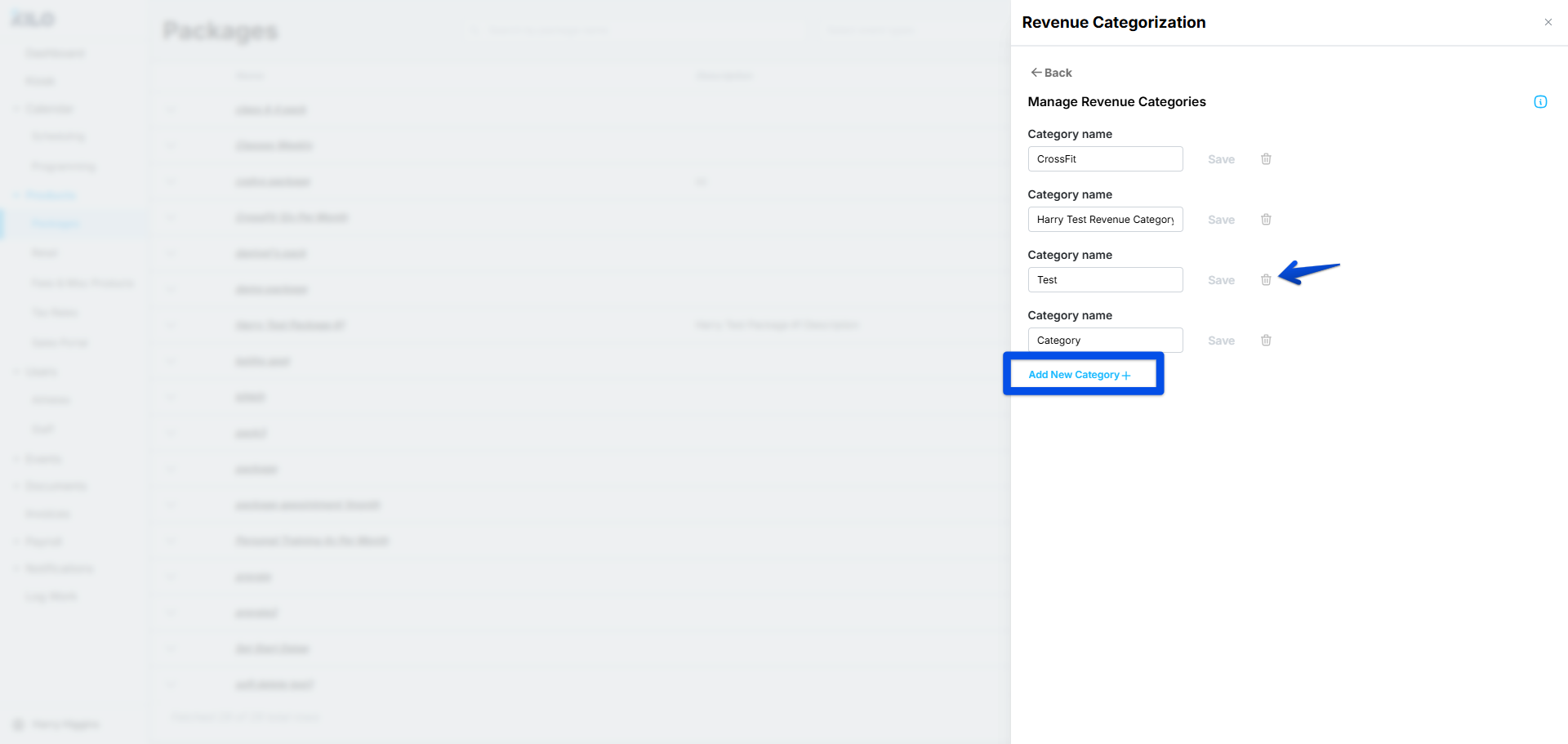
Edit, delete, or create categories as needed.
Changes to your revenue categories are reflected in your reports right away.
Where do revenue categories show up on my Dashboard?
Package revenue categories feed the revenue pie chart on your Dashboard. The chart shows what percentage of your overall revenue comes from each category, so you can see at a glance which categories bring in the most.
If you have questions about revenue categories in Kilo GMS, our Support team is happy to help. Reach us at hello@usekilo.com.