


The Uncredited Reservations Report on your Kilo GMS Dashboard shows upcoming reservations for athletes who do not have an active credit or membership to cover the booking. You can use it to spot these reservations early and resolve them before they affect attendance or billing.
What is an uncredited reservation?
An uncredited reservation is a reservation made for an athlete who does not currently have an active credit or membership to cover it. Gym staff create these intentionally, and they can be useful for holding a spot for an athlete, supporting trials or special circumstances, or managing scheduling during onboarding.
Uncredited reservations work as intended, but they are worth monitoring so billing stays aligned and check-in goes smoothly.
What you can do with the Uncredited Reservations Report
See the total number of upcoming uncredited reservations
Check whether that number is trending high, low, or improving
View every athlete with an uncredited reservation in the next 7 days
Filter by date range, event type, and athlete
Credit a reservation or delete it from the athlete
Getting to the report
On your Kilo GMS Dashboard, click the Reservations section.
Review the metric card, which shows the total number of uncredited reservations and a visual indicator of the trend.
Click the metric card to open the Uncredited Reservations screen.
What the report shows
The Uncredited Reservations screen includes:
Uncredited Reservations count: the total number of upcoming reservations without credits
Athlete table (next 7 days): every athlete with an uncredited reservation in the next 7 days
Filters: date range, event type (for example, class or appointment), and specific athletes
Use the athlete table to see which reservations are uncredited, which athletes may need outreach, and where billing or membership changes are needed. Click the down arrow to the left of an athlete's name to expand their uncredited reservations.
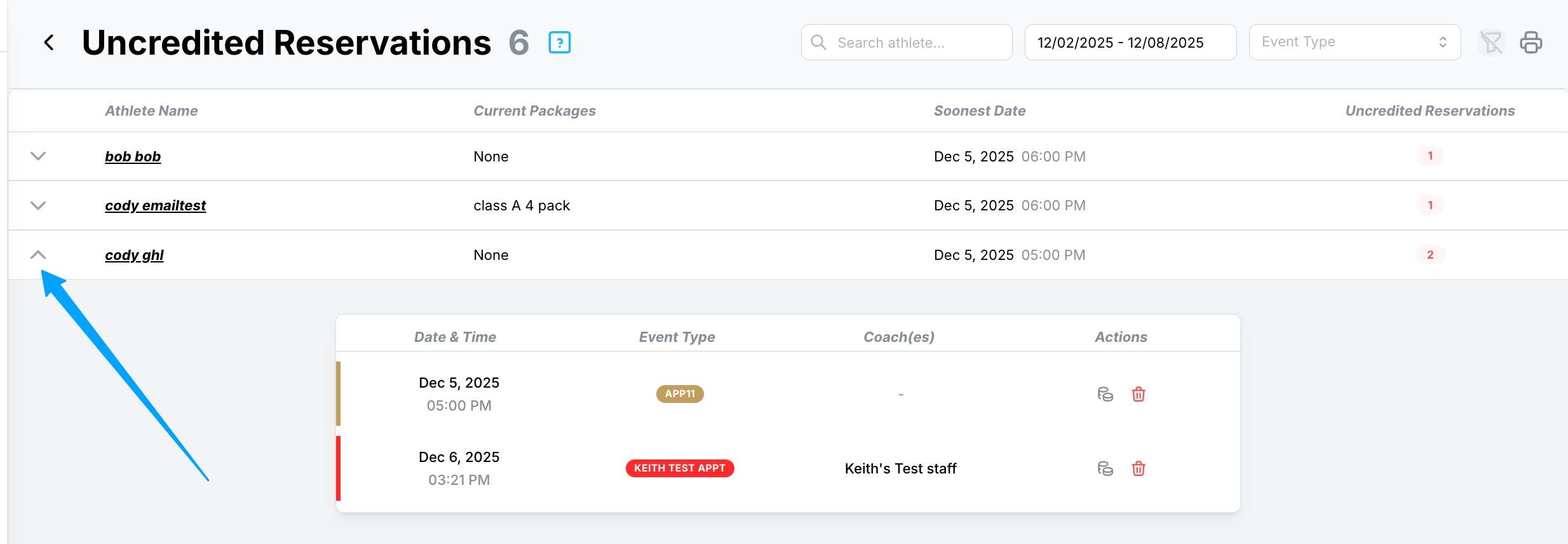
How do I credit or delete an uncredited reservation?
Expand the athlete's row in the report and choose Credit Reservation or Delete Reservation from Athlete.
Open the Uncredited Reservations screen.
Click the down arrow to the left of the athlete's name.
Choose an action for the reservation:
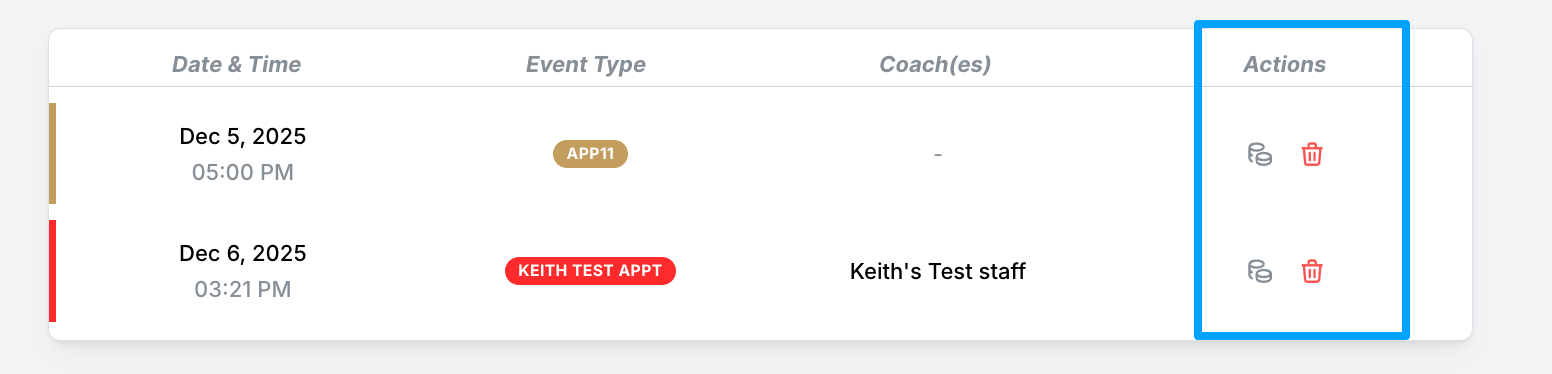
Select Credit Reservation to apply the appropriate credit or membership to the reservation.
Select Delete Reservation from Athlete to remove a reservation that was created in error or cannot be honored.
How do I give staff access to the report?
Access is controlled by the View Reservation Reports permission.
Go to Users → Staff.
Click Edit Staff Member for the staff member.
Open Permissions.
Turn on View Reservation Reports.
Helpful tips
Check the report before classes so athletes have the correct access when they arrive
Credit reservations for athletes who have purchased a package since booking
Delete reservations that were made in error so your count stays accurate
When this feature is most helpful
Holding spots for athletes during trials or onboarding
Following up with athletes whose memberships have lapsed
Keeping billing aligned with upcoming bookings
If you have questions about uncredited reservations in Kilo GMS, our Support team is happy to help. Reach us at hello@usekilo.com.