


Self-booking lets athletes schedule their own appointments in the Kilo Members app without staff assistance. You control which appointment types are available, which coaches athletes can book with, how much time sits between appointments, and how close to the start time an athlete can book. This works well for personal training, consultations, and On Ramp sessions.
If you do not want athletes scheduling their own appointments, no action is required. Self-booking is off until you turn it on.
What you can do with self-booking
Turn self-booking on for specific appointment types
Choose which coaches athletes can book with
Add a buffer between appointments
Set how far in advance athletes need to book
Keep your settings saved even when self-booking is turned off
Turn on self-booking for an appointment type
Go to Events → Appointments.
Find the appointment type you want athletes to be able to book.
Turn on the Self-Booking toggle for that appointment.
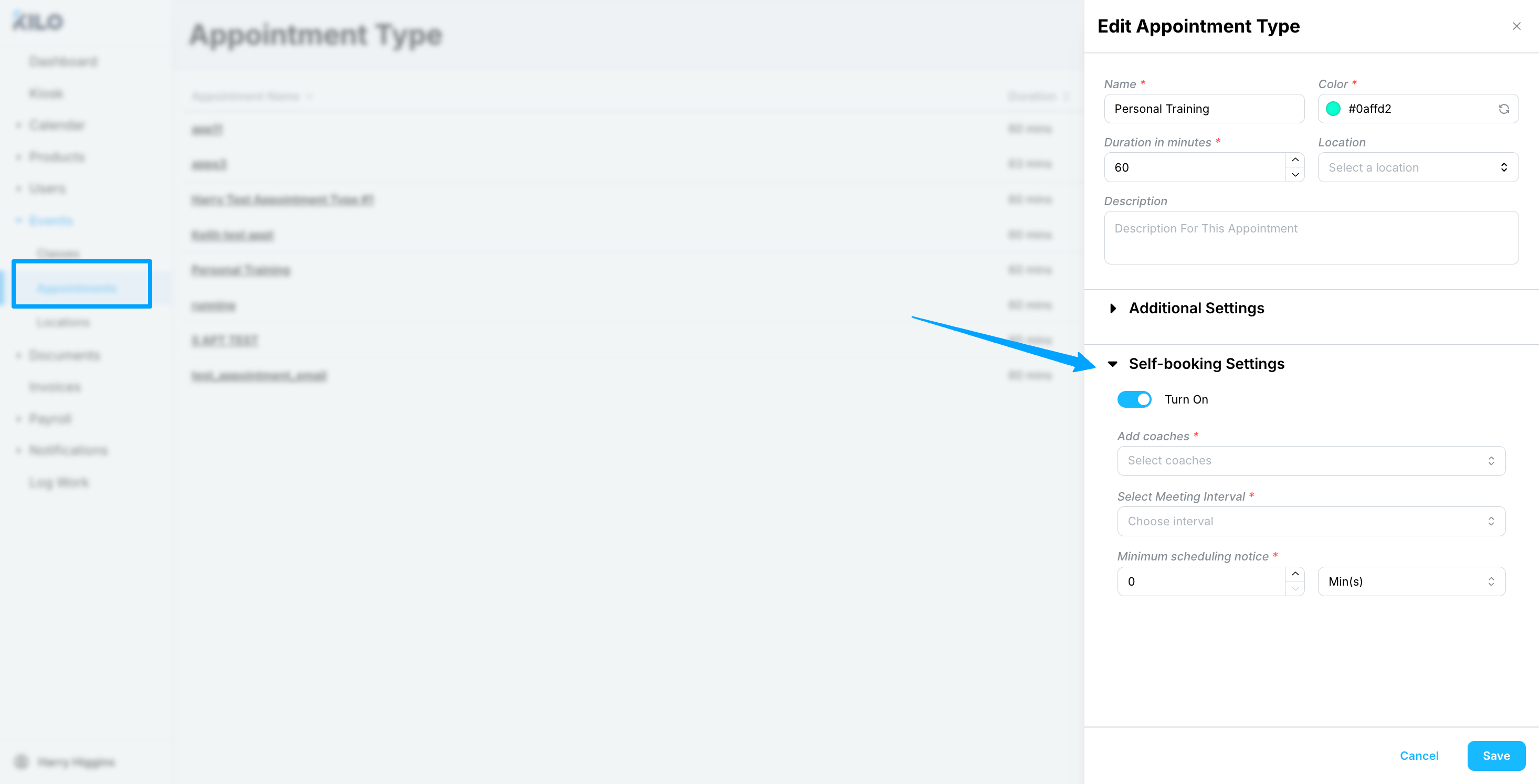
The appointment becomes available to athletes as soon as the toggle is on and at least one coach is assigned.
Turning the toggle off immediately removes the appointment from the Kilo app. Your self-booking settings are saved, so you can turn it back on later without reconfiguring coaches, intervals, or scheduling notice.
Choose which coaches athletes can book
At least one coach must be assigned, or self-booking will not work for that appointment type.
Only the coaches you select appear to athletes
Athletes can only book times when a selected coach is available
Dates where no selected coach has availability cannot be chosen by athletes
If athletes report that a date is unavailable, check coach availability for that date before anything else.
Set the meeting interval
The meeting interval creates a buffer after each appointment, so the next bookable time does not begin the moment the previous one ends.
The interval is measured from the start of the appointment, not the end. A 30-minute appointment with a 60-minute interval produces a 30-minute buffer before the next available time.
If you do not need a buffer, select the interval that matches the appointment duration, or the closest available option.
Set the minimum scheduling notice
Minimum scheduling notice controls how close to the start time an athlete can book.
Enter the number.
Select the unit: minutes, hours, or days.
Times inside that window are not offered to athletes.
What athletes see
A Classes tab and an Appointments tab under Schedule
The Appointments tab only when at least one appointment type at your gym has self-booking turned on
Only the appointment types you have enabled
Only the coaches you have selected, on dates those coaches are available
Athletes cannot book without a package that has an available credit. Kilo checks for a valid credit when the athlete selects a date, and the appointment is created immediately once a time is chosen.
Booked appointments appear under Reservations for the athlete. The Appointments tab is for scheduling new appointments only.
See more about the athlete booking experience in this athlete-facing Knowledge Base article: Book an Appointment in the Kilo App
What self-booking does not support
Bulk reservations. Athletes book one appointment at a time.
Shared appointments. One athlete can self-book, but any additional attendees have to be added manually by a coach or an owner.
Frequently asked questions
My athletes cannot see the Appointments tab. Why?
The Appointments tab only appears when at least one appointment type has self-booking turned on. Check the Self-Booking column in Events → Appointments and confirm the toggle is on for at least one appointment type, and that at least one coach is assigned to it.
An athlete says they cannot book with a particular coach. What should I check?
Only the coaches selected in that appointment's self-booking settings appear to athletes. Confirm the coach is selected there, then check that the coach has availability on the dates the athlete is trying to book.
What happens if I turn self-booking off?
The appointment type disappears from the Kilo Members app right away, and your settings are kept. Coaches, meeting interval, and minimum scheduling notice are all saved, so turning it back on restores the same configuration.
Do athletes need a package to book an appointment?
Yes. An athlete needs a package with an available credit for that appointment type. Kilo validates the credit when the athlete selects a date, so an athlete without one will see a message at that point rather than being blocked from browsing.
Can an athlete book an appointment for someone else?
No. For shared appointments, one athlete can self-book and a coach or owner adds the rest manually.
Why is there a gap between bookable appointment times?
That is the meeting interval creating a buffer. The interval is measured from the appointment's start time, so an interval longer than the appointment duration leaves a gap before the next bookable slot. Set the interval to match the duration if you do not want one.
Helpful tips
Assign coaches before turning the toggle on, since self-booking will not work without at least one
Match the meeting interval to the appointment duration unless you specifically want a buffer
Set a minimum scheduling notice that gives your coaches enough warning to prepare
Turn self-booking off rather than deleting the appointment type when you want to pause it, so your settings are preserved
Check coach availability first when athletes report they cannot find open times
When self-booking is most helpful
Offering personal training that athletes schedule around their own week
Running consultations or On Ramp sessions without staff coordinating every booking
Reducing the number of scheduling requests your front desk handles
Giving athletes a way to book outside your staffed hours
If you have questions about appointment self-booking in Kilo GMS, our Support team is happy to help. Reach us at hello@usekilo.com.