


If someone calls your gym and no one picks up, don't let that lead go cold! You can automatically send them a text message right after the missed call, with no typing needed.
Here's how to set it up in Gym Lead Machine using Linq Blue.
How Do I Set Up a Missed-Call Text-Back?
Create a workflow that triggers on missed calls and sends a text from your Linq Blue number.
Step 1: Open your workflows.
Log in to your Gym Lead Machine account.
Click Automation in the left-hand menu.
Click + Create Workflow and choose Start from Scratch.
Name your workflow something like "Missed Call Text."
Step 2: Set the trigger.
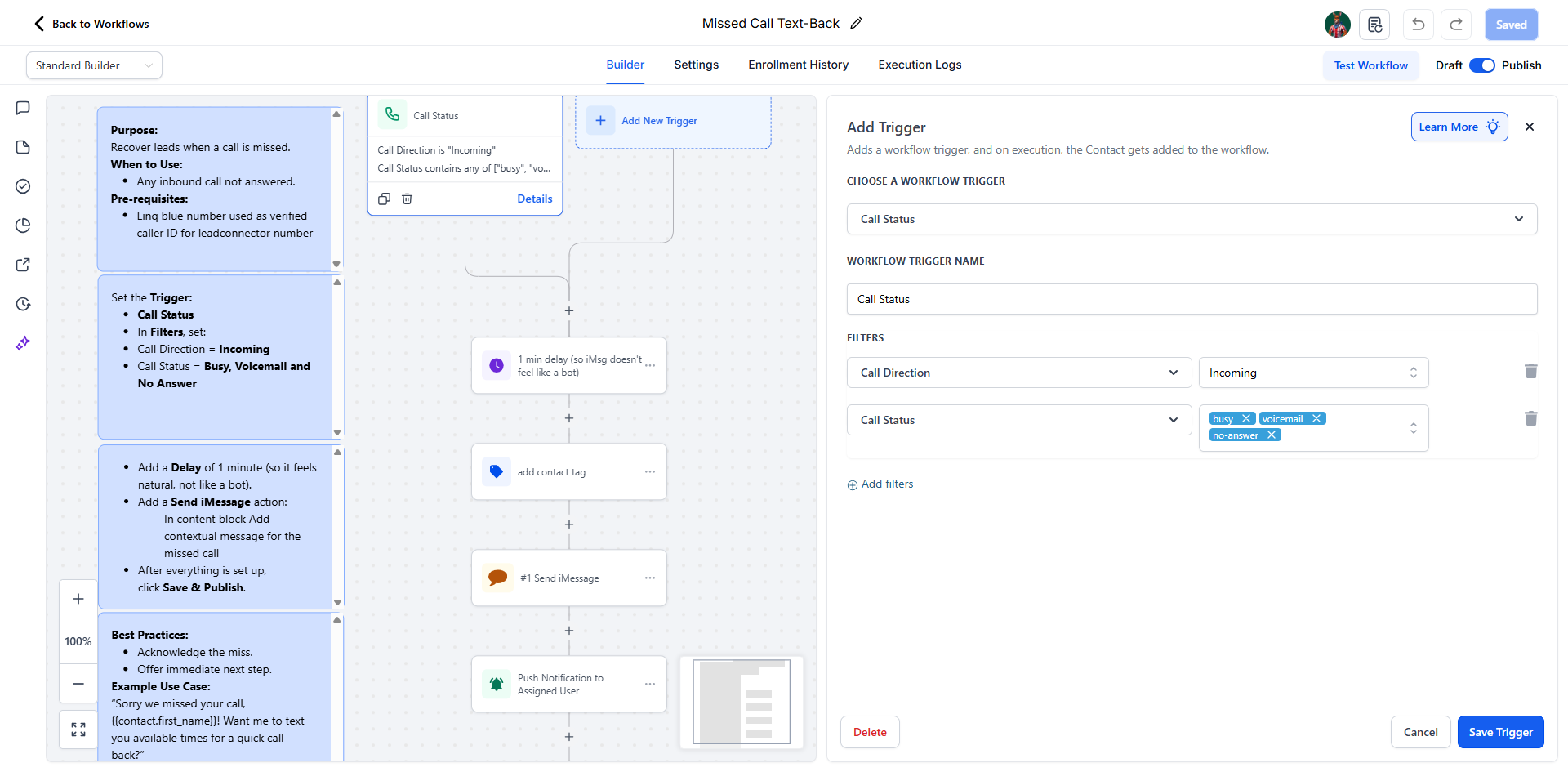
Click Add Trigger.
Choose Call Status.
In Filters, set:
Call Direction: Incoming
Call Status: Busy, Voicemail, and No Answer
Click Save Trigger.
This tells the system to start the workflow whenever a call is missed.
Step 3: Add the text message.
Click the + under the trigger.
Choose Send SMS.
Make sure your Linq Blue number is selected as the From number.
Type your message (you can copy this example):
Hey! Sorry we missed your call. This is {{user.first_name}}, how can we help?
Click Save.
Step 4: Turn it on.
At the top right, switch the workflow from Draft to Publish.
That's it! Now when someone calls and no one answers, they'll automatically get a friendly text from your gym. Here is an example of what it can look like:
What Should I Check Before Using Missed-Call Text-Backs?
Make sure your gym's phone number is set up with Linq Blue and can send texts. If you haven't activated Linq Blue yet, see Getting Started with Linq Blue (iMessage).
You can test this by calling your number and watching the automation kick in.
If you have questions about missed-call text-backs in Gym Lead Machine, our Support team is happy to help. Reach us at hello@usekilo.com.