


You can pay coaches based on a percentage of the revenue they generate using Commission-Based (Percentage) Pay Rates in Kilo GMS. Payouts are calculated automatically from the value of each session and the number of athletes who attend, so you can reward coaches based on the revenue they actually help generate instead of a flat rate or an hourly wage.
What you can do with commission-based pay rates
Pay coaches a percentage of session revenue
Calculate payouts automatically from package pricing and check-ins
Review a full payout breakdown for every session
This works especially well for:
Personal training
Specialty programs
Small group training
On Ramp sessions
Revenue-share coaching models
How does commission-based pay work?
The system calculates payouts in three steps: a session value is created from your package pricing, a percentage pay rate is assigned to a coach, and the system multiplies session value by the percentage for each checked-in athlete.
For example:
Session value: $100 per athlete
Coach commission: 40%
5 athletes attend
Coach payout = $200
Kilo calculates this automatically and displays it in the payroll report.
Add session value to your packages
Session value is the foundation of commission-based pay, and it is the one thing this rate type needs that the others do not. It represents the pre-tax value of each session or credit in a package.
Go to Products → Packages.
Create or edit a Time-Based or Credit-Based Package.
Set your Attendance Rules.
Add your Billing Plan.
You will see Session Value displayed under the Billing Plan.
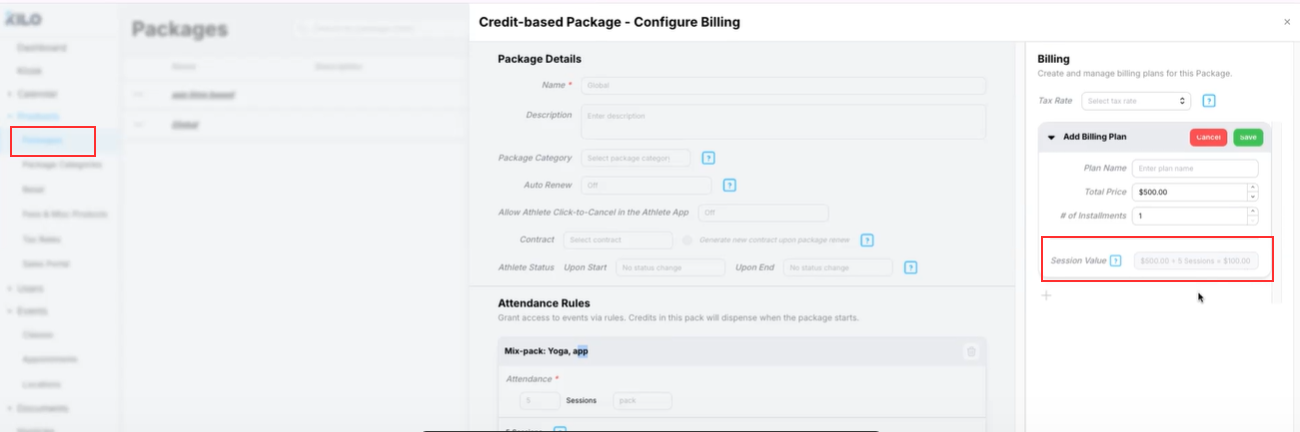
For an existing package you want commission-based pay to apply to:
Go to Products → Packages.
Select the package.
Click Edit Billing Plans.
Set the Session Value.
Click Save.
Session values are not calculated automatically for existing billing plans, so each applicable package has to be set manually.
Kilo calculates session value automatically for new billing plans: total package price ÷ total sessions = session value. A $1,000 package with 10 sessions has a session value of $100 per attendee.
Create the percentage pay rate
Percentage rates are built in the same place as base and hourly rates. For the full walkthrough of the Create Pay Rate panel, see Create Pay Rates.
Go to Payroll → Pay Rates.
Click the blue action button, then Add Pay Rate.
Enter a Name for the rate.
Select Percentage-Based Pay Rate.
Enter the commission percentage, for example 40%, 50%, or 60%.
Click Save.
The pay rate is ready to assign.
Assign the rate to a coach
Go to Payroll → Assign Rates.
Select the coach.
Assign the percentage rate to the relevant event type, such as Personal Training or a specialty program.
Kilo calculates payroll automatically whenever that coach runs a session and athletes check in.
How is payroll calculated?
When a session occurs, Kilo looks at each checked-in athlete, finds their package session value, applies the coach's percentage, and calculates the total payout.
Only checked-in athletes count toward the payout
Rounding happens at the final total, to keep the arithmetic accurate
The calculation runs on its own, with no manual payroll maths needed
How do I see how a payout was calculated?
Every payout has a full breakdown in the payroll report.
Go to Payroll → Staff Payroll Report.
Select a pay period and generate the report if you have not already.
Find the session and click the Payout amount.
A Payout Breakdown window opens.
The breakdown shows every checked-in athlete, the package name, the billing plan, the billing plan price, the session value for each athlete, the coach's percentage, and the final payout calculation.
That level of detail lets you verify payroll accuracy, understand revenue per session, track coach performance, and answer a coach's question about their pay on the spot.
Helpful tips
Session value is calculated automatically from package pricing for new billing plans, but has to be set by hand on existing ones
Commission pay only applies to events with checked-in athletes, so attendance has to be marked
Percentage pay applies only to sessions tied to package credits or billing plans
Use an hourly rate for Other Work such as admin or non-session tasks; commission pay cannot be used for it
Payroll updates as sessions occur, so the numbers move through the pay period
If you have questions about commission-based pay rates in Kilo GMS, our Support team is happy to help. Reach us at hello@usekilo.com.