


A billing plan is how a package gets paid for: how much, in how many installments, and how often. Every package needs at least one, and a package can carry several, so you can offer the same program at different price points or payment schedules. Billing plans are added in the Billing panel while you build a package, and they can be edited afterward.
Watch the video below for a walkthrough, or read on for the full guide.
What you can do with billing plans
Set the price of a package and how it is collected
Offer the same package at more than one price or payment schedule
Split a package into installments instead of one upfront payment
Apply a tax rate
See the per-session value the price works out to
Edit pricing on packages you have already built
What is on a billing plan
Billing plans live in the Billing panel on the right side of the package builder, alongside the Tax Rate for the package. Use the + button to add another plan.
Field | What it does |
|---|---|
Plan Name | Identifies the plan internally. Athletes do not see it, so name it for your team. |
Total Price | What the athlete pays across the whole plan. |
# of Installments | How many payments the total is split across. Set it to 1 for paid in full. |
Session Value | Calculated for you from the total price and the session count. Read-only. |
Session Value is the pre-tax value of a single session, shown as the calculation rather than just the number: a $15.00 total across 1 session displays as $15.00 ÷ 1 Sessions = $15.00. It is what commission-based pay rates are calculated from, so it matters if you pay any coach a percentage of session revenue.
Add or edit a billing plan
To add a billing plan while creating a package:
Go to Products → Packages.
Click + Package and build the package.
In the Billing panel, enter the Plan Name, Total Price, and # of Installments.
Click Save on the plan.
Select a Tax Rate for the package.
To edit a billing plan on a package you have already built:
Go to Products → Packages.
Click the package name, then Edit Package.
Change the plan in the Billing panel.
Click Save on the plan and confirm when prompted.
Make the installment math line up on a time-based package
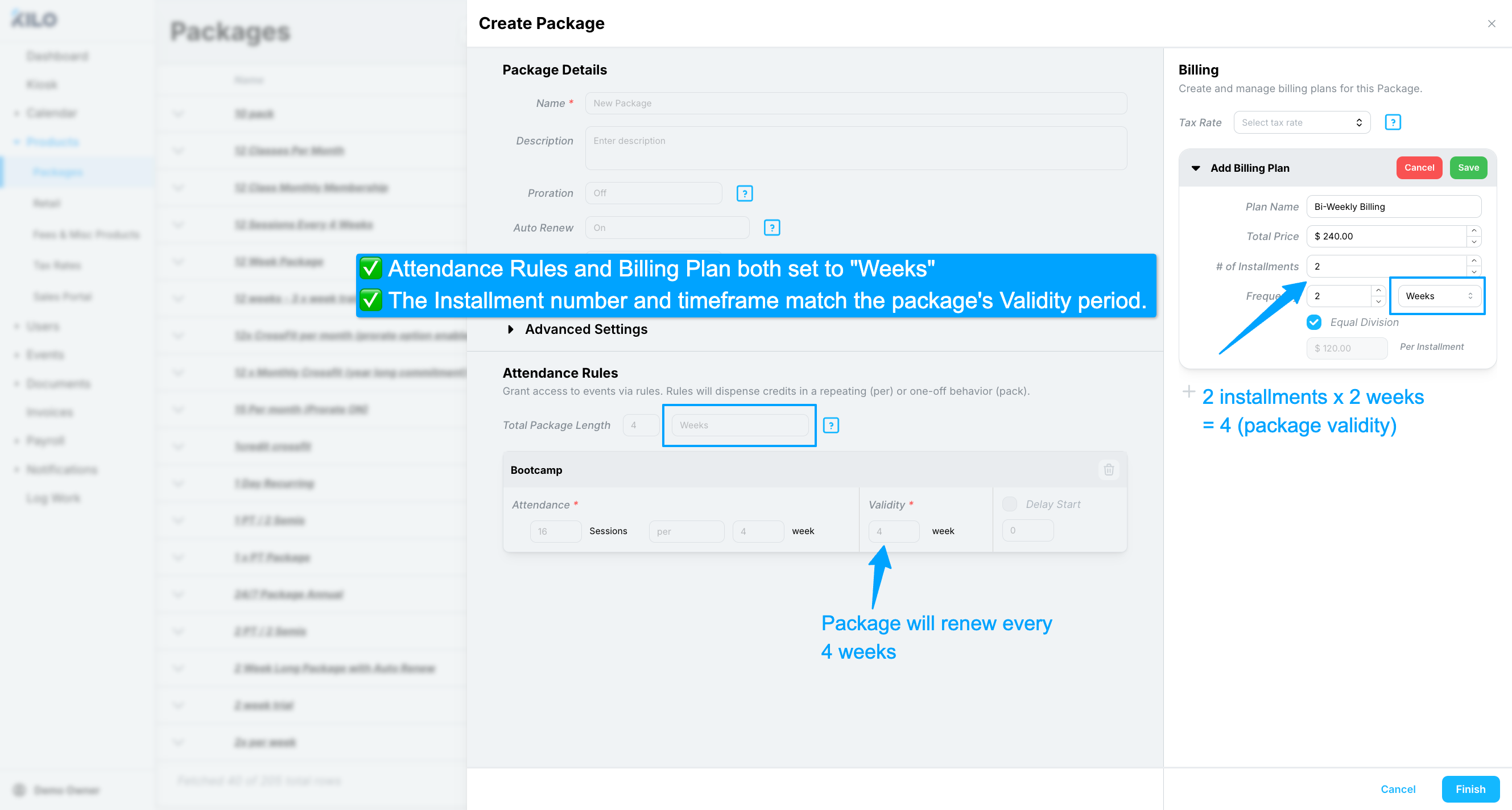
On a time-based package, three things have to agree with each other: the Total Package Length, the # of Installments, and how often the plan bills.
Multiply the number of installments by the billing interval and you should land exactly on the total package length. Three payments billed every 4 weeks cover 12 weeks, which matches a 12-week package.
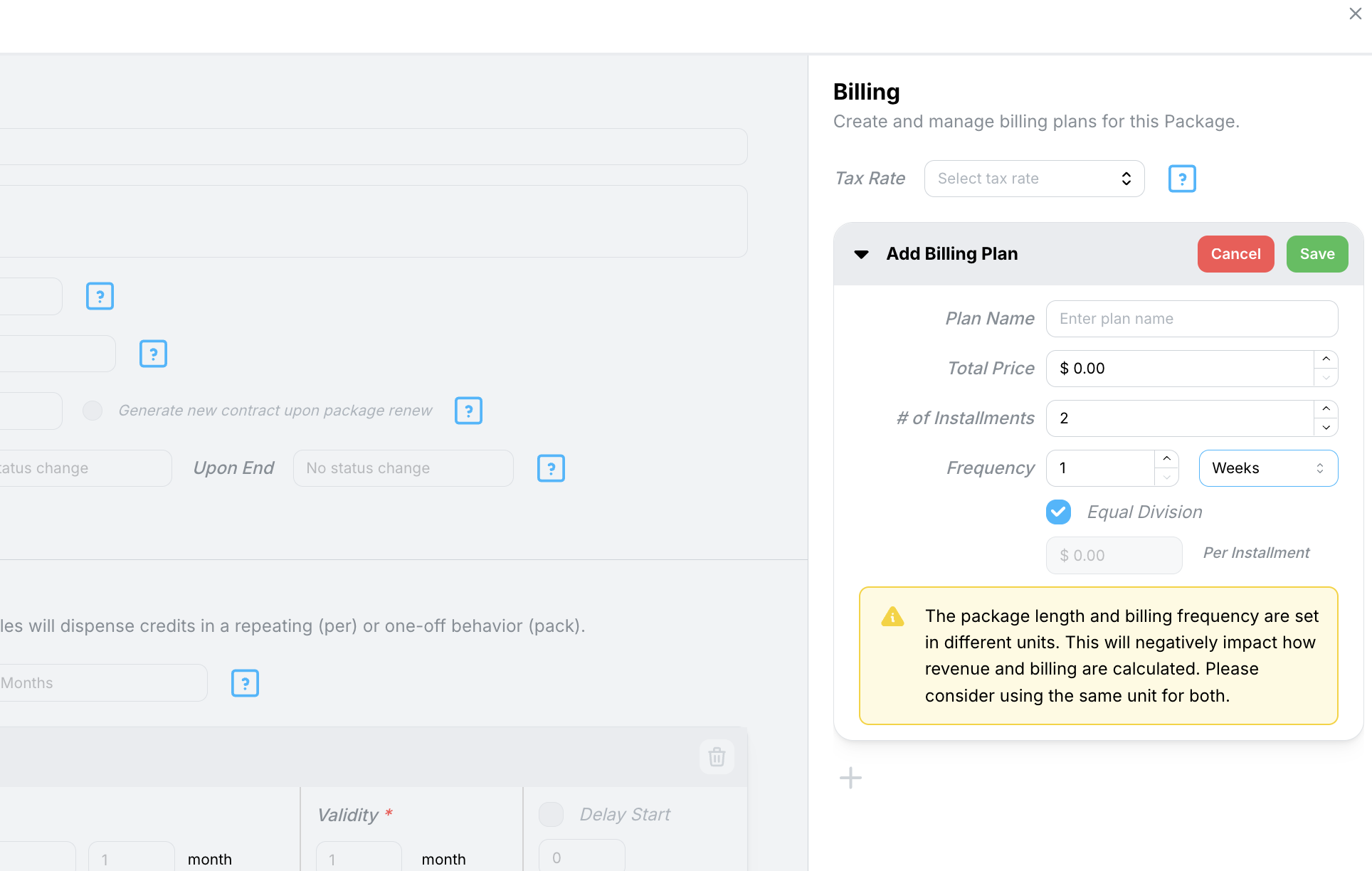
When these do not multiply out evenly, the system can generate too few invoices, too many invoices, or invoices that run past the end of the package. Check the math before you save, because correcting it later means cleaning up invoices that have already been created.
Credit-based packages have no time component at all, so there is nothing to divide into. A credit-based plan is simply a total price split across a number of installments.
Why monthly length and weekly billing do not combine
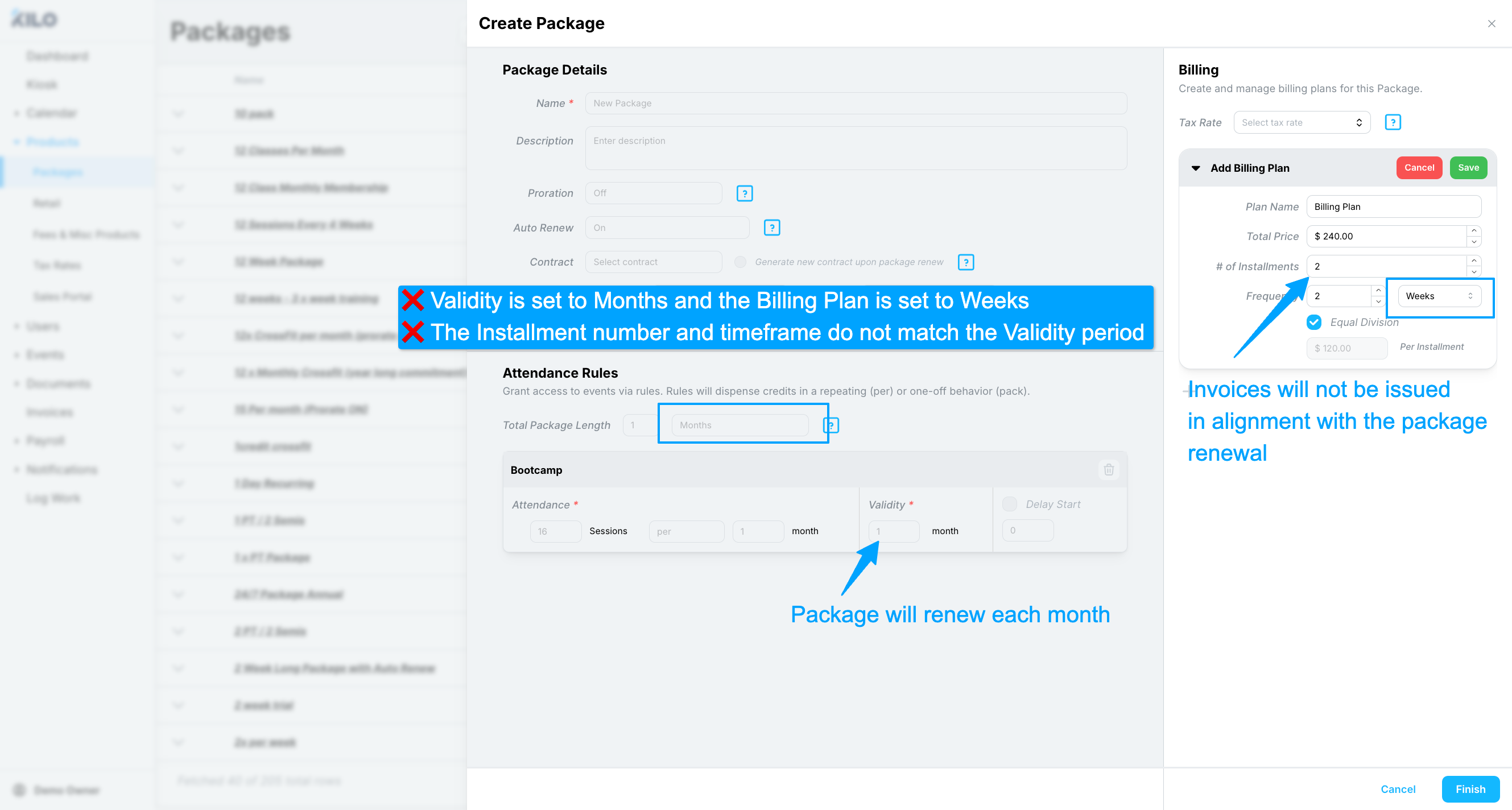
Do not pair a monthly package length with a weekly billing interval to try to bill every 2 weeks throughout the year. It does not produce the schedule you are expecting, because one month is not 28 days.
Here is what actually happens on a monthly package set to 2 installments billed every 2 weeks:
The athlete is invoiced on the first day of the package.
They are invoiced again 14 days later.
Nothing else is invoiced until the package renews at the end of the month.
The remaining days in the month go unbilled, so the athlete pays twice and then nothing until renewal. To bill every 2 weeks year-round, set the package length in weeks rather than months so the billing interval divides evenly into it.
Frequently asked questions
Can one package have more than one billing plan?
Yes. Add a separate billing plan for each price or payment schedule you want to offer on the same package. This is how you sell one program with a paid-in-full option alongside an installment option, or different pricing by payment method.
What is Session Value and can I change it?
Session Value is the pre-tax value of one session, calculated from the total price and the number of sessions, and it is read-only. Change the total price or the session count and it recalculates. It is the basis for commission-based pay, so it is worth checking before you save if coaches are paid a percentage.
How do I check whether my billing plan is set up correctly?
On a time-based package, multiply the number of installments by the billing interval and confirm it equals the Total Package Length. If they do not line up exactly, adjust one of them before saving rather than after, since invoices are generated from the plan.
Where do I set the tax rate?
In the Billing panel, in the Tax Rate field. The tax rate is set on the package rather than on each individual billing plan.
Can a billing plan be free?
Yes. A billing plan priced at $0 is a supported setup and is useful for comped memberships, staff accounts, and packages you want to assign without charging for.
What happens to athletes already on the package if I change a plan?
Active packages keep their current pricing and pick up the change at renewal. Upcoming packages are reapplied at the new pricing unless a charge has already been attempted on one of their invoices. Changing the price of a package in use is covered in its own article.
Can I add ‘pass thru fees?’
If you would like your members to pay for credit card charges, add the percentage rate to the billing plan. You will create 2 billing plans, one at a ‘cash/ACH rate’ and the second for credit cards with the fee.
Helpful tips
Work out the installment math before you open the builder. It is faster than adjusting fields until the numbers agree.
Set package length in weeks when you want predictable billing intervals. Months introduce a variable number of days.
Name plans clearly for your team. Athletes never see the plan name, so there is no reason to be vague.
Add every price point a package needs as its own billing plan rather than building duplicate packages.
Check the tax rate on every new package. It is set once per package and is easy to leave blank.
If you have questions about billing plans in Kilo GMS, our Support team is happy to help. Reach us at hello@usekilo.com.