


You can add classes and appointments to your schedule in Kilo GMS as one-time or recurring events, with coaches, roles, and athletes assigned. For appointment types with self-booking turned on, athletes can also book appointments themselves in the Kilo app, so you don't have to create every session by hand.
What you can do with the schedule
Add a class or appointment to the calendar
Assign one or more coaches, each with a role
Book an appointment for one or more athletes
Adjust the duration of a single session
Set up recurring events on a weekly, bi-weekly, or monthly basis
End a recurring event on a specific date, or let it repeat with no end date
Let athletes book their own appointments when self-booking is turned on
Before you schedule events
Set up the following before you add events to the calendar:
Events: at least one class or appointment type. This is required.
Locations and staff: optional, but adding them lets you build detailed, recurring events faster.
Pay rates and assigned rates for coaches: needed if you use payroll in Kilo GMS. Kilo GMS defaults to the Coach role.
How do I add a class or appointment to the schedule?
Log in to Kilo GMS.
Go to Calendar → Scheduling.
Click + Event in the upper right corner of the screen.
Choose whether you're adding a Class or an Appointment.
In the event editor that opens on the right, select the class or appointment type.
Select a coach and the role they're filling for this event. When a coach is assigned, a role is required before you can save. If you don't use payroll and don't want to assign a coach, click the trash can icon to remove the coach and role.
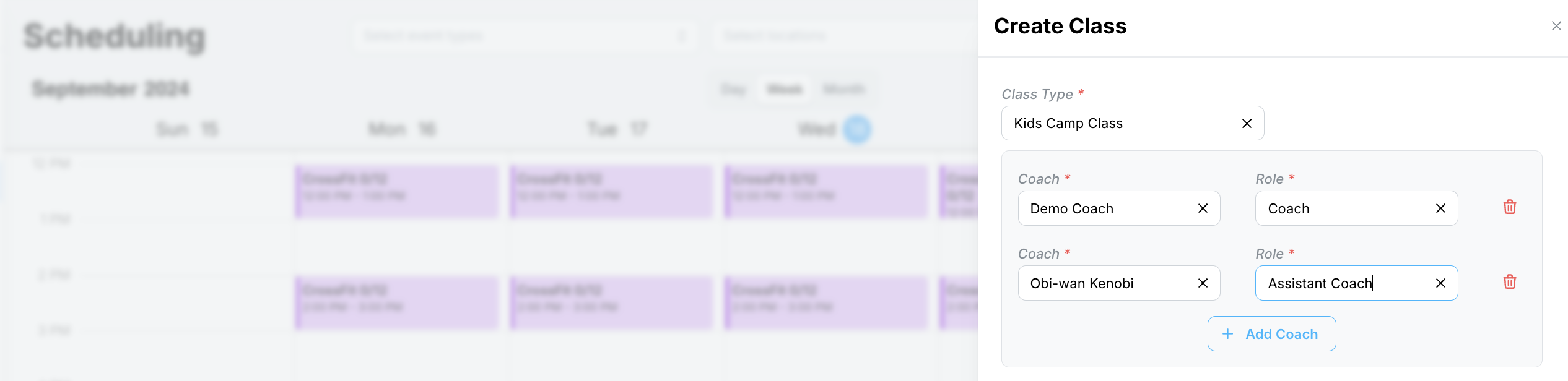
Add more coaches and roles if needed.
For an appointment, select the athlete or athletes the appointment is for. This is required for appointments.
Change the Duration in minutes if this session runs a different length than usual.
Select the Start Date and Start Time. The end time is calculated automatically from the duration.
For a recurring event, select the Recurrence type (weekly, bi-weekly, or monthly), then select the days of the week the event repeats on.
For a short-term recurring event, pick an End Date. Leave it blank if the event should repeat with no end date.
If you need to override any of the standard settings, open the Additional Settings drop-down and make your changes.
Click Save.
Can athletes book their own appointments?
Yes, for any appointment type with self-booking turned on. Athletes book those appointments themselves in the Kilo app by choosing the appointment type, a coach, a date, and an open time. The booked appointment appears on your schedule, and you don't need to create it in the event editor.
You turn self-booking on and choose which coaches athletes can book, in the Self-Booking Settings section of each appointment type under Events → Appointments. Self-booking is set per appointment type, so you can offer some appointments for self-booking and keep others staff-booked only.
When an athlete self-books, Kilo GMS only offers times that work for the coach. Times are filtered by:
The coach's availability
The coach's existing classes and appointments
The coach's Google Calendar, if it's connected
Your minimum booking notice, if you set one
NoteYou can still add any appointment from the schedule yourself, whether or not self-booking is turned on for that appointment type.
Frequently asked questions
Do I have to assign a coach to every class or appointment?
No. Coaches are optional when you add an event. If you assign a coach, you also need to assign a role before the event saves. To skip the coach, click the trash can icon next to the coach and role in the event editor.
Why won't my event save after I add a coach?
A role is required for every coach you assign. Select the role the coach is filling for this event, then click Save.
Can I schedule a recurring class that ends on a specific date?
Yes. After you set the recurrence type and days, pick an End Date. Leave the field blank if the class should repeat with no end date.
Why can't an athlete see an appointment type in the Kilo app?
Self-booking is probably turned off for that appointment type. Appointment types only appear for athletes to book when self-booking is on. Turning self-booking off hides the appointment from the Kilo app and keeps its self-booking settings saved, so you can turn it back on later without setting it up again.
Why is an appointment grayed out for an athlete in the Kilo app?
The athlete doesn't have package access or a valid credit for that appointment on the date they chose. Appointment types stay visible even when an athlete can't book them, so they can see what's offered. When at least one appointment is unavailable to them, athletes may see an option to explore packages they can purchase.
Can more than one athlete self-book the same appointment?
No. Self-booking covers one athlete per appointment. For a shared appointment, one athlete can book it in the Kilo app, and a coach adds any other athletes from the schedule.
Can athletes book a time when the coach is busy?
No. Self-booking only offers times that fit the coach's availability and don't conflict with their other classes, appointments, or connected Google Calendar events.
Helpful tips
Set up your events, locations, and coaches first so building the schedule takes fewer clicks
Use recurring events for your regular class schedule rather than adding each class one at a time
Add an end date to short-term programs so they drop off the calendar on their own
Remove the coach and role from an event if you don't track payroll in Kilo GMS
Turn on self-booking for appointment types like personal training so athletes can book without messaging a coach
When this feature is most helpful
Building your weekly class schedule
Booking a personal training session for an athlete
Running a short-term program with a set end date
Covering a class with more than one coach
Letting athletes book their own appointments around coach availability
If you have questions about scheduling classes and appointments in Kilo GMS, our Support team is happy to help. Reach us at hello@usekilo.com.