


A package that has already started cannot be moved back. Once it is Active, it cannot be returned to Upcoming and its end date cannot be extended. The fix is to cancel the package and add it again with the right start date. The part that needs care is the billing, because the second package generates its own invoices and the athlete should not pay twice.
Watch the video below for a walkthrough, or read on for the full guide.
Before you start
An Active package cannot be reverted to Upcoming.
An Active package cannot have its end date extended.
Cancelling a package does not issue a refund.
How you handle billing depends entirely on what the athlete has already paid, so check that first.
Step 1: Check what the athlete has paid
Open the athlete's invoices and work out which of these applies:
They have paid in full
They are on a payment plan and have made one or more payments
They have not been charged yet
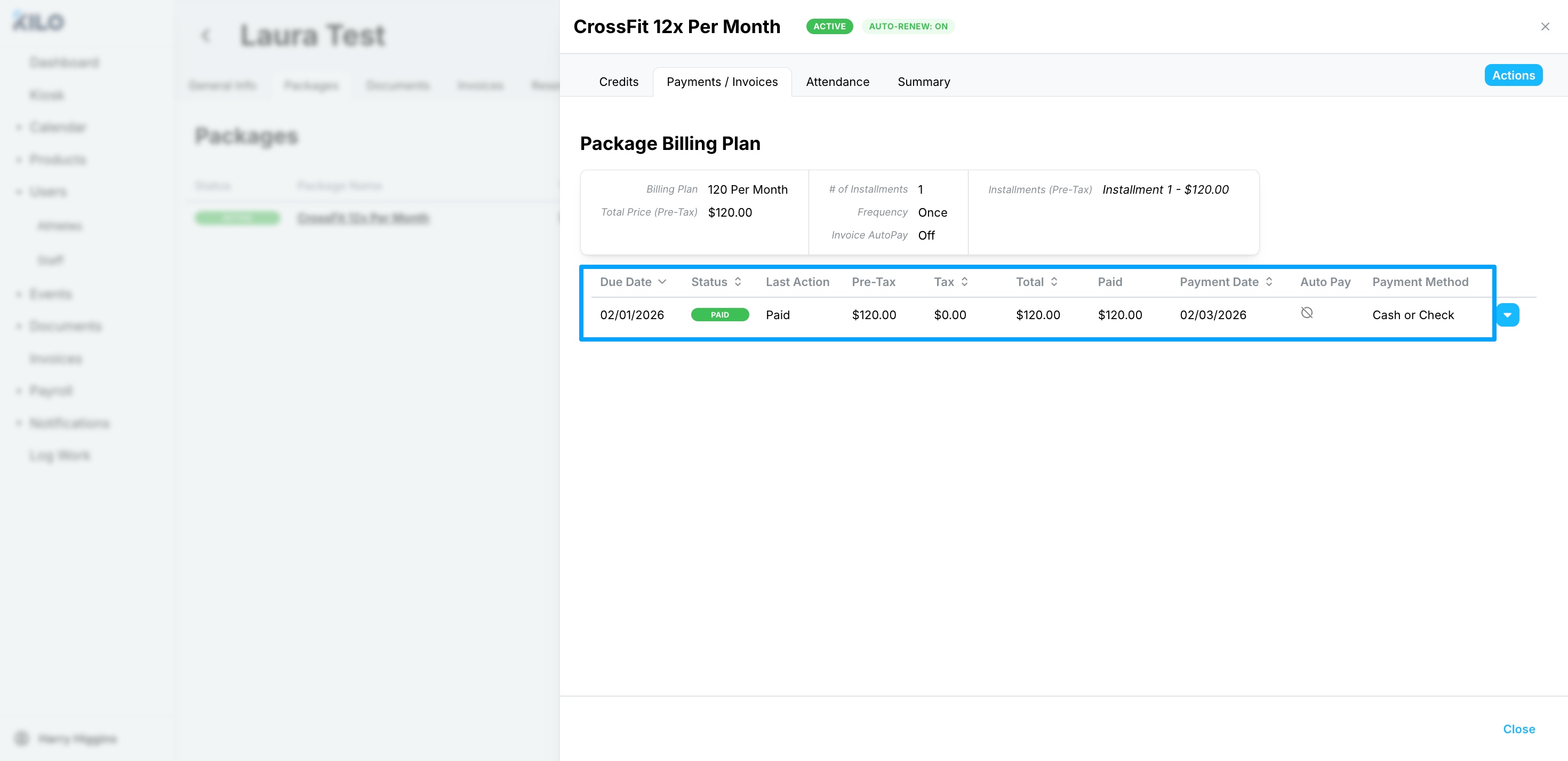
This determines everything in Step 4, so it is worth confirming rather than assuming.
Step 2: Cancel the active package
Go to the athlete's profile.
Open the active package from the main profile or the Packages tab.
Click Manage package, then select Cancel Package.
Choose to cancel now.
Make sure No status change is selected, so the athlete's status is not disturbed by a cancellation you are only doing to fix a date.
Confirm.
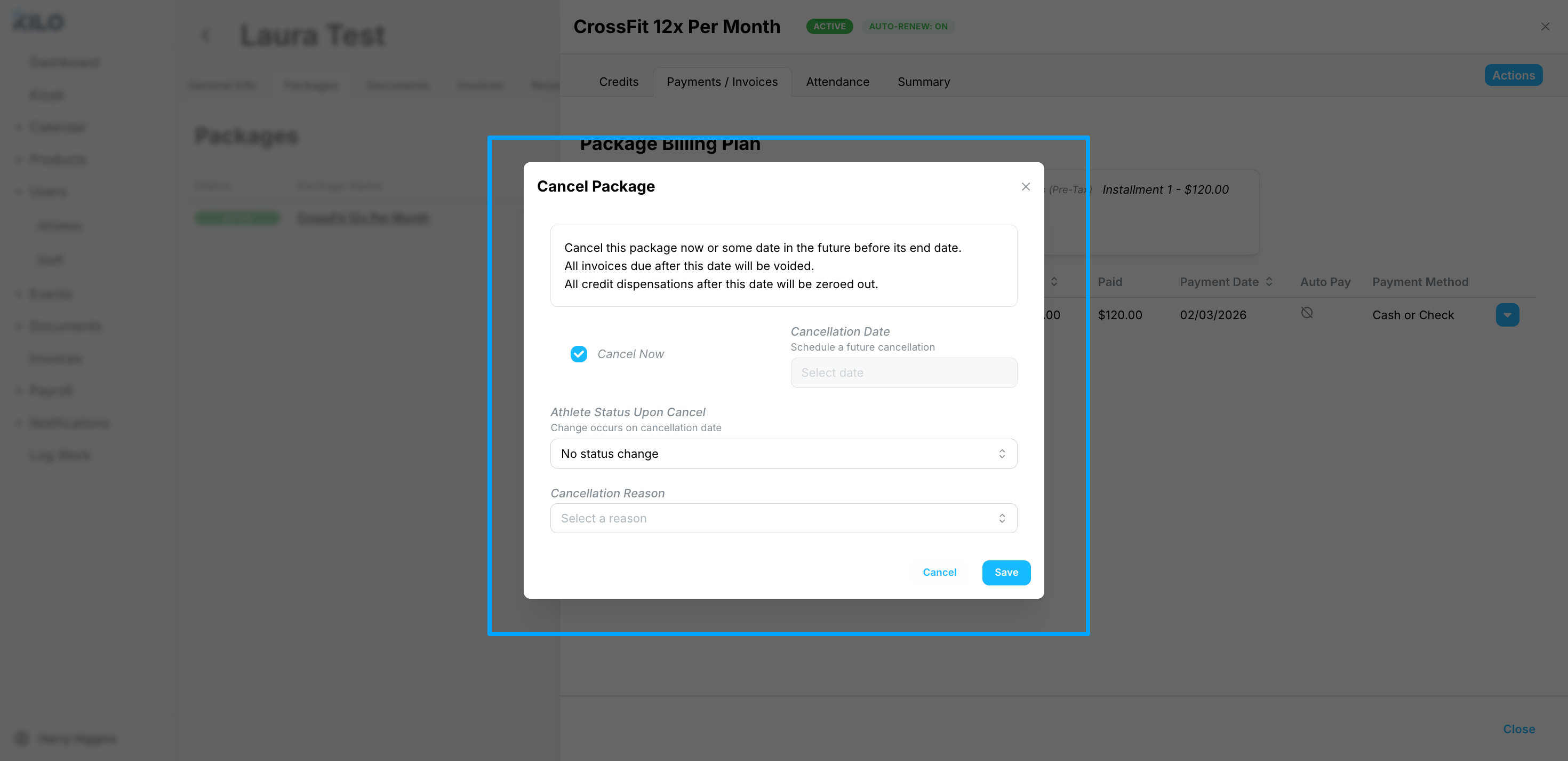
Cancelling stops access and future billing. It does not refund anything already charged.
Step 3: Add the package again with the right start date
On the athlete's profile, click + Package.
Select the same package.
Set the correct package start date and billing start date.
Confirm the rest of the details.
Save.
The new package appears as Upcoming if the start date is in the future, or Active if you have set it to today or earlier.
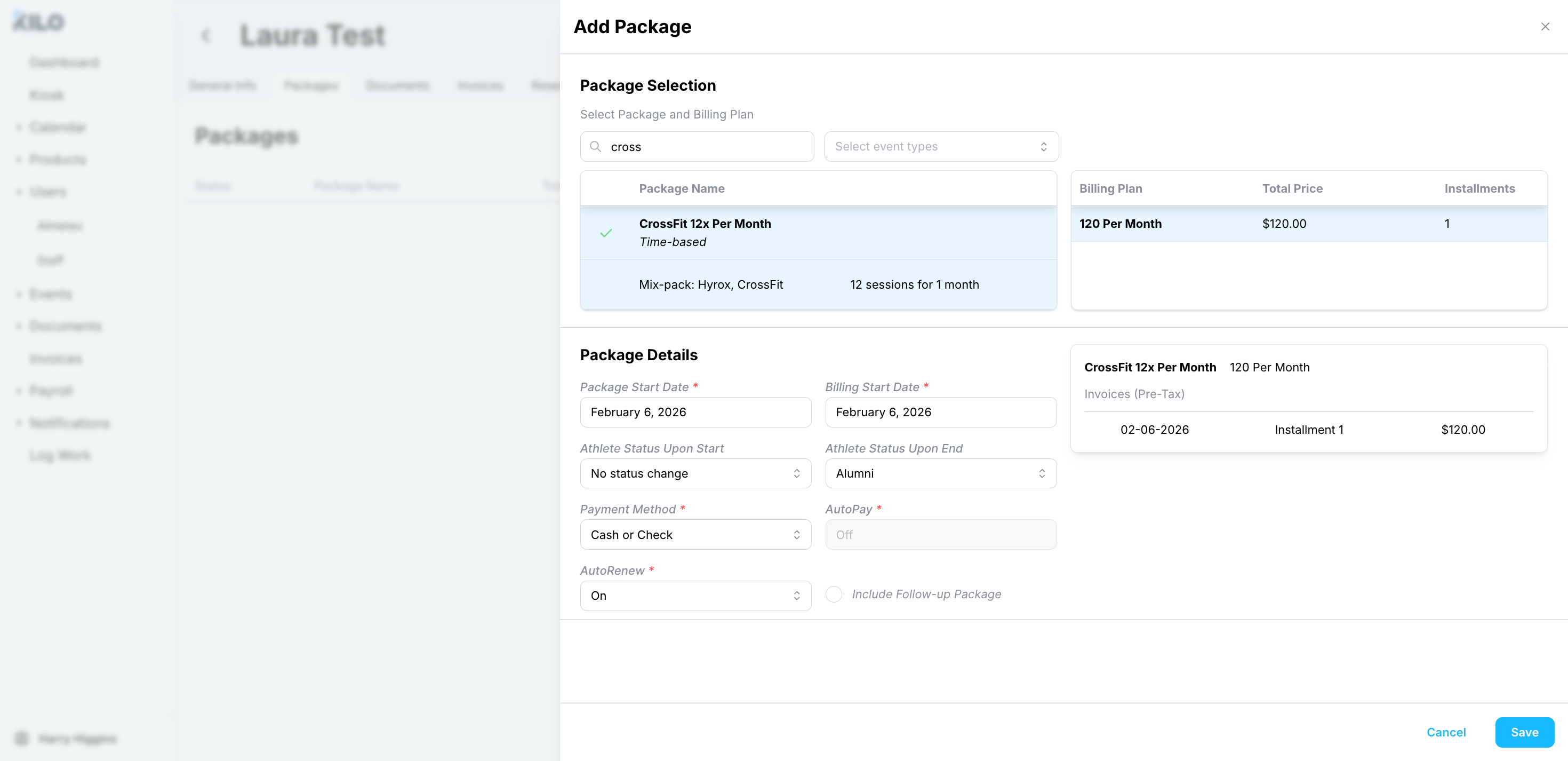
If the corrected start date is today or in the past, turn AutoPay off before saving. Leaving it on charges the athlete a second time the moment you save.
Step 4: Sort out the billing
Pick the situation that matches.
The athlete has already paid
This is the most common case. Add the package for the correct date, remembering to turn AutoPay off first if the start date is today or earlier. Once the package exists, open the invoice it generated and void it. The athlete keeps the payment they already made and is not charged again.
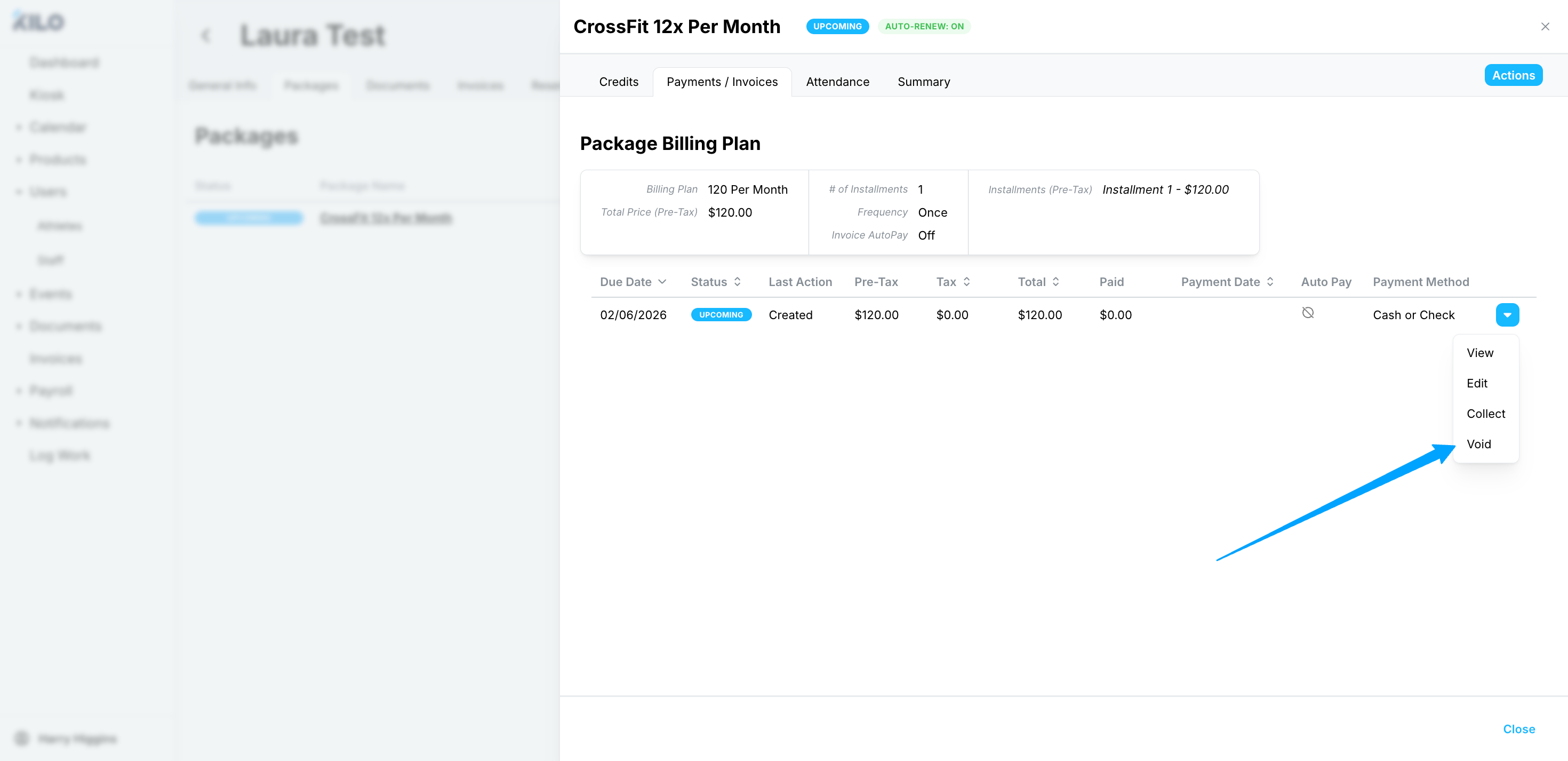
The athlete is on a payment plan
Add the package for the correct date. Once it is in the Upcoming state, open the first upcoming invoice it generated and void that one only. Every other installment runs on schedule, so the athlete finishes paying the amount they agreed to.
The athlete has not paid yet
Add the package normally for the correct date and leave billing alone. Nothing needs voiding.
Step 5: Check your work
Before you move on, confirm:
The start and end dates on the new package are the ones you intended
No duplicate or unexpected charges are scheduled
AutoPay is back on, if you turned it off
To turn AutoPay back on, open the package, click Manage package, and select the AutoPay option.
Frequently asked questions
Can I just change the start date on an active package?
No. An Active package cannot be reverted to Upcoming and its end date cannot be extended. Cancelling and re-adding is the only way to correct the dates.
Will cancelling refund what the athlete already paid?
No. Cancelling stops access and future billing and leaves past charges alone. That is why the billing step matters: you handle the double-charge by voiding the new package's invoice, not by refunding the old one.
Why do I need to turn AutoPay off?
Because a package starting today or earlier charges immediately when you save. With AutoPay on, the athlete is charged a second time before you have a chance to void the invoice.
Should I void every invoice on the new package?
Only the ones covering money the athlete has already paid. Someone who paid in full needs the generated invoice voided. Someone on a payment plan needs only the first upcoming invoice voided, so the rest of their installments still run.
What status should I use when cancelling?
No status change. The cancellation is a correction rather than a departure, and changing their status would make it look like they left the gym.
How do I avoid this happening again?
Set the start date deliberately when you apply the package, rather than accepting today's date. If the athlete is starting next week, that is the date the package should carry.
Helpful tips
Check the athlete's payment status before you cancel anything. It decides everything that follows.
Turn AutoPay off first when the corrected start date is today or in the past. It is much easier than refunding a charge afterward.
Void rather than refund. Voiding an invoice that should not exist keeps the athlete's billing history readable.
Turn AutoPay back on as the last step. It is the thing most easily forgotten, and it silently stops future payments.
Note what happened on the athlete's profile, so a later billing question does not look like a mystery.
If you have questions about a specific billing scenario in Kilo GMS, our Support team can review it with you before you make changes. Reach us at hello@usekilo.com.