


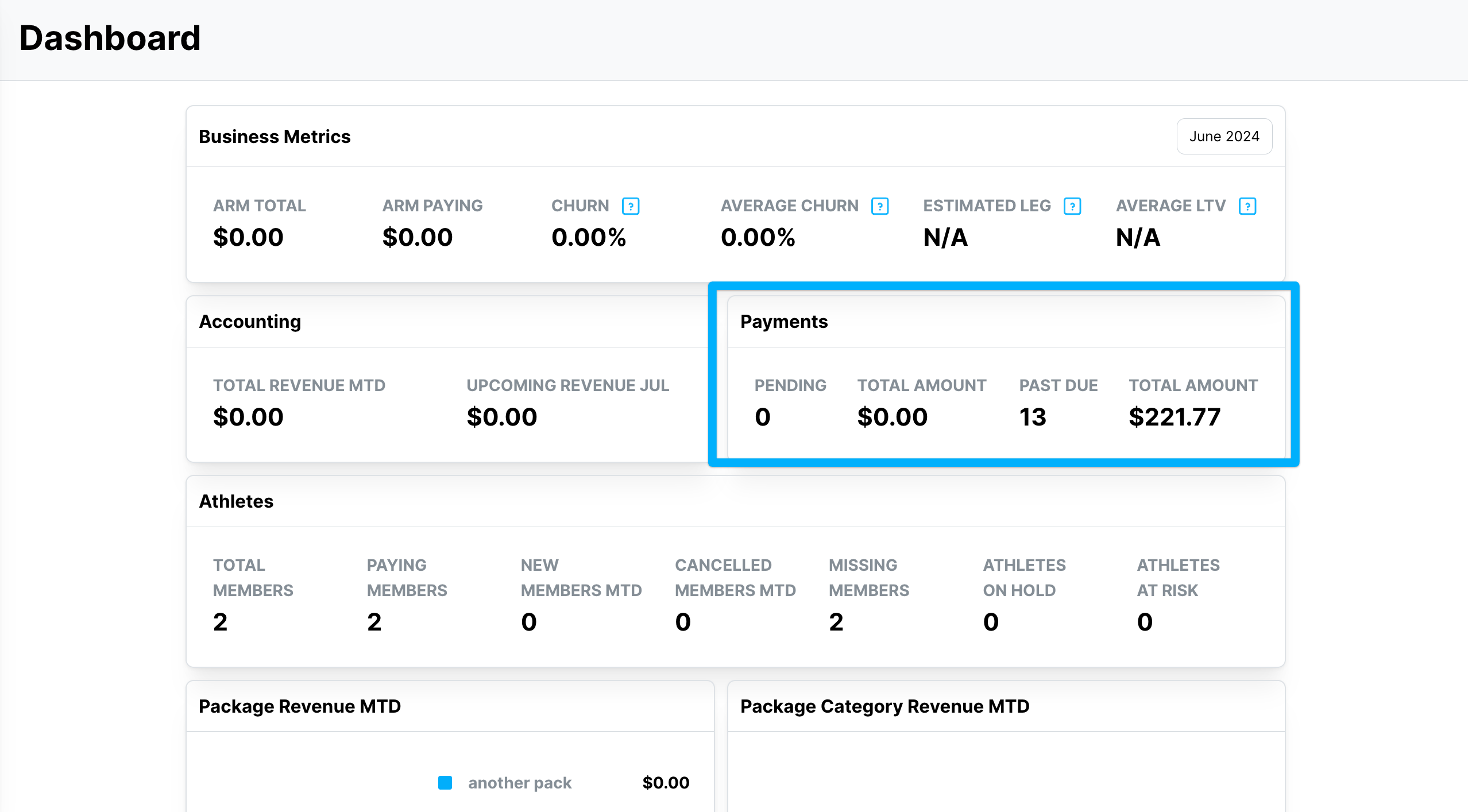
The Pending Payments and Past Due Payments reports on your Kilo GMS Dashboard show payments that have not yet been received. Click either section of the Dashboard to expand the report, where you can filter it and export it.
What you can do with the payment reports
See bank payments that are still processing
See payments that have failed or were not collected by their due date
Edit, collect, or void a past due payment
Filter each report and export it to a CSV file
Getting to the payment reports
On your Kilo GMS Dashboard, click the Pending Payments or Past Due Payments section to expand the full report.
Why is a payment showing as Pending?
Payments made by bank account (ACH) show the status "Pending" for about three business days while the funds move from the purchaser's bank account to your Stripe account.
While an invoice is Pending, its revenue appears on the Pending Payments report instead of Upcoming Revenue.
Once the payment processes successfully, it appears on the Total Revenue MTD report.
You can filter the Pending Payments report by product or billing source and export it to a CSV file.
Why is a payment Past Due or Failed Past Due?
A payment appears on the Past Due Payments report for one of two reasons.
Failed Past Due: a credit card or bank payment failed to process and its due date has passed.
Past Due: the invoice's payment method is Cash/Check and the payment was not collected by its due date.
Collect, edit, or void a past due payment
Open the Past Due Payments report.
Click the action (blue arrow) button to the far right of the payment.
Select Edit, Collect, or Void.

Cash payments must be collected manually for the revenue to count on your Total Revenue MTD report.
Credit card and bank payments are worth retrying once you have spoken with the athlete and a successful payment is more likely. If the payment fails again, the error message in the lower left of your screen shows the reason, for example insufficient funds.
Pending vs. Past Due payments
Status | What it means | What to do |
|---|---|---|
Pending | A bank payment is still processing | Nothing; it moves to Total Revenue MTD once processed |
Failed Past Due | A card or bank payment failed and the due date has passed | Contact the athlete, then retry with Collect |
Past Due | A cash or check payment was not collected by its due date | Record the payment with Collect once received |
Finding payments outside the Dashboard
Each athlete's invoices are listed on the Invoices tab of their Athlete Profile.
The Invoices report shows payments in every status.
Helpful tips
Allow about three business days for a bank payment to clear before following up on it
Collect cash and check payments in Kilo GMS as soon as you receive them so your revenue reports stay accurate
Talk to the athlete before retrying a failed card payment, and read the error message if it fails again
If you have questions about payment reports in Kilo GMS, our Support team is happy to help. Reach us at hello@usekilo.com.