


The Package Utilization Report in Kilo GMS compares how often athletes attend against the attendance you expect for their package. You set an attendance expectation for each package you track, and the report shows where utilization falls short so you can spot underused packages and athletes who may be losing interest.
The report measures attendance from check-ins. Check athletes in through reservations on the Schedule or at the Kiosk so their attendance is counted.
What you can do with the Package Utilization Report
Set an attendance expectation for each package you track
Compare expected attendance to actual check-ins
Filter by date range, utilization rate, athlete, package name, and event type
Group results by athlete or by package
Spot athletes who may be at risk of canceling
Getting to the report
Go to the Utilization section of your Kilo GMS Dashboard.
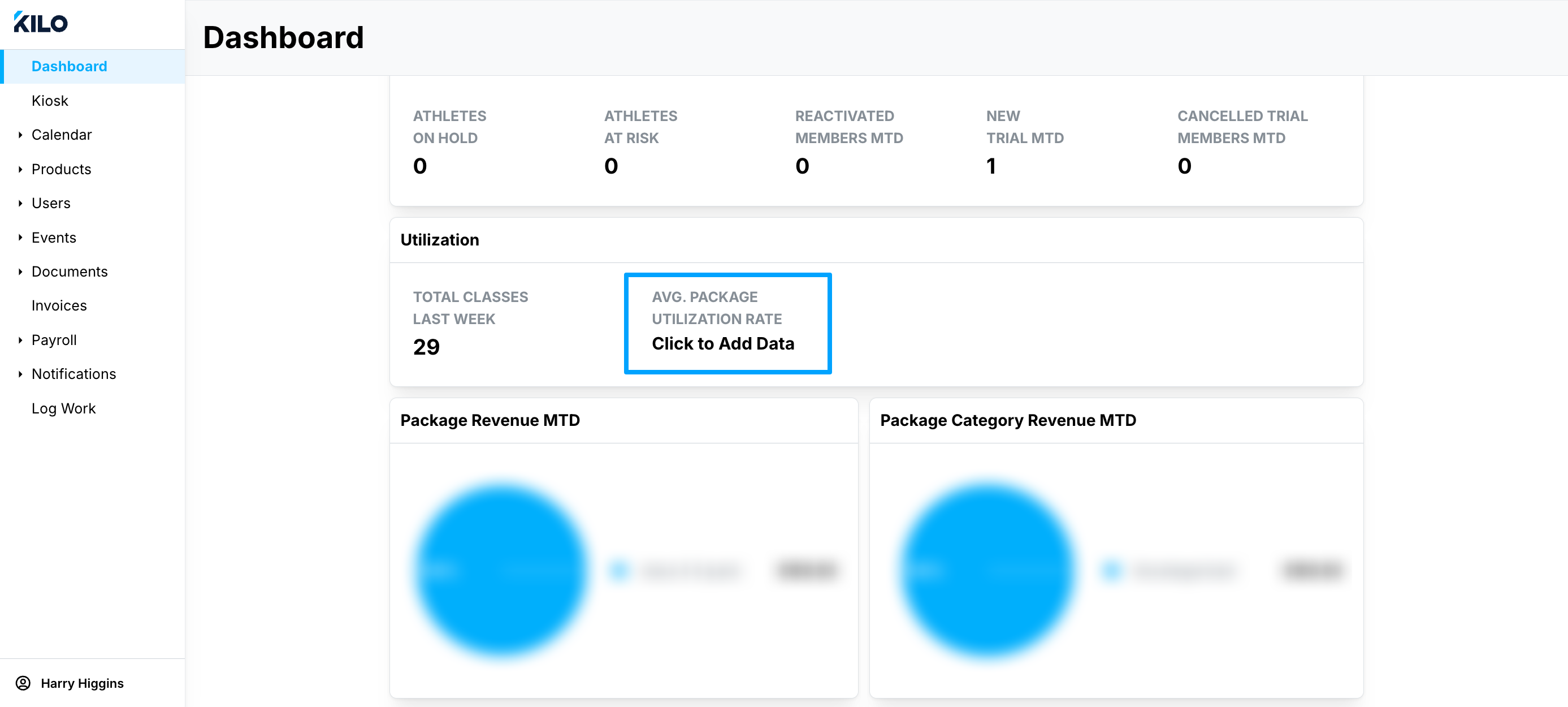
Add packages to track
The first time you open the report, you are prompted to Add Packages to Track.
Click Add Packages to Track.
Choose one or more packages.
Define the attendance expectation for the selected packages.
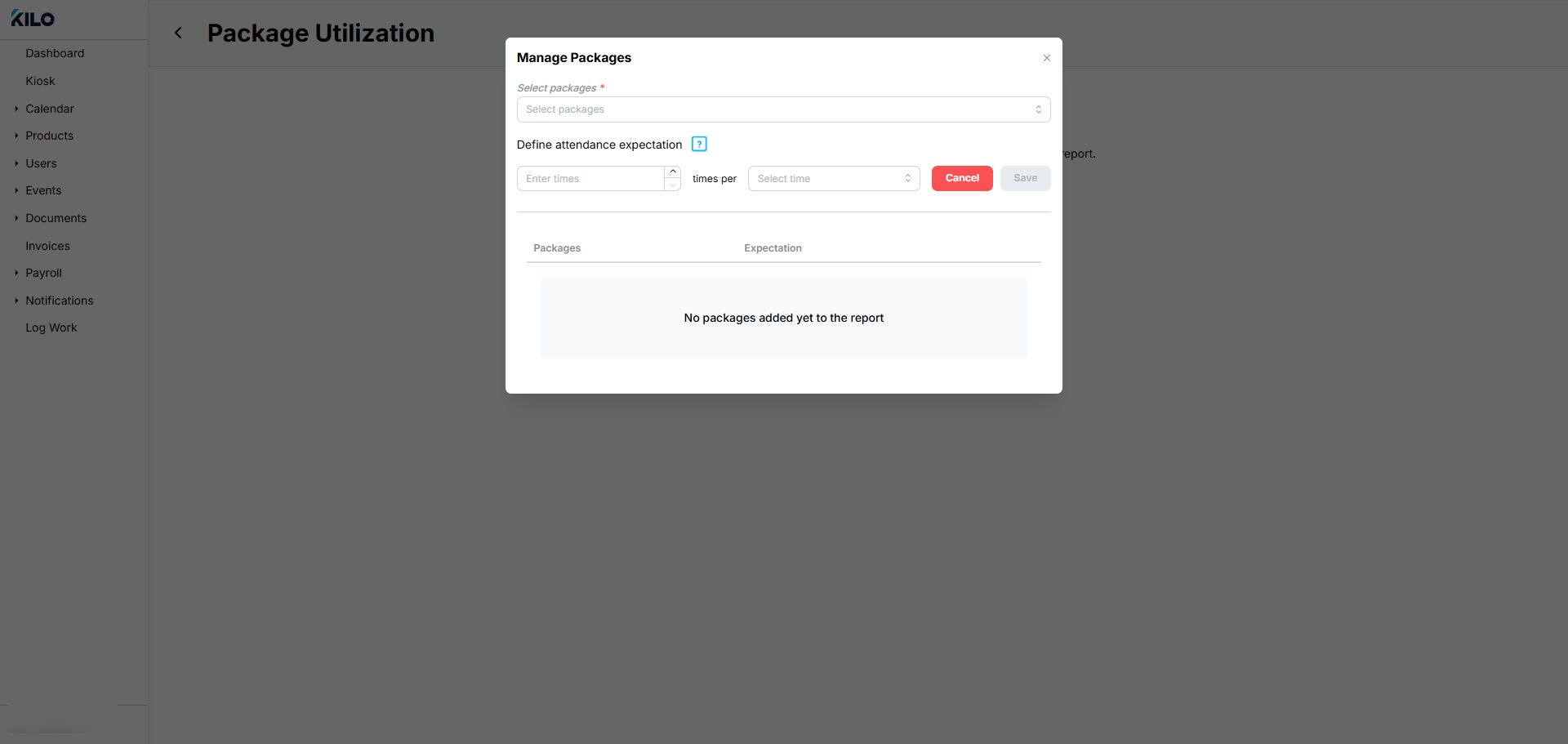
Click Save.
Repeat these steps for any packages that need a different attendance expectation.
Tracked packages are listed in the Managed Packages section.
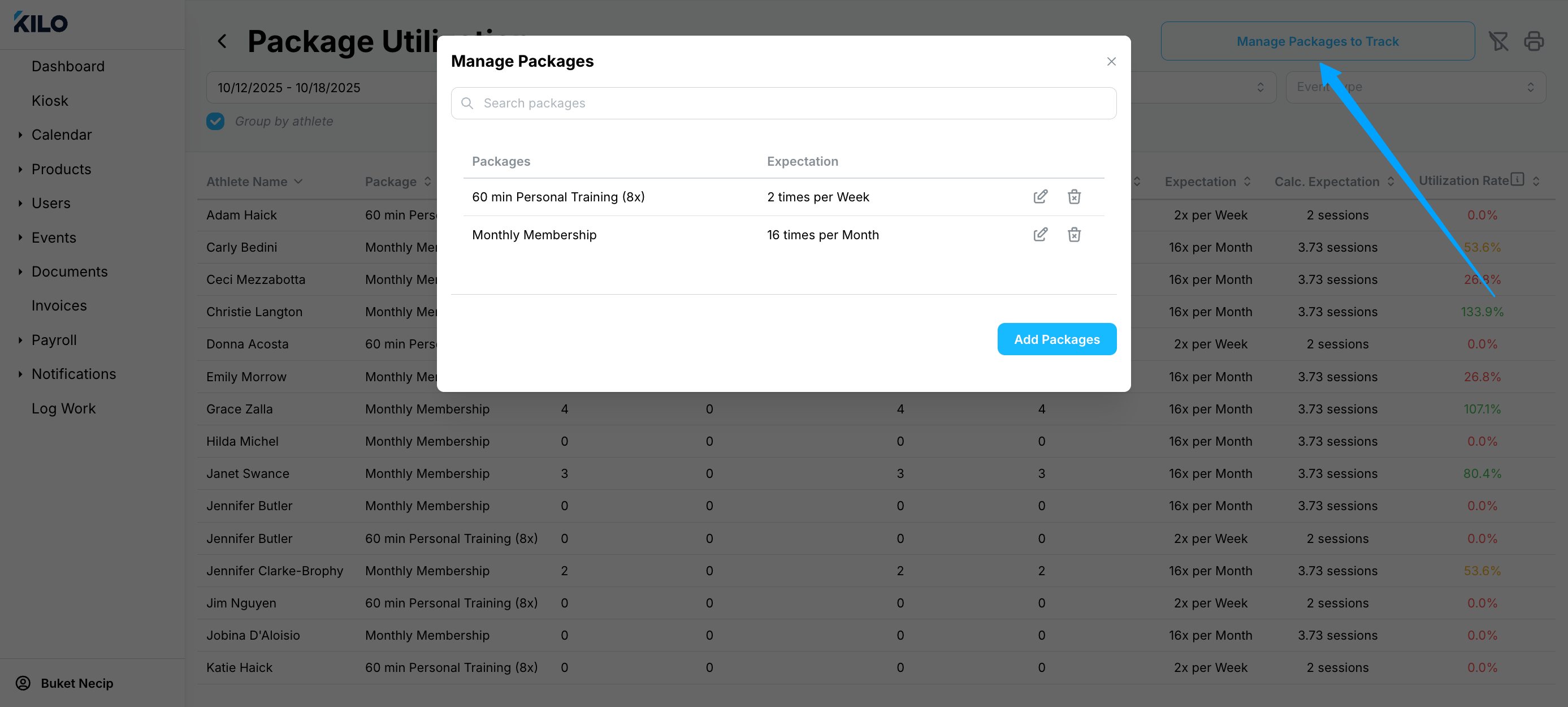
Filter and group the report
You can filter the report by:
Date Range (the default is Last Week)
Utilization Rate (a percentage)
Athlete
Package Name
Event Type
You can also group the results by athlete or by package.
How do I find athletes who are underusing their package?
Group the report by athlete, then filter to a low utilization rate. Athletes attending well below their package's expectation may be at risk of canceling, which makes this view useful for planning outreach.
Select Group by Athlete.
Set the Date Range, for example to This Month.
Select the package under Package Name, for example a monthly membership.
Set the Utilization Rate to a low range, for example 0–25%.
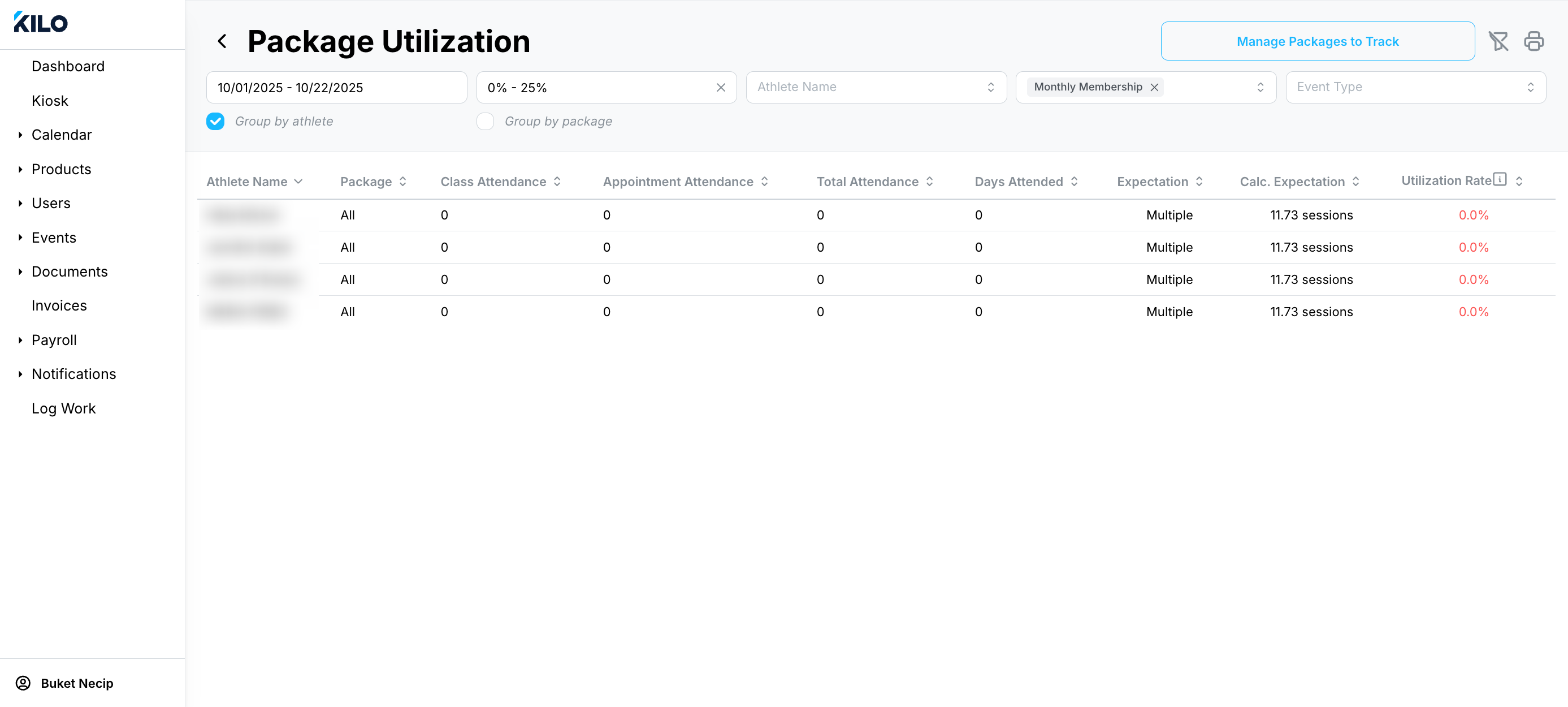
The report lists every athlete on that package whose attendance falls within the range you selected.
How do I see utilization for a whole package?
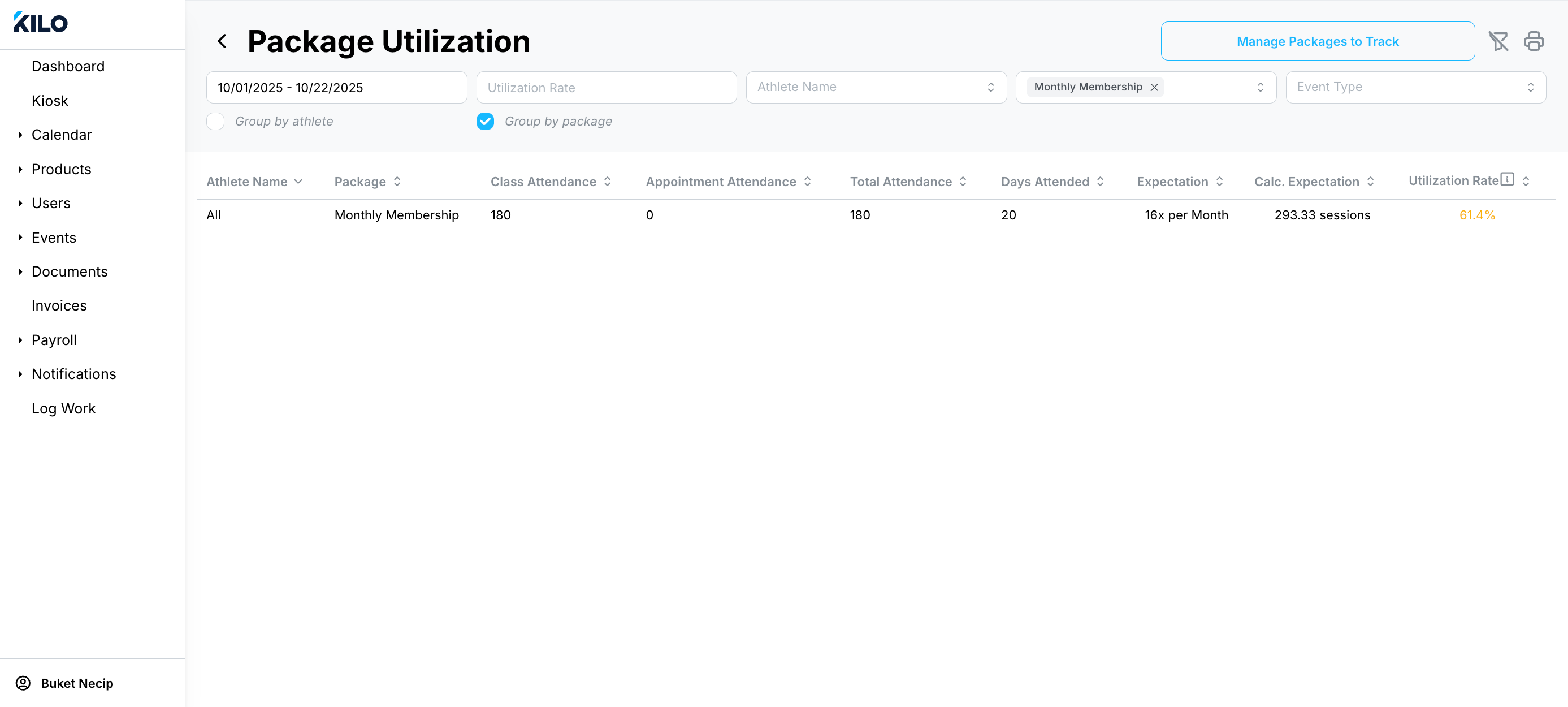
Unselect Group by Athlete. The report then shows how the package is being used across all athletes on it, including its overall utilization rate for the date range you selected.
Helpful tips
Check athletes in through reservations or the Kiosk so the report reflects real attendance
Track packages with different attendance rules separately, each with its own expectation
Review athletes with low utilization partway through the month, while there is still time to reach out
When this feature is most helpful
Spotting packages that athletes are not using as expected
Identifying athletes who may be disengaging before they cancel
Making decisions about which packages to offer, adjust, or retire
If you have questions about the Package Utilization Report in Kilo GMS, our Support team is happy to help. Reach us at hello@usekilo.com.