


Pause Package puts an athlete's active membership on hold for a set stretch of time. Billing dates, package length, and credit validity all shift forward by the number of days paused, so the athlete does not lose the time they paid for. Any package an athlete currently holds can be paused, and the dates can be adjusted later if their plans change.
Watch the video below for a walkthrough, or read on for the full guide.
What you can do with a pause
Put an active package on hold for a chosen date range
Record a reason for the pause
Shift billing dates, package length, and credit validity forward automatically
Clear the athlete's upcoming reservations so they are not holding spots
Extend or shorten the pause later
Apply a pause
Open the athlete's profile.
Click the name of the active package, from either the General Info page or the Packages tab.
Click Manage package and select Pause Package.
Choose a reason for the pause.
Set the pause start date and end date.
Click Save.
The end date you choose is not available for reservations. The pause runs until 11:59:59 p.m. on that date, so an athlete returning on a Saturday needs an end date of Friday. Setting it to Saturday keeps them out of Saturday's classes.
What a pause changes
Applying a pause moves several things at once, all by the same number of days.
Renewal and invoice dates shift forward by the length of the pause.
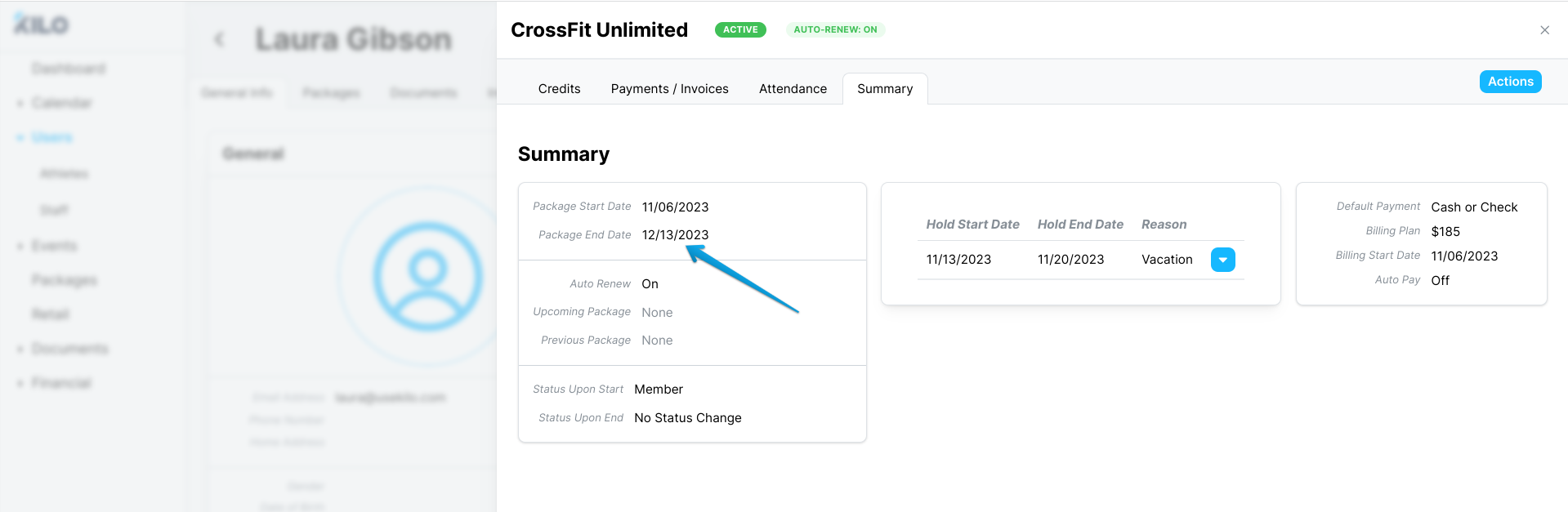
The package end date moves out by the same number of days.
Credit dispensation validity extends, so credits the athlete has not used stay available longer.
All future credited reservations are removed from the schedule, so the athlete is not holding spots in classes they will not attend.
To find the new package end date, open the package and click the Summary tab.
Extend or shorten a pause
If the athlete needs longer away, or comes back sooner than planned, adjust the existing pause rather than creating a new one.
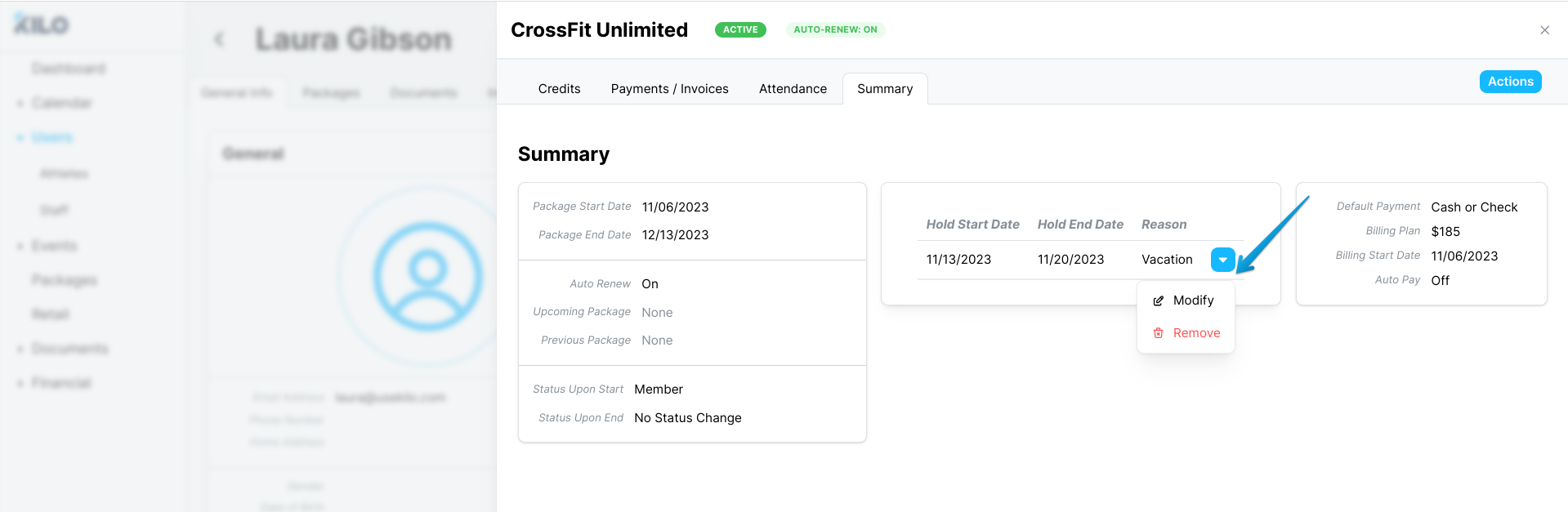
Click the active package.
Go to the Summary tab.
Click the blue arrow button beside the pause and select Modify.
Adjust the start date or end date.
Click Save.
Frequently asked questions
Why can't the athlete book a class on the day their pause ends?
The pause runs through the end of that day, until 11:59:59 p.m. The end date is the last paused day, not the first day back. Set the end date to the day before you want them returning.
What happens to the athlete's existing reservations?
All future credited reservations are removed from the schedule. This frees the spots for other athletes rather than leaving them held by someone who is away. The athlete will need to rebook when they return.
Does the athlete lose the time they paid for?
No. Renewal dates, invoice dates, package length, and credit validity all move forward by the number of days paused. A 2-week pause pushes everything out by 14 days.
Where do I see the new package end date?
On the Summary tab inside the package details. The dates shown elsewhere on the profile update too, but Summary is where the recalculated end date is easiest to read.
The athlete is coming back early. Do I cancel the pause?
Modify it rather than cancelling. Open the package, go to the Summary tab, click the blue arrow beside the pause, and select Modify to change the end date.
Can I pause a package more than once?
Yes. Each pause shifts the dates forward again. Gyms usually set their own limit on how often a membership can be paused, since the feature itself does not cap it.
Does pausing stop billing entirely?
It moves the billing rather than skipping it. Upcoming invoices are pushed out by the length of the pause, so the athlete is not charged during it and is not charged extra afterward.
Helpful tips
Set the end date to the day before the athlete returns. It is the mistake people make most often with this feature.
Record a real reason. The reasons build a picture over time of why members step away, which is worth knowing.
Tell the athlete their reservations are cleared and they will need to rebook. They will not be warned automatically.
Check the Summary tab after saving to confirm the new end date matches what you told the athlete.
Modify an existing pause rather than stacking a second one when plans change.
When a pause is most helpful
An athlete going on vacation for a week or two
Recovering from an injury or illness
Travel for work
Parental leave
Any absence where cancelling the membership outright would lose you the member
If you have questions about pausing packages in Kilo GMS, our Support team is happy to help. Reach us at hello@usekilo.com.