


When you create a recurring event in Kilo GMS, it repeats at the interval you selected until its end date, or indefinitely if no end date was set. You can end a recurring series by giving it an end date, or delete individual instances one at a time.
What you can do with a recurring event
End a series so no further instances appear after a date you choose
Delete a single instance without affecting the rest of the series
Remove past instances individually
How do I end a recurring event?
Go to Calendar → Scheduling.
Click a future instance of the event.
In the sidebar editor, click Actions.
Select Edit all future events.
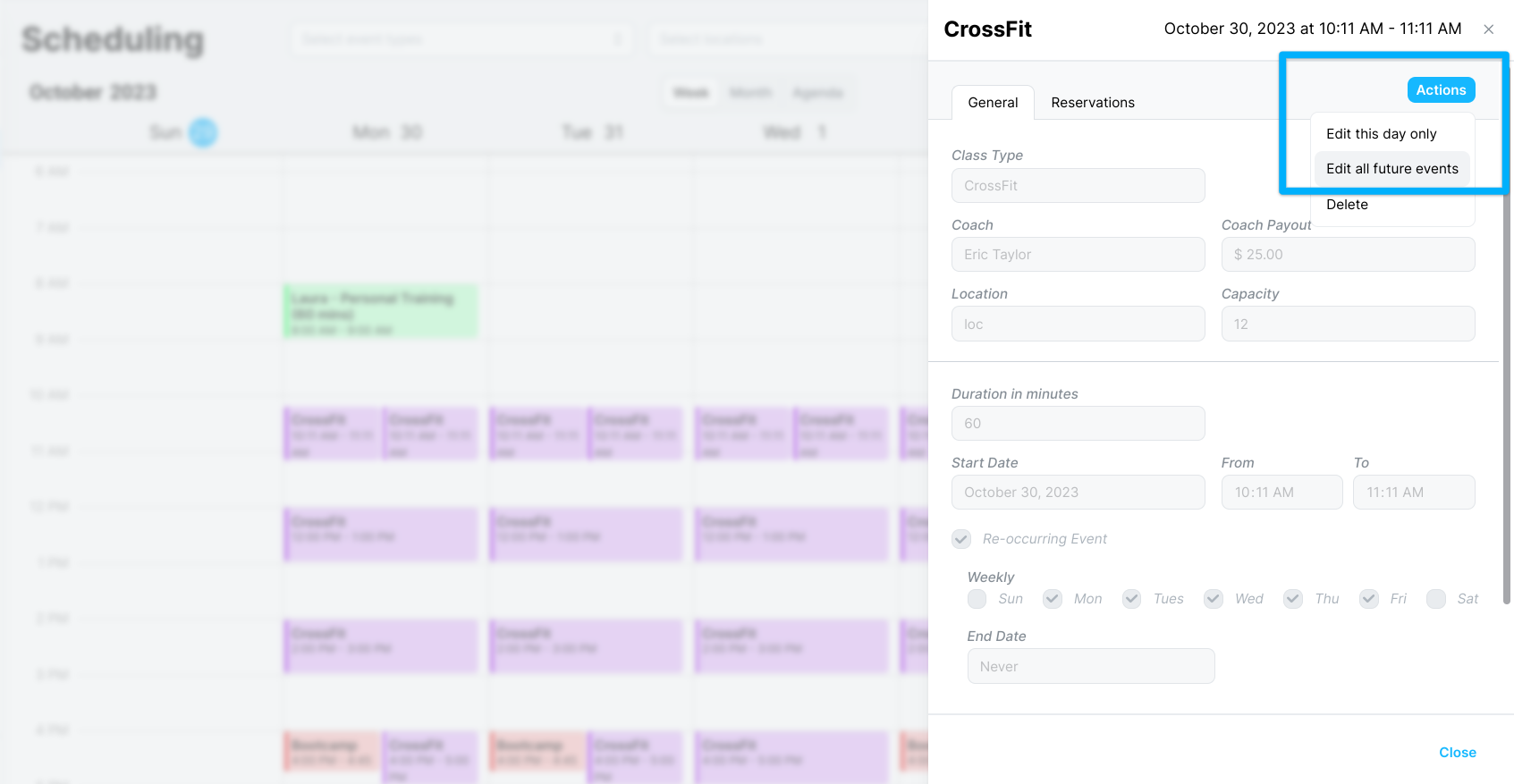
Go to the End Date field.
Select the final day the event should run.
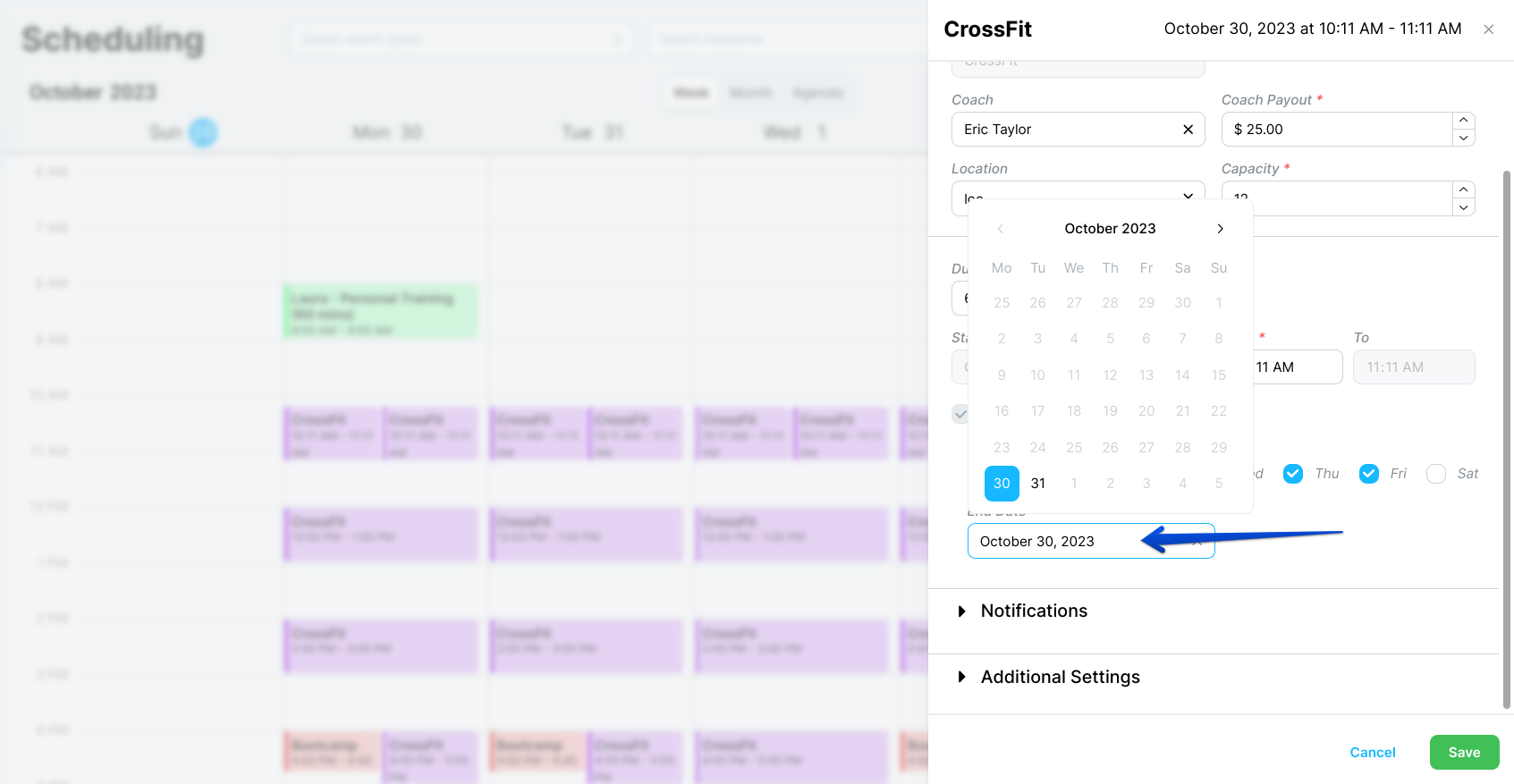
Save the change.
Kilo GMS then removes every instance of the event that falls after the date you selected.
You have to start from an event that is in the future, and you can only choose a future end date. Past instances are not affected by the end date and have to be deleted one at a time.
How do I delete a single instance of a recurring event?
Go to Calendar → Scheduling.
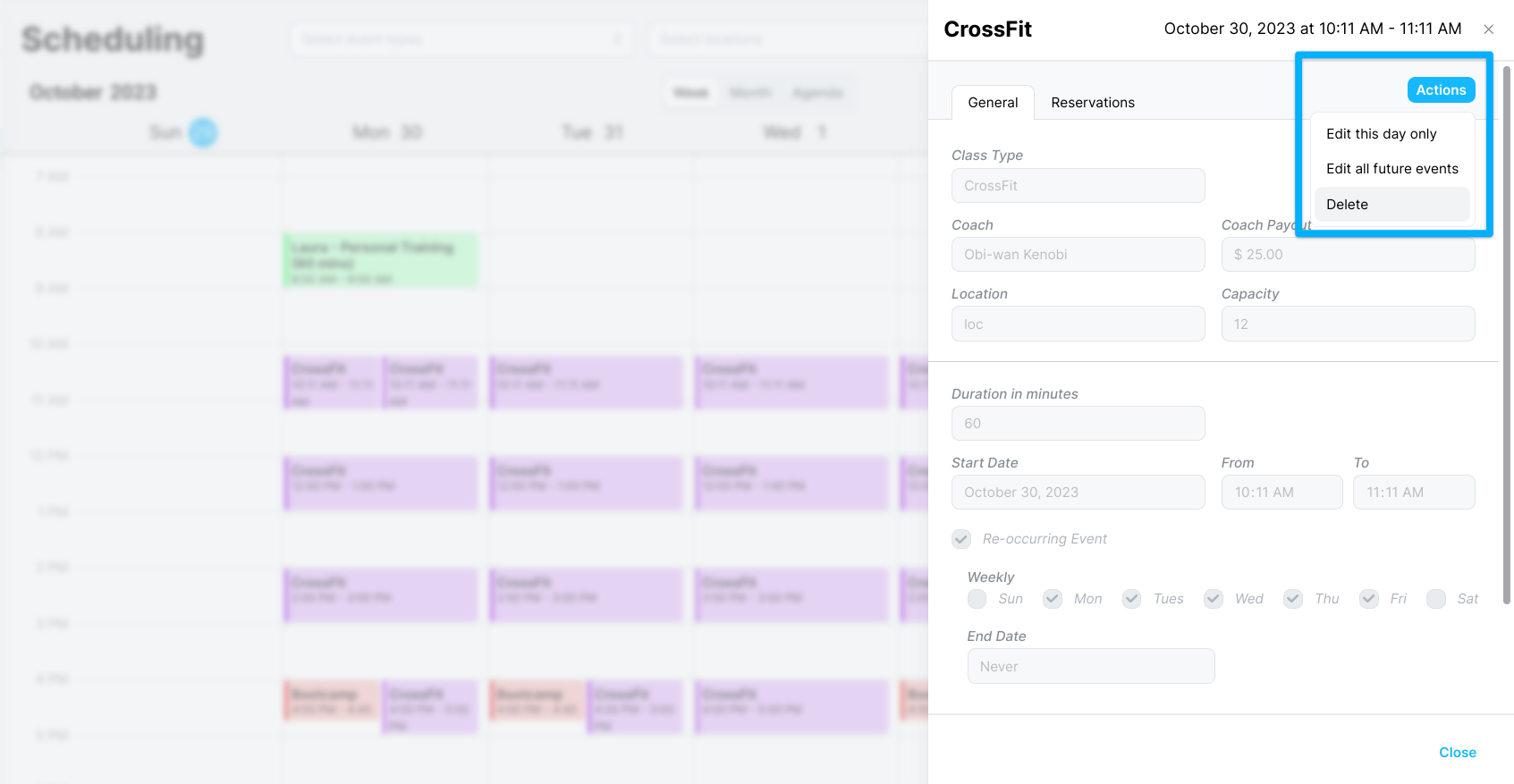
Click the individual event you want to delete.
In the Actions menu, select Delete.
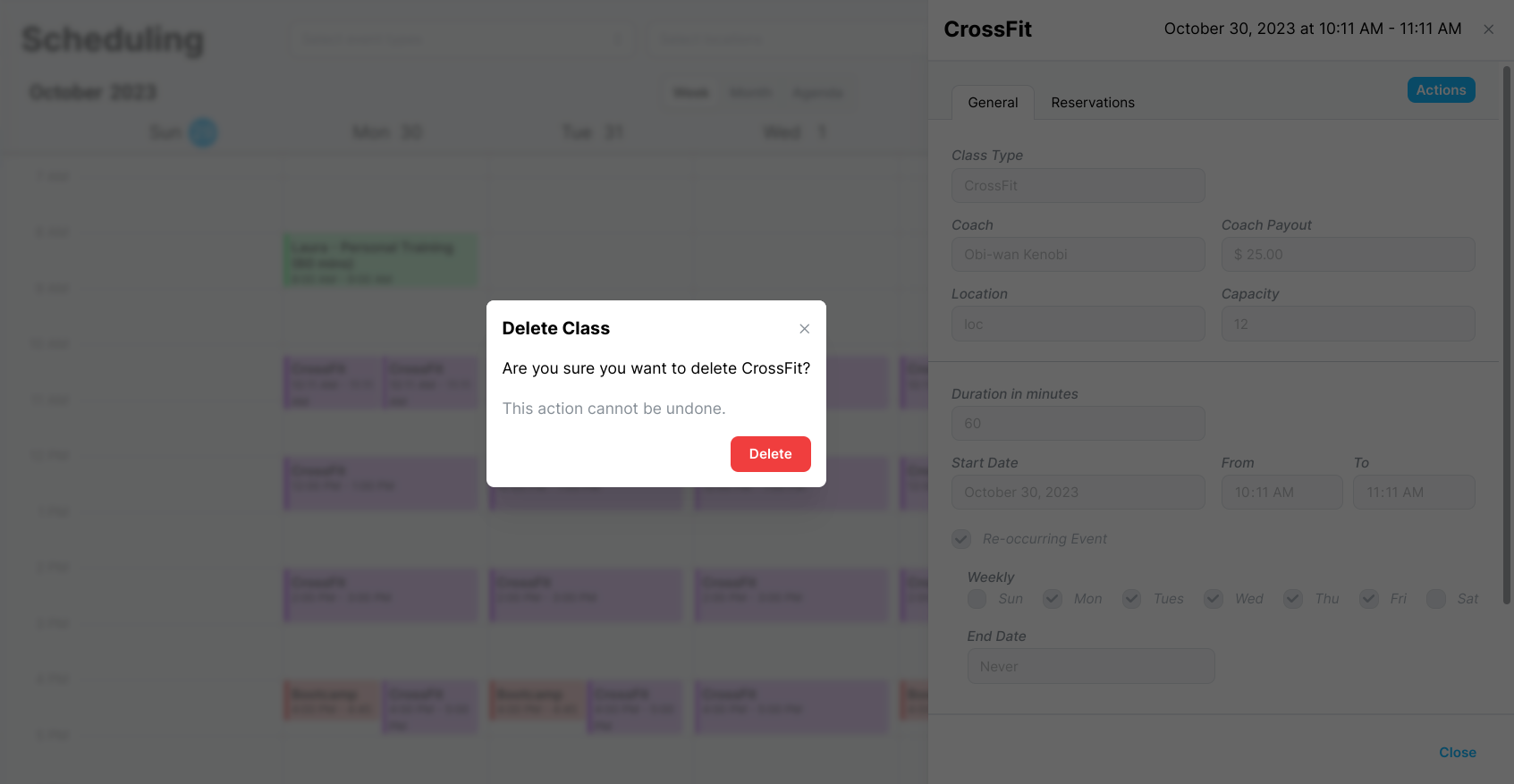
Confirm the removal by selecting Delete again.
If you have questions about recurring events in Kilo GMS, our Support team is happy to help. Reach us at hello@usekilo.com.