


The Google Calendar integration connects a team member's Google Calendar to Kilo GMS so the two calendars stay in step. Kilo events are pushed into Google Calendar, and Kilo GMS checks the connected calendars for conflicts when you book a session on behalf of another team member, which helps keep availability accurate and prevents double-booking.
What you can do with the Google Calendar integration
Connect a Google Calendar to Kilo GMS
Choose which Kilo event types are added to Google Calendar
Pick which Google Calendar receives your Kilo events
Select additional calendars to be checked for scheduling conflicts
Get a conflict alert when booking on behalf of a team member
Push existing schedule events into Google Calendar after connecting
How do I connect my Google Calendar to Kilo GMS?
Go to Integrations
Click Google Calendar
Click Connect Google Calendar.
Sign in to the Google Calendar you want to integrate, then click Continue.
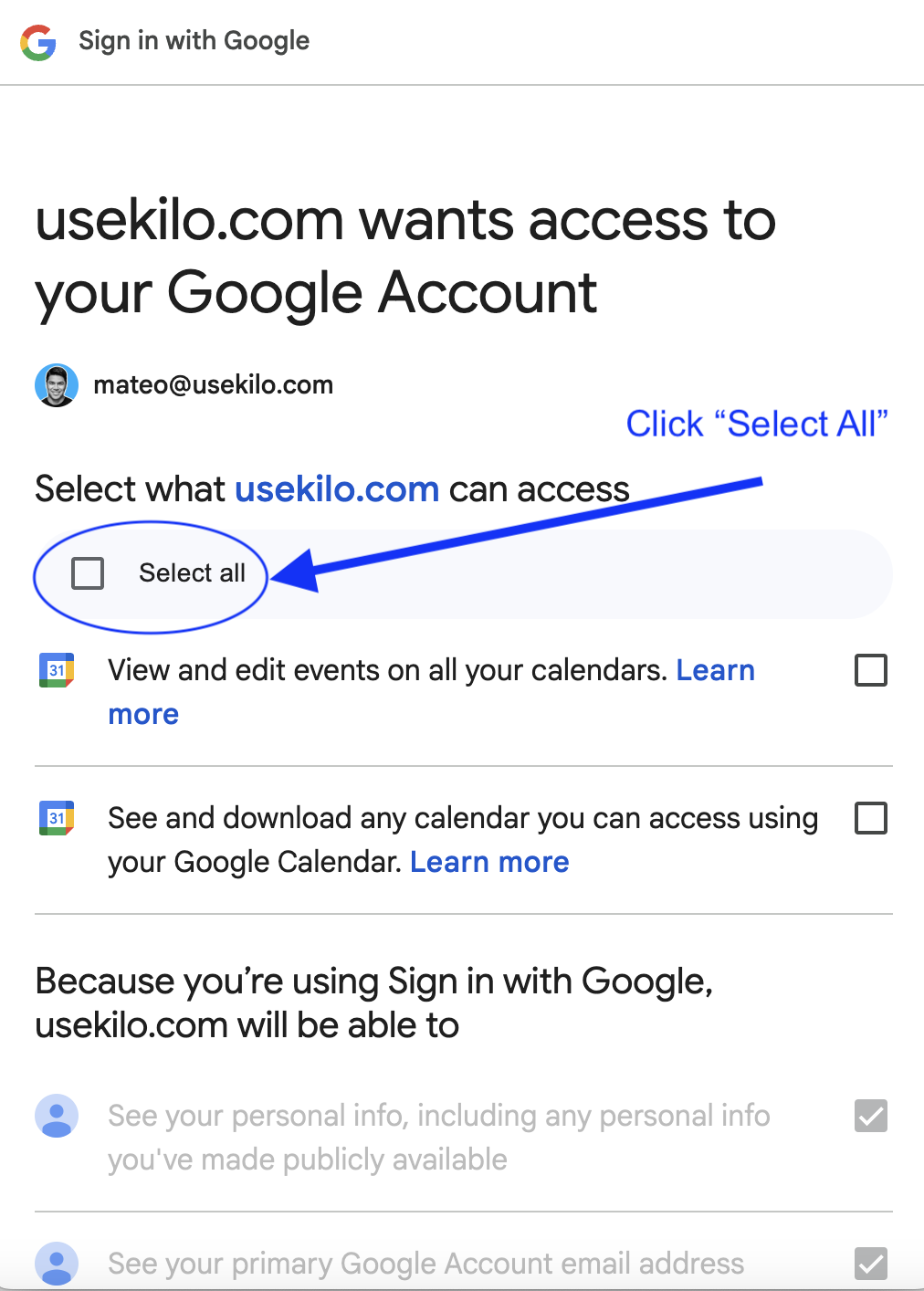
On the Sign in with Google pop-up, check Select All.
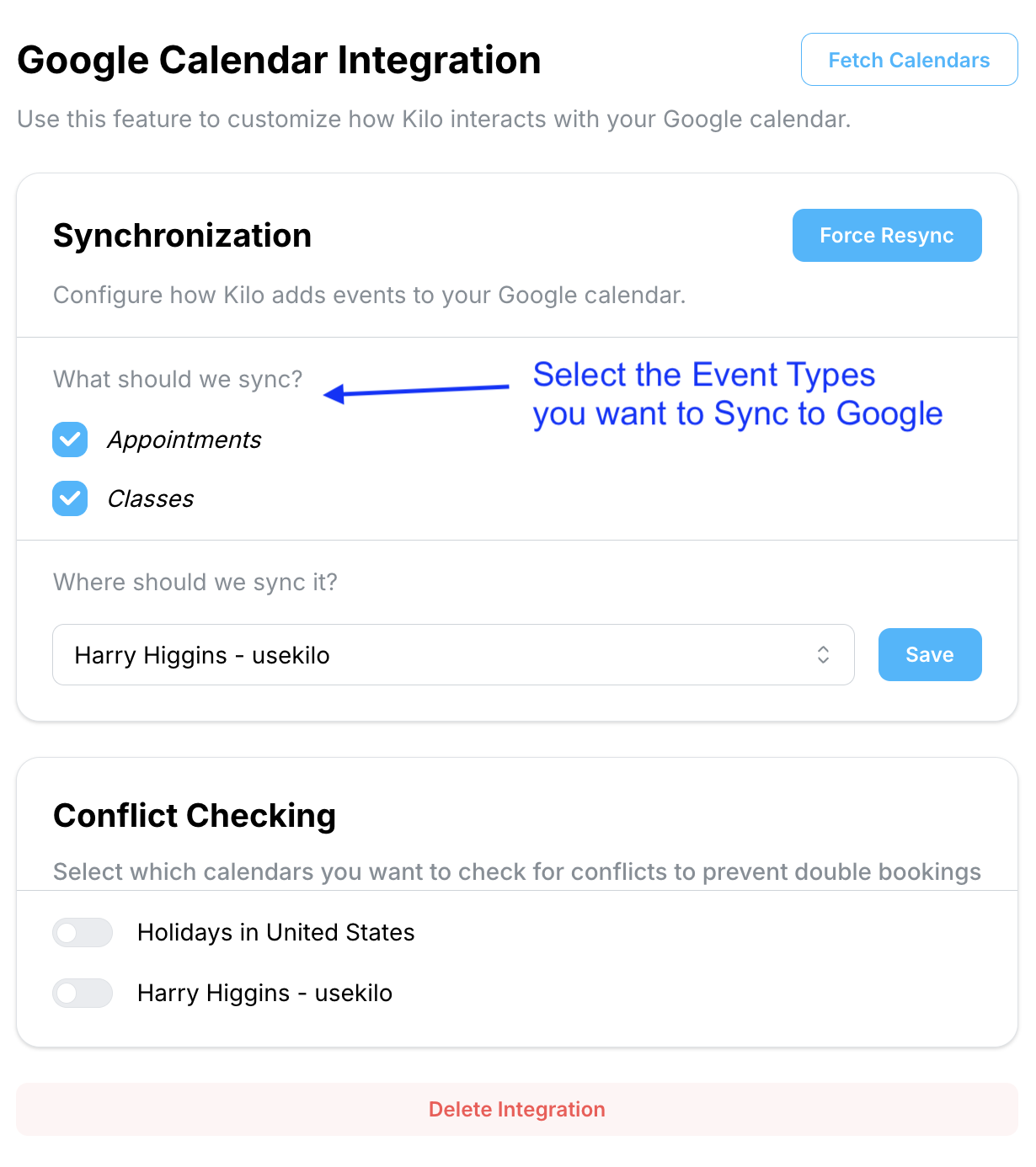
Use the checkboxes to select which Event Types you want added to your integrated Google Calendar automatically.
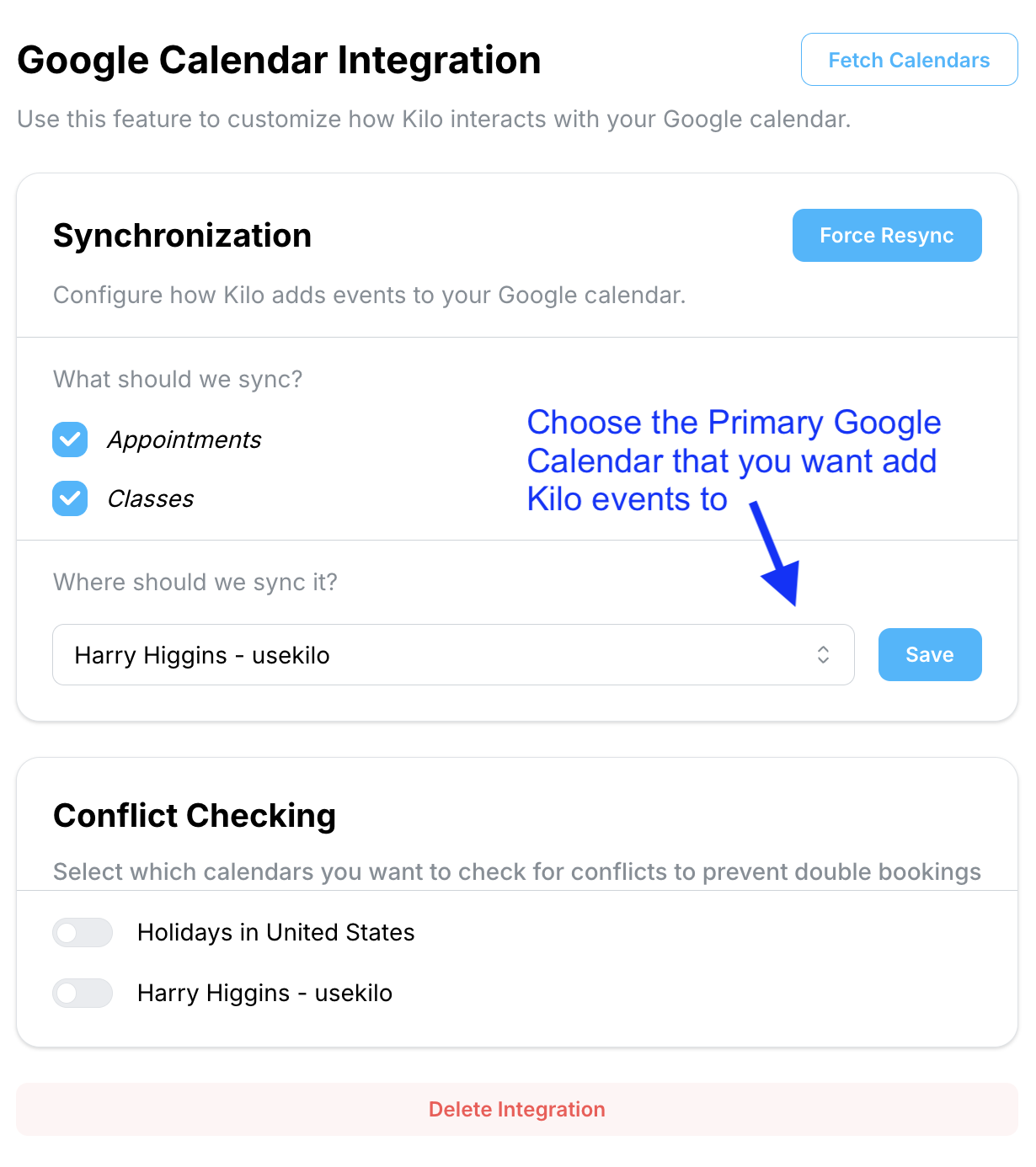
Select the Google Calendar you want your Kilo events added to.
Click Save.
How do I choose which calendars are checked for conflicts?
In the integration settings, select any calendars that should be checked for conflicts.
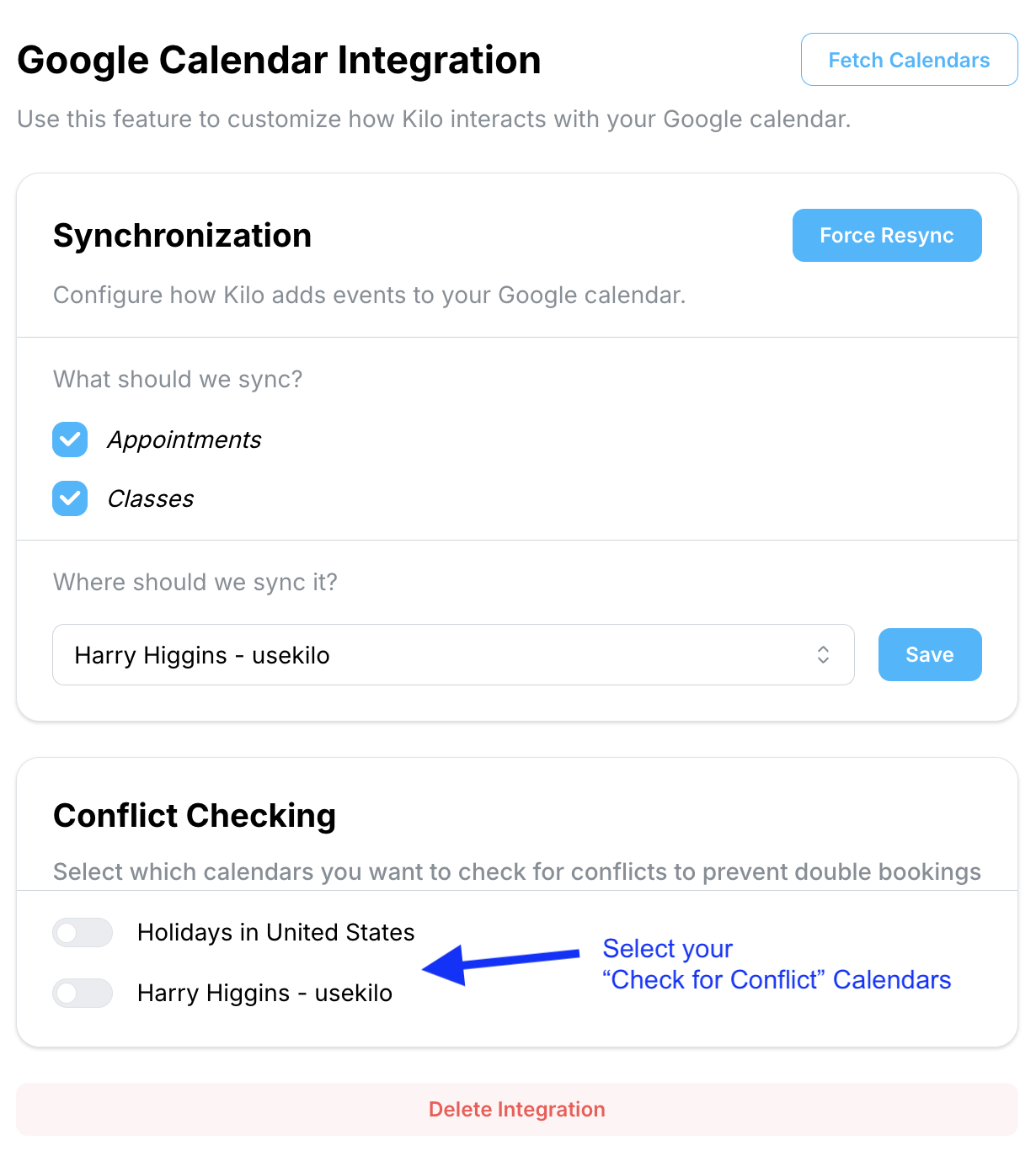
Additional calendars have to be shared with your primary calendar in Google before Kilo GMS can see them. If a shared Google Calendar is missing from the list, click Fetch Calendars to attempt to reload your Google Calendars.
For instructions on sharing calendars in Google, see the Google Calendar help documentation: https://support.google.com/calendar/answer/37082?hl=en
A calendar that has not been shared with your primary Google Calendar will not appear in the Check for Conflicts list, no matter how many times it is fetched. Share it in Google first.
How do I push events that were already on my schedule into Google Calendar?
If events were added to your Kilo GMS schedule before you connected the integration, they will not appear in Google Calendar automatically.
Go to Integration --> Google Calendar
Click Force Resync.
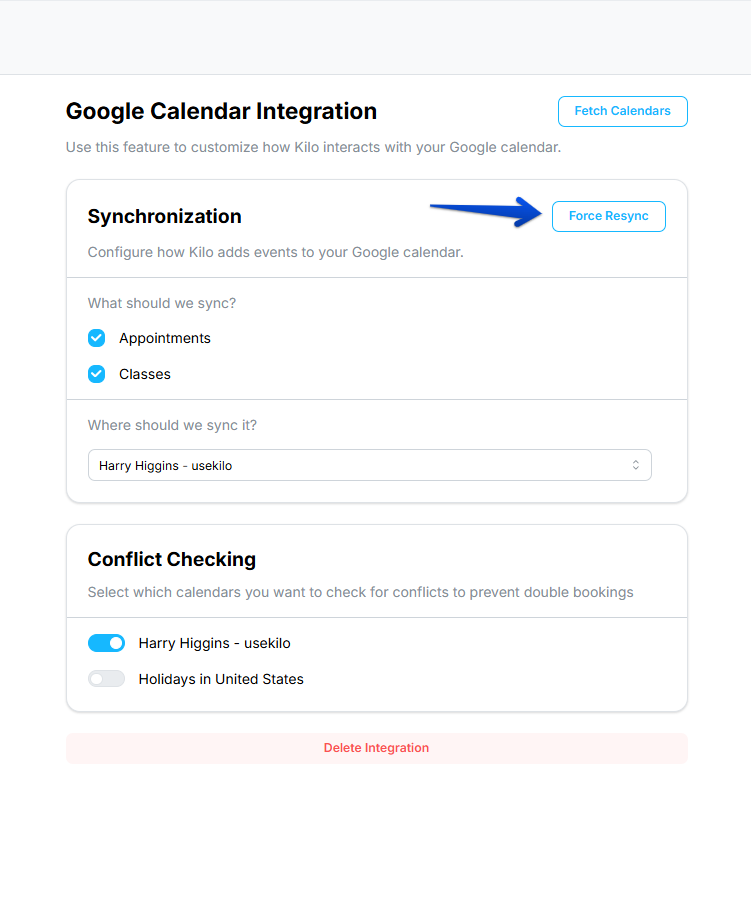
Force Resync is also the tool to use when your Kilo calendar and your Google Calendar have fallen out of step.
How the conflict check works
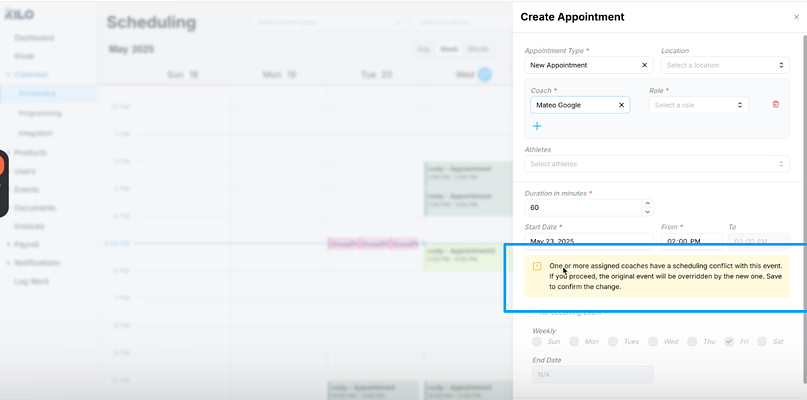
Once the integration is connected, Kilo GMS alerts you when you schedule a session on behalf of a team member who has a conflicting busy event on their connected calendar. You see the alert while you are booking, so you can pick a different time before the session is created.
Frequently asked questions
My calendar is not syncing correctly. Should I use the Delete button?
No. Use Force Resync instead. Deleting the integration when it is not syncing properly can create further problems with the integration. Force Resync is the supported way to clear up inconsistencies between your Kilo calendar and your Google Calendar. If the calendars still disagree after a resync, contact Support at hello@usekilo.com for troubleshooting help.
A shared Google Calendar is missing from the list. How do I get it to show up?
Share the calendar with your primary Google Calendar in Google, then click Fetch Calendars in Kilo GMS. Sharing has to happen on the Google side first. Fetch Calendars reloads the list of calendars Kilo GMS can see, but it cannot surface a calendar that has never been shared.
Which Kilo events end up on my Google Calendar?
Only the event types you check in the integration settings. You choose your event types when you connect the integration, and you can revisit those checkboxes later to add or remove types.
Why am I not getting conflict warnings for a team member?
Conflict checking only covers calendars that are connected and selected for conflict checking. Confirm the team member's calendar is connected, the calendar is selected in the Check for Conflicts list, and that the conflicting event is marked as busy in Google.
Helpful tips
Check Select All on the Google sign-in pop-up so the integration has everything it needs
Share additional calendars in Google before looking for them in Kilo GMS
Use Fetch Calendars when a shared calendar does not appear in the list
Use Force Resync rather than Delete whenever the two calendars disagree
Run a Force Resync after connecting if your schedule already had events on it
When this integration is most helpful
Booking sessions on behalf of coaches and other team members
Keeping coach availability accurate across two systems
Giving staff their Kilo schedule in the calendar they already check
Preventing double-booking against personal or team commitments
Getting an existing schedule into Google Calendar after connecting
If you have questions about the Google Calendar integration in Kilo GMS, our Support team is happy to help. Reach us at hello@usekilo.com.