


This guide walks you through how to create products, charge athletes, and use the Add to Next Invoice feature to keep billing organized and efficient.
Step 1: Create Fees & Misc. Products
Before charging for any one-time item (like a fee or non-retail service), you’ll need to create it in your system.
To create a product:
Go to Products in your Kilo menu
Select Fees & Misc. Products
Click + Product
Enter:
Product name
Price
Tax rate (if applicable)
Click Save
Once saved, your product will be available to charge at any time.
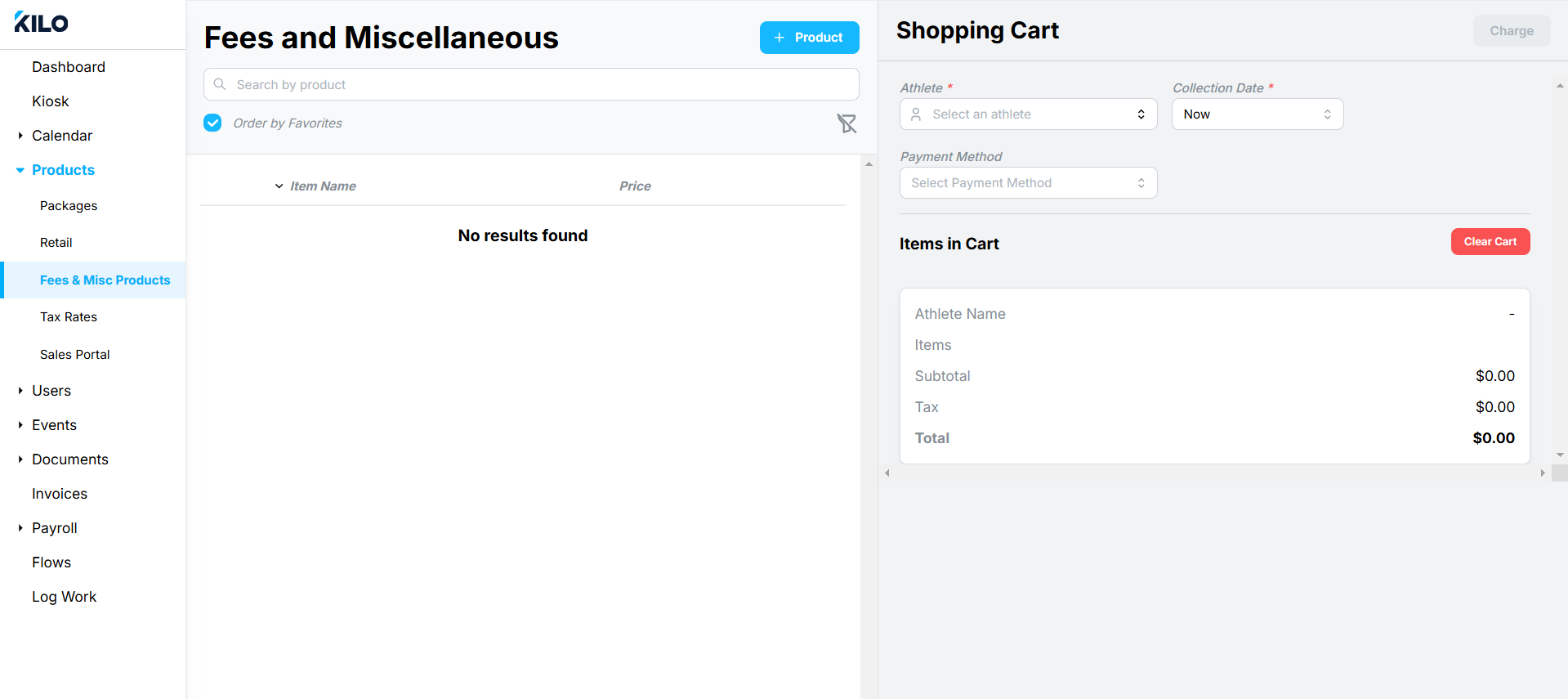
Step 2: Add an Item to an Athlete’s Cart
When you're ready to bill:
Click on the product you want to charge
In the shopping cart:
Select the athlete
Choose how and when to collect payment
Step 3: Choose How to Collect Payment
You’ll have three options:
1. Collect Immediately
Charges the athlete right away using the selected payment method
2. Schedule for a Specific Date
Sets a future date for the charge to be processed
3. Add to Next Invoice (Recommended for simplicity)
Attaches the item to the athlete’s upcoming invoice
The charge will be collected automatically with their next billing cycle
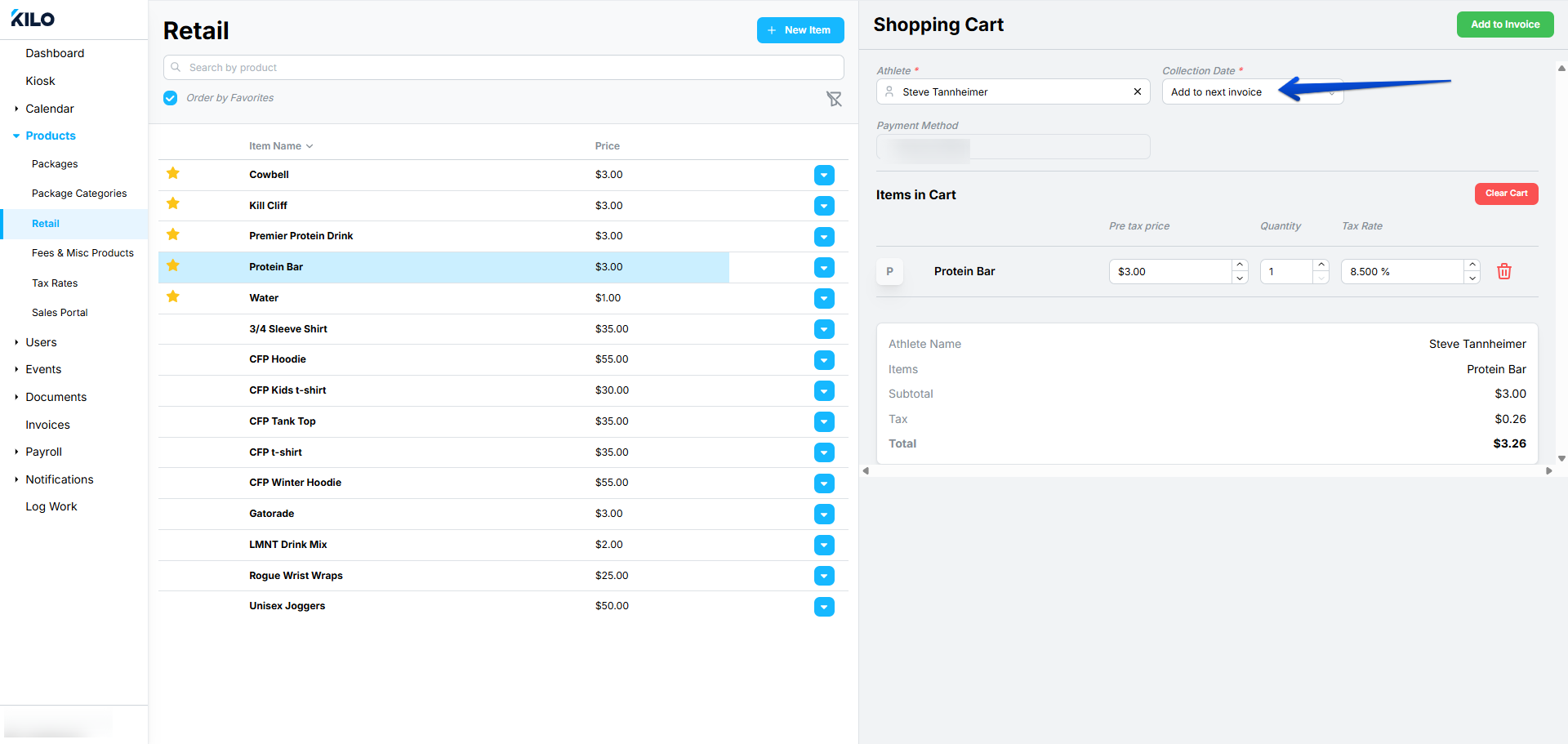
Step 4: Apply the Charges
Depending on the charge method you've selected, the green button in the upper right of your screen will adjust in content.
No matter the charge method, click there to charge, schedule payment, or add to invoice.
Using “Add to Next Invoice”
When you select Add to Next Invoice:
The item is automatically added to the athlete’s next invoice
The invoice follows your existing billing plan schedule
No extra steps are required
Why use this option:
Keeps charges consolidated into one clean invoice
Reduces the need for multiple transactions
Makes billing more predictable for both staff and athletes
Edit or Remove Items (If Needed)
After an item has been added to an invoice:
Open the athlete’s invoice
Edit or delete the item directly
Changes will update the invoice total immediately
This gives you full flexibility to adjust pricing, quantities, or remove charges.
Understand Package Cancellation Restrictions
If an invoice includes items added via Add to Next Invoice, the system may block early cancellation of the related package.
This ensures all pending charges are properly handled before a package ends.
Resolve a Blocked Cancellation
If you need to cancel a package but are blocked:
Open the invoice tied to the package
Locate the Retail or Fees & Misc. items
Edit or delete those items
Return to the athlete’s package
Proceed with cancellation
Best Practices
Use Add to Next Invoice for small add-ons or fees to reduce transaction clutter
Use Immediate Charge for urgent or one-off payments
Regularly review invoices to ensure accuracy before billing runs
If you have further questions regarding fees, products, and billing in Kilo, please contact our Support team at hello@usekilo.com