


Package Categories group your packages so your catalog stays organized as it grows. Every package needs one, so the category list is the first thing to set up before you build your first package. Categories also drive the Packages list view, where you can see at a glance how each package is grouped, where it appears for sale, and whether it has a revenue category attached.
What you can do with package categories
Group memberships, class packs, specialty programs, and seasonal offers into named categories
Assign a category as you build a package, or add existing packages to a category in bulk
Rename a category, move packages between categories, or delete a category you no longer need
Review category, visibility, and revenue category for every package from one list
Create a package category
The category list starts empty, so create at least one before you build a package.
Go to Products → Package Categories.
Click + Category.
Name the category.
Select the packages that belong in it. You can choose several at once.
Click Save.
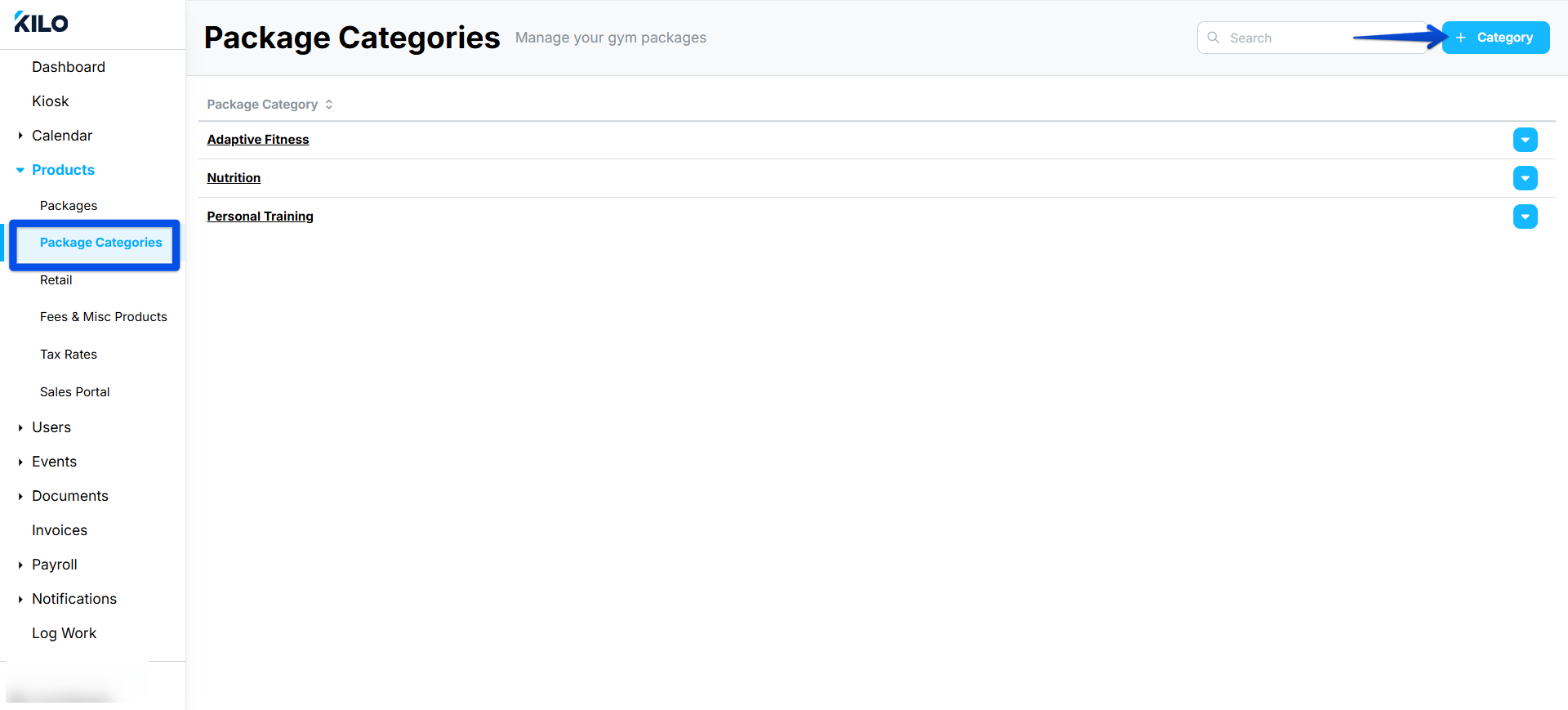
This is also how you categorize packages you built earlier. Open the category, select the packages, and save.
Assign a category to a new package
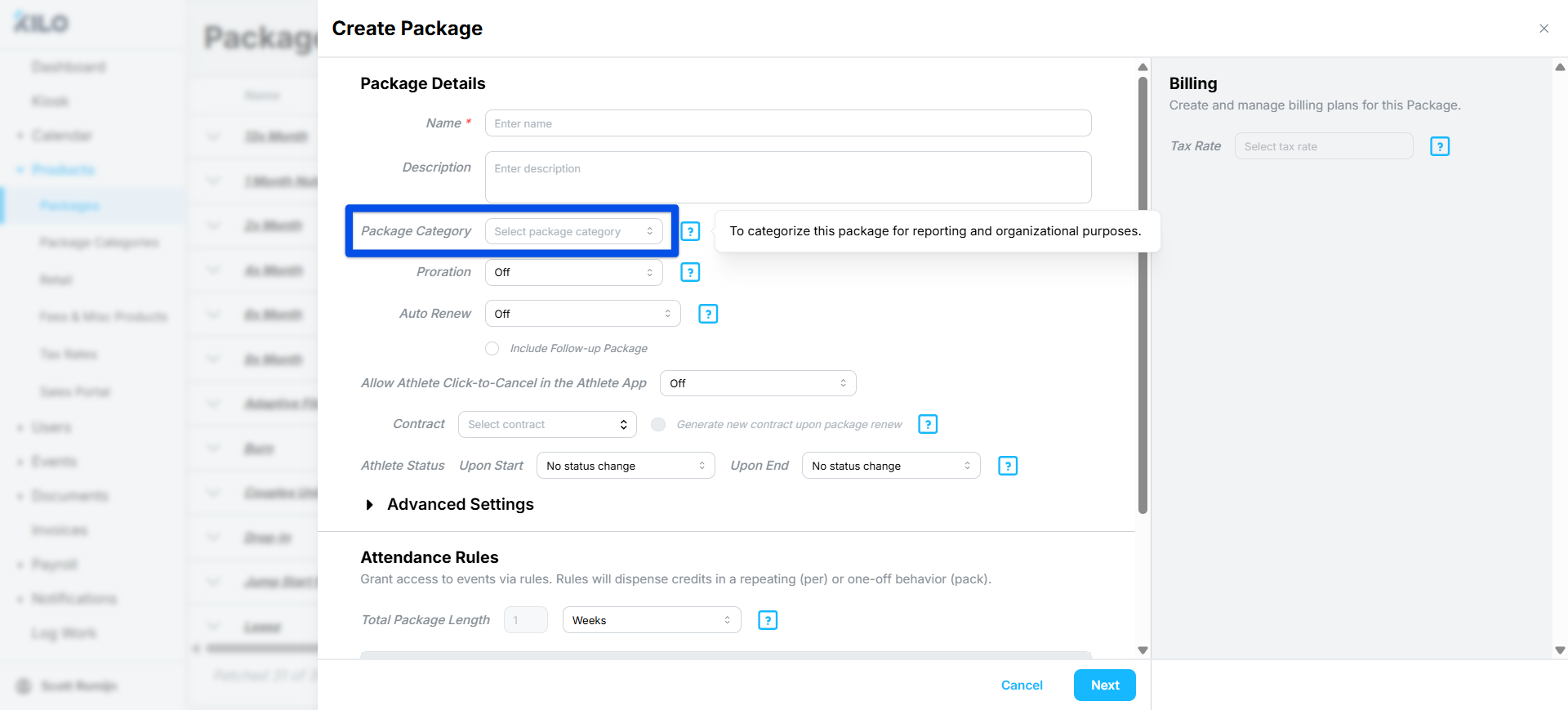
Package Category is a required field in the package builder.
Build your package as usual.
Open the Package Category dropdown.
Select the category this package belongs to.
Only categories you have already created appear in the dropdown.
Edit or delete a category
As your offerings change, you can rename a category, reassign it across different packages, or remove it.
Go to Products → Package Categories.
Find the category and open it.
Rename it, change which packages it includes, or delete it.
Click Save.
Reading the Packages list
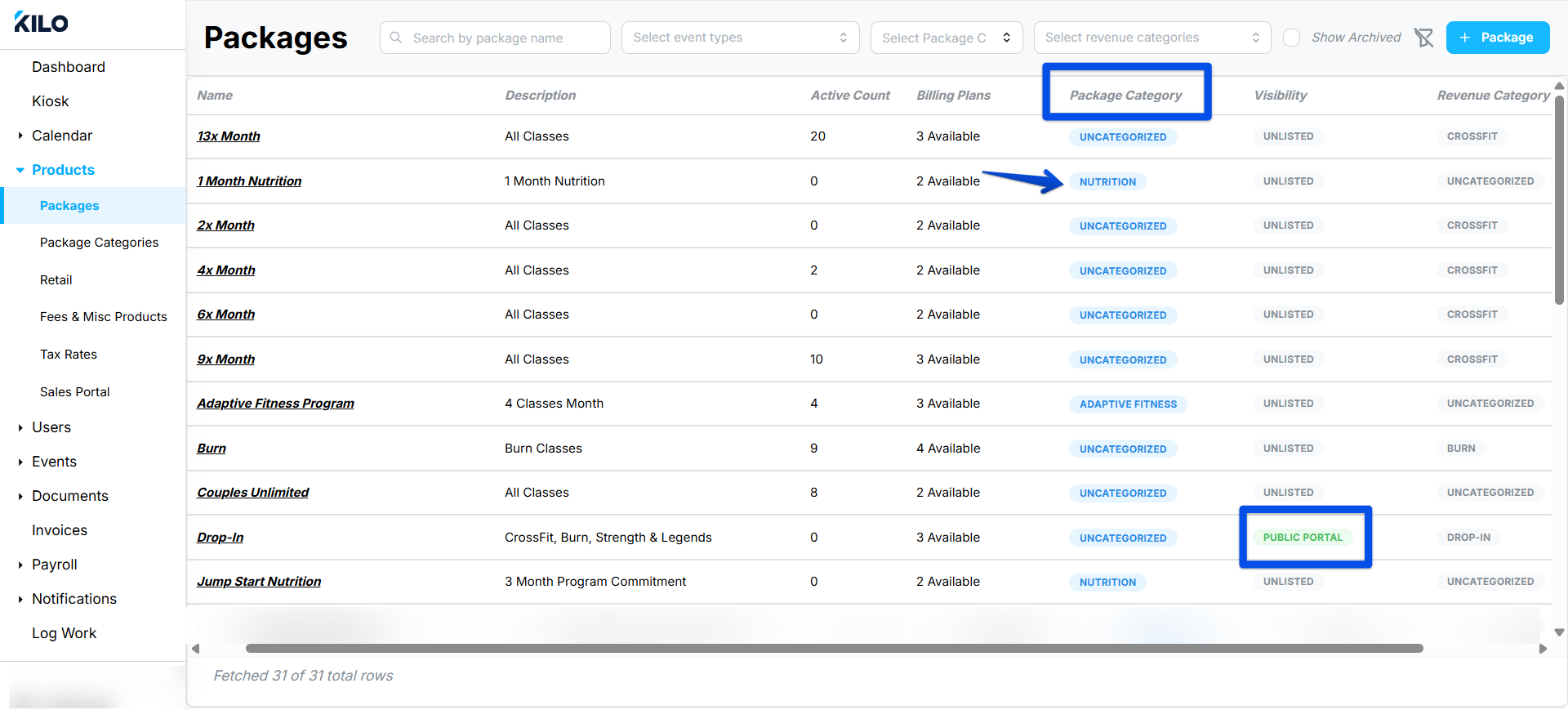
The Packages page shows three columns that tell you how each package is classified.
Column | What it tells you |
|---|---|
Package Category | The category the package belongs to |
Visibility | Where the package appears for sale, and whether it is available for purchase based on its billing plan settings |
Revenue Category | The revenue category attached to the package, for reporting |
Athlete-facing categories appear in blue and revenue-facing categories in gray, so you can tell the two apart without reading the column headers.
A package with no revenue category shows an Uncategorized tag, which makes it easy to spot the gaps before you run a revenue report.
Frequently asked questions
Why is the Package Category dropdown empty?
No categories exist yet. The list is empty until you create your first one at Products → Package Categories. Create the categories you need, then return to the package builder.
Can I put one package in more than one category?
A package has a single Package Category. If you find yourself wanting two, that usually means the categories are cut too finely, or the distinction you are after belongs in the revenue category instead.
What is the difference between a package category and a revenue category?
Package categories organize your catalog for your team; revenue categories group packages for reporting. They are separate fields and they appear as separate columns on the Packages list, colored blue and gray respectively.
What does the Uncategorized tag mean?
The package has no revenue category attached. It is not a problem for selling the package, but those packages will not roll up properly in revenue reporting until you assign one.
How do I categorize packages I built before I set up categories?
Open the category at Products → Package Categories and add them to it. You can select several packages at once rather than editing each package individually.
Helpful tips
Set up your categories before your first package. The field is required and having the list ready saves backtracking.
Keep the list short. A handful of broad categories is easier for staff to use than a long list of narrow ones.
Use the Uncategorized tag as a checklist. Clear it before any reporting period rather than during one.
Bulk-assign from the category side rather than package by package when you are reorganizing.
Name categories the way your team talks about them, since these are internal organization rather than athlete-facing labels.
If you have questions about package categories in Kilo GMS, our Support team is happy to help. Reach us at hello@usekilo.com.