


The Athletes Attending Most Events report on your Dashboard opens the full Athlete Attendance report in Kilo GMS, where you can see how often each athlete reserves and attends. Attendance is broken out between classes and the app, filtered by event type, date range, and athlete status, and exported when you need it outside the system.
What you can do with the attendance reports
See class, app, and total attendance counts for every athlete
Compare an athlete's reservations against the sessions they actually attended
Filter the report by event type, date range, or athlete status
Sort by name, email, total attendance, or total reservations
Export the report from the report screen
Review one athlete's upcoming reservations and past attendance on their profile
How do I open the Athlete Attendance report?
Go to Dashboard.
Find the Athletes Attending Most Events report.
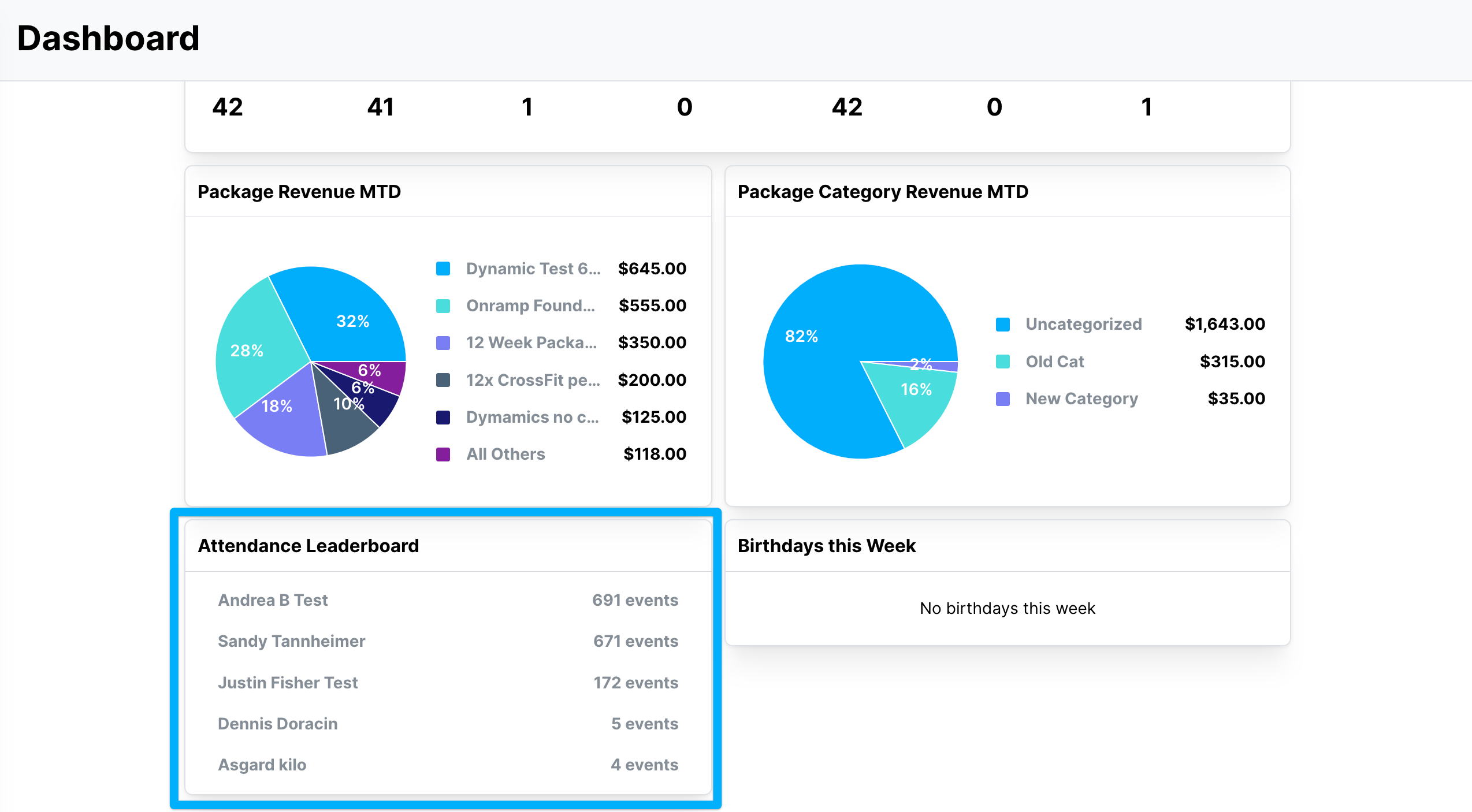
Click the report to open it.
The full Athlete Attendance report opens.
What the Athlete Attendance report shows
Each row is one athlete. The columns are:
Name, Status, and Email, identifying the athlete and the status they currently hold
Class Attendance and Class Reservations, covering sessions on your schedule
App Attendance and App Reservations, covering activity through the app
Total Attendance and Total Reservations, combining the class and app figures
Current Packages, showing what the athlete is presently on
Comparing an athlete's reservations against their attendance is the quickest way to spot someone who books consistently and shows up inconsistently.
How do I filter, sort, and export the report?
The filter bar sits across the top of the report.
Select event types narrows the report to particular classes or appointment types.
Select date range limits the counts to a specific period rather than all time.
Select statuses controls which athletes appear. Use it to include athletes who have moved to Alumni, or to restrict the report to current members only.
To clear everything you have applied, click the clear filters icon to the right of the filter bar.
To sort, click the arrows beside Name, Email, Total Attendance, or Total Reservations.
To export, click the printer icon in the upper right corner of the report.
The attendance report holds a large amount of data. Refresh it regularly using your browser's reload button, the circular arrow near the web address at the top of your screen, so you are working from current numbers.
Where do I see one athlete's attendance?
An athlete's own record is split across two tabs on their profile: Reservations for what is still ahead of them, and Attendance for what has already happened. Open the athlete's profile and select either tab.
Reservations tab
The Reservations tab lists the athlete's upcoming bookings, with the date, time, event, coach, weekday, and whether each reservation is reserved, attended, bulk added, and credited.
You can select reservations using the checkboxes and remove them with the Delete button, or delete a single row using the trash icon at the end of it.
Attendance tab
The Attendance tab lists past sessions in the same format, with Reserved Total and Attended Total displayed in the upper right so you can see both figures side by side. Rows where the athlete reserved and did not attend show clearly against the ones they made.
Both tabs filter by weekday, reservation type, date range, and event type, and both export using the printer icon.
You want to know | Use the tab |
|---|---|
What the athlete has booked for the coming weeks | Reservations |
Whether the athlete has been showing up | Attendance |
How many sessions the athlete has reserved and attended in total | Attendance |
Which upcoming bookings to cancel on the athlete's behalf | Reservations |
How do I track attendance milestones?
You have two options, and they work well together.
Automated staff notifications. You can set up a notification that alerts your staff when an athlete reaches a specific attendance milestone. Each milestone needs its own notification, so a gym tracking 25, 50, and 100 visits would build three.
Manual tracking. Sort the Athlete Attendance report by Total Attendance and you can see at a glance who is approaching a milestone.
Helpful tips
Sort by Total Attendance before a monthly check-in so you can recognize athletes nearing a milestone.
Use Select statuses deliberately. Including Alumni gives you lifetime history; excluding them keeps the report focused on athletes you can still act on.
Compare Reserved Total against Attended Total on an athlete's Attendance tab when you suspect a no-show pattern.
Refresh your browser before reading the report closely, especially first thing in the morning.
Use the date range filter to compare a single month against the all-time view when you want to see recent momentum rather than lifetime totals.
If you have questions about attendance reports in Kilo GMS, our Support team is happy to help. Reach us at hello@usekilo.com.