


The Athletes section of your Dashboard in Kilo GMS holds 10 reports that track where your athletes stand: how many you have, who joined or canceled this month, and who needs your attention. Click any tile to open the full report, where you can change the date range and export the results.
What you can do with the athlete reports
See how many athletes hold a paying or non-paying membership today, or on a past date
Track new, canceled, and reactivated athletes month to date
Find athletes who have not checked in recently
See which athletes have a package on hold, along with the hold dates and reason
Spot athletes whose package is ending soon
Change the date range on a report
Export a report from the report screen
How athlete statuses drive these reports
Most athlete reports count athletes by the status they held on a given date, so the accuracy of every number on the card depends on your statuses being current. The exceptions are Total Members and Paying Members, which are explained below.
The statuses that matter most to these reports:
Member. A paying athlete. Counted in both Total Members and Paying Members.
Non-Paying Member. Counted in Total Members only.
Visitor. Use this for short-term drop-ins so they do not inflate your membership counts.
Alumni. Applied when an athlete cancels. This is what moves them into Cancelled Members MTD.
Trial. Covers athletes on a short-term, front-end offer who may or may not roll into an ongoing membership. If you do not offer trials, the status also works for athletes in a Foundations or OnRamp program before you count them as full members.
Set short-term visitors to Visitor rather than Member, and move canceled athletes to Alumni either manually or by letting the package end date do it automatically. Both habits keep your Total Members and Cancelled Members MTD counts honest.
How do I open an athlete report?
Go to Dashboard.
Scroll to the Athletes section.
Click the tile for the report you want to open.
The 10 tiles in the Athletes section are:
Total Members
Paying Members
New Members MTD
Cancelled Members MTD
Reactivated Members MTD
Athletes On Hold
Athletes At Risk
Missing Athletes
New Trials MTD
Cancelled Trials MTD
Membership totals: Total Members and Paying Members
Total Members
Total Members counts every athlete with the status Member or Non-Paying Member on the current day.
Use the date selector to check a different date. When you look back at a past date, you may see an athlete whose current status is something other than Member or Non-Paying Member. That means they were a member on the date you selected and their status has changed since.
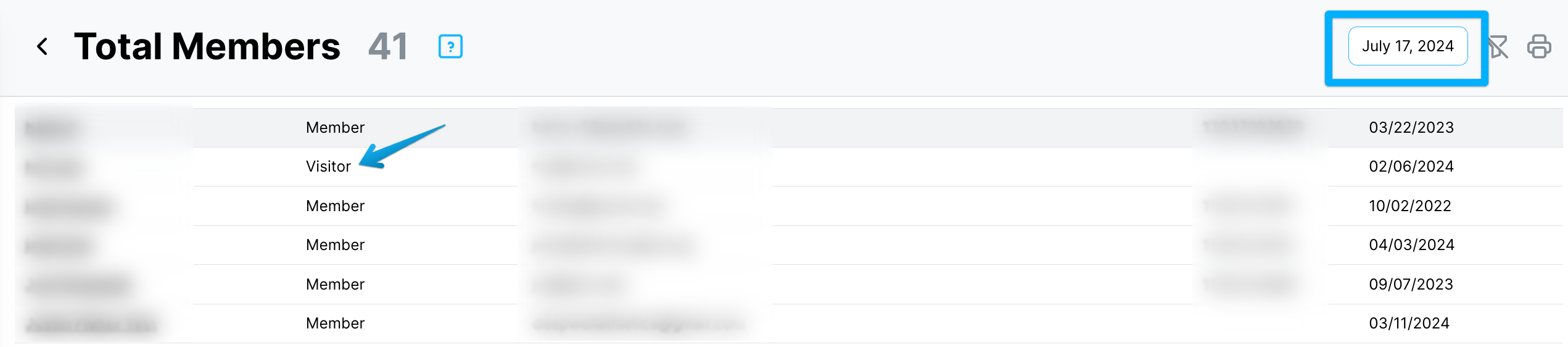
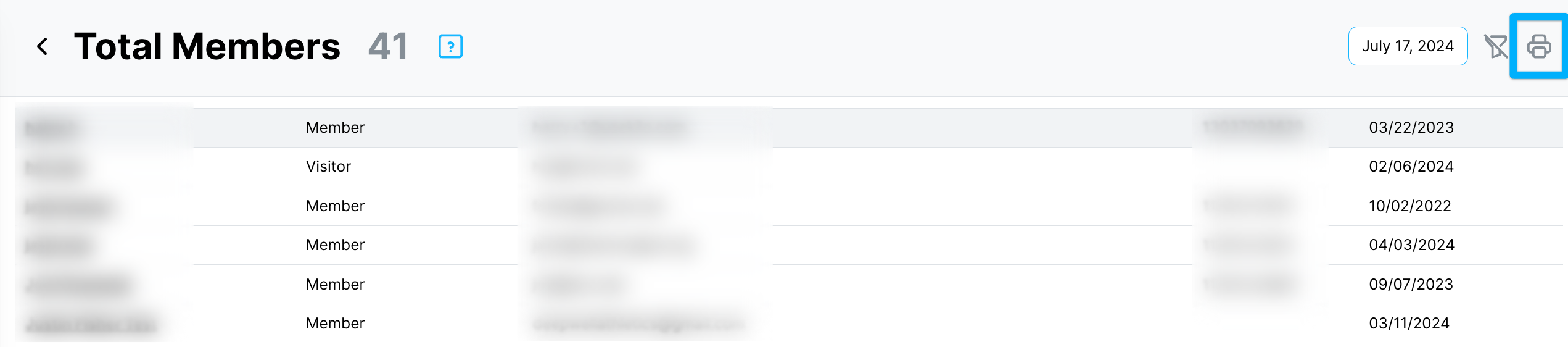
To export the list, click the printer icon in the upper right corner of the report.
Paying Members
Paying Members works the same way as Total Members with one difference: it counts only athletes with the status Member. Athletes with the status Non-Paying Member are excluded.
Month-to-date reports
These reports count status changes within the current month, or within whatever range you set on the date picker.
New Members MTD
New Members MTD shows every athlete who received the status Member for the first time during the current month.
If an athlete gained and lost the Member status within the same month, their current status may be something other than Member when you open the report. Use the date selector to set different start and end dates.
Athletes who previously held the Alumni status do not appear here. They are counted in Reactivated Members MTD instead.
Cancelled Members MTD
Cancelled Members MTD shows every athlete who received the status Alumni during the current month, or during the range you set on the date picker.
Reactivated Members MTD
Reactivated Members MTD counts athletes whose status changed from Alumni to Member within the selected date range.
These athletes do not appear on New Members MTD. To see your total growth for the month, add the New Members MTD and Reactivated Members MTD figures together.
Reports that flag athletes needing attention
Missing Athletes
Missing Athletes lists athletes who have not checked in to an event on the Schedule within the timeframe set in your account settings.
To change that timeframe:
Click your name in the lower left corner of the screen.
Select Settings.
Scroll to Additional Settings.
Edit The amount of time a member is considered missing. You can adjust both the number and the unit of time.

Save your changes.
Athletes On Hold
Athletes On Hold lists athletes who currently have a package on hold. The report shows athlete details, package details, the hold start and end dates, and the hold reason where one was given.
Athletes At Risk
Athletes At Risk counts currently active athletes who have no package on or after a date two weeks from today. It is most useful for spotting athletes on non-renewing or one-time packages so you can talk to them about their next purchase before their membership runs out.
Click the tile to open the full report. On the report screen you can adjust the date range to any date starting from tomorrow.
Where do I see one athlete's status history?
Every athlete profile carries its own Status History report on the front page of the profile. It shows the date, or date range, of every status change for that athlete.
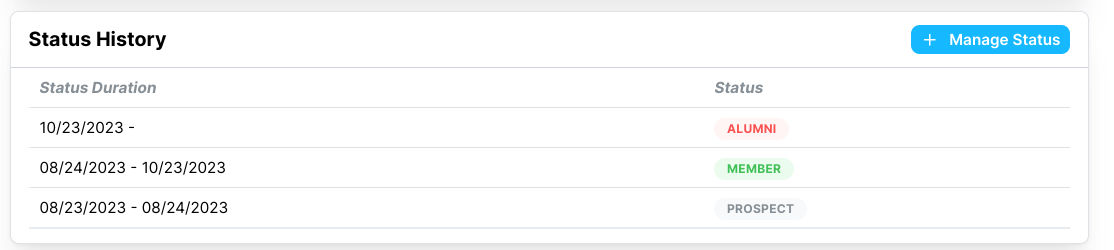
To change an athlete's status manually:
Open the athlete's profile.
Click + Manage Status.
Select the new status.
Select the date the change takes effect.
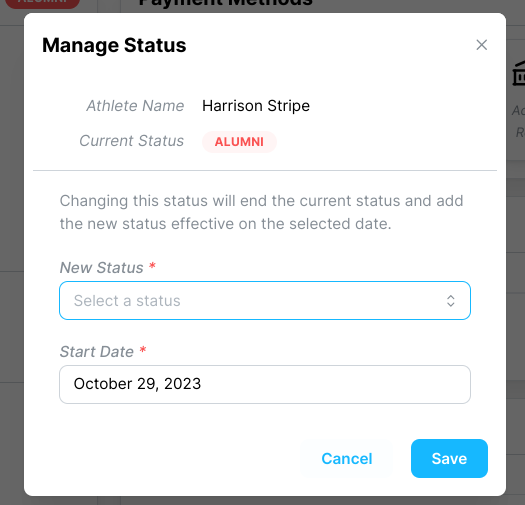
Save the change.
If you have set your packages to make no change to athlete status at the start or end of a package, this is where you update athletes to Member or Alumni yourself.
Helpful tips
Give short-term drop-ins the Visitor status so they stay out of your membership counts.
Move canceled athletes to Alumni promptly, or let the package end date handle it, so Total Members and Cancelled Members MTD stay accurate.
Add New Members MTD and Reactivated Members MTD together for the month's full growth picture.
Check Athletes At Risk before the end of each week so you have time to reach athletes whose packages are ending.
When a past-dated report shows an unexpected current status, that is the status history doing its job rather than an error.
If you have questions about athlete reports in Kilo GMS, our Support team is happy to help. Reach us at hello@usekilo.com.