


You can change a package after athletes have already bought it: widen an attendance rule, adjust session counts, change the validity period, or turn rollover on and off. The thing to know before you save is that one kind of change reaches athletes immediately and every other kind waits until their next renewal. Kilo tells you which one you are about to get, in a message above the attendance rules, so read it before you save.
What you can do when editing a package
Add an event type to an attendance rule that already exists
Remove an event type from a rule
Add a new attendance rule
Change the number of sessions or credits on a rule
Change the validity period
Turn rollover credits on or off
Edit the package's billing plans
Edit a package
Create the Event type in Events first. A package can only grant access to Events that already exist.
Go to Products → Packages.
Click the package name.
Click Edit Package.
Scroll to Attendance Rules.
Make your change. Each rule's event field holds more than one event type, so adding an event to an existing rule means selecting it in that same field alongside the ones already there.
Read the message above the rules. It tells you whether the change applies immediately or at renewal.
Click Save.
This works the same way on time-based and credit-based packages.
When your changes reach athletes
What you change | When athletes see it |
|---|---|
Add an event type to an existing attendance rule | Immediately after saving |
Remove an event type from a rule | At the athlete's next renewal |
Add a new attendance rule with the + button | At the athlete's next renewal |
Change the number of sessions or credits on a rule | At the athlete's next renewal |
Change the validity period | At the athlete's next renewal |
Turn rollover credits on or off | At the athlete's next renewal |
Edit a billing plan | At the athlete's next renewal, with an exception for upcoming packages |
The only immediate change is widening a rule that already exists. If a rule covers Class A and you add 60m Personal Training to that same rule, every active athlete gets the new access the moment you save. Kilo confirms it above the rules: You've added new event types to this package. These changes will apply to all active and upcoming athlete packages immediately after saving.
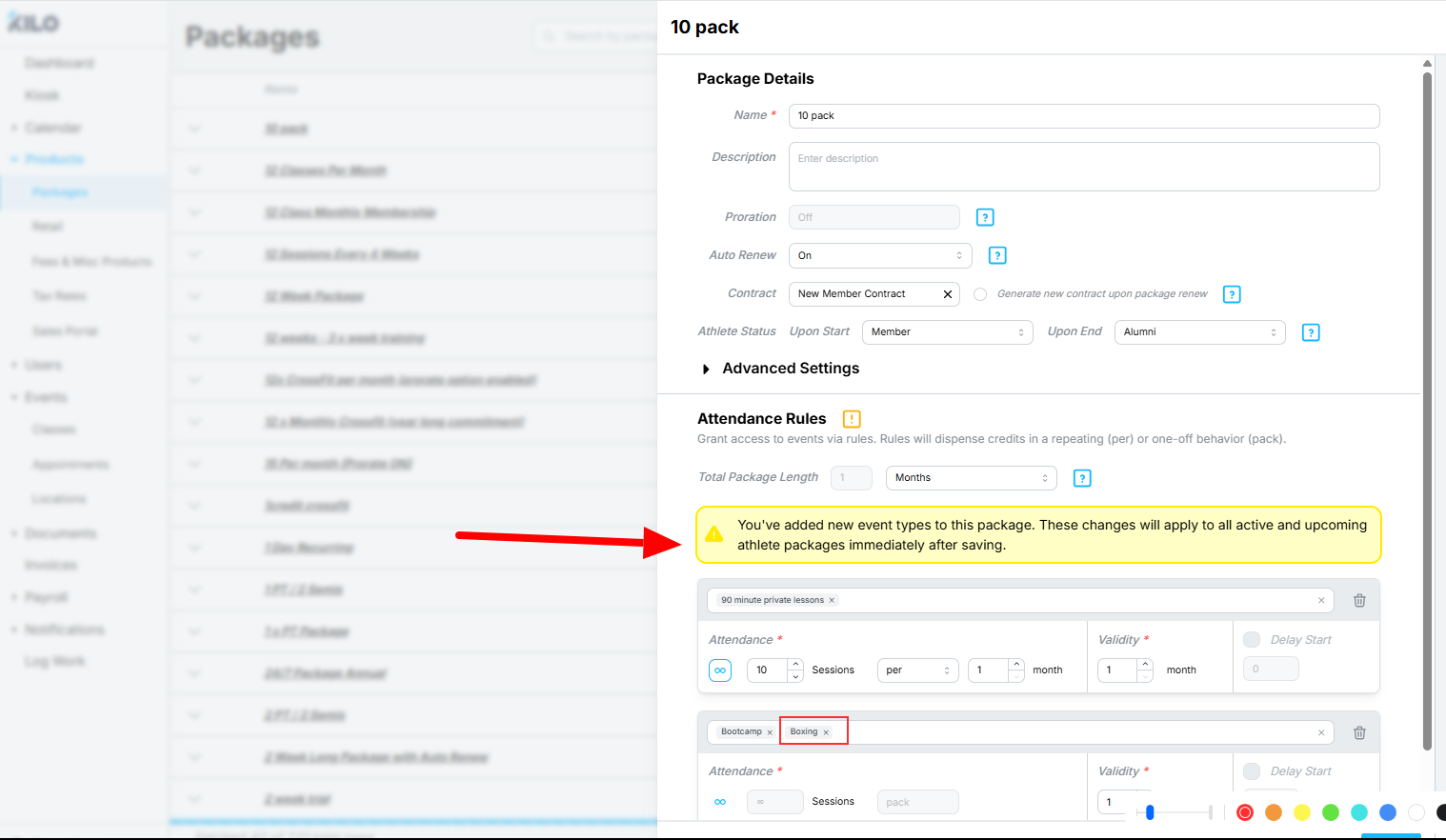
Everything else, including adding a brand new rule with the + button, waits. Active athlete packages are left alone until renewal, and Kilo shows a different message: Changes to credits, validity period, rollover, or attendance rules will only apply to new purchases or upon renewal. Active athlete packages will remain unchanged.
Adding an event type to an existing rule takes effect immediately and cannot be undone immediately. Removing it again is a renewal-timed change, so active athletes keep the access until their package renews. Check that you have the right event type before you save.
Editing billing plans on a package
Billing plans are edited in the Billing panel on the right side of the package. Saving a change there brings up its own confirmation, because the rules are slightly different from attendance rule changes.
Billing plan edits do not modify active packages attached to athletes; the new terms take effect at the next renewal. Upcoming packages are different: they are reapplied to the athlete using the modified billing plan, unless invoices generated from that package have already had a charge attempted against them. Once a charge has been attempted, the upcoming package keeps its original pricing.
Frequently asked questions
Why did adding an event type apply right away when adding a new rule did not?
Widening an existing rule applies immediately; creating a new rule applies at renewal. Adding an event type to a rule athletes already have expands access they already hold. Adding a rule with the + button changes the package's structure, so it waits for renewal.
I added the wrong event type. How do I take it back?
Remove it and save, but active athletes keep the access until their next renewal. Removal is a renewal-timed change, so there is no way to revoke it immediately. This is why it is worth confirming the event type before saving rather than after.
I changed a package from 12 sessions to 10. Why do athletes still have 12?
Credit and session count changes apply at the next renewal. Athletes on an active package keep the count they bought. The new count applies to anyone who buys the package from now on, and to existing athletes when their package renews.
Do I have to edit every package separately?
Yes. Each package is edited on its own. If you launch a new class and want all your members to have it, add the event type to every package that should include it, including each membership tier.
Does editing a billing plan work the same way?
Almost. Billing plan edits wait for renewal, but upcoming packages are reapplied at the new pricing unless a charge has already been attempted on one of their invoices. Changing the price of a package is covered in its own article.
Does this work differently on credit-based packages?
No. The same timing rules apply to both package types. A credit-based package renews when its last credit is checked in rather than on a date, so "at the next renewal" means whenever that happens for each athlete.
Does the athlete get notified when I change their package?
Not from the package edit itself. Changes take effect quietly, whether immediately or at renewal. If athletes need to know, tell them directly.
Helpful tips
Add the Event in Events before you open the package. The package can only offer events that already exist.
Widen an existing rule when you want athletes to have access today. Add a new rule when the change should start fresh at renewal.
List every package that needs the change before you start. It is easy to update the unlimited tier and forget the capped ones.
Read the message above the attendance rules every time. It is the fastest confirmation of which timing you are about to get.
Time structural changes around your renewal dates so athletes hit the new setup at a predictable moment.
If you have questions about editing packages in Kilo GMS, our Support team is happy to help. Reach us at hello@usekilo.com.