


Your Accounting Dashboard in Kilo GMS holds two reports that show where your gym's monthly revenue stands: one for payments you have already collected, and one for payments still scheduled to come in. Click either section of the dashboard to open the full report, where you can filter it, change the date range, and export it.
What you can do with the accounting reports
See successful payments collected so far this month
See payments scheduled to be collected before the end of the current calendar month
Filter either report by product, including packages and retail products
Select more than one product at a time
Change the start and end dates to cover a different period
Export either report to a CSV file
How do I open an accounting report?
Open your Accounting Dashboard.
Click the section you want to expand: Total Revenue MTD or Upcoming Revenue.
Review the full report, and filter, adjust dates, or export it from there.
Total Revenue MTD
Total Revenue MTD (month-to-date) shows the successful payments your gym has collected so far for the current month.
Click the Total Revenue MTD section of the Accounting Dashboard to open the full report.
Upcoming Revenue (This Month)
Upcoming Revenue shows every payment with the status Upcoming dated before the end of the current calendar month.
Click the Upcoming Revenue section of the Accounting Dashboard to open the full report. To look further ahead than the current month, change the end date on the report.
How do I filter, change dates, and export a report?
Both accounting reports use the same set of controls.
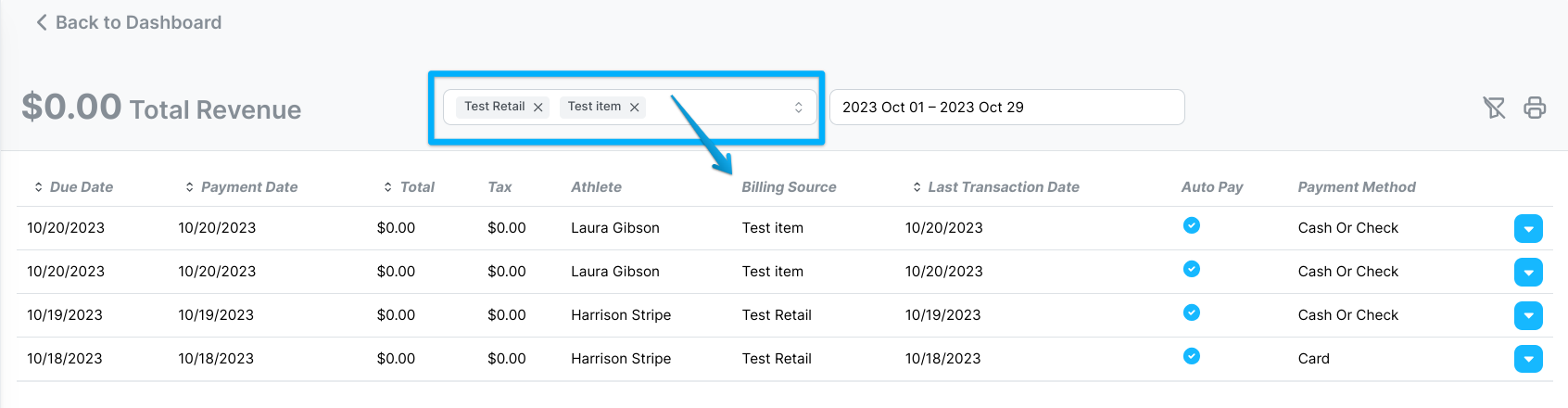
Filter by product
Open the Product filter.
Select one or more products. Packages and retail products are both available, and you can select more than one at a time.
Change the date range
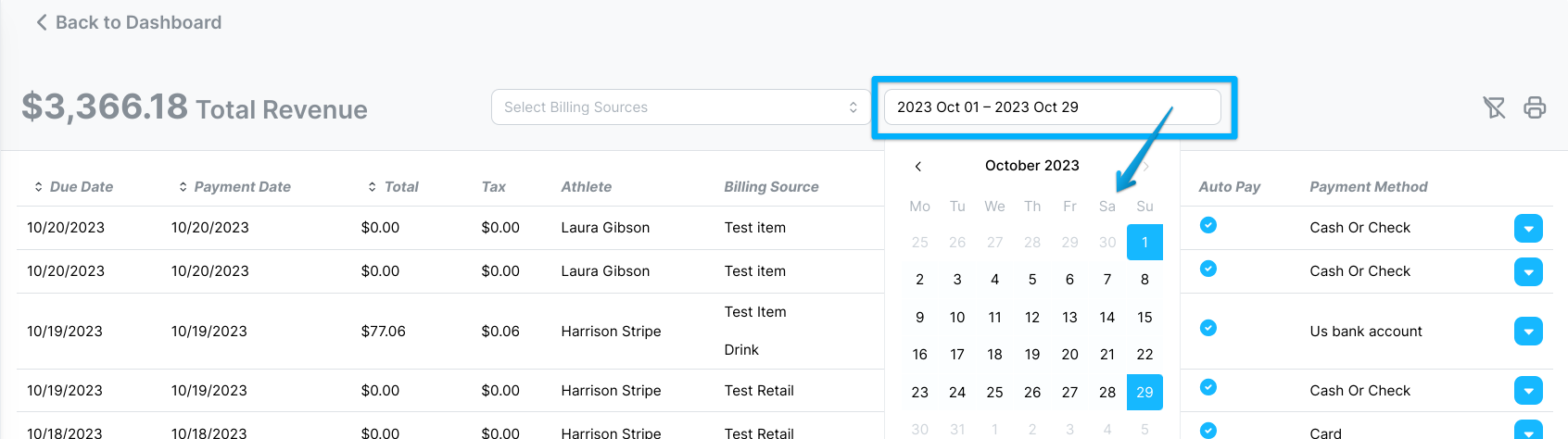
Click the date selector.
Choose a new start date and end date for the report.
Clear your filters
Select the funnel icon.

The report returns to its default view.
Export to a CSV file
Select the printer icon.

The report downloads as a CSV file you can open in a spreadsheet.
Total Revenue MTD vs. Upcoming Revenue: Which should you use?
Question you are answering | Total Revenue MTD | Upcoming Revenue |
|---|---|---|
What the report shows | Successful payments already collected | Payments with the status Upcoming |
Period covered by default | Current month to date | Through the end of the current calendar month |
Filter by product | Yes, one or more | Yes, one or more |
Change the date range | Yes | Yes |
Export to CSV | Yes | Yes |
Use Total Revenue MTD when you want to know what your gym has actually earned this month. Use Upcoming Revenue when you want to know what is still scheduled to be collected.
If you have questions about accounting reports in Kilo GMS, our Support team is happy to help. Reach us at hello@usekilo.com.