


A blog page in your website's navigation bar is a great way to showcase the key topics you like to talk about with your clients and leads. This article covers how the blog page works for visitors, how to write and publish posts in WordPress, and the post settings that matter most.
Watch the video below for a walkthrough, or read on for the steps.
What you can do with your blog
Write and publish blog posts from your WordPress dashboard
Publish immediately, or write several posts at once and schedule them for the future
Set a featured image so every post has a preview image
Credit the staff member who wrote each post
Organize posts with categories for better navigation
Add images and videos to make posts more engaging
Optimize each post for SEO with Rank Math
How your blog page works for visitors
Your blog page has a hero section, the same as your other landing pages, with a couple of key differences:
Visitors can enter a keyword to find the blog post they're looking for.
Your blog categories are listed for browsing (on some templates, directly at the top of the page).
Below that, all of your posts are listed in order.
How do I write a new blog post?
In your WordPress dashboard, click Posts in the left sidebar. You'll see the list of all the blog posts currently in draft or live mode on your website.
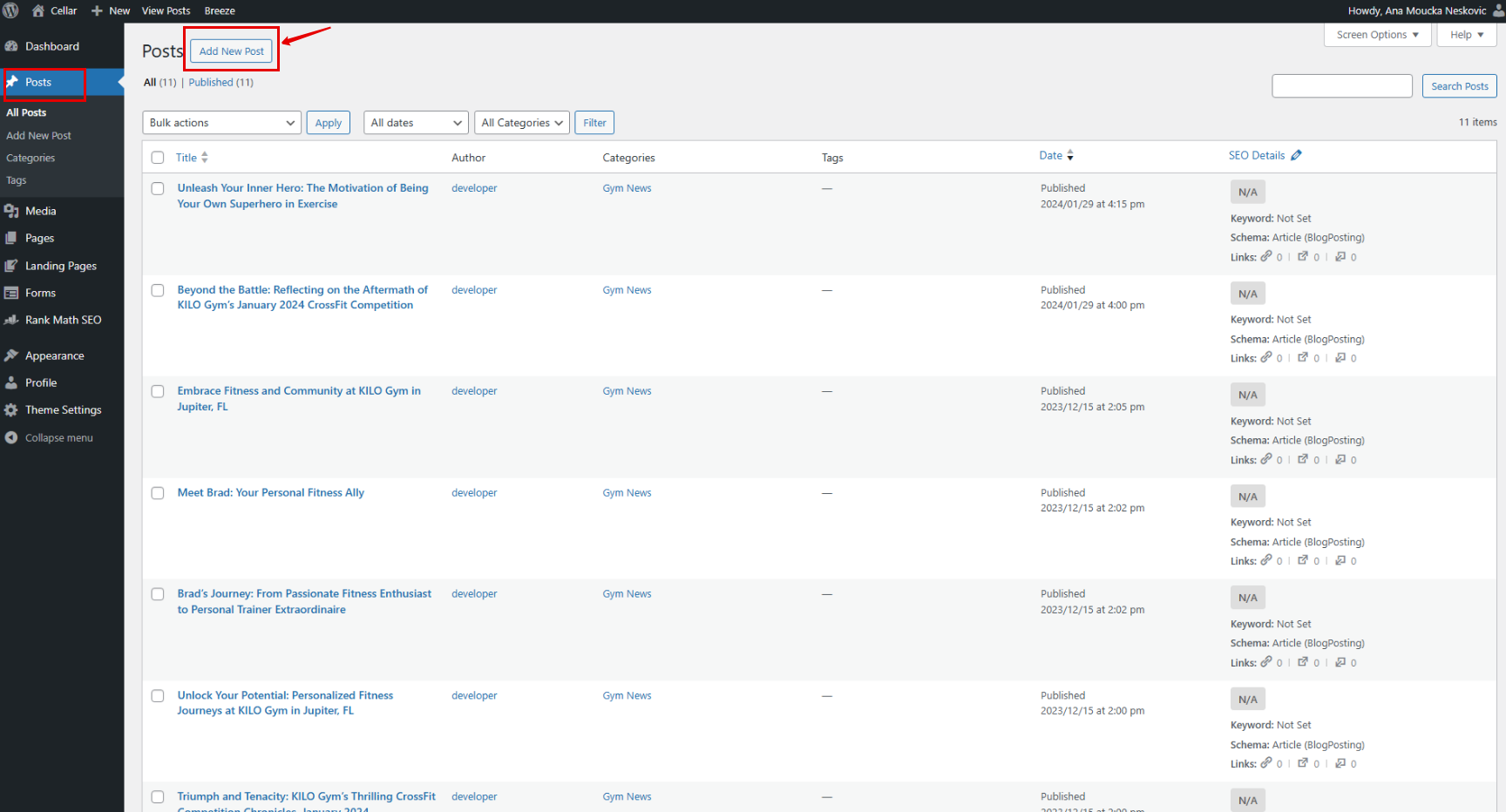
Click the Add Post button at the top.
Add your title at the top of the empty page, and add your content directly below it.
Use the Block panel on the right-hand side to make stylistic changes to the post so it flows as best as you see fit.
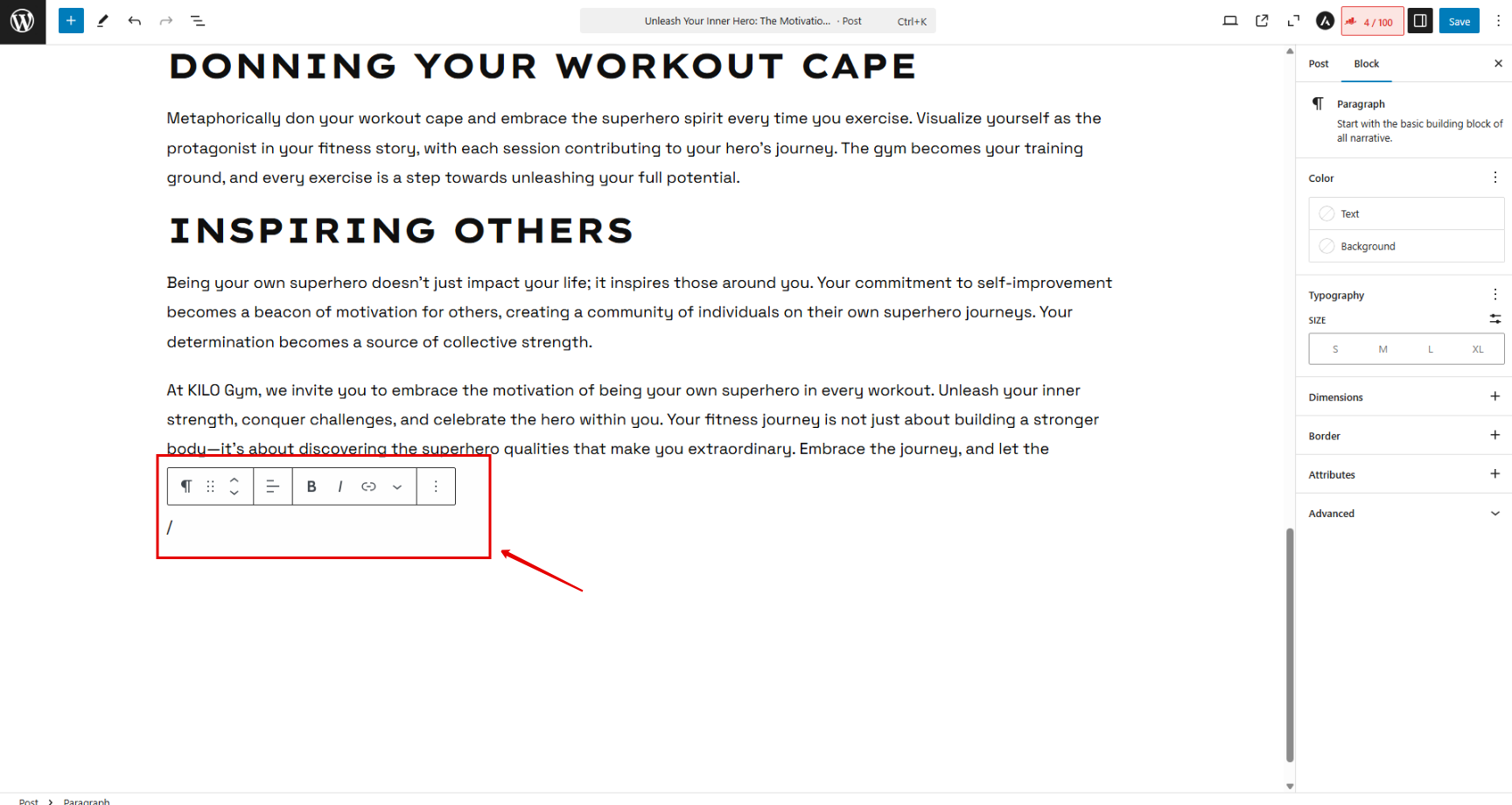
To add images and videos, type / inside the post and a list of available widgets will be displayed.
Post settings that matter
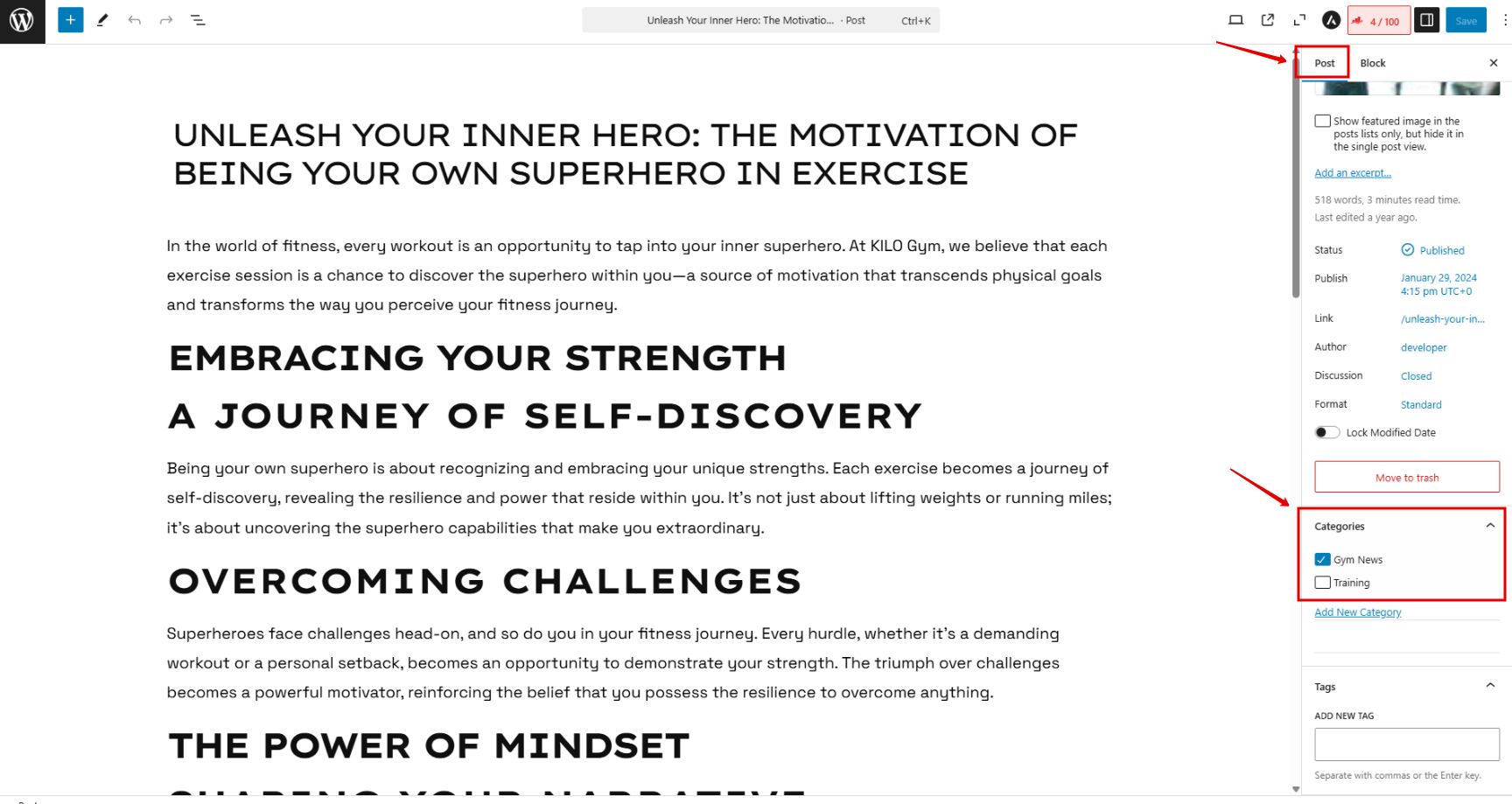
In the Post panel on the right-hand side, a few settings deserve attention before you publish:
Featured image: set one at the very top of the panel. The featured image is what shows as the preview image within the blog, and including one is an SEO best practice.
Publish or schedule: you can publish the post immediately or save it for later. If you like to work in batches, write several posts at once and schedule them for future dates.
Author: credit the staff member who wrote the post. As long as they have a WordPress account on your site, their name will appear in the drop-down list.
Categories: you can categorize each post or leave posts uncategorized, but setting a category on every post is common practice and pays off as your blog grows.
Consistent categories unlock extra navigation options. For example, if you categorize your recovery posts, we can create a second blog page filtered to just that category and add it to your navigation as a submenu item under your main blog, giving visitors a one-click link to all your recovery content. Reach out to hello@usekilo.com and we'll set it up for you.
Optimize your post for SEO
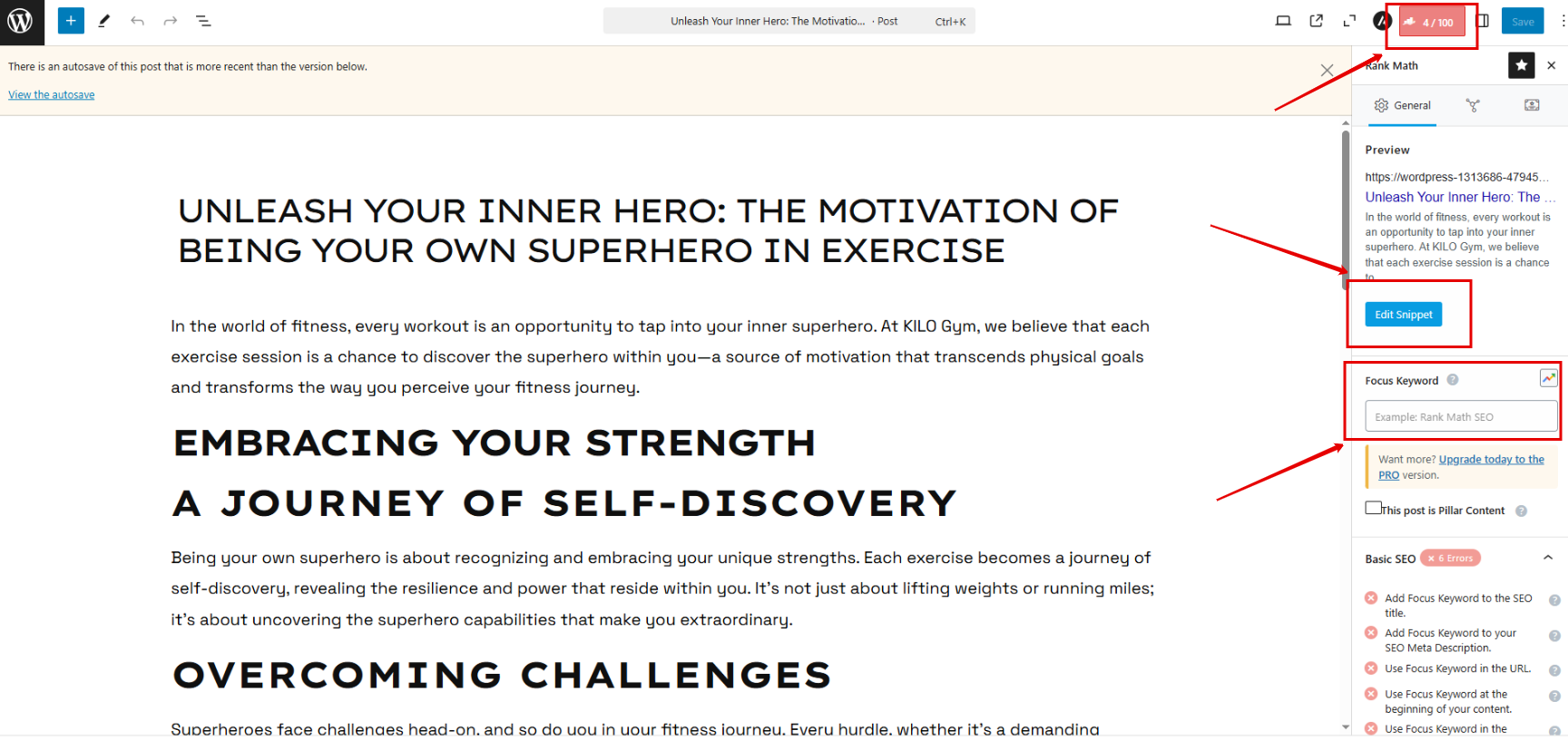
Optimize your post for SEO by adding a meta description and keywords directly within Rank Math.
Helpful tips
Always preview your changes before publishing to ensure proper formatting
Write your blog posts yourself, in your own tone and voice. Do not use ChatGPT or other AI tools to write posts for you, as copied material could end up on your website and potentially on someone else's. It is okay to proofread your posts with an AI chatbot, but the writing should be yours.
Have questions about blogging? Our Support team is happy to help. Reach us at hello@usekilo.com.