


You can update the copy on your website whenever your text needs to change: the wording shown in the content blocks on your pages. Whether your overall vibe has changed, your service offerings have changed, or you're introducing new or updated policies, you can edit this content yourself directly in WordPress.
Watch the video below for a walkthrough, or read on for the steps.
This article covers updating content on existing pages. Adding new pages to your site involves layout, navigation, and SEO work, so rather than creating pages yourself, reach out to our team at hello@usekilo.com and we'll help.
Before you edit your website
Editing your website's template can affect its layout, design consistency, and SEO setup. While we provide editable templates to give you flexibility, please keep the following in mind before making changes:
Layout disruptions: adjusting sections, removing elements, or changing text formatting may cause misalignment or unexpected design issues.
SEO considerations: titles, meta descriptions, structured content, and other optimizations are carefully set up. Modifying them without SEO knowledge may impact search rankings. It is important to note that there should be only one heading 1 (H1) per page; it is the first heading on the page.
Mobile and speed performance: some changes may alter the mobile experience or slow down page load times.
If you're unsure, we recommend consulting with our Support team at hello@usekilo.com before making major edits. This helps ensure your site remains optimized, visually consistent, and functional for visitors.
How do I update the copy on a page?
In your Kilo WordPress dashboard, click Pages on the left-hand side.
Hover over the page you want to edit and click Edit.
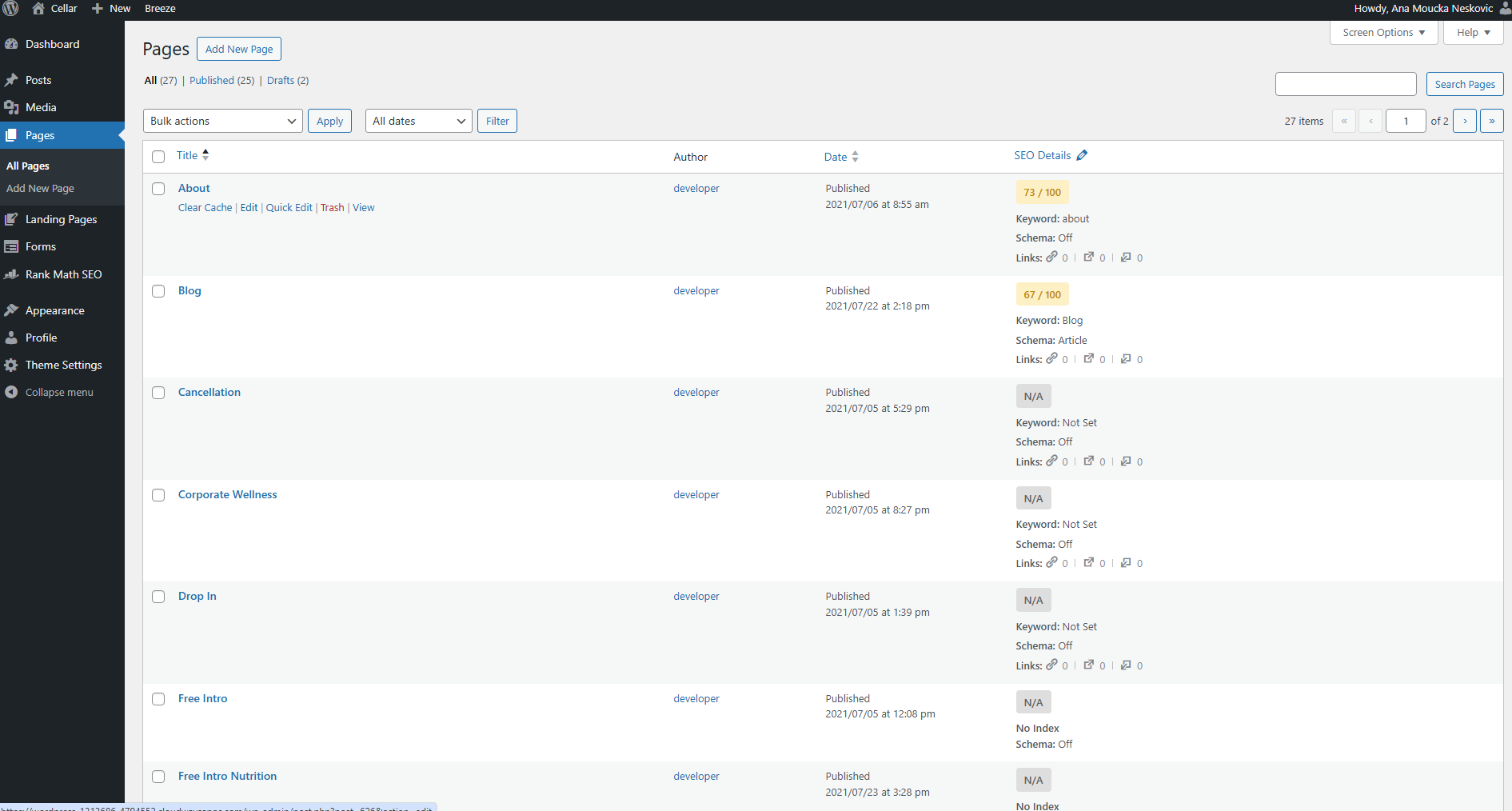
Find the content block you want to change. Pages are built from blocks. For example, on your cancellation page, the hero section sits at the very top of the page (the first thing a member sees when they navigate to your embedded cancellation form), and a content block sits directly below it.
Update the text, images, and buttons directly in the page editor. For example, if your membership cancellation policy changes from 14 days to 1 month's notice, replace "14 days" with "1 month's notice" in the content block.
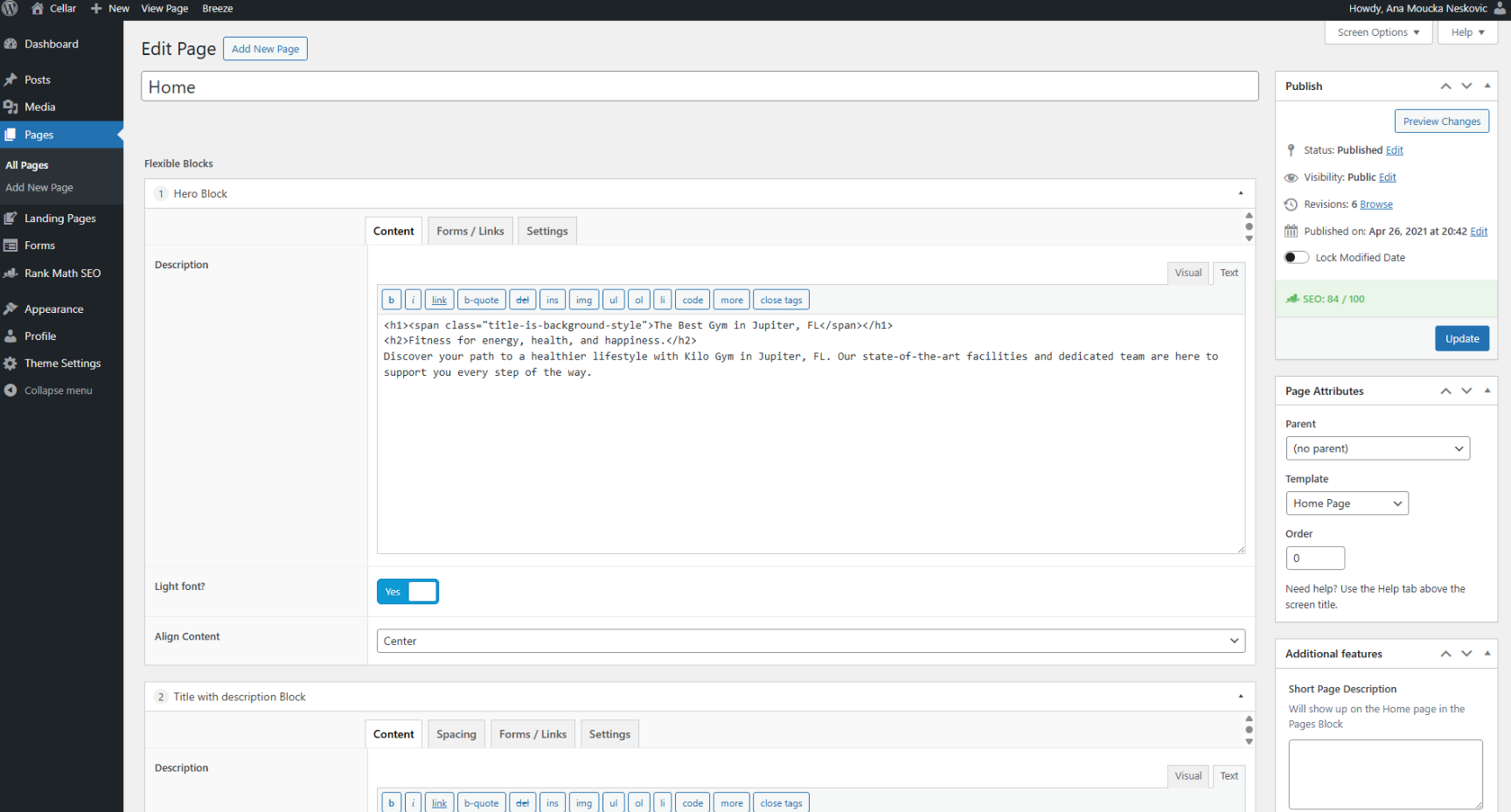
Scroll to the top of the page and click Update. The changes will be reflected on your website.
Always preview your changes before publishing to ensure proper formatting.
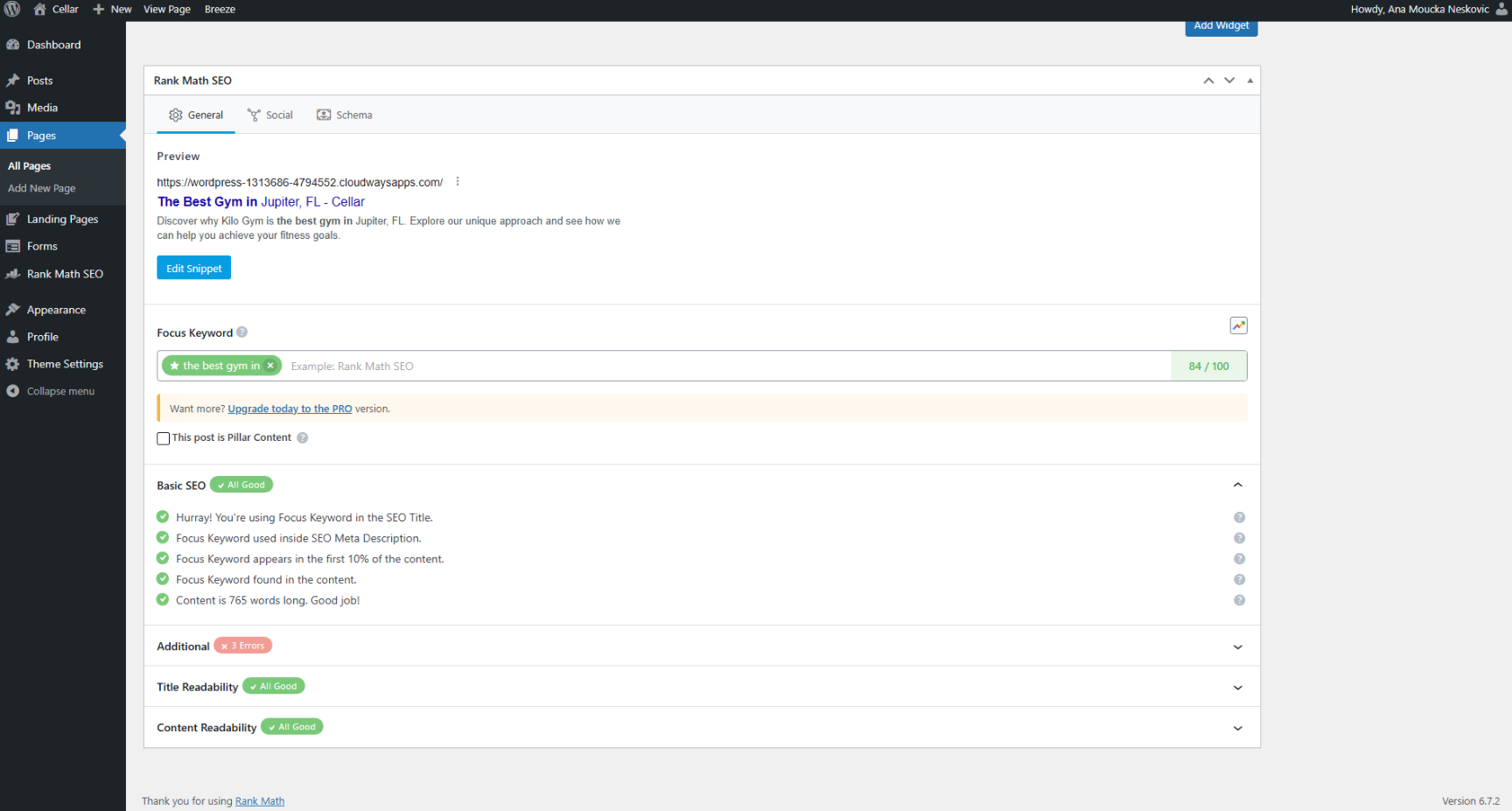
Improve SEO with Rank Math
You can enhance SEO and improve visibility by adding a meta description and keywords directly within Rank Math.
When this is most helpful
Your gym's overall vibe or messaging has changed
The service offerings you provide to your clients have changed
You're introducing new or updated policies, like a change to your cancellation notice period
Helpful tips
Preview your changes before publishing to ensure proper formatting
When adding content to pages, do not use ChatGPT-generated content
Have questions or want to request a complimentary annual redesign using one of our editable templates? Our Support team is happy to help. Reach us at hello@usekilo.com.