


The form pop-ups on your website are the windows that open when a visitor clicks a button like Book Free Intro. Each pop-up holds a title, a short description, and a form pulled in from your Gym Lead Machine account. You edit all three in WordPress, so you can change the wording or point a pop-up at a different form as your offers change.
Watch the video below for a walkthrough, or read on for the full guide.
What you can do with website form pop-ups
See every pop-up used across your site's landing pages
Change a pop-up's title and description
Connect a pop-up to a form from your Gym Lead Machine account
Swap in a different form without rebuilding the pop-up
Update every button that opens the same pop-up in one edit
Where your form pop-ups live
Select Forms in the left menu of WordPress. The page lists every pop-up used in the landing pages on your site.
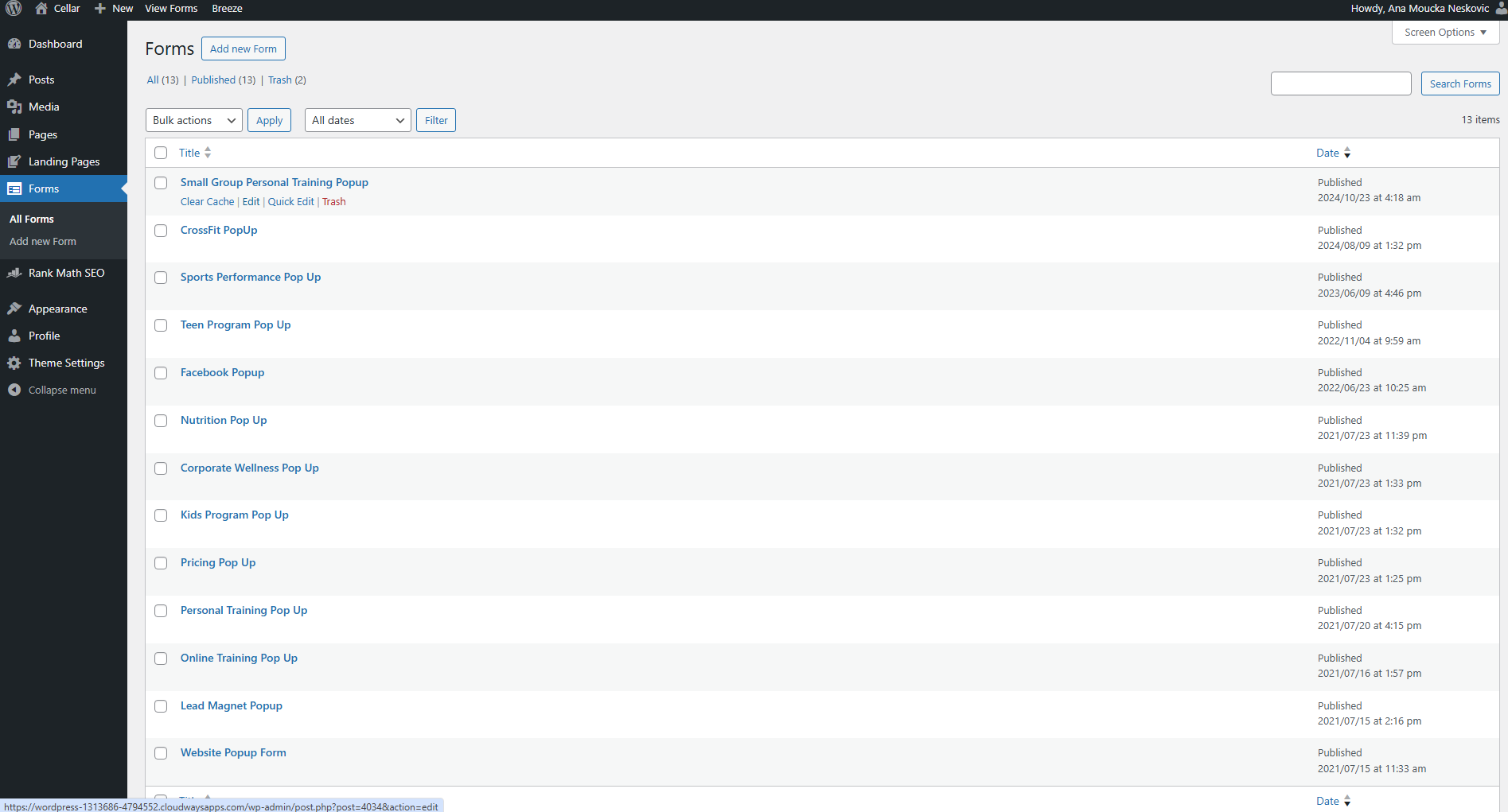
One pop-up is usually attached to several buttons. The website pop-up, for example, opens from the button in your navigation bar, from the hero section of your home page, and from the corresponding buttons below it. Editing that pop-up once updates every button that opens it.
How do I change a pop-up's title and description?
Select Forms in the left menu of WordPress.
Hover over the pop-up you want to change and click Edit.
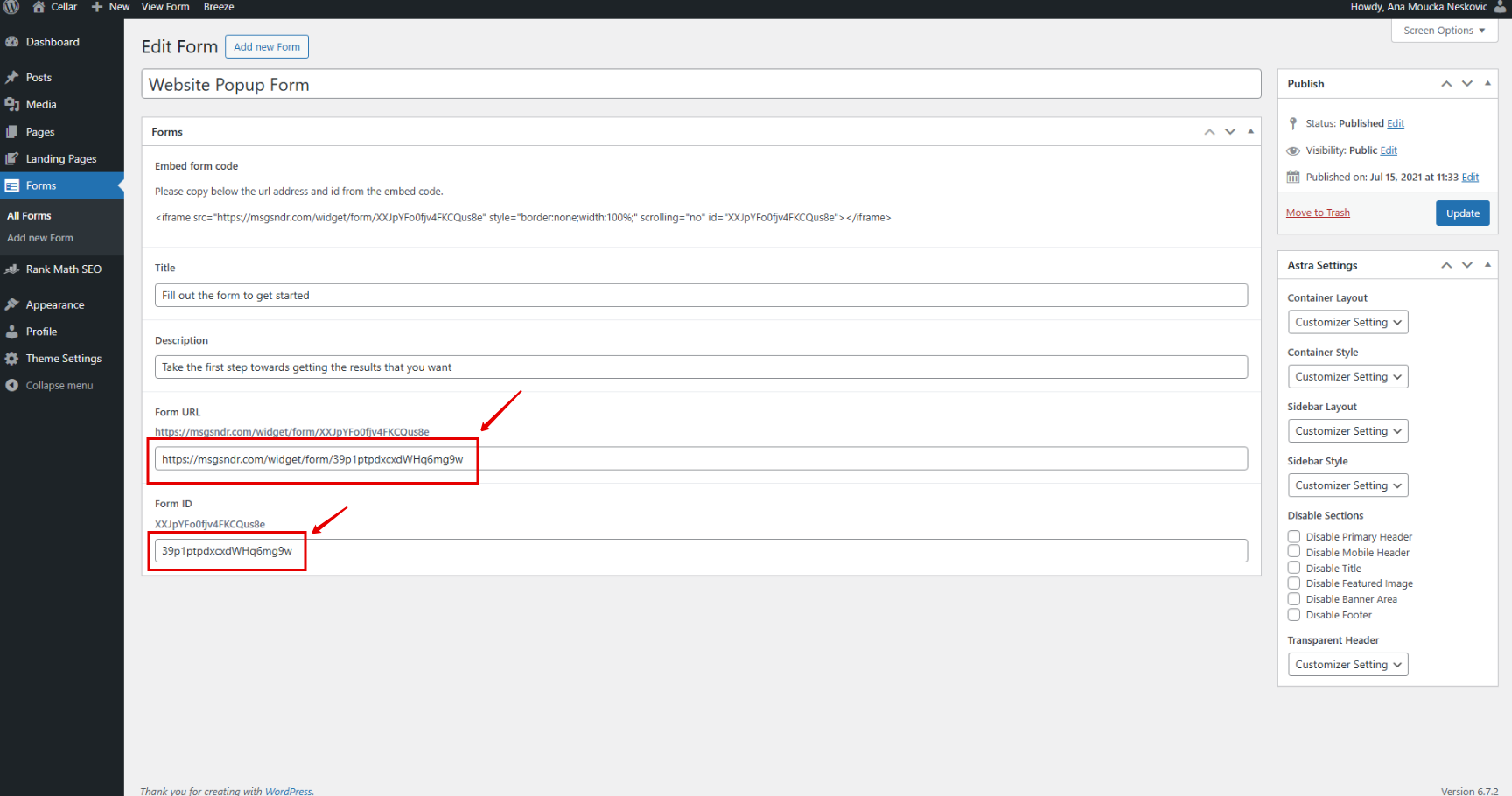
Edit the Title at the top of the edit form panel.
Edit the Description directly underneath the title.
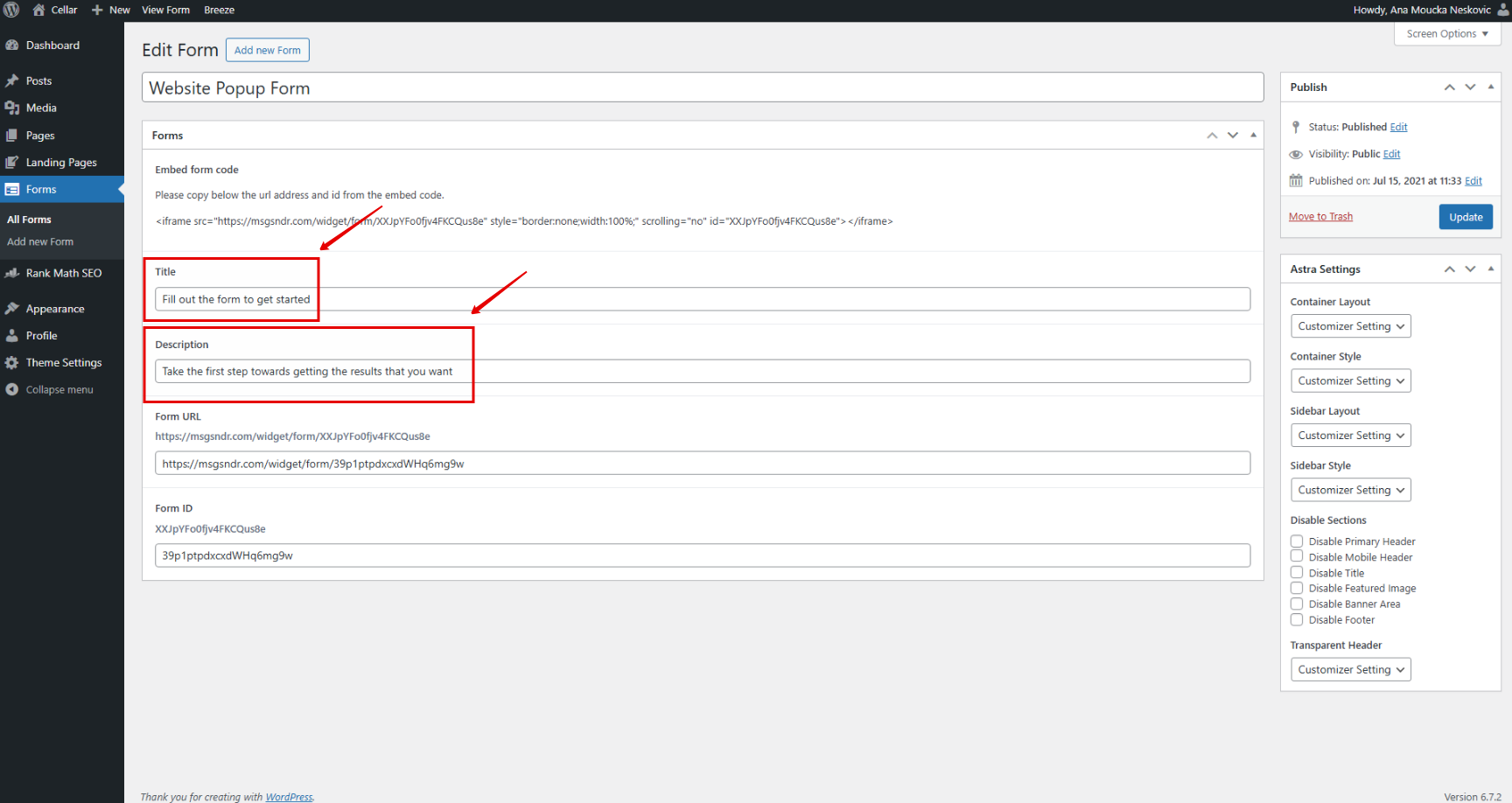
Click Update.
The title and description are the text a visitor reads above the form. The form fields themselves come from Gym Lead Machine and are not edited here.
How do I get the form URL and form ID from Gym Lead Machine?
The Form URL and Form ID fields in WordPress both come from a single share link in your Gym Lead Machine account.
Log in to your Gym Lead Machine account.
Go to Sites → Forms.
Find the form you want to use on your website and click it to open it.
Click Integrate in the top right, then click Share.
Copy the entire URL.
Keep that URL handy. You will use the whole thing in one field and the last part of it in the other.
How do I connect the form to the pop-up?
Return to WordPress and select Forms in the left menu.
Hover over the pop-up you want to change and click Edit.
Paste the URL you copied into the Form URL field.
Copy everything after the last forward slash in that same URL. That final segment is the form ID.
Paste that segment into the Form ID field.
Click Update.
Your changes are reflected on your website.
Both fields come from the same link. The Form URL field takes the complete address. The Form ID field takes only the part that follows the last forward slash, with no slash included.
After clicking Update, open your website and click the button that launches the pop-up to confirm the correct form loads.
Frequently asked questions
What are the form codes I need to update?
They are two fields in the pop-up's edit form panel: Form URL and Form ID. Both come from the share link of the form in your Gym Lead Machine account. The Form URL field takes the entire URL, and the Form ID field takes only the part after the last forward slash.
Where do I find the form ID?
The form ID is the last part of the form's share URL, everything after the final forward slash. Copy the share URL in Gym Lead Machine by going to Sites → Forms, opening the form, and clicking Integrate → Share. Paste the whole URL into Form URL, then paste the final segment into Form ID.
Do I have to update the same pop-up in more than one place?
No. A single pop-up can be attached to your navigation bar, your hero section, and other buttons across your landing pages. Editing the pop-up once updates every button that opens it.
Helpful tips
Build the form in Gym Lead Machine first, then connect it in WordPress
Copy the share URL once, since both WordPress fields come from it
Check that the Form ID field holds only the segment after the last forward slash
Change the title and description to match the offer the form is collecting
Open your site and click the button after updating to confirm the right form loads
When this is most helpful
Launching a new offer that needs a different intro form
Rewriting the headline or description above a form
Replacing a form you rebuilt in your Gym Lead Machine account
Reviewing every pop-up on your site after a template redesign
If you have questions about the form pop-ups on your website, or you want to request a complimentary annual redesign using one of our editable website templates, our Support team is happy to help. Reach us at hello@usekilo.com.