


Communities in Gym Lead Machine give your clients a branded space to talk to each other and to you. You set up a domain once, create one or more Groups inside your Community, and invite people to join with a link. Members create a single profile that works across every Group in your Community.
What you can do with Communities
Set up a client portal on a ready-made subdomain
Create separate Groups for different programs or audiences
Brand each Group with its own color, logo, cover image, and favicon
Invite members with a link you can send by email or SMS
Let members belong to more than one Group with a single profile
Add promotional links your members can see
Deactivate a Group without deleting it, and reactivate it later
Set up your Communities domain
Set the domain up first. Groups cannot be created until it exists.
Select Memberships in the left menu of your Gym Lead Machine account.
Select Communities.
Wait for the redirect to the client portal subdomain page.
Edit the string of letters and numbers in the pre-configured clientclub.net subdomain to your gym name.
Scroll down and click Update Domain.
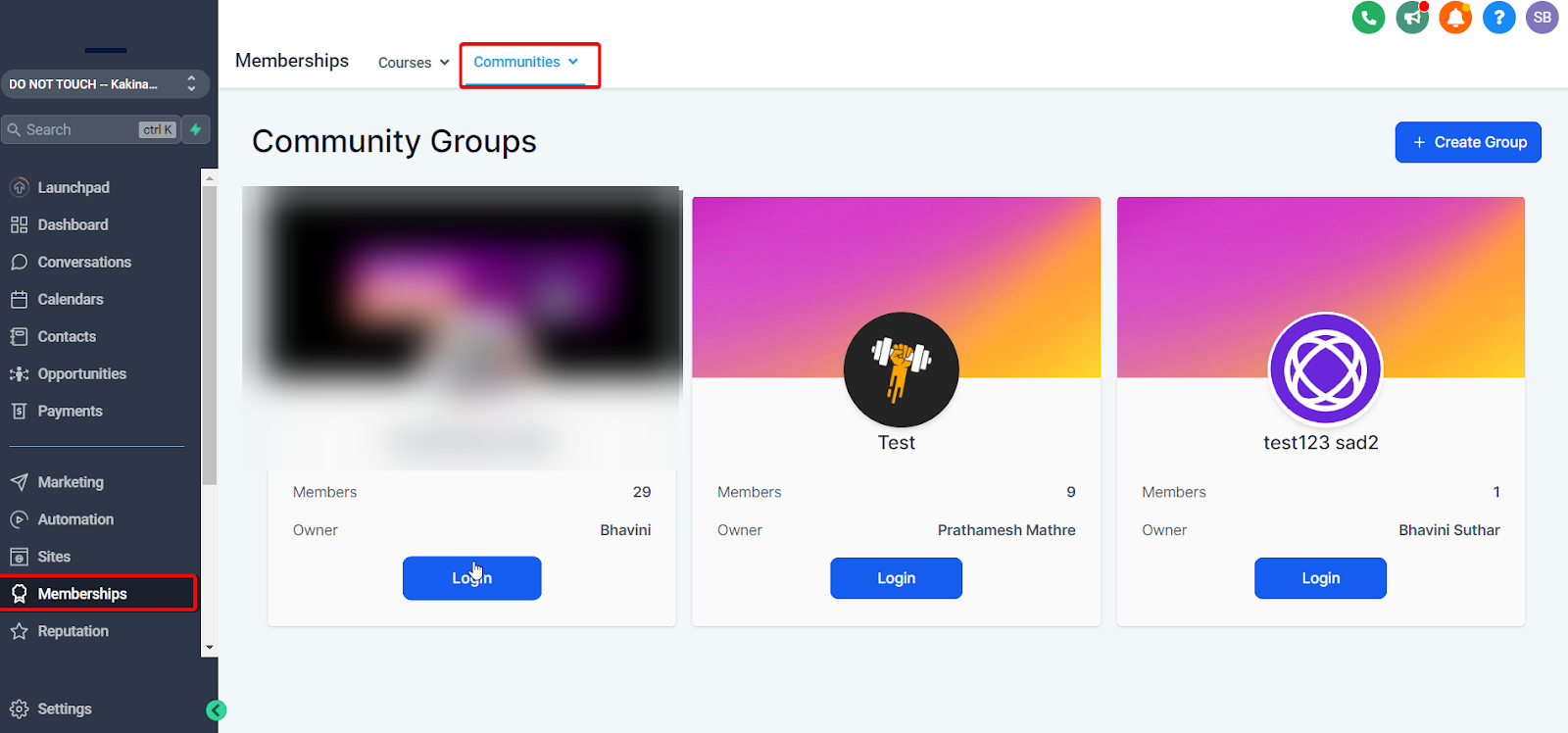
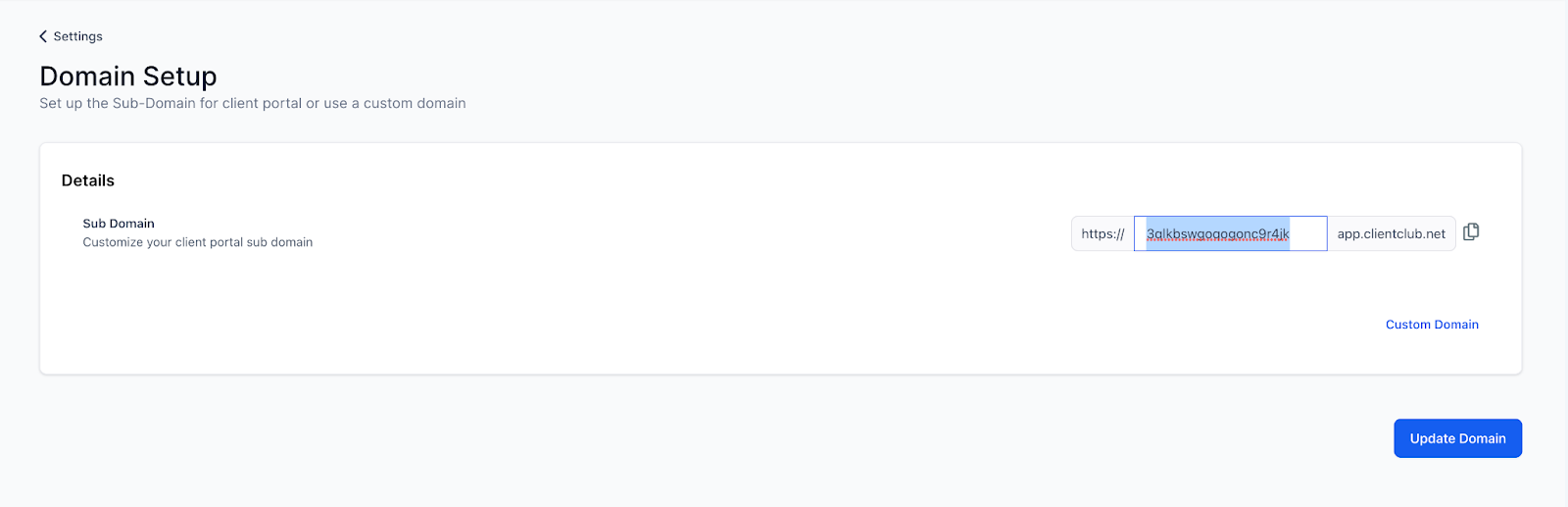
The subdomain is ready to use immediately, with nothing to configure with a domain registrar.
Create a Group
Go to Memberships → Communities → Groups.
Click Create Group.
Enter the Group Name, which is how members identify the Group. Name it for its purpose, for example "Nutrition Coaching Members."
Enter the Group URL, the web address where the Group lives. Keep it short and memorable, for example "nutrition-coaching."
Enter the Group Description covering what the Group is for and what members can expect.
Choose a Brand Color for the Group's design.
Upload a Favicon, the small icon shown in the browser tab.
Upload a Cover Image for the top of the Group page.
Upload a Logo, which appears in the group switcher. Use a square image, 1:1, clear at 200x200 pixels.
Create the Group.
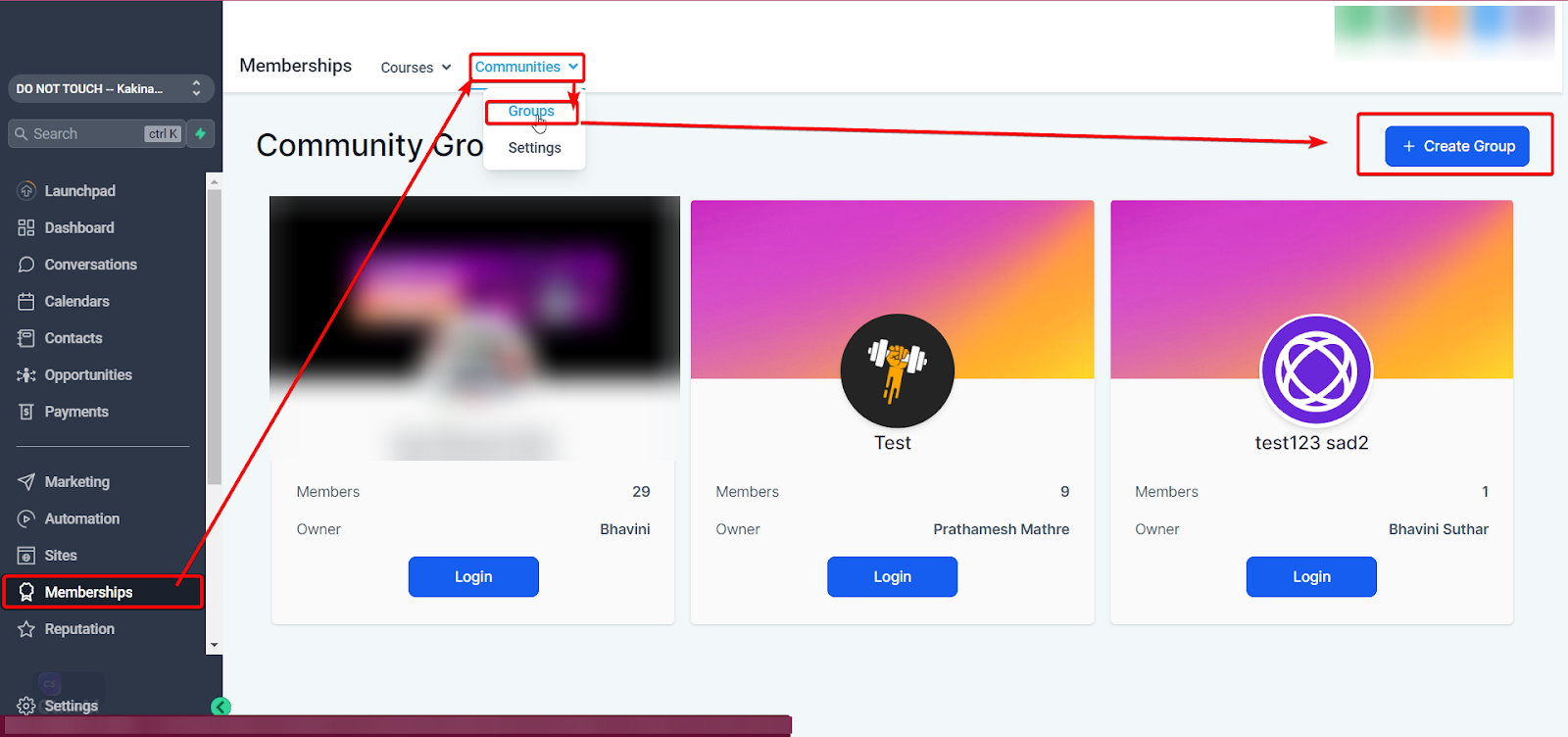
Whoever creates a Group becomes its owner, and ownership cannot be transferred to anyone else afterward. Create the Group from the account that should own it long term.
Invite members to a Group
Members join through the Group's unique URL. There is no invitation sent from inside Gym Lead Machine, so you send the link yourself.
Copy the Group's URL.
Send it to the people you want in the Group by email, SMS, or any other channel you use.
The recipient clicks the link and lands on the Group's join page.
They click Join Group and are prompted to sign up for the client portal.
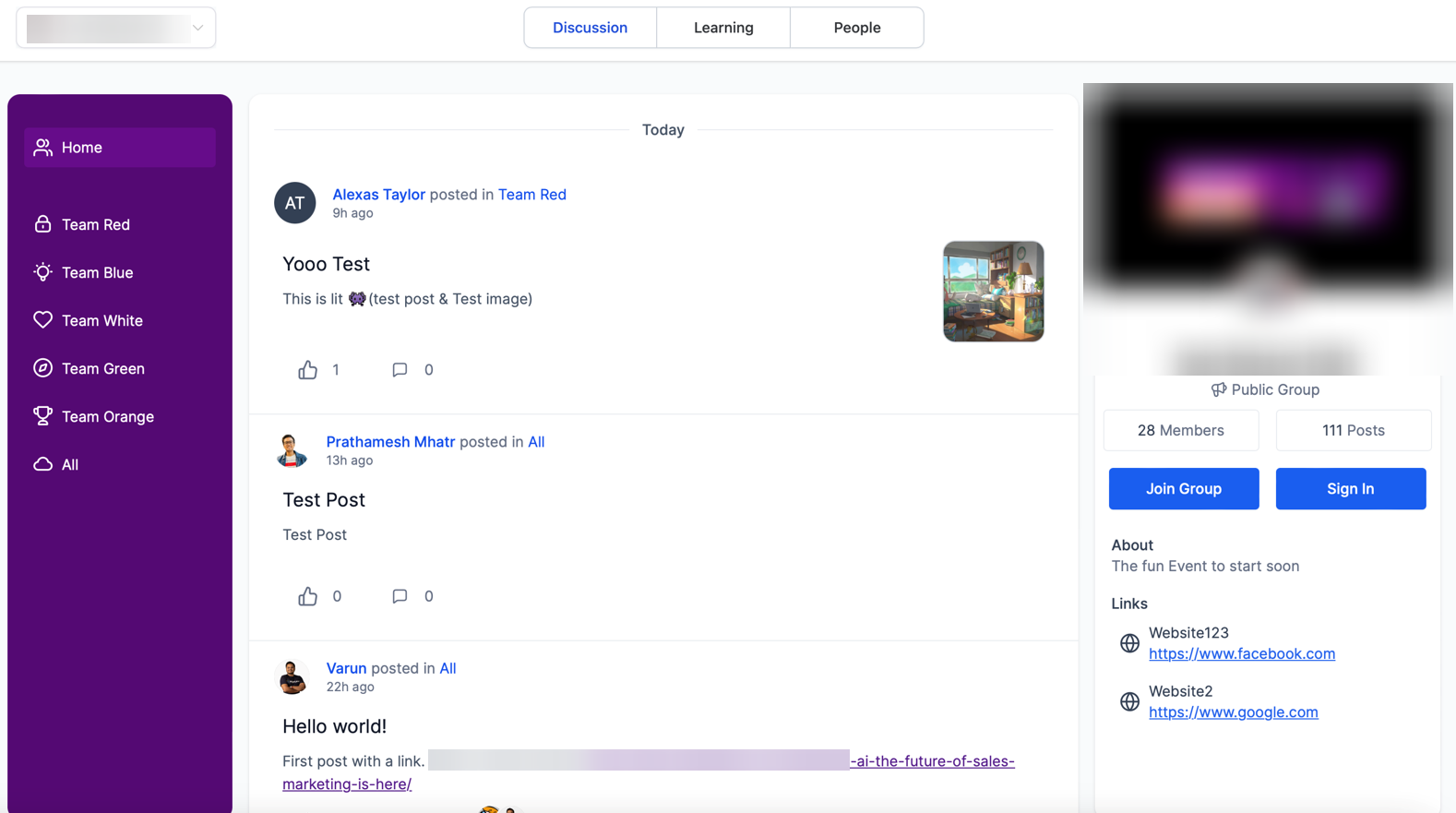
Once someone has signed up or logged in, they can join any other Group in your Community with the same profile.
Customize a Group
The details you entered when creating the Group become its defaults. You can change most of them afterward from the Group's settings.
Click the settings icon at the top of the Group page.
Select Details in the left menu.
Details
Update the Group Name and Group Description here at any time.
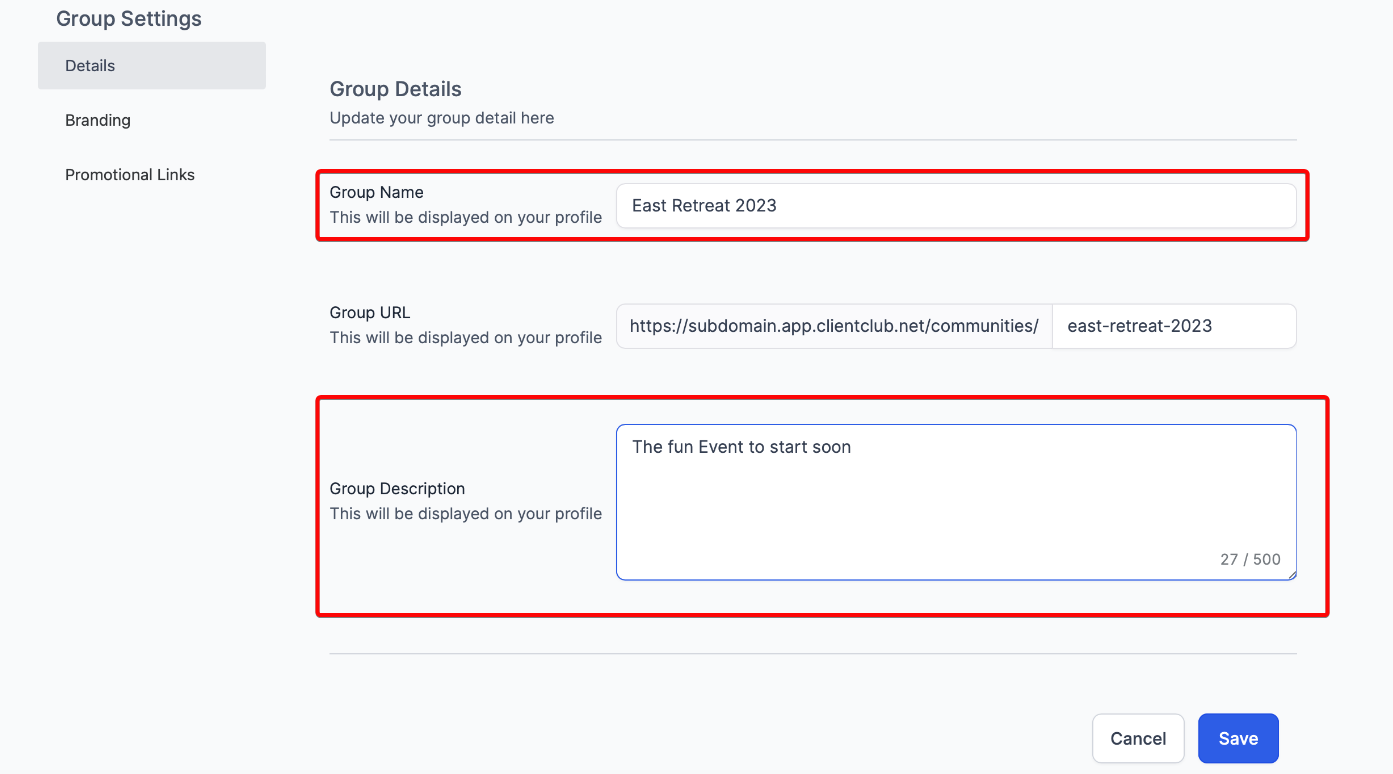
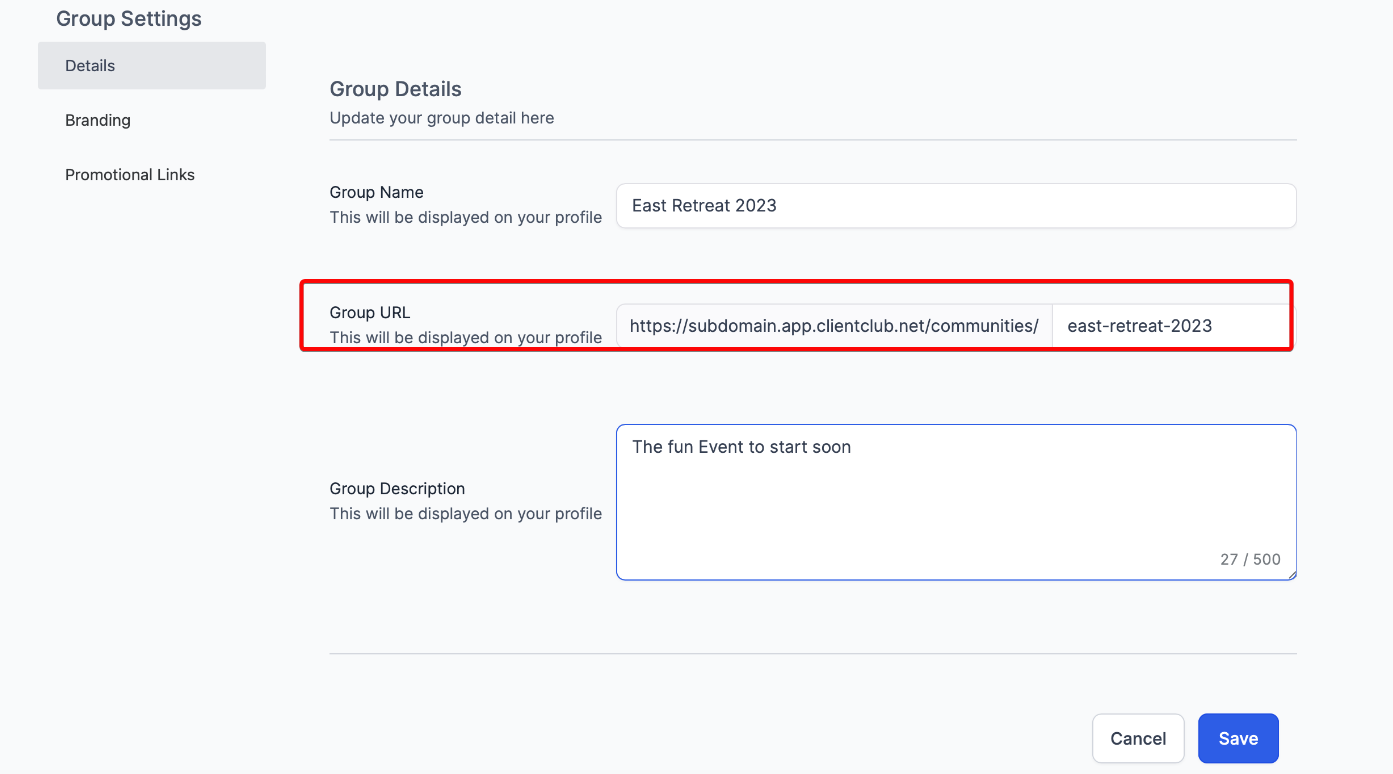
The Group URL is also changed in this section.
The Group URL can only be changed once. Check the new URL carefully before saving, because you will not get a second attempt.
To change it, edit the URL in Details, save, then reopen the settings to confirm the new URL is showing.
Branding
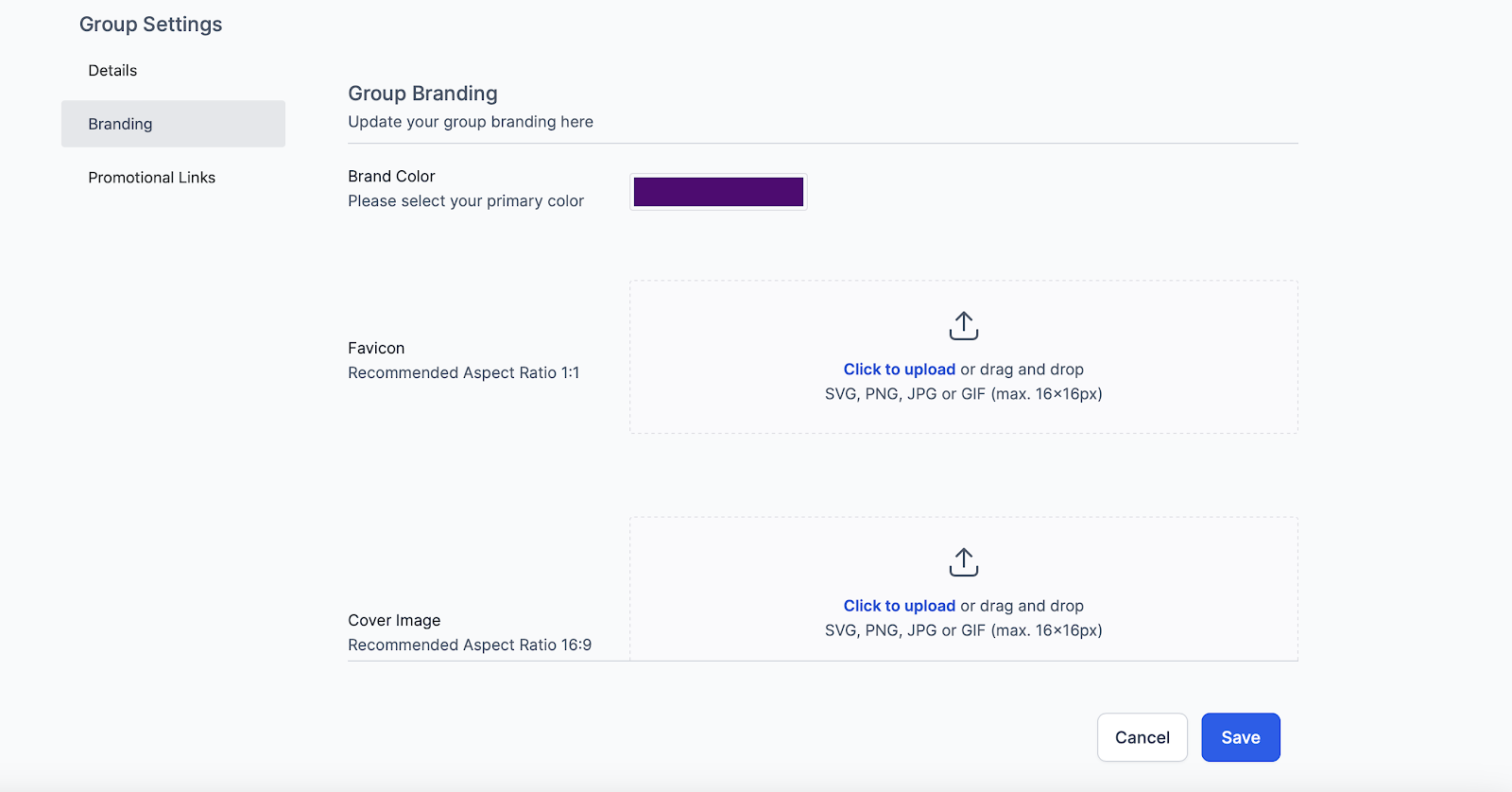
Update any of the following, which apply throughout the Group:
Primary Color, reflected across the Group's design
Group Logo, shown in the group switcher
Cover Image, shown at the top of the Group page
Favicon, shown in the browser tab
Promotional links
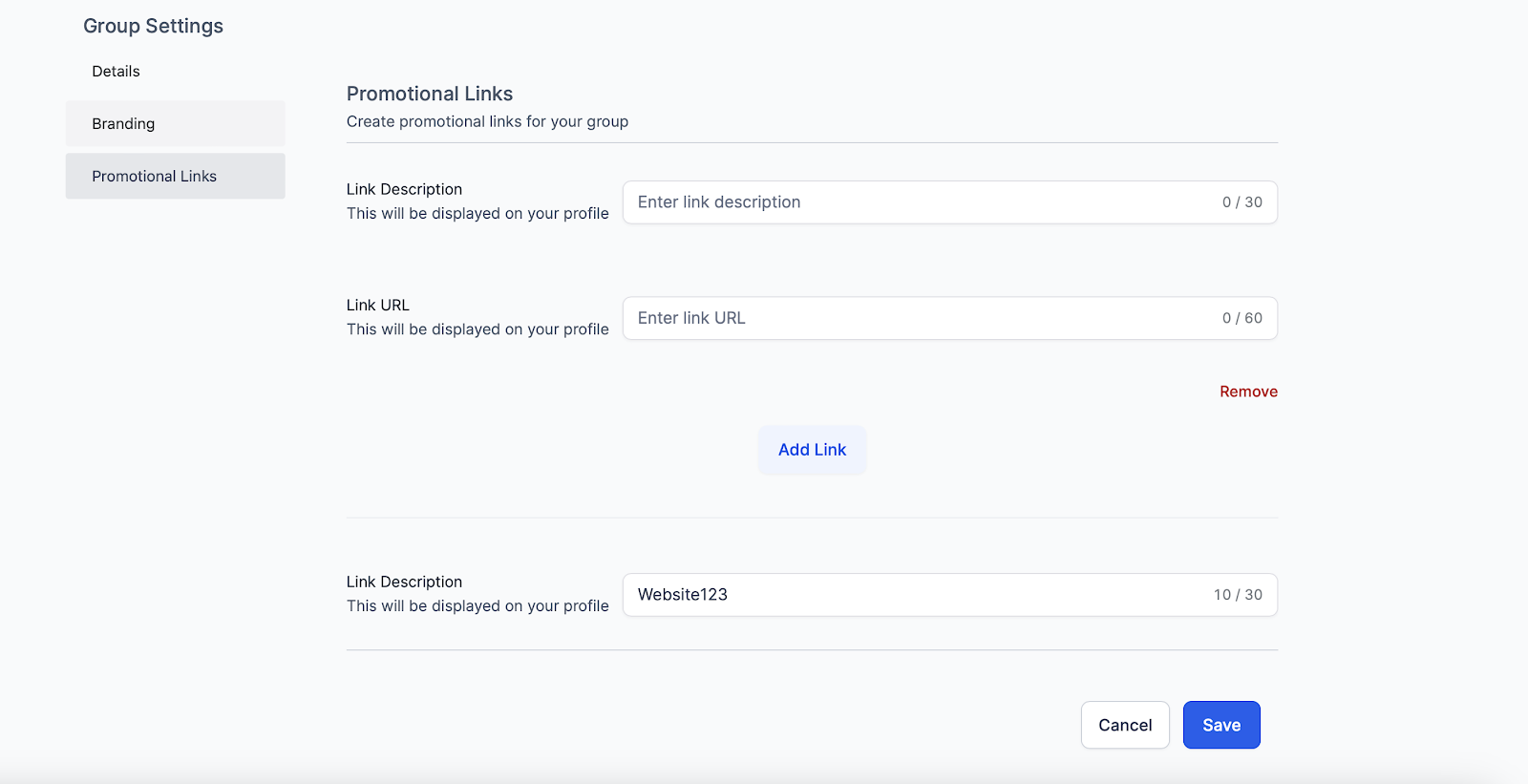
Add a title and a URL for any link you want members to see inside the Group.
Activate or deactivate a Group
Go to Memberships → Communities.
Find the Status setting for the Group.
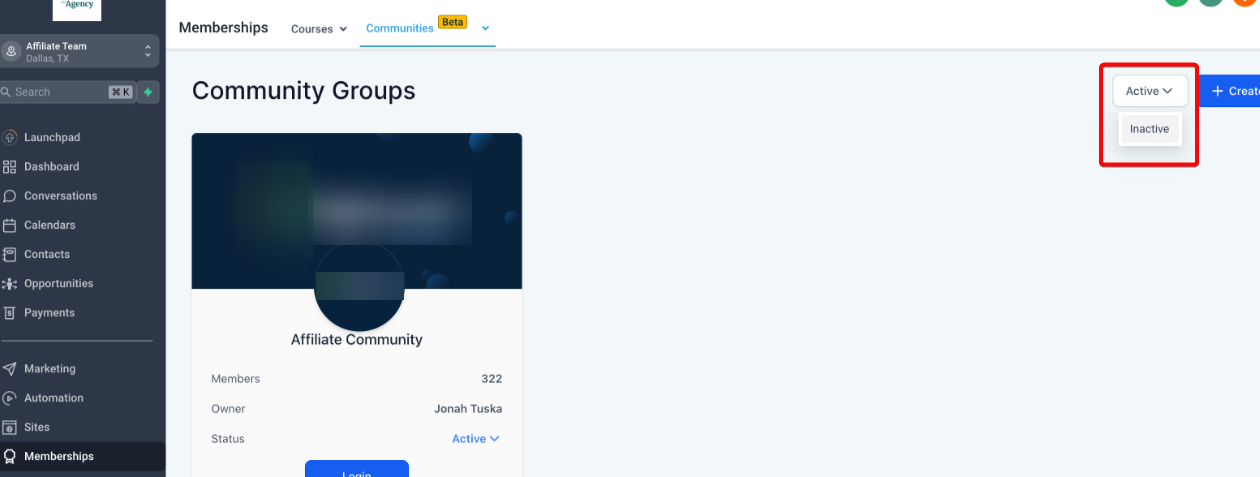
Set the Group to Active to make it available, or Inactive to take it out of use.
Use the Active and Inactive filter on the Groups list to narrow what you are looking at.
Group roles and ownership
Anyone on your team with access to your Gym Lead Machine account can create a Group.
The person who creates a Group is its owner, and ownership cannot be transferred.
Team members with admin permissions have admin rights in the Community, which covers managing the Group broadly.
Other team members are moderators, which covers day-to-day moderation.
Helpful tips
Set up your domain before anything else, since Groups depend on it
Create each Group from the account that should own it, because ownership is permanent
Decide the Group URL before you save, since it can only be changed once
Use a square logo so it displays cleanly in the group switcher
Keep the Group description specific, so people can tell which Group to join
Deactivate a Group rather than deleting it when a program pauses
If you have questions about Communities in Gym Lead Machine, our Support team is happy to help. Reach us at hello@usekilo.com.