


Sometimes it's just easier to say something than to type it all out. With the Linq Blue mobile app, you can send a quick voice message directly to your contact: perfect for follow-ups, personal greetings, or urgent replies.
Note: If you don't have the app yet, see Download and Use the Linq Blue Mobile App to get set up first.
How Do I Send a Voice Memo from the Linq Blue App?
Press and hold the microphone icon in the conversation to record, then release to send.
Open the Linq app. Tap the Linq app on your phone, go to the Phone tab at the bottom, and tap on the conversation with the person you want to message.
Tap the microphone icon. Look just below the message box: the microphone icon is on the right-hand side.
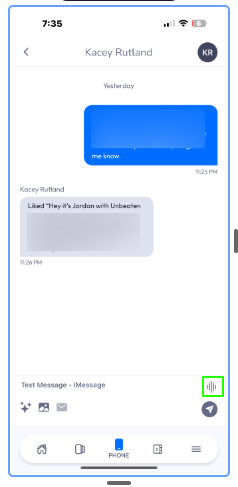
Record your message. Press and hold the mic icon to start recording. Speak clearly and keep your message short and friendly. For example:
"Hey Alex! Just wanted to say thanks for stopping by today. Let us know if you have any questions about memberships!"
Release to send. Once you're done, release your finger, and your voice memo will send automatically.
That's it! Your contact will receive your voice message just like a regular text, but in your voice.
Helpful Tips
Use voice memos for quick, personal touches: They're especially handy when you're on the move.
Keep messages under 30 seconds when possible.
Great for owner check-ins, class updates, or fast replies without typing.
If you have questions about sending voice memos with the Linq Blue mobile app, our Support team is happy to help. Reach us at hello@usekilo.com.