


Forms in Gym Lead Machine collect information from leads and contacts and drop it straight onto their contact card. Most of the forms in your account already live on your website or your landing pages, and you can build new ones for anything else you need to ask. This article covers creating a form, setting what happens after submission, styling it, adding fields and custom questions, and sharing it.
What you can do with forms in Gym Lead Machine
Create a new form or edit any existing form in your account
Change the form name and control the on-submit action
Redirect submitters to a page or show them a thank you message
Adjust field labels, background, and font
Drag standard fields onto the form from the Quick Add list
Add buttons and text elements and style them individually
Build custom fields for questions the standard list does not cover
Choose which contact card group stores each answer
Mark fields as required
Embed the form on a landing page or share it as a link
Create or edit a form
In the Gym Lead Machine left menu, click Sites.
Click the Forms tab in the upper menu.
Review the list of forms in your account.
Click + Add Form to build a new form, or click a form's name to edit it.

Change form settings and styles
Both the general settings and the visual styling live behind the Styles & Options icon in the form builder.

Set the form name and the on-submit action
Click the Styles & Options icon.
Select the Options tab.
Edit the form name.
Set the On Submit action to control what happens after someone submits the form.

The On Submit action has two behaviors. A form can direct the submitter to a website URL, which is how the form on your website sends leads to your Free Intro page for booking. A form can also display a thank you message instead of redirecting, which is how the Cancellation, Lead Magnet, and Drop-In forms confirm the opt-in and tell the contact to watch for more information.
Adjust the form's appearance
Click the Styles & Options icon.
Select the Styles tab.
Show or hide the field label, adjust the form background, or change the font size and style.

Add and edit form fields
Add a standard field
Select the + icon button on the left side of your screen.
Open the Quick Add tab.
Click and drag any standard field you want to collect onto the form.


Quick Add covers the standard form fields, for example, First Name, Email, and Phone. Each one already has a matching field on the contact card, so the answer has somewhere to go the moment it comes in.
Add a button or text element
Drag the Button or Text element onto the form.
Click the element you just placed.
Use the editor on the right side of your screen to change its appearance.

Edit a field
Click the field you want to change.
Use the side menu options, which update to match the selected field.
Click a blank area of the form to return the side menu to its default options.
Make a field required
Click the field.
Select the Required checkbox.

Add a custom field
Custom fields cover questions that do not appear in the Quick Add list.
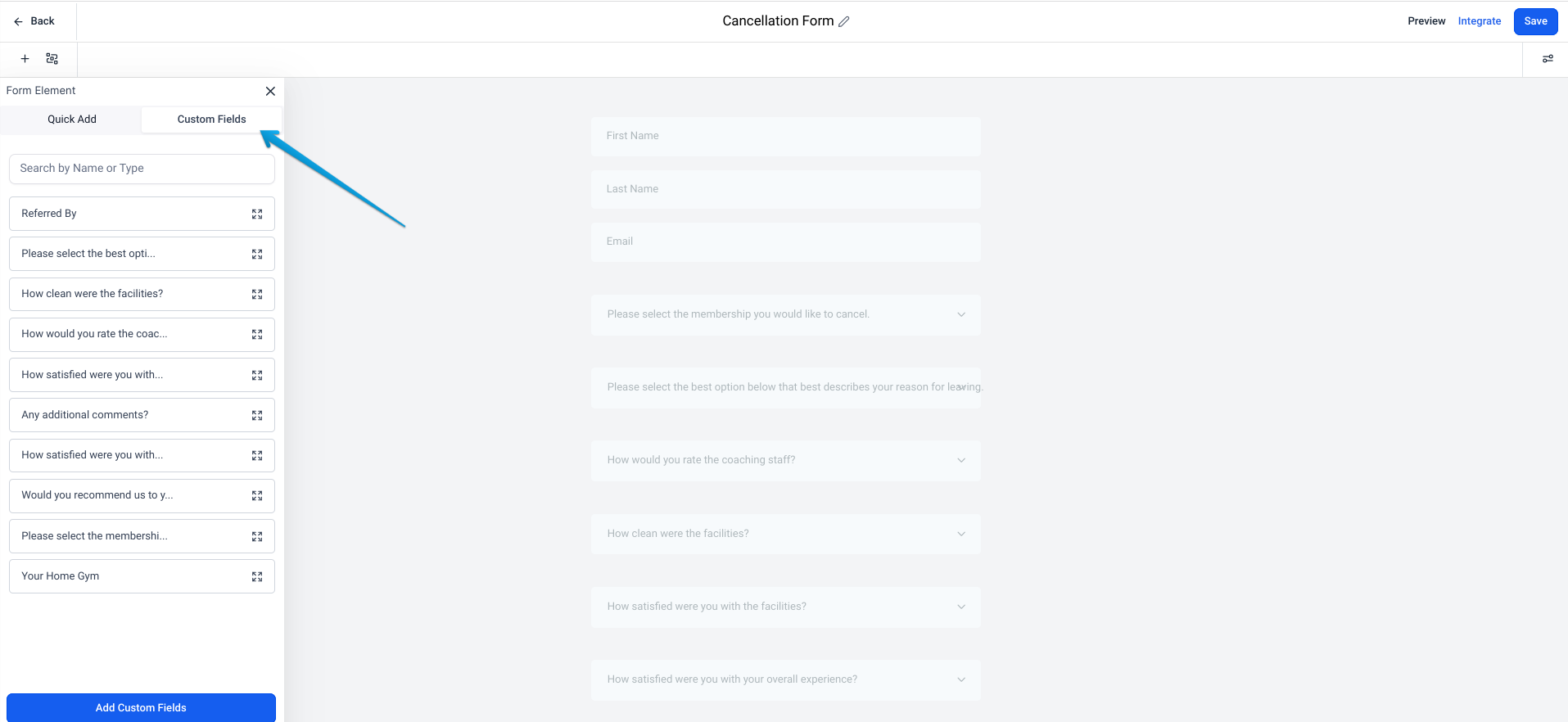
Select Custom Fields in the left side menu.
Scroll to the bottom of the list.
Click Add Custom Field.
Choose a field type. Options include short text, long text, checkboxes, date picker, drop-down, and file upload.
Enter your question in the Field Name field.
Under Group, choose where the answer will appear on the submitter's contact card.
Save the field.


The field type is locked once you select it and save. If the type turns out to be wrong, create a new custom field with the correct type instead.
You can also add new groups to your contact cards to keep related answers together. A Goal Setting Form, for example, can write its answers into a custom Goal Settings group rather than scattering them through General Info.
Save and share your form
Click Save in the upper right.
Click Integrate, next to Save.
Click Copy Embed Link to embed the form on a landing page, or Copy Form Link to share the form as a URL.

Frequently asked questions
What happens after someone submits my form?
The standard forms in your Gym Lead Machine account already have their submission actions built into Workflows. Those actions can include internal staff alerts, tasks, adding and removing tags, and adding and removing campaigns. For a new or custom form, open the Workflow builder and create an automation that triggers on form submission.
What is the difference between Copy Embed Link and Copy Form Link?
Copy Embed Link gives you the code to place the form inside a landing page. Copy Form Link gives you a standalone URL you can send to someone directly. Both are in the Integrate Form window. Use the embed link when the form needs to live on a page you have built, and use the form link when you are sharing the form in an email, a text message, or a social post.
Can I change a custom field's type after I save it?
No. The field type is permanent once the custom field is saved. Create a new custom field with the type you need and use that one on the form instead.
Where do the answers to my custom questions appear?
In the contact card group you selected under Group when you created the custom field. Choosing General Info puts the answer in the General Info section of the contact card. You can also create your own group so a set of related answers stays together.
Helpful tips
Toggle on Full width in the button editor for a cleaner, more polished button
Check the Quick Add list before building a custom field, since a standard field already maps to the contact card
Decide on the field type before you save a custom field, because the type cannot be changed afterward
Choose the contact card group deliberately so answers are easy to find later
Set the On Submit action before you share the form, so the first submitter lands where you expect
Save the form before opening Integrate, or your latest changes will not be included
When this feature is most helpful
Building a new form for a promotion, challenge, or event
Adding a question your current intake form does not ask
Changing where a form sends leads after they submit
Matching a form's appearance to a landing page you have built
Collecting goal-setting or intake answers that need their own section on the contact card
Sharing a form by link when there is no page to embed it on
If you have questions about creating or editing forms in Gym Lead Machine, our Support team is happy to help. Reach us at hello@usekilo.com.