


The Google Ads integration for Gym Lead Machine automatically captures leads from your Google Ads lead form campaigns and syncs them directly into your Gym Lead Machine CRM. This is for gym owners and staff running paid ad campaigns who want new leads to land in their CRM and trigger follow-up automatically, without manual entry.
What you can do with the Google Ads integration
Connect a Google Ads account to Gym Lead Machine using secure OAuth sign-in
Automatically sync leads from your Google Ads lead forms into your CRM
Map Google form fields to the matching Gym Lead Machine CRM fields
Pause or resume syncing for an individual form at any time
Trigger Workflows automations the moment a Google lead form is submitted
Test the connection directly from Google Ads Manager
How do I connect Google Ads to Gym Lead Machine?
From your Gym Lead Machine dashboard, click Settings and then Integrations.
Find Google Ads in the list and click Manage.
You’ll be redirected to the app page—click Install to continue.
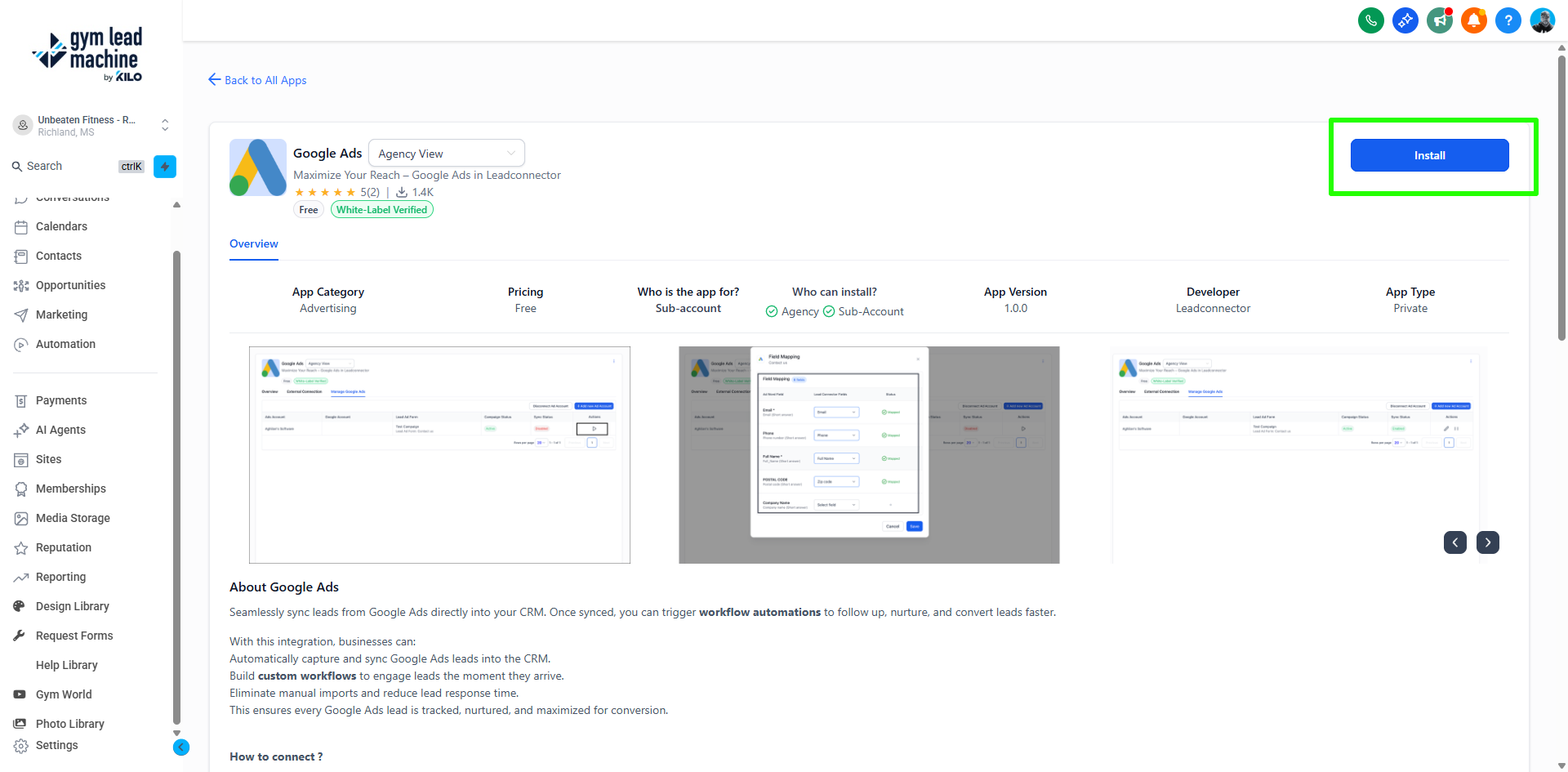
Sign in using your Google account when prompted.
This uses secure OAuth authorization to connect your ad account.
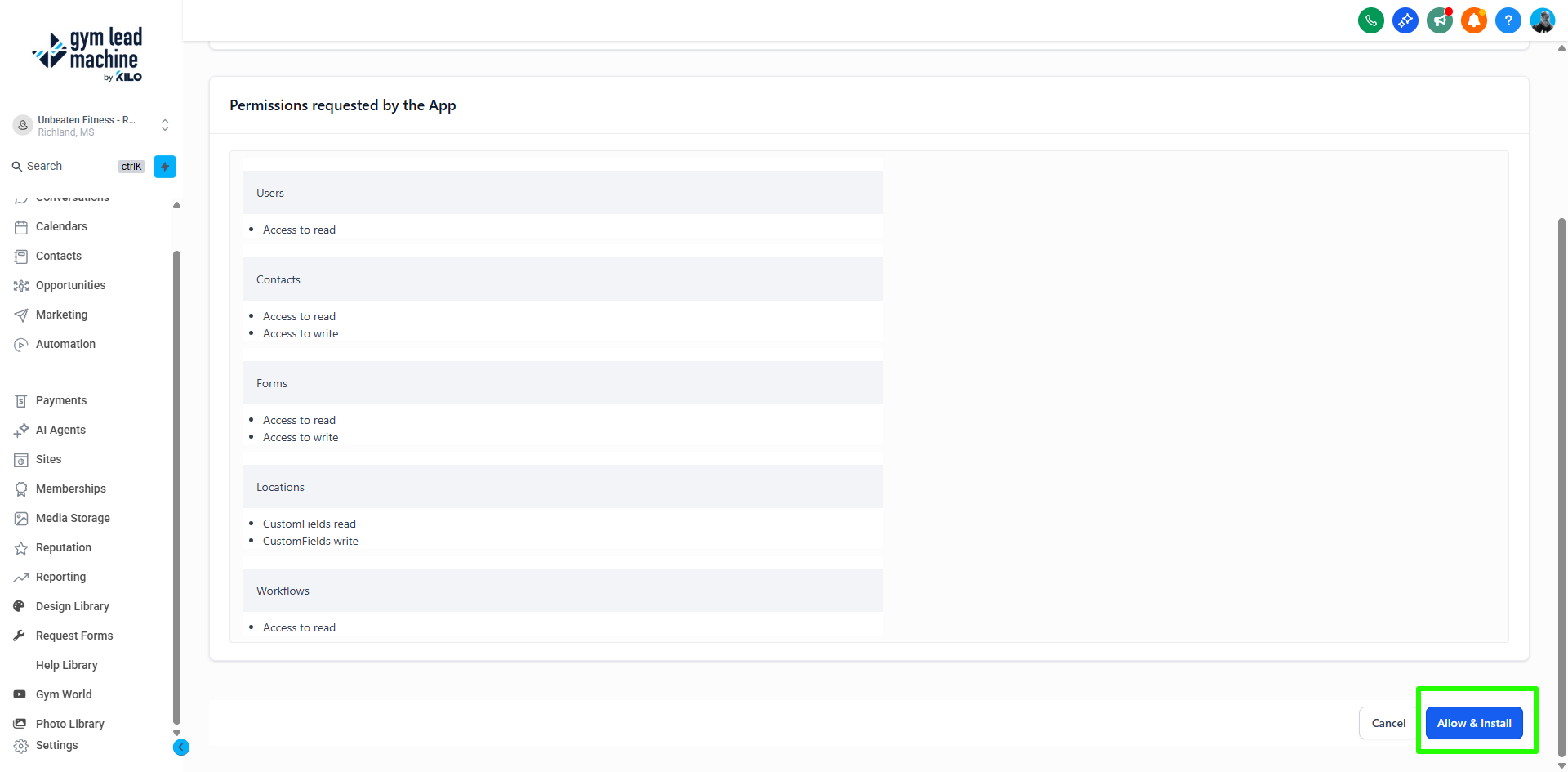
Click Allow & Install
Then click Connect
After connecting, you'll see a list of all your lead forms from the selected ad accounts, along with their campaign names and current status
Click the Play icon next to a form to activate syncing and map the fields.
Select Map Fields to align your Google Form questions with the corresponding Gym Lead Machine CRM fields (like name, email, phone, etc.).
Want to pause syncing from a specific form? Just click the Pause icon.
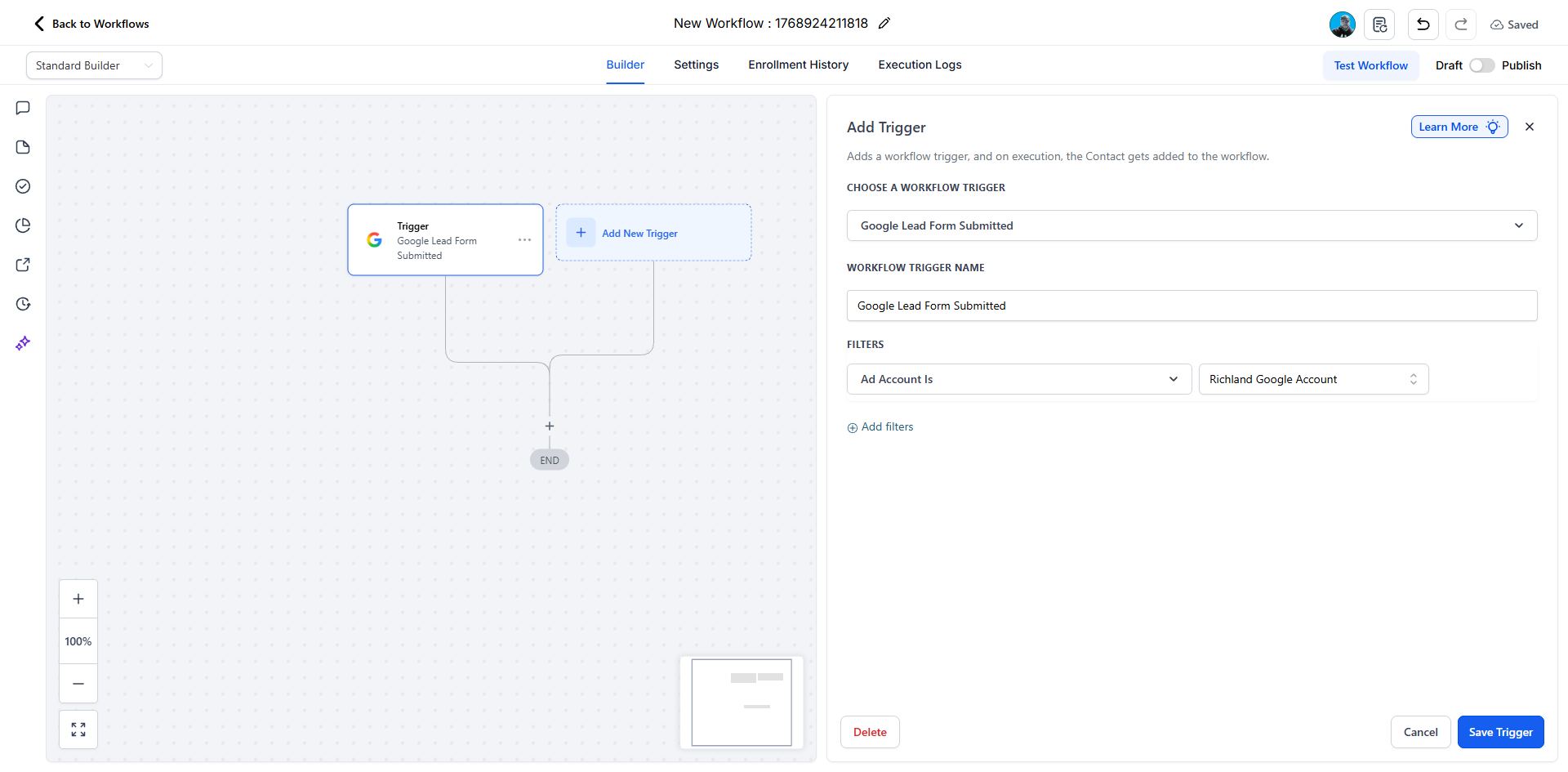
Next, go to Automations and create a new workflow in GLM to automate follow-ups. Select the trigger “Google Lead Form Submitted” to build automations that engage leads the moment they come in.
How do I test if the connection is working?
Log in to your Google Ads Manager and open the campaign you're syncing.
From the Campaign List View, click the campaign name to open it.
Scroll to the Lead Form Extension and click Edit.
Click the form name to open the connected lead form.
Click Send Test Data to verify everything is connected correctly.
You may see a warning during testing—this is expected and safe to ignore.
Helpful tips
Use the Google Lead Form Submitted trigger in Workflows so new leads get an automated follow-up right away.
Pause a form's syncing instead of disconnecting the whole integration if you just need to stop one campaign temporarily.
After setup, send test data from Google Ads Manager to confirm your field mapping is working before you rely on it for live campaigns.
When this feature is most helpful
Running Google Ads lead form campaigns for gym membership or program signups
Getting new ad leads into your CRM without manual data entry
Triggering immediate follow-up automations the moment a lead form is submitted
Managing multiple ad accounts or forms and controlling which ones are actively syncing
If you have questions about the Google Ads integration in Gym Lead Machine, our Support team is happy to help. Reach us at hello@usekilo.com.