


You can reserve your spot in a class, see how many spots are left, and join the waitlist for a full class from the Schedule in the Kilo app. This article covers reserving a class, reading the spots remaining counter, canceling a reservation, and how the waitlist works.
What you can do from the schedule
Reserve your spot in a class
Check how many spots are left before you reserve
Reserve from the class details page
Cancel a reservation you no longer need
Join the waitlist when a class is full
See your position on the waitlist
How do I reserve a class?
Open the Schedule in the Kilo app.
Find the class you want to join.
Select Reserve on the class card.
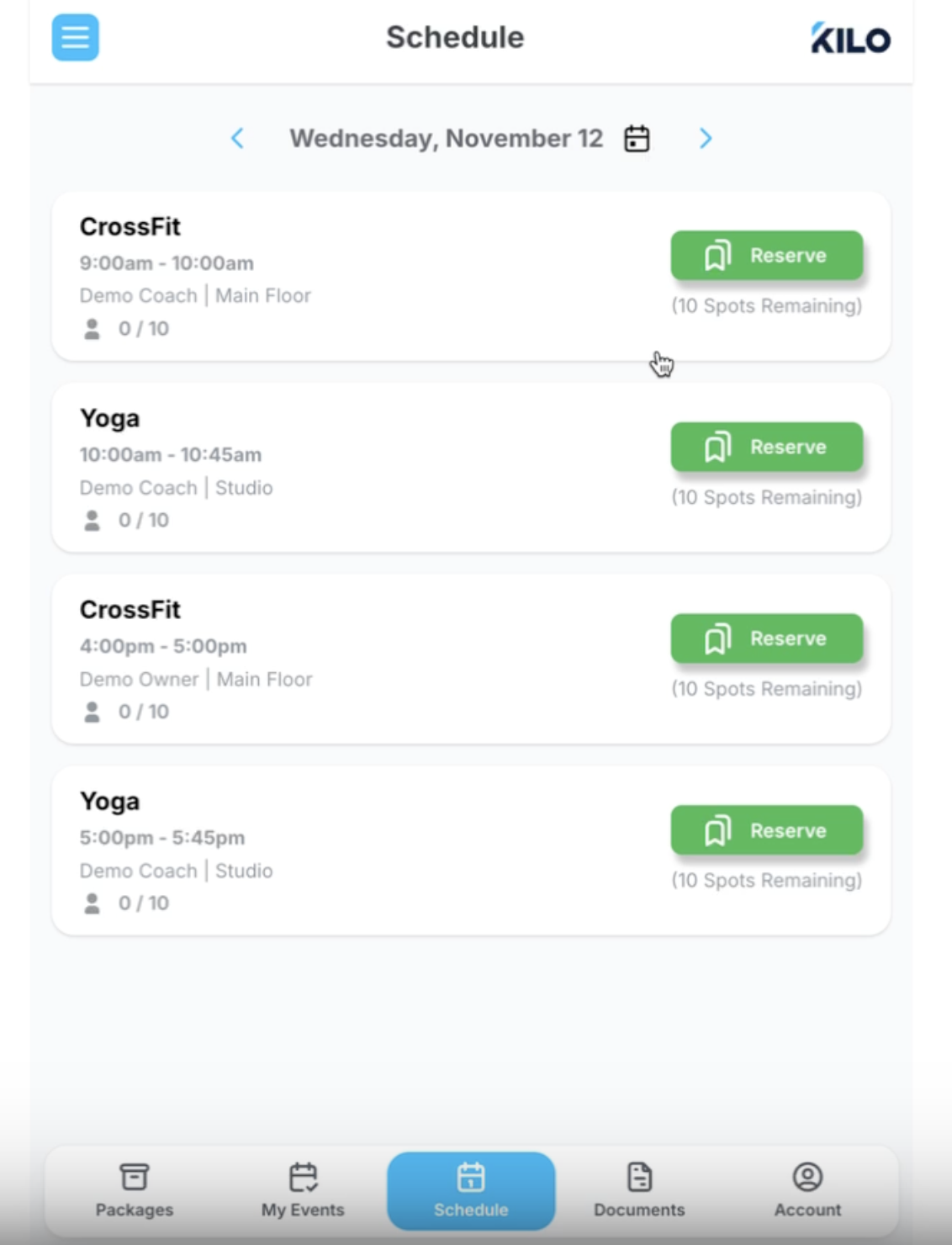
The button updates to confirm your spot.
How do I read the spots remaining counter?
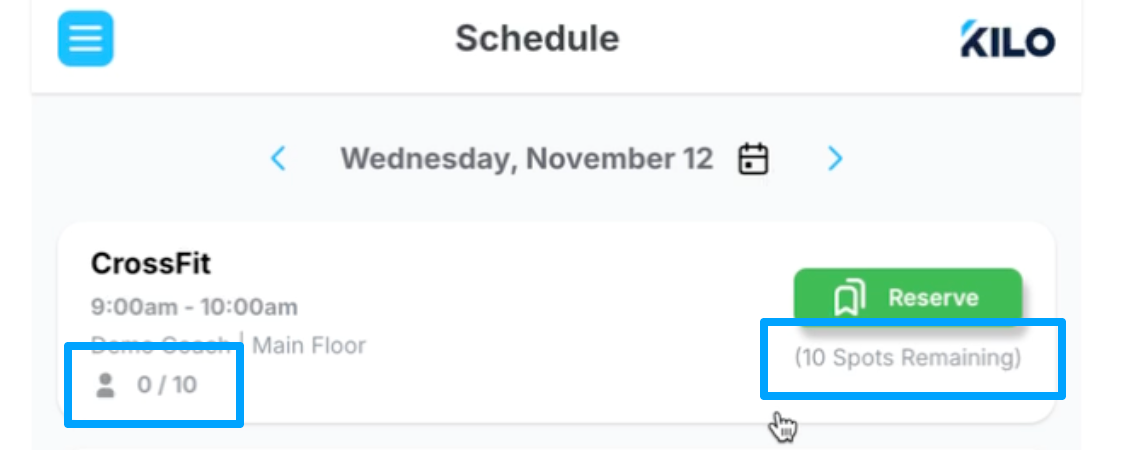
Class availability shows as two numbers: how many people have reserved, followed by the total capacity of the class.
0/10 → nobody has reserved yet, 10 spots available
5/10 → 5 people have reserved, 5 spots available
10/10 → the class is full, no spots available
You will also see a note showing the number of spots remaining under the class details.
How do I reserve from the class details page?
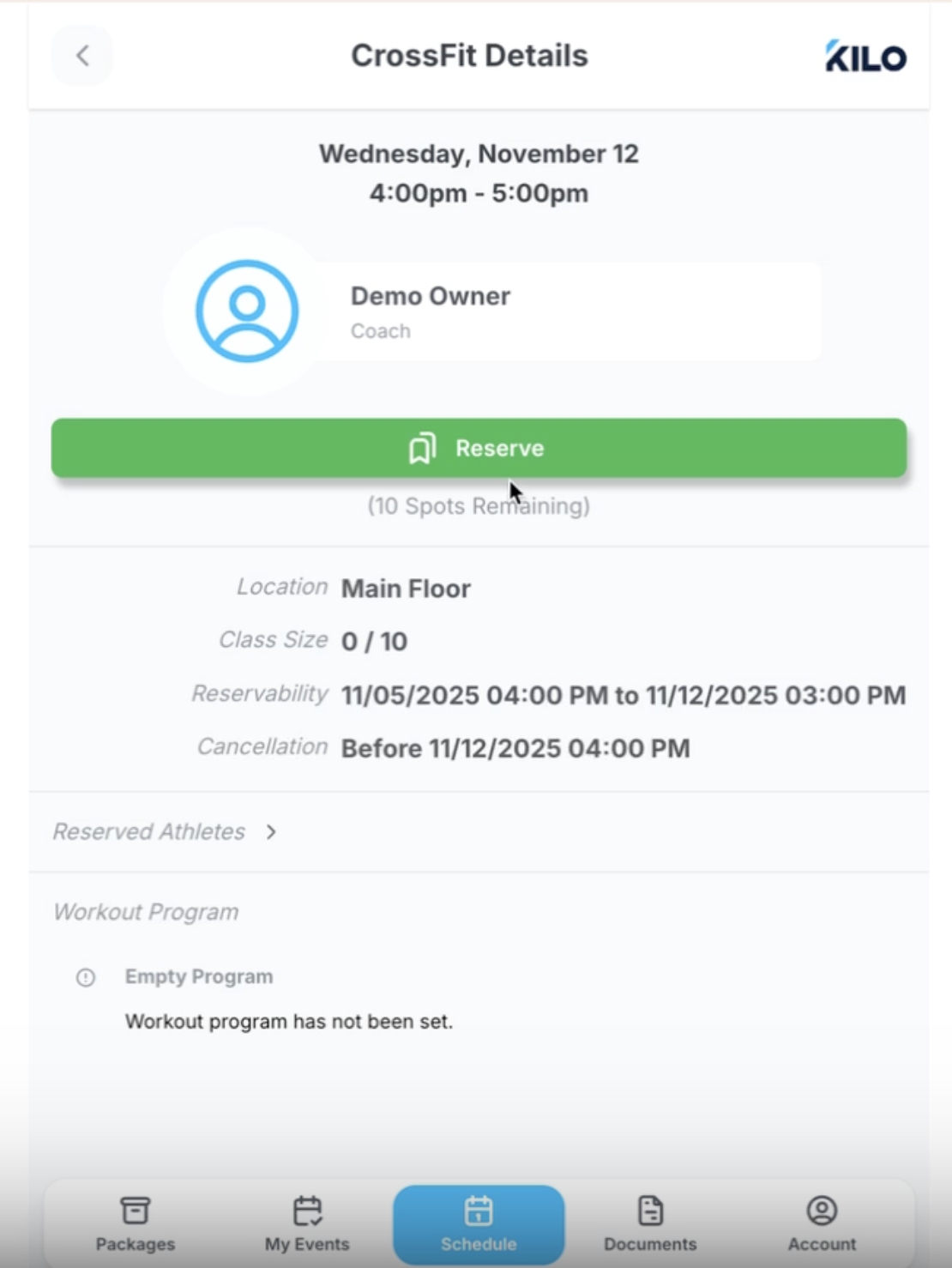
Open a class to see its full details, such as workout notes. The Reserve button sits at the top of the page and stays visible even when workout notes have been added, so you do not have to scroll to find it.
Select the class on the Schedule.
Select Reserve at the top of the class details page.
Once you reserve:
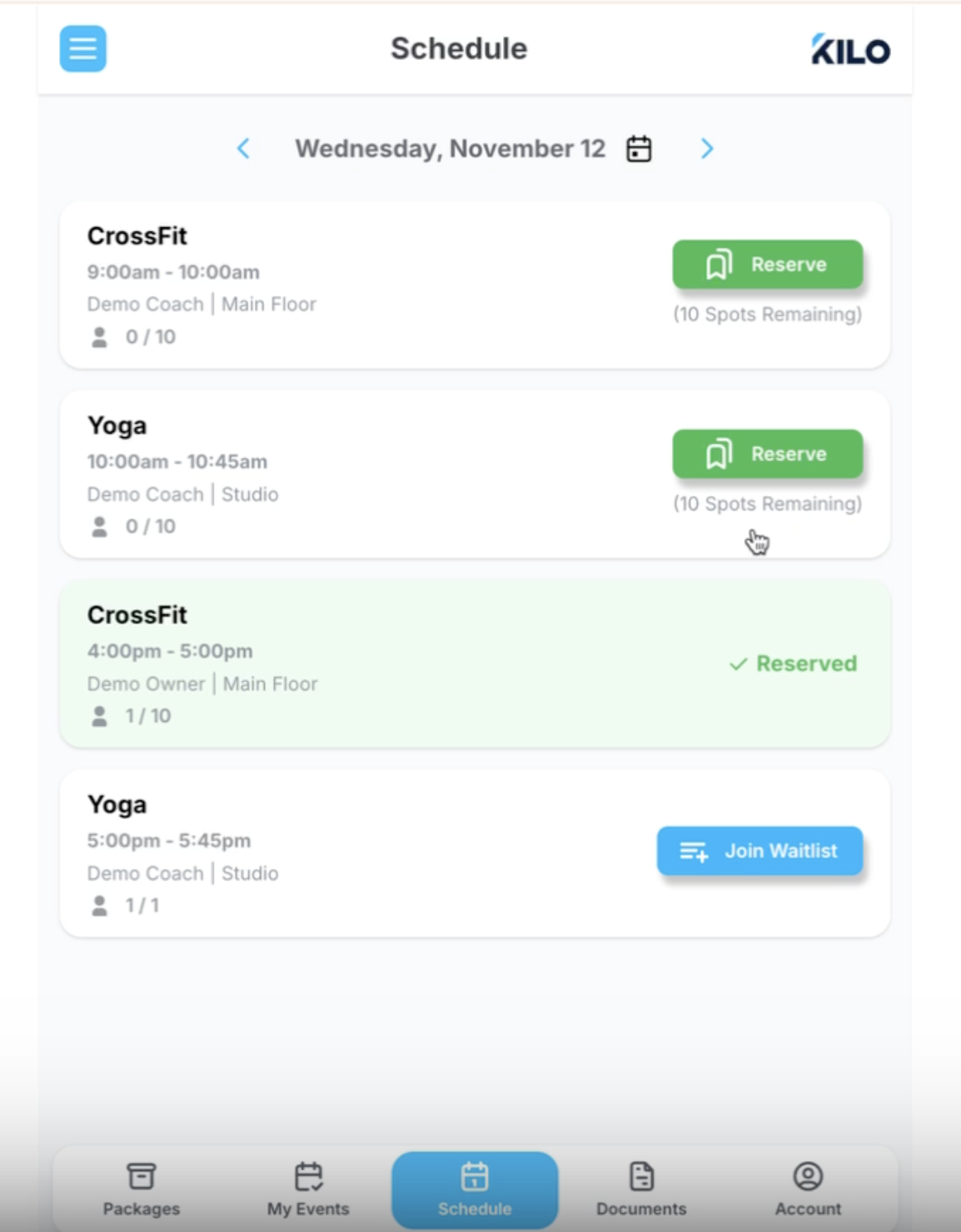
The Reserve button disappears
You see a message confirming that you are reserved
The counter updates, so 1/10 means one athlete has reserved
How do I cancel a reservation?
Open the class on the Schedule.
Select Cancel Reservation.
Your spot opens back up for someone else right away.
How does the waitlist work?
The waitlist option appears only when a class is full.
While spots are still open, you see Reserve
Once the class reaches capacity, that button becomes Join Waitlist
After you join, you see a confirmation along with your current waitlist position, such as "You're #2 on the waitlist"
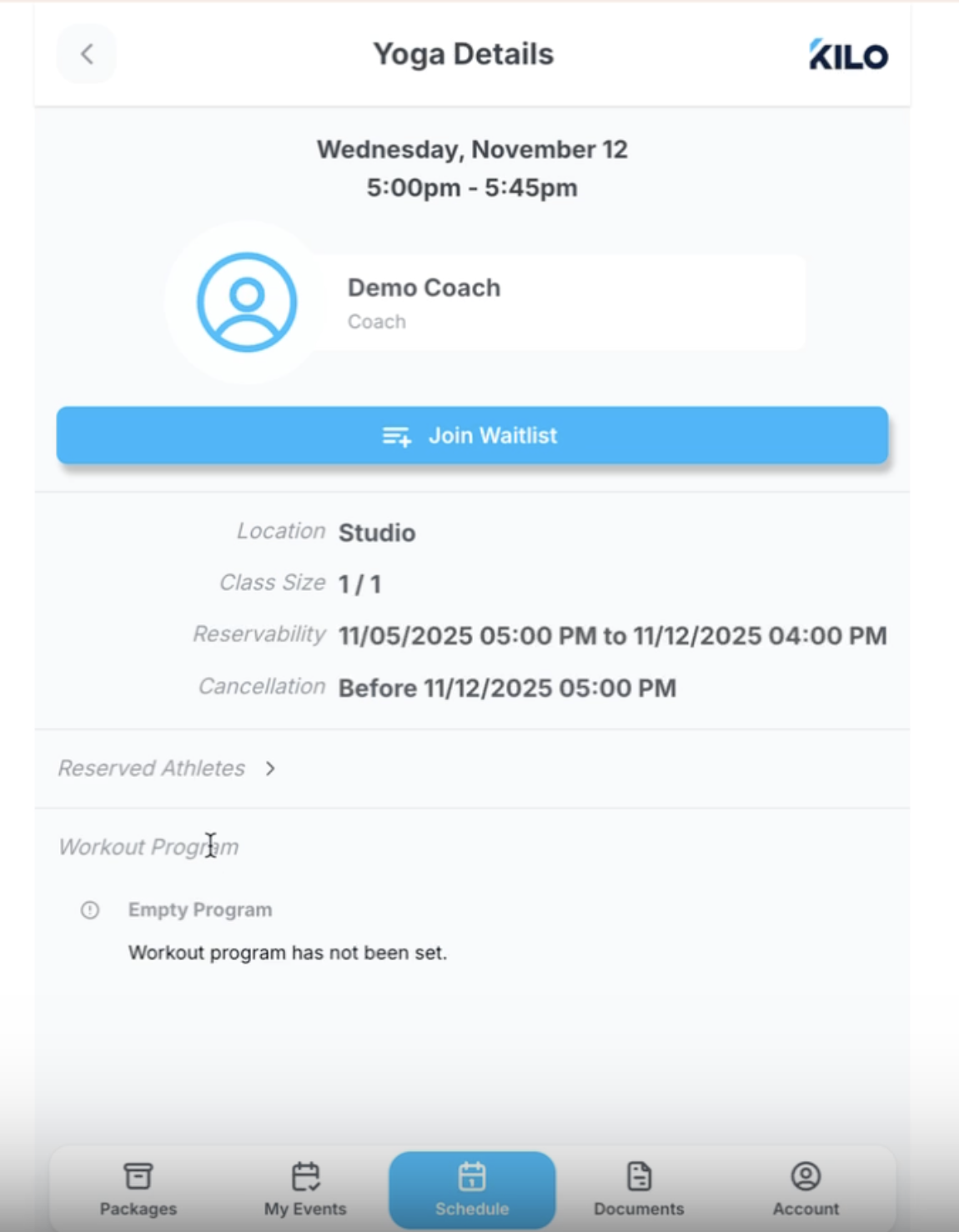
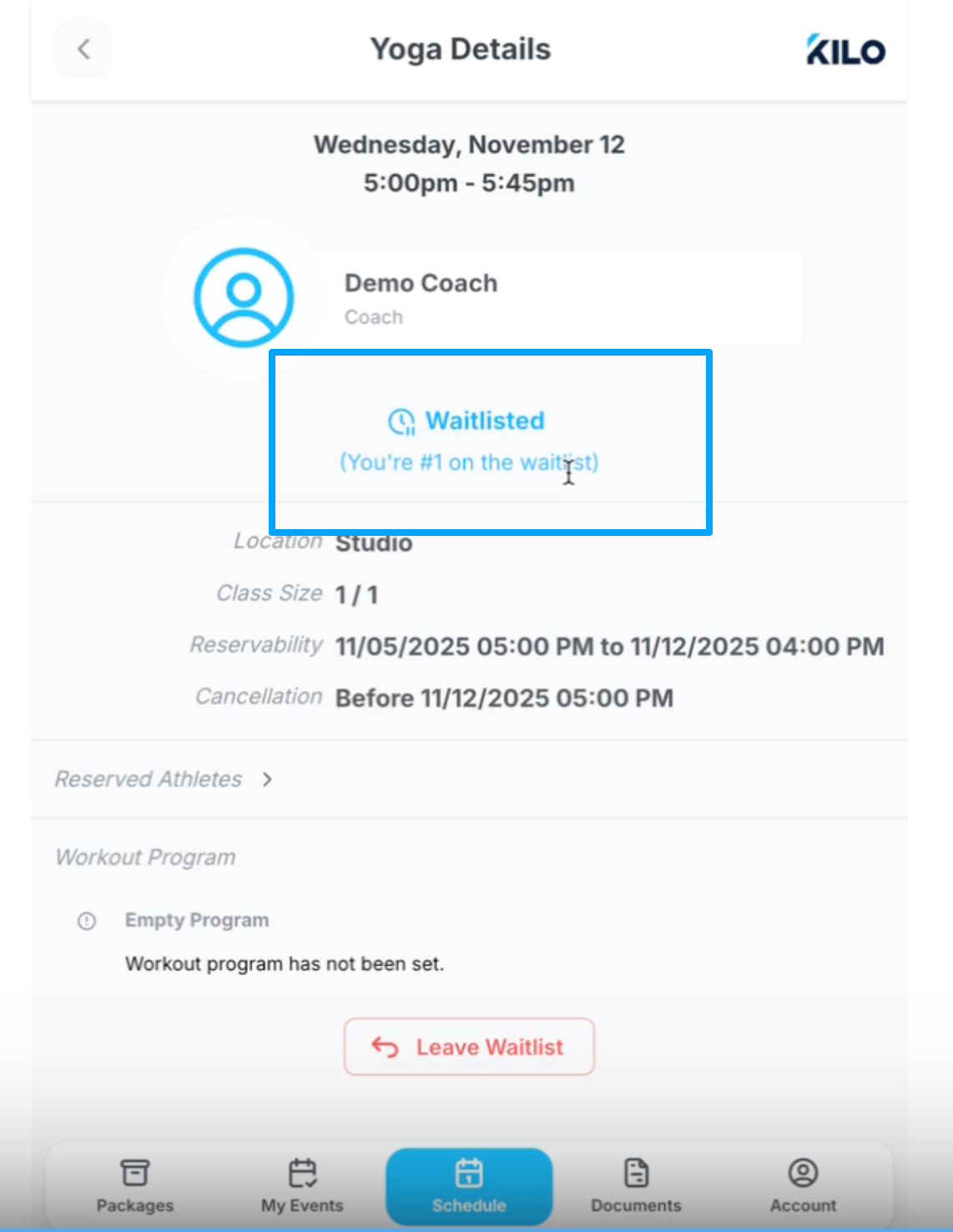
Joining a waitlist does not use a credit from your package. A credit is used only when you move from the waitlist into a reserved spot.
Frequently asked questions
Why do I see Join Waitlist instead of Reserve?
The class is full. The waitlist option replaces the Reserve button once every spot in the class has been taken. If spots are still open, you will see Reserve instead.
Does joining the waitlist use one of my class credits?
No. Your credits are not touched while you are on the waitlist. A credit is used only if you move from the waitlist into a reserved spot in the class.
What do the two numbers on a class mean?
The first number is how many people have signed up, and the second is the total number of spots in the class. So 5/10 means five people have reserved and five spots are still available, and 10/10 means the class is full.
How do I cancel, drop, or give up my spot in a class?
Open the class from the Schedule and select Cancel Reservation. Your spot is released immediately and becomes available to someone else.
Where is the Reserve button if the class has workout notes?
At the top of the class details page. It stays in place whether or not workout notes have been added, so you do not need to scroll past them to reserve.
Helpful tips
Check the spots remaining counter before you head to the gym, so you know whether a class still has room
Cancel as soon as you know you cannot make a class, so someone else can take the spot
Join the waitlist rather than skipping a full class, so you keep your place in line if a spot opens
Reserve from the class details page when you also want to read the workout notes first
When this is most helpful
Booking your classes for the week ahead
Checking availability for a popular class time
Getting on the list for a class that is already full
Freeing up your spot when your plans change
If you have questions about your account, your membership, or the classes at your gym, contact your gym administrator. They manage your account in Kilo and can help you directly.