


A Webinar Funnel in Gym Lead Machine gives you a registration page, a way to deliver your webinar, and a ready-made automation for reminders and follow-ups. You can build a live webinar for a set date and time, or an on-demand webinar that registrants watch whenever they like.
What you can do with webinar funnels
Build a funnel for a live webinar on Zoom or YouTube Live
Build a funnel for a pre-recorded, on-demand webinar
Collect registrations with your own form
Start from a pre-designed funnel template
Send reminders and follow-ups with the built-in webinar workflow recipe
Live vs. on-demand webinars: which should you use?
Situation | Live Webinar | On Demand Webinar |
|---|---|---|
When attendees watch | At a set date and time | Any time after registering |
Date, time, and time zone | Required | Not needed |
How the webinar is delivered | A Zoom or YouTube Live link | A video you upload or select |
Templates | Full template library | Same template library |
Build a live webinar funnel
Your registration form has to exist before you start, because the funnel setup only lets you select a form you've already built. Create it in Sites → Forms, with fields like name, email, and phone.
Go to Sites → Webinars.
Click New Webinar Funnel.
Select Live Webinar.
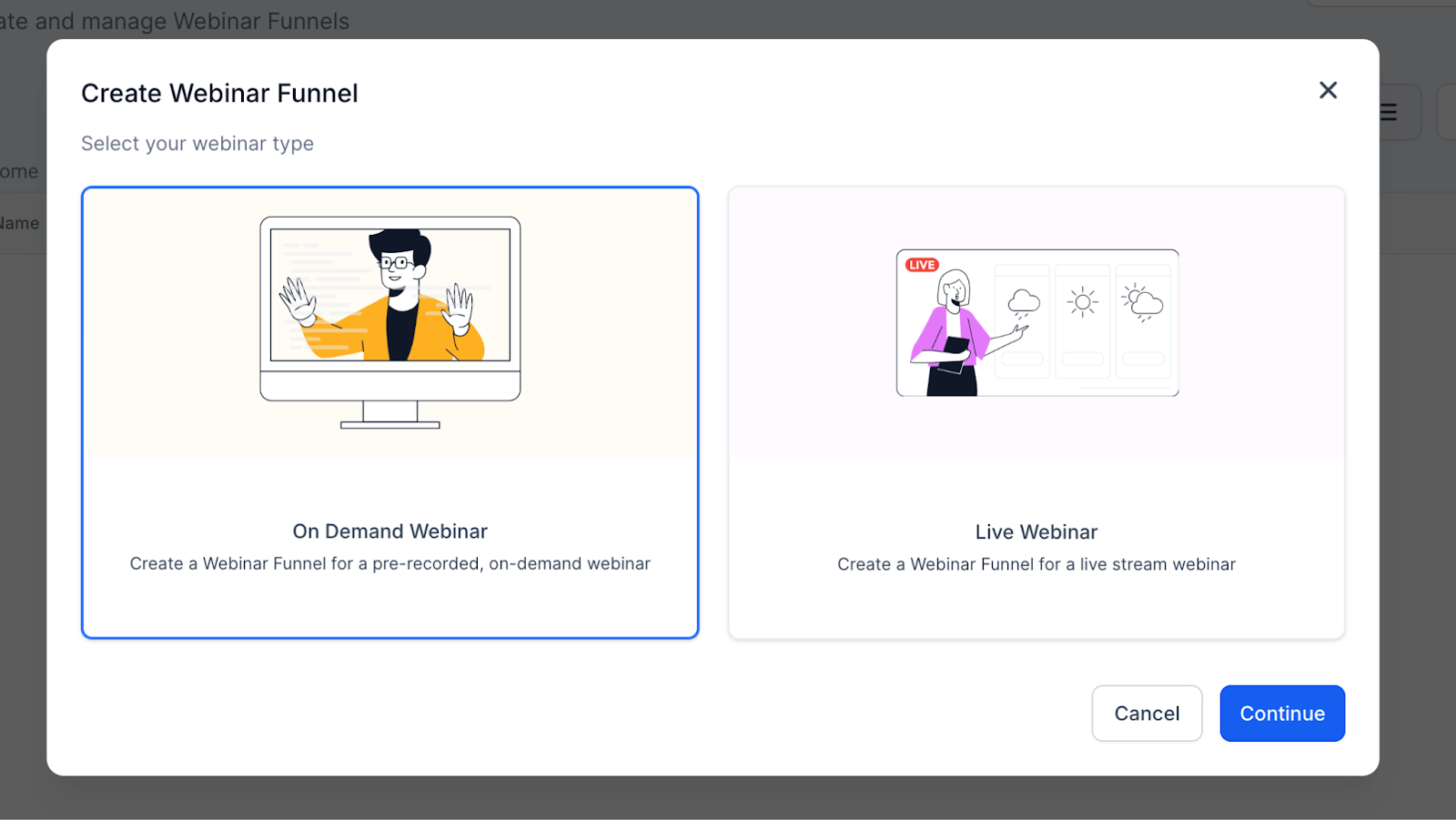
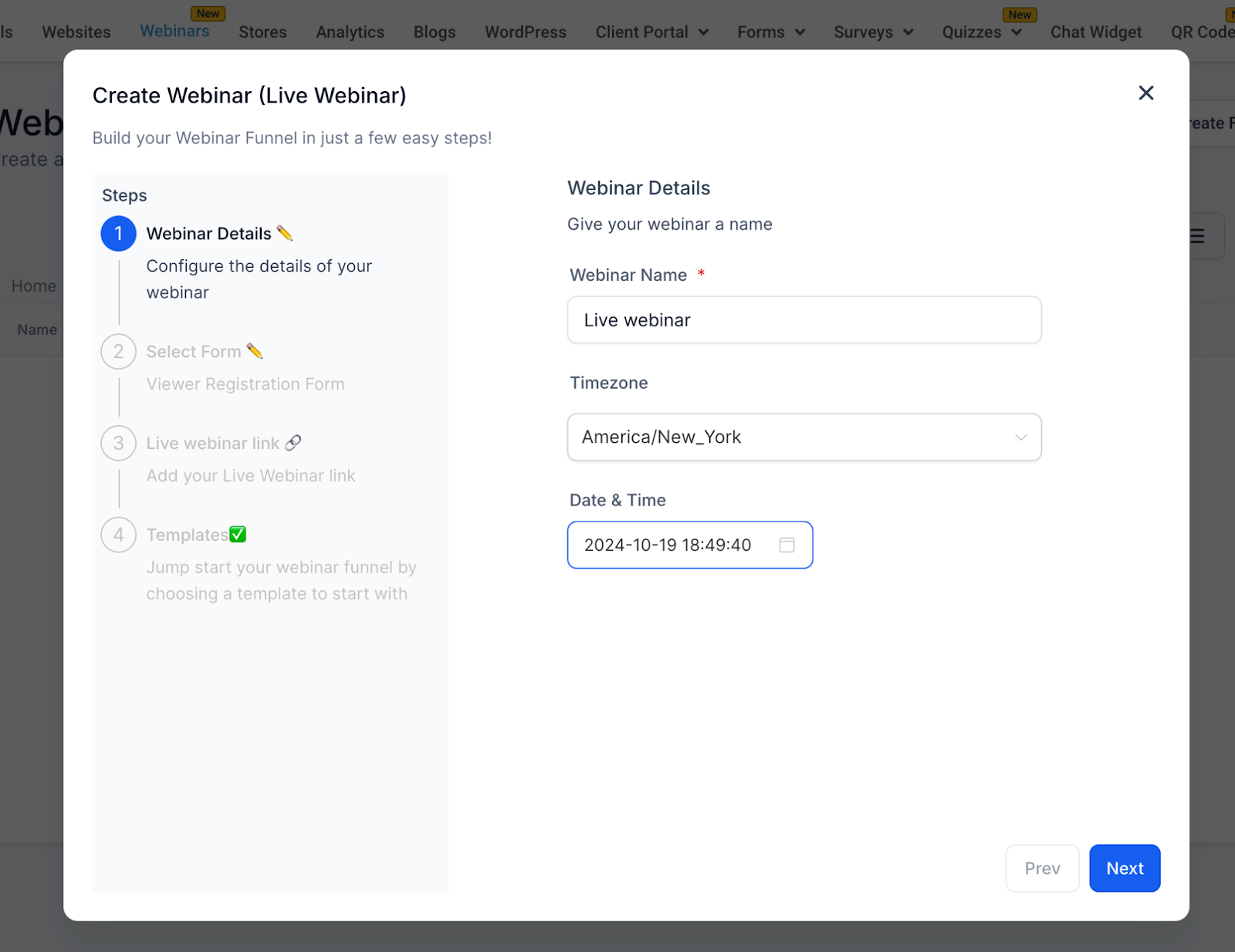
Enter a Webinar Name.
Check the Timezone. It defaults to America/New_York, and you can change it.
Choose a future Date and enter the Time.
Select your registration form.
Paste your Zoom or YouTube Live link.
Choose a funnel template.
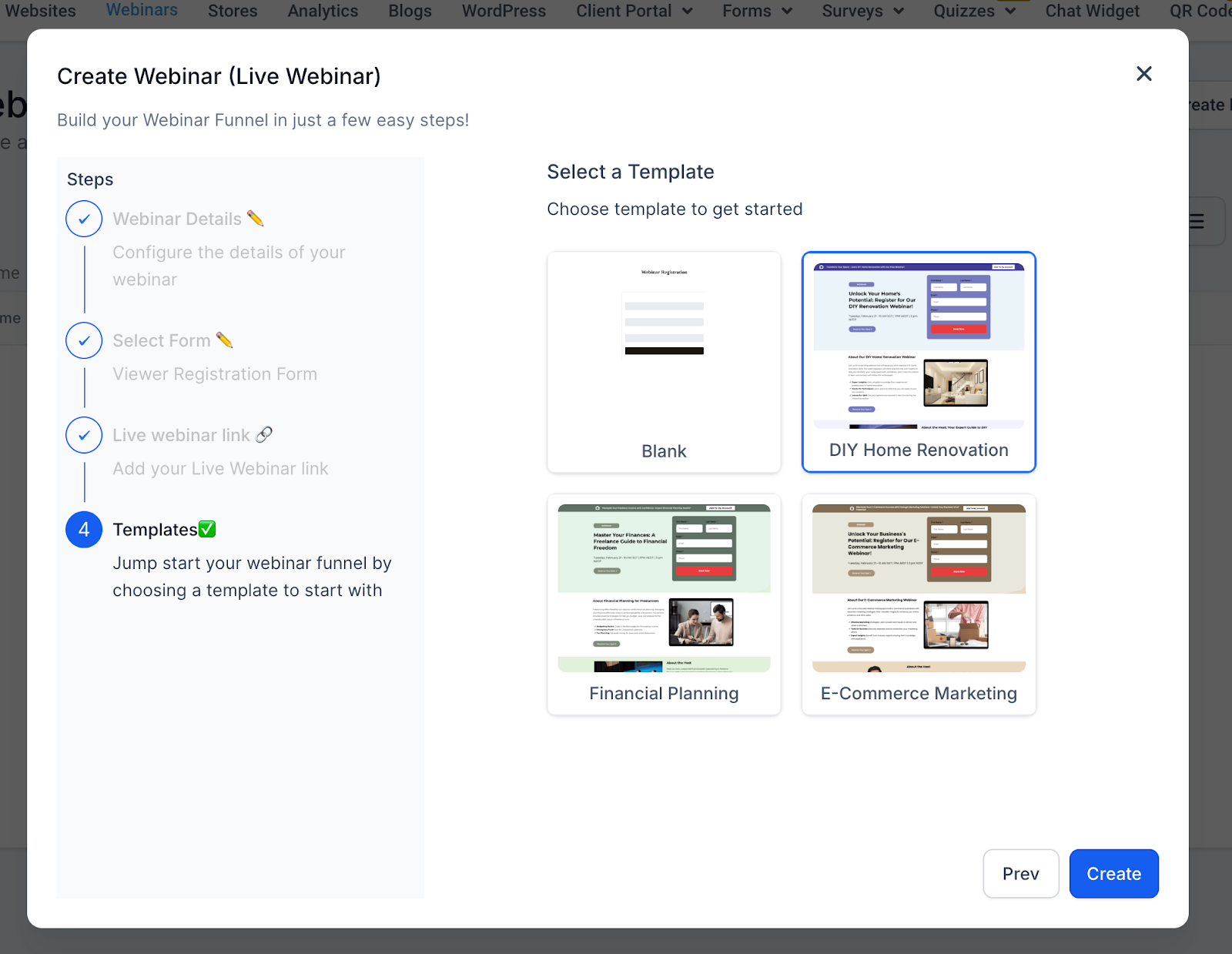
The template becomes your webinar funnel, which you then customize with your webinar's details.
Webinar Name, Timezone, Date, and Time are all required for a live webinar.
Build an on-demand webinar funnel
As with a live webinar, create your registration form in Sites → Forms before you start.
Go to Sites → Webinars.
Click New Webinar Funnel.
Select On Demand Webinar.
Enter a Webinar Name. On-demand webinars don't need a time zone, date, or time.
Select your registration form.
Upload a video from your computer, or select one from your media library. Supported formats include MP4, MOV, and AVI.
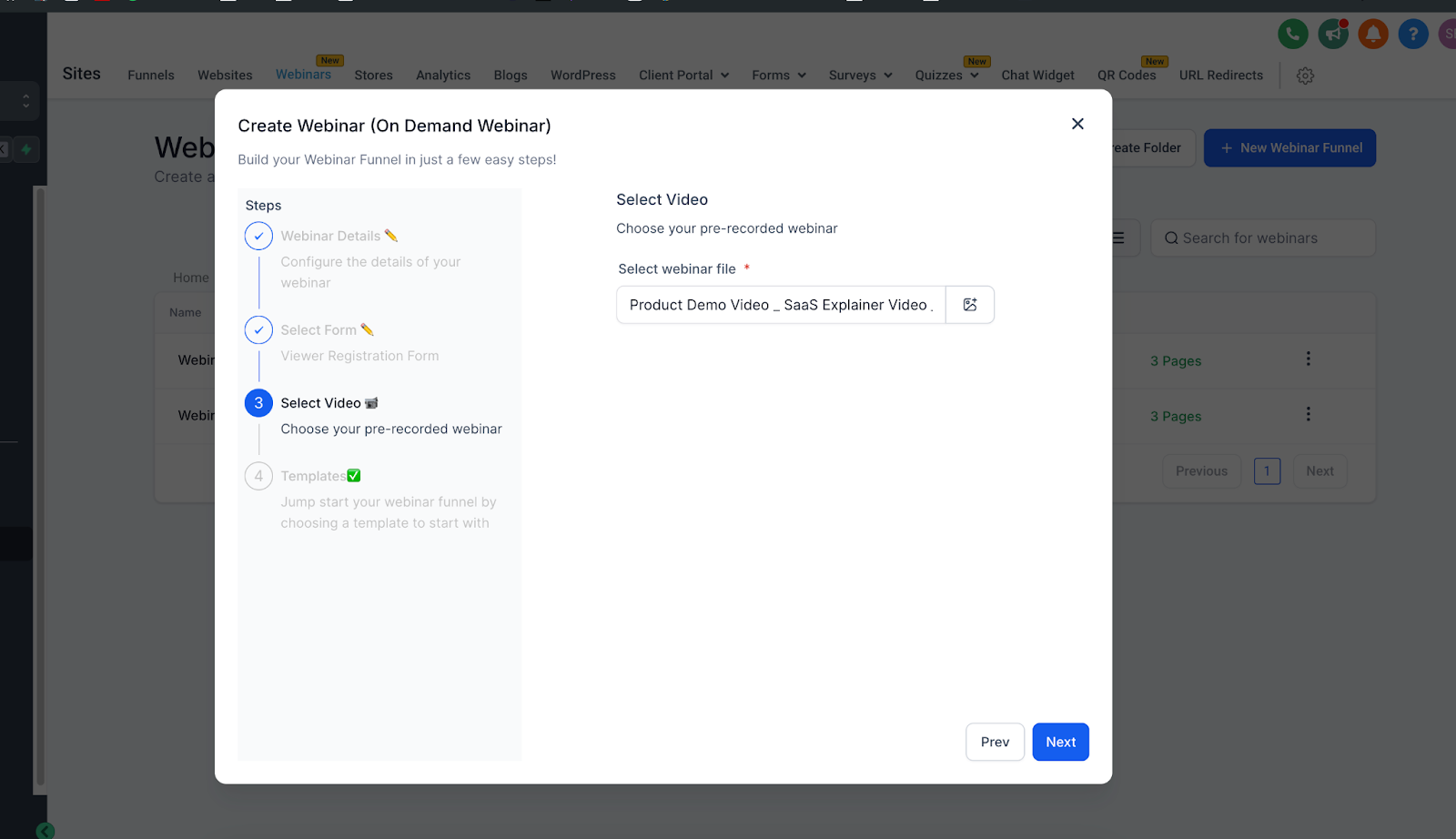
Choose a funnel template.
You can't continue past the video step until a video is selected.
Set up webinar reminders and follow-ups
Every webinar funnel comes with a workflow recipe for reminders and follow-ups. Form submissions don't trigger any messages until you set this workflow up.
Open the webinar recipe
Go to Automation.
Click + New Workflow.
Choose to add the workflow from a template.
Search for Webinar and select the Webinar template.
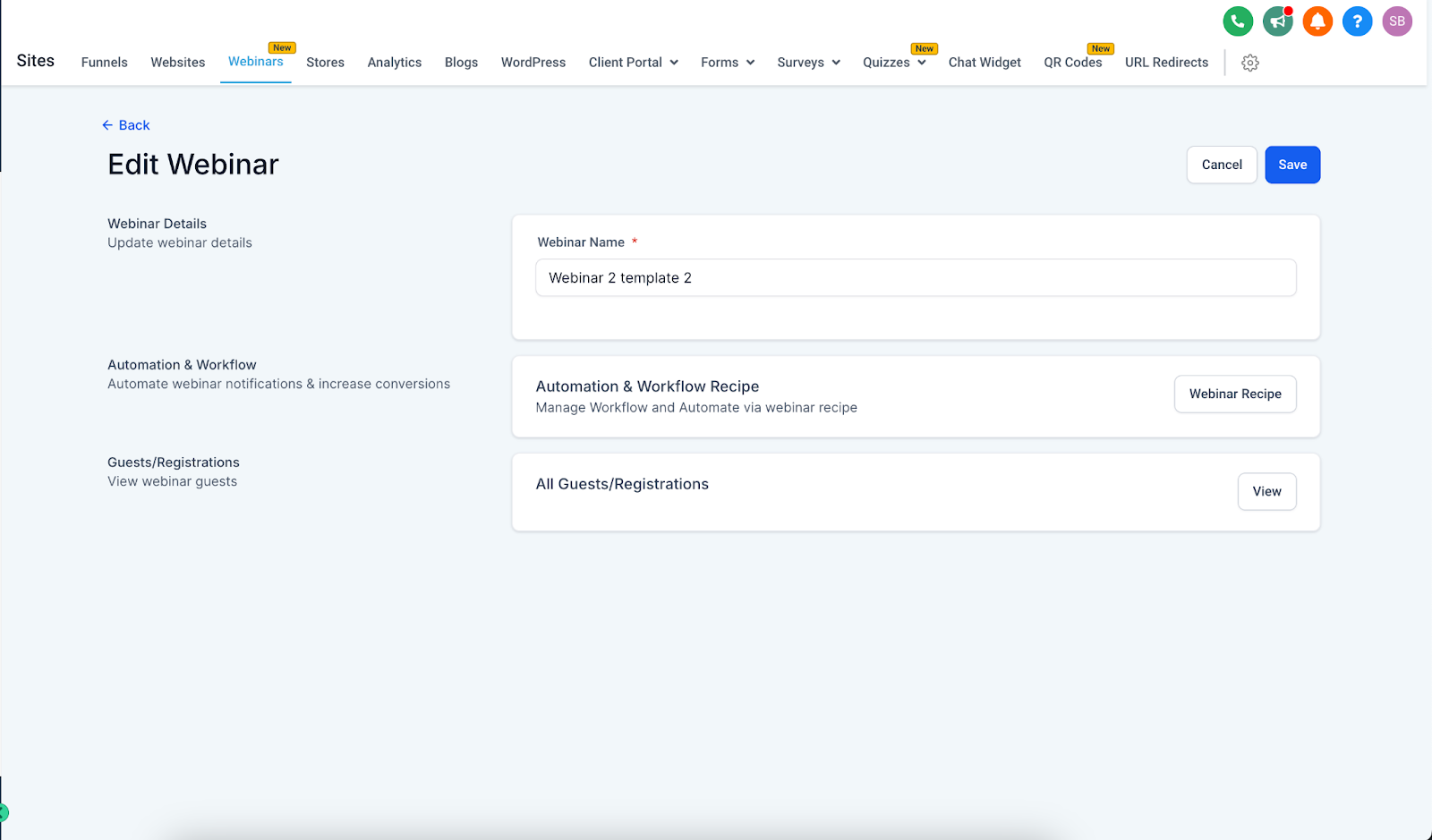
You can also open the recipe from your funnel. In Sites → Webinars, click Edit to the right of the webinar funnel, then click Webinar Recipe.
Connect and customize the recipe
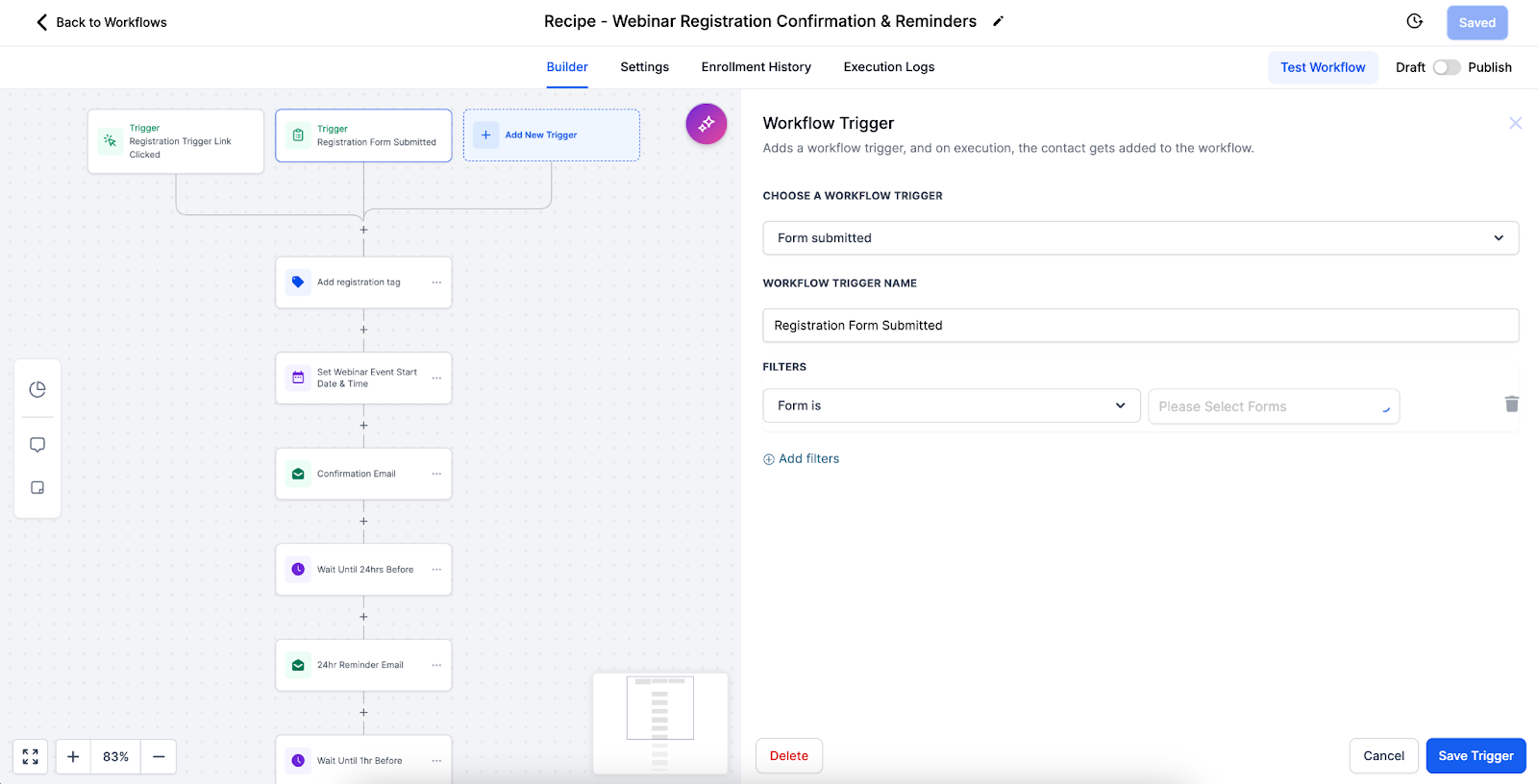
In the workflow's trigger, add your registration form.
Customize the workflow actions to fit your tag, event date, and the messages you want to send.
Frequently asked questions
Why aren't my webinar registrants getting tagged or added to my workflow?
Check that the registration form is on your funnel page and selected in the workflow trigger. The workflow only runs for submissions from the form named in its trigger.
Why isn't my live webinar link working?
Check the link's format and test it before the event. Open the Zoom or YouTube Live link yourself from the funnel to confirm it goes to the right place.
How do I keep attendees from mixing up time zones?
Show the time zone clearly on your registration and confirmation pages. The webinar's Timezone setting defaults to America/New_York, so confirm it matches the time you're advertising.
Why did my on-demand video fail to upload?
Check the video's format, its file size, and your internet connection. Supported formats include MP4, MOV, and AVI.
Why does my on-demand webinar video look blurry?
Upload a higher-resolution version of the video. The webinar plays the file you upload, so quality starts with the recording.
Helpful tips
Create your registration form in Sites → Forms before you build the funnel
Set up the webinar recipe in Automation so registrants get reminders and follow-ups
Test your live webinar link and setup before the event
Schedule live webinars with your audience's time zones in mind
Promote your webinar early and often
Have a backup plan for technical issues during a live webinar
Keep on-demand videos to 30–60 minutes and use high-quality recordings
Structure on-demand content so attendees can follow along at their own pace
Keep your media library organized and refresh on-demand content periodically
If you have questions about webinar funnels in Gym Lead Machine, our Support team is happy to help. Reach us at hello@usekilo.com.