


You can add your imported contact lists (leads, current clients, and alumni) to Gym Lead Machine's pre-built long-term nurture workflows, so every contact you brought with you starts receiving the right communication for their status.
How your imported lists got into GLM
When you first got started with Gym Lead Machine by Kilo, we requested that you send us three CSV files that comprised your contact lists: your leads, your current clients, and your canceled clients (alumni).
On your launch day, we added those lists to your GLM system (if provided) and properly tagged each contact with their status tag: lead, client, or alumni. We did not place these contacts into a campaign for you, as we opt to give you time to read and approve all long-term nurture before choosing to use it for your contacts.
You can access those lists anytime using the Contacts section and filtering by tag. The steps below walk through adding those three contact lists to the proper long-term nurture campaign.
Which workflow does each list belong in?
When adding these contact lists to Automations, we recommend the following:
Imported list | Filter by tag | Add to workflow |
|---|---|---|
Leads | imported lead | Fitness Pipeline - Imported Lead |
Current clients | imported client | Fitness Pipeline - Imported Client |
Alumni (canceled clients) | imported alumni | Fitness Pipeline - Imported Alumni |
How do I add an imported list to a workflow?
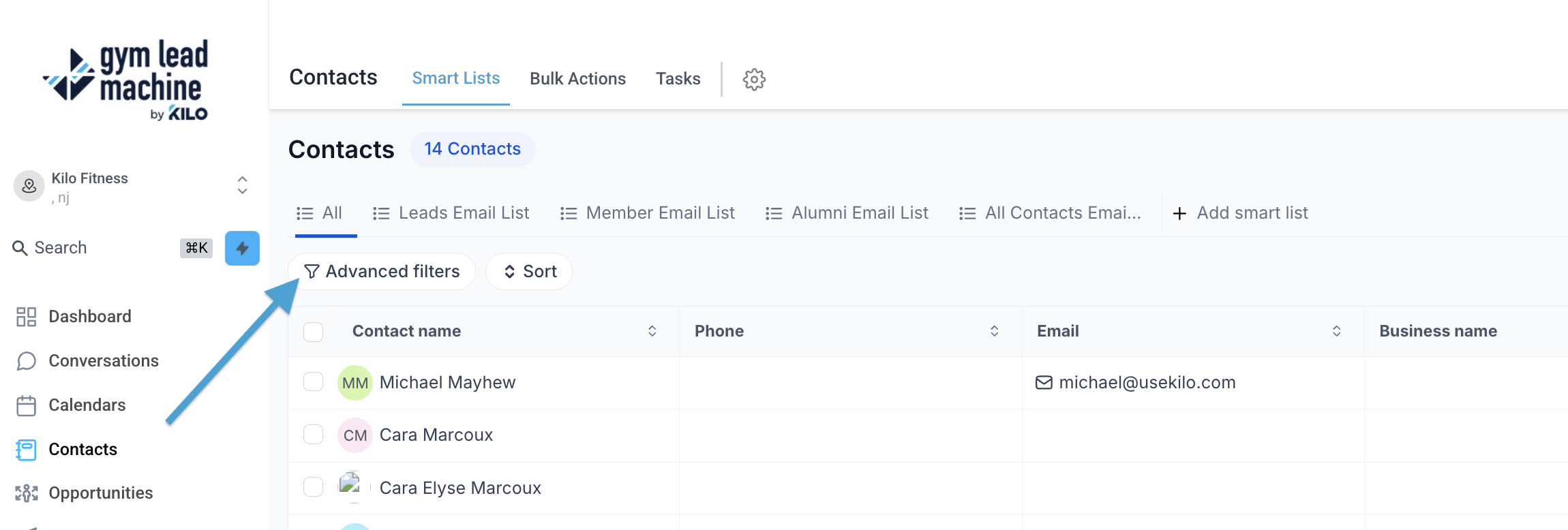
Start inside Contacts in the left menu of your Gym Lead Machine account. You will use the Advanced Filters function to filter through your database until you get the list of contacts that you want to add.
Click the Advanced Filters button in Contacts.
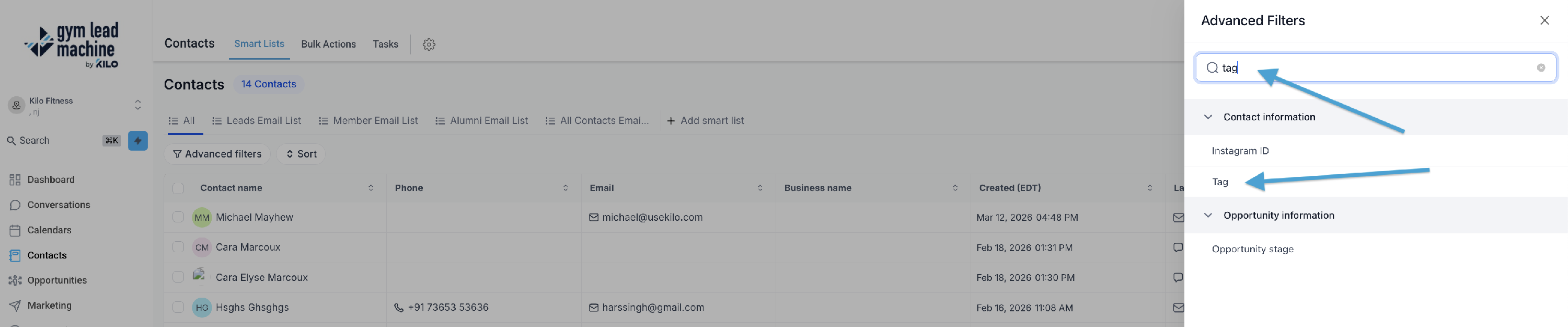
Search for and select the Tag filter option, then select the tag imported lead, imported client, or imported alumni, depending on the list you are working with. Click Apply.

Select the contacts from the list by clicking the checkbox next to their name. To select every contact on the page, click the checkbox on the top left. If you have contacts on more than one page, click the Select all text to ensure all contacts with the applied filters are selected.

Once you have the contacts selected, click Trigger Automation.

Type in an action name (for example, "add imported leads to workflow"), select the Automation Type (this should be Workflow), then select the workflow to which you'd like to add this group of contacts.
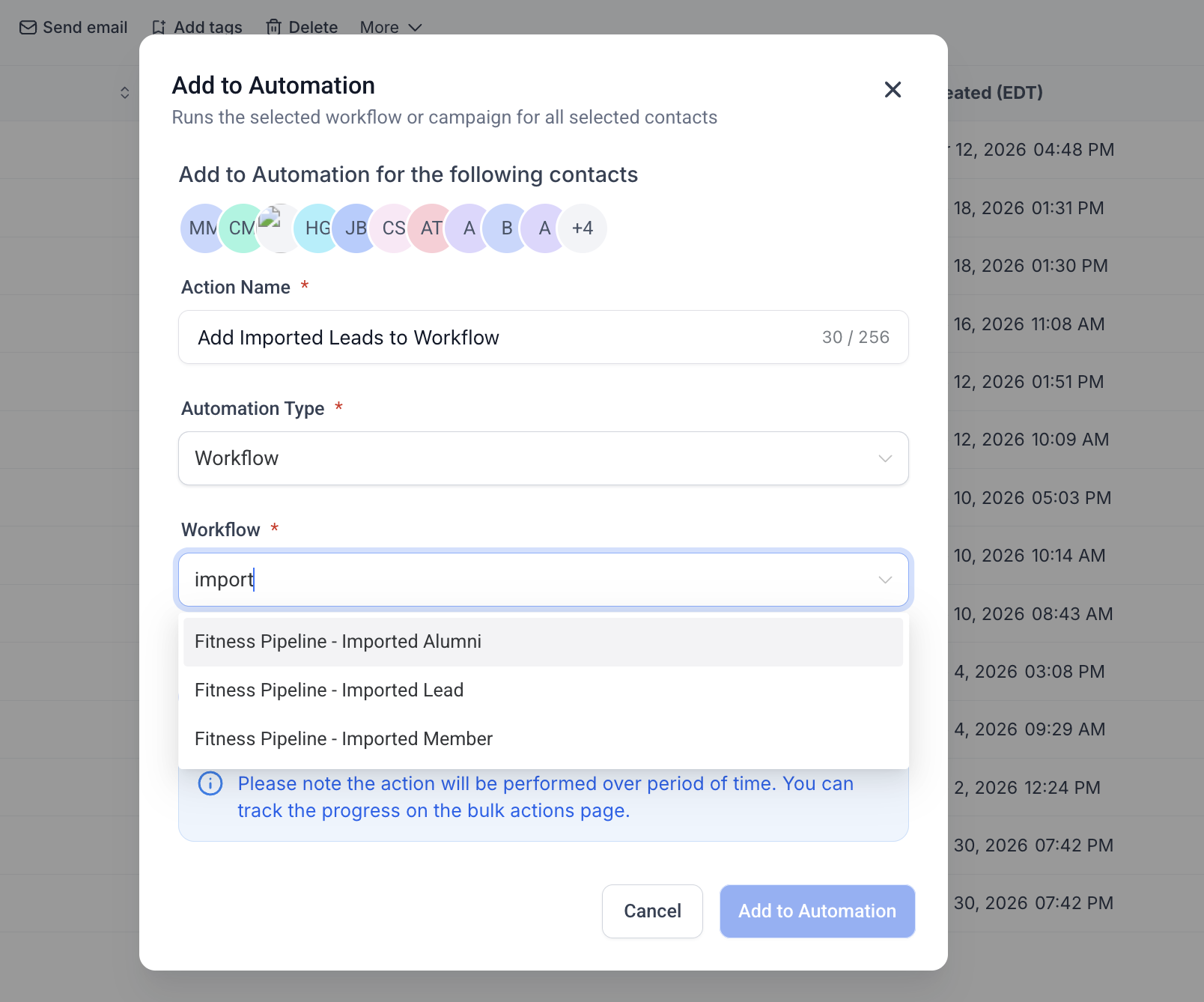
Choose when to add the contacts. Adding them all at once places your selected contacts in the workflow immediately, or you can add them at a scheduled date and time.
Once you are ready and satisfied with your settings, click Add to Automation.
Repeat the process for the other two lists, using the tag and workflow for each list from the table above.
Adding contacts to your GLM system and including them in the pre-built nurture sequences is an optional process. It is our recommendation, though, to assist with higher conversions and less client churn.
Can Kilo's team import contact lists for me?
Yes. To have our specialists import your contact lists at any time post-launch, please complete this request form.
If you have questions about adding imported lists to automations in Gym Lead Machine, our Support team is happy to help. Reach us at hello@usekilo.com.