


You can add a credit card, a debit card, or a bank account to your Kilo account from the Account section of the Kilo - Members app. Your gym uses the payment method you save here to charge for your membership, packages, and anything else you buy. You can also add one from a web browser at app.usekilo.com.
What you can do
Save a credit or debit card
Connect a bank account directly through your bank
Enter bank details manually if your bank is not listed
Verify a manually entered bank account
Update your payment method when a card expires or you switch banks
Open your payment methods
Every payment method starts from the same place.
Open Kilo - Members. The app opens on your Schedule.
Tap the person icon in the top left corner to open your Account.
Scroll to Billing & Payment and tap Payment Methods.
Tap Add Payment Method at the bottom of the screen.
Choose Card or Bank account.
NoteIf your account is linked to a family member's account, payment methods are shared across the whole group. A card added by you or by anyone linked to you is available to everyone in the group, so check with your family before you add or replace one.
Add a credit or debit card
Open your payment methods and choose Card.
Enter your card number, expiration date, and security code.
Enter your billing country and ZIP or postal code.
Select Save.
Your card is saved and ready to use.
Connect a bank account through your bank
This is the fastest way to add a bank account. You sign in to your online banking and approve the connection, and the account is ready right away.
Open your payment methods and choose US bank account.
Search for your bank and select it.
Agree to continue to Stripe, which is the payment processor Kilo uses.
Sign in to your online banking when prompted.
Approve the connection so your gym can collect payments from this account.
Follow the prompts to the end, then select Save.
Bank accounts connected this way appear in your account immediately and need no further verification.
Connect your bank account in a web browser at app.usekilo.com rather than on your phone.
Add bank details manually
Use this if your bank is not in the list, or if you would rather type your details than sign in to your bank.
Open your payment methods and choose US bank account.
Choose Enter bank details manually.
Enter your routing number and account number.
Select Submit in the Stripe window.
Select Save.
Manually entered accounts need to be verified before they can be used. See the next section.
Verify a manually entered bank account
After you enter your bank details manually, Stripe sends a small test deposit to confirm the account belongs to you.
Look for an email with the subject line Verify your Bank account.
Select Verify Account in that email.
Check your bank account for a $0.01 deposit from Stripe. This can take a day or two to appear.
Find the statement descriptor code on that deposit. It begins with SM.
Enter the code in the Stripe verification page.
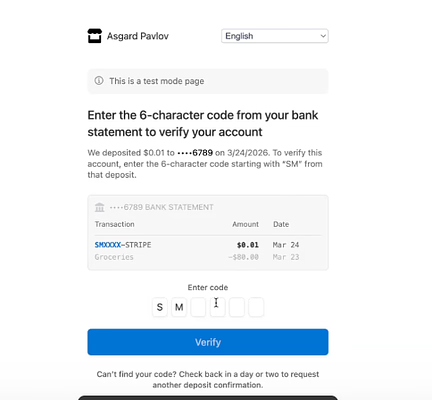
Once the code is accepted, the bank account appears in your Kilo account and is ready to use.
Verification links are valid for 10 days. If yours expires before you verify, contact your gym administrator, and they can help you start again.
Connect through your bank or enter details manually: which should you use?
Situation | Connect through your bank | Enter details manually |
|---|---|---|
Your bank is in the list | Yes, this is fastest | Not needed |
Your bank is not listed | Not available | Yes |
You would rather not sign in to online banking | Not suitable | Yes |
How soon it works | Immediately | After you verify the $0.01 deposit |
What you need on hand | Your online banking sign-in | Your routing and account numbers |
Frequently asked questions
Why does it say my payment methods are shared?
Your account is linked to at least one other account, and linked accounts share payment methods. This is how family and household memberships work: a card added by you or by anyone linked to you can be used for everyone in the group. If you are not sure who is linked to your account, your gym administrator can tell you.
I cannot find my bank in the list. What do I do?
Choose Enter bank details manually and type your routing and account numbers instead. You will then verify the account using the $0.01 test deposit Stripe sends. This takes a little longer than connecting directly, but it works with any bank.
What is the $0.01 deposit from Stripe?
It is a test deposit that confirms the bank account belongs to you. It appears on your statement with a code starting with SM, and you enter that code to finish verifying. The deposit is not a charge, and you keep the penny.
How long do I have to verify my bank account?
Ten days. Verification links expire after that. If yours has expired, contact your gym administrator.
Can I pay with Apple Pay?
Yes, if you are on an Apple device with Apple Pay already set up. Select Apple Pay at checkout when you are buying a package or paying for something at your gym. You need to be signed in to your Apple ID and have a card in your Apple Wallet.
Apple Pay is not showing up at checkout. What should I check?
Check that Apple Pay is turned on in your Safari settings and that you have a card in your Apple Wallet.
Open Settings on your iPhone.
Go to Apps, then Safari.
Scroll to the bottom and select Advanced.
Confirm Apple Pay is turned on.
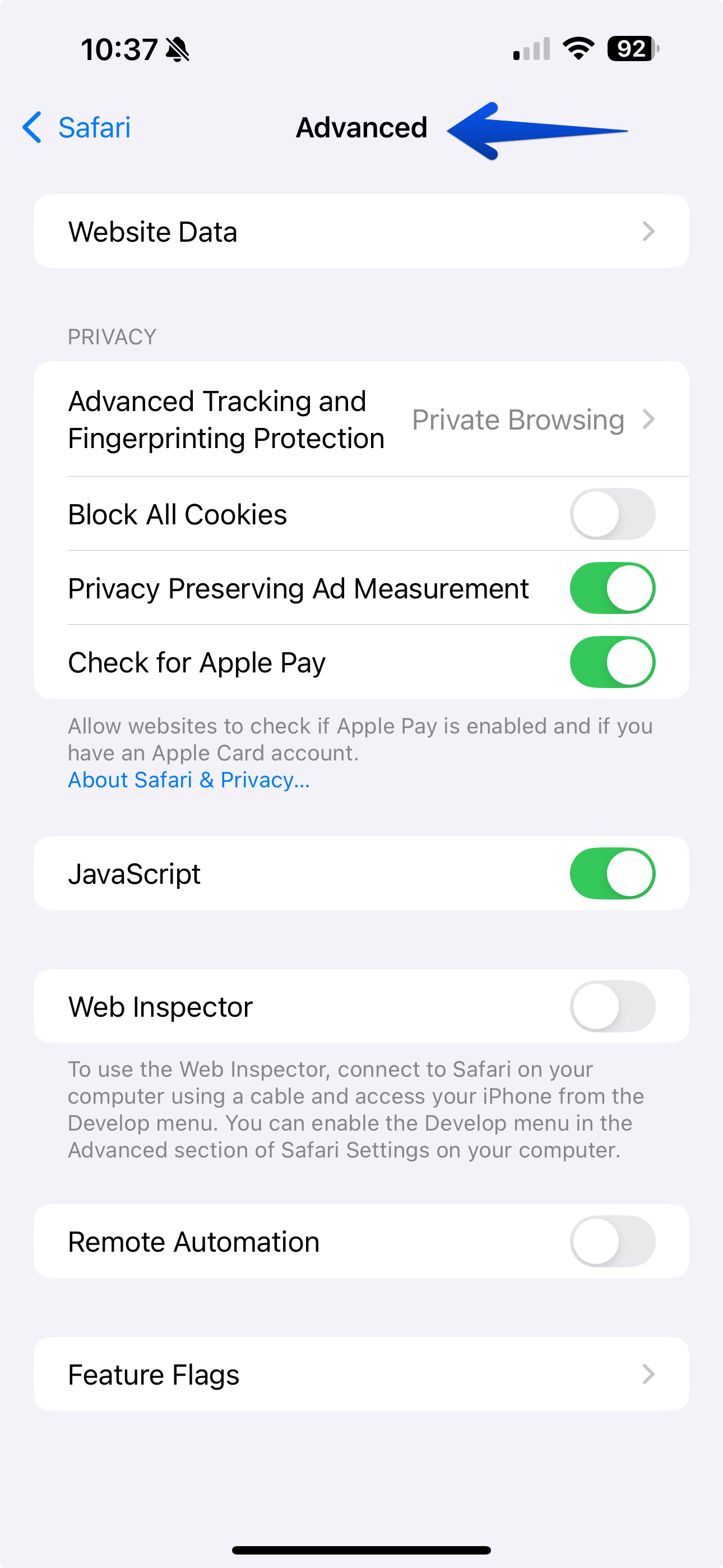
If Apple Pay is on and a card is in your wallet but the option still does not appear, contact your gym administrator.
Can I add my bank account from my phone?
You can, but we recommend connecting a bank account in a web browser at app.usekilo.com instead. Cards can be added from anywhere without issue.
Can I change or update my payment method later?
Yes. Open your payment methods and add a new one whenever you need to. This is what to do when a card expires, you get a replacement card, or you switch banks.
Who can see my card details?
Your full card and bank details are handled by Stripe, the payment processor Kilo uses, not stored by your gym. Your gym can see that you have a payment method on file and can charge it for your membership and purchases.
Helpful tips
Add a payment method as soon as you activate your account, so your first charge does not fail
Use a browser at app.usekilo.com when connecting a bank account
Keep an eye out for the Stripe verification email if you entered bank details manually, since the account will not work until you verify
Update your payment method before your card expires rather than after, so nothing is interrupted
Set up Apple Pay in your Apple Wallet before checkout if you plan to use it
Check with your gym if you are unsure which payment method they will charge
If you have questions about your account, your membership, or the classes at your gym, contact your gym administrator. They manage your account in Kilo and can help you directly.