


Want to send a text from your Linq Blue number inside a workflow? Gym Lead Machine gives you a special way to do that using Linq Blue's custom action. This makes sure your messages go out from the right number and stay out of spam folders.
Note: If you haven't activated Linq Blue yet, see Getting Started with Linq Blue (iMessage) to opt in and set up your iMessage line first.
How Do I Add a Linq Blue Text to a Workflow?
Add the Linq Blue action to your workflow and choose your Linq Blue number as the sender.
Step 1: Open your workflow.
Log in to your Gym Lead Machine account.
Go to Automation.
Open an existing workflow or click + Create Workflow to start a new one.
Step 2: Add a new action.
Inside the workflow builder, click the + button where you want the text to go.
Scroll down to Linq Blue in the list of action types.
Choose Send SMS via Linq Blue (or similar wording).
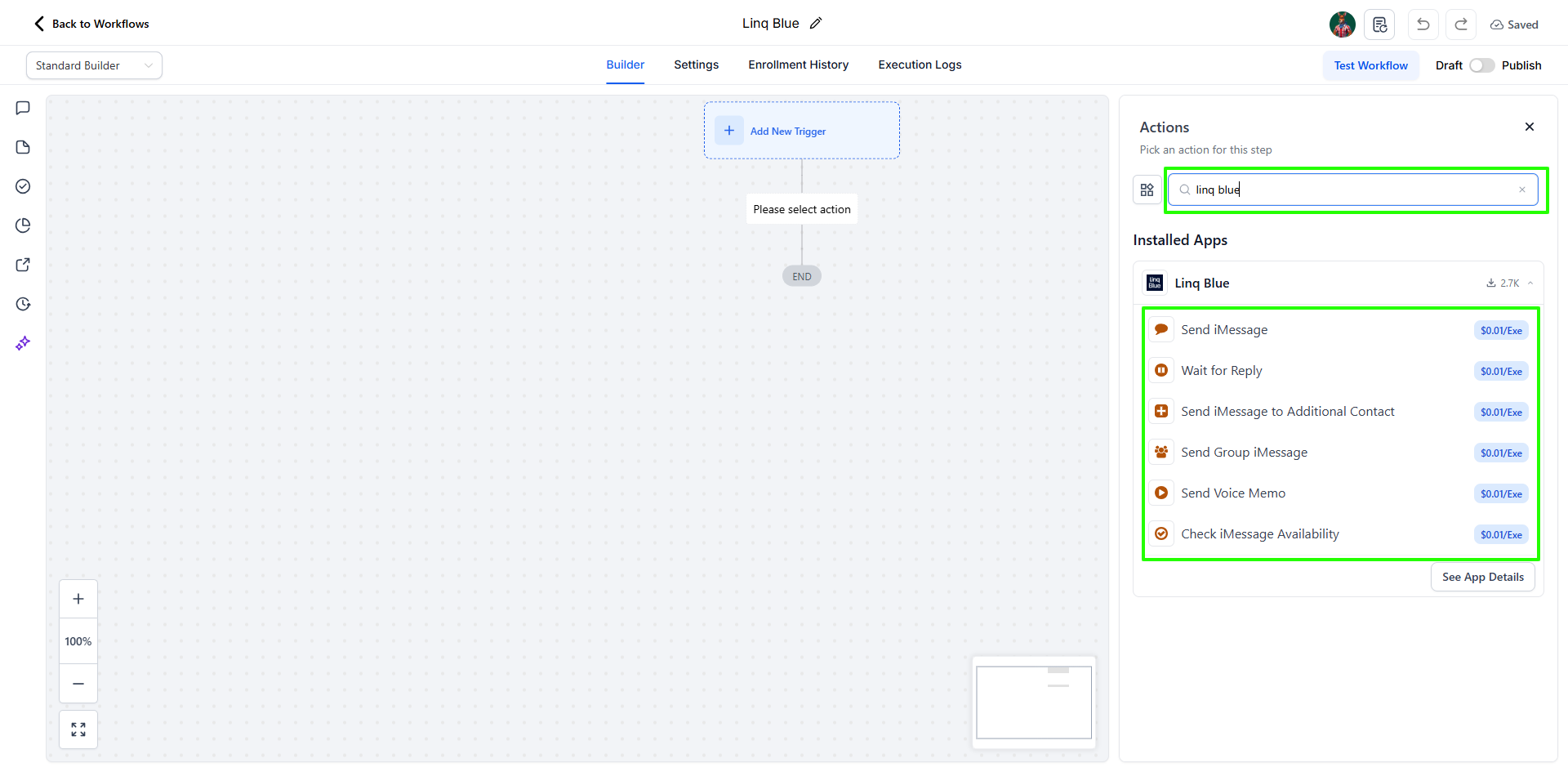
Step 3: Customize your text message.
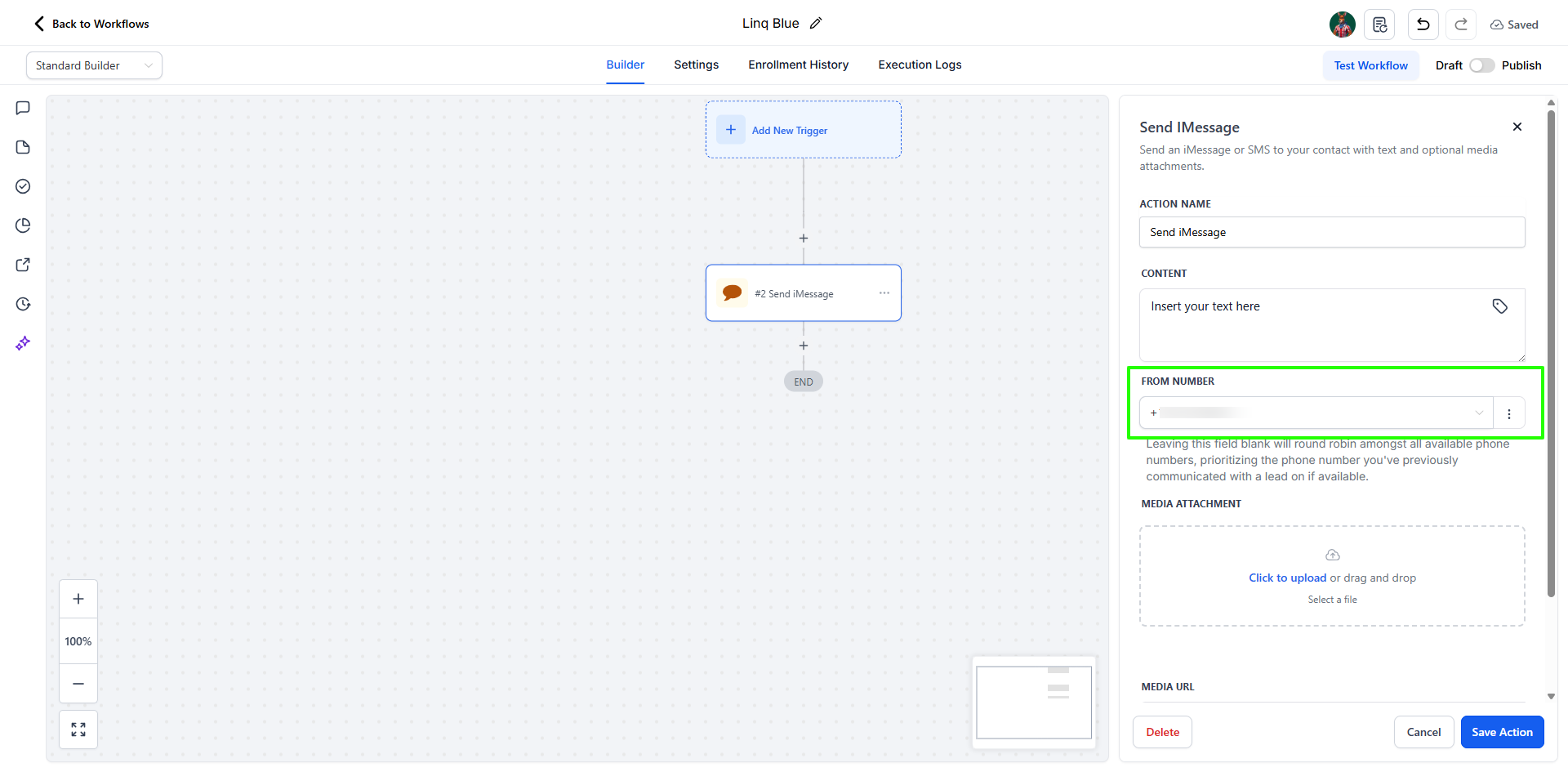
You'll see a special Linq Blue message box appear.
Choose the Linq Blue number you want to send from (if you have more than one).
Type your message in the box.
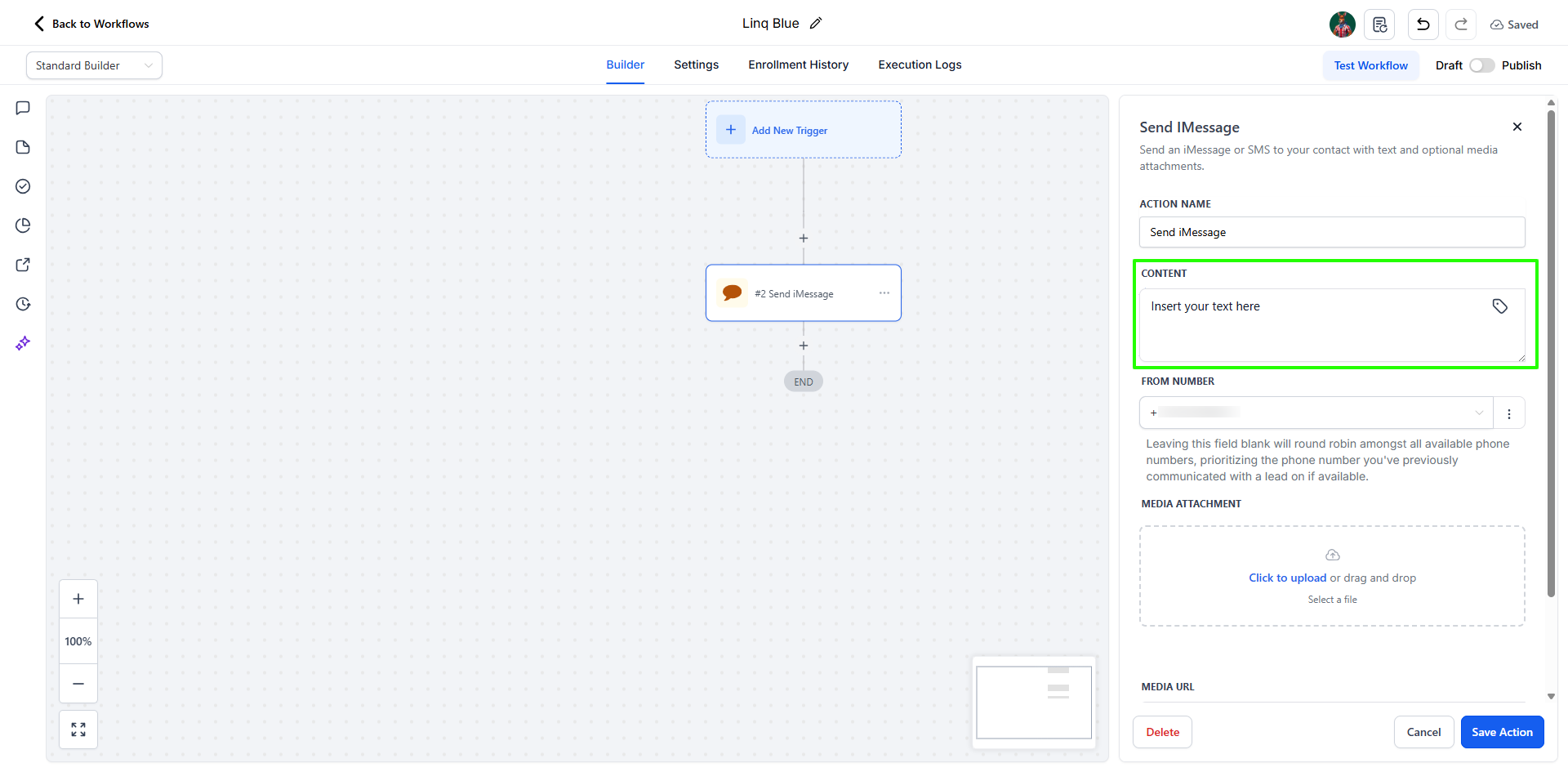
You can use personalization fields like {{contact.first_name}} to make it feel personal.
Step 4: Save and publish.
Click Save on the message.
Once your workflow is ready, toggle the switch at the top to Publish.
Why Should I Use the Linq Blue Action Instead of Regular SMS?
This special action makes sure your message sends from your Linq Blue number. It also:
Follows all carrier rules to improve deliverability
Prevents you from accidentally sending from a generic number
Now your workflow will send a professional, automated text from the exact number you want: no confusion, no missed messages.
If you have questions about Linq Blue workflow texts in Gym Lead Machine, our Support team is happy to help. Reach us at hello@usekilo.com.