
[Athlete App]: Self-booking Appointments
We’re excited to introduce Self-Booking Appointments, a feature that makes scheduling appointments easier and more convenient for your athletes.
What is Self-Booking?
Self-booking allows athletes to schedule their own appointments directly within the Athlete App—no staff assistance required. This is perfect for services like personal training, consultations, or On Ramp sessions.
Self-booking Appointments must be enabled to allow Athletes to schedule their own appointments. If you do not allow athletes to schedule their own Appointments, no action is required.
How Self-Booking Works
For Gym Owners
- You enable self-booking on specific appointments
- You choose which coaches are available
- Athletes can only book available time slots
- Credit is required for booking
For Athletes
- Athletes browse available appointments in the app
- Select a coach and date
- Choose an available time
- Confirm booking
- Appointment is added automatically
How to Enable Self-Booking
Self-booking is configured in the Appointments section of Kilo GMS.
Step 1: Go to Appointments
- Navigate to Events
- Open Appointments
- Locate the appointment you want to allow self-booking for
You will see a new Self-Booking column in the Appointments table.
Step 2: Self-Booking Toggle
Each appointment includes a Self-Booking toggle.

ON
- Athletes can schedule this appointment in the Athlete App
OFF
- Appointment is hidden from athletes
- All self-booking settings are saved for future use
Turning self-booking off will immediately remove the appointment from the Athlete App.
Step 3: Coach Selection
At least one coach must be assigned for self-booking to work.
Important:
- Only selected coaches will appear to athletes
- Athletes can only book times when a coach is available
- Dates with no availability will be disabled
Step 4: Meeting Interval
The meeting interval setting allows you to create a buffer post appointment.
- If an appointment is 30 minutes and you select a 60-minute interval, the system will create a 30 minute, post-appointment buffer before the next available time.
- If a buffer is not necessarily needed, select the exact or closest time to the appointment duration.
Step 5: Minimum Scheduling Notice
Decide how close to an appointment time an athlete can book their appointment.
- Enter the number and select the proper time domain (minutes/hours/days)
How Athletes Schedule an Appointment in the Kilo App
Navigation Updates
- Athletes will view a new Classes and Appointments tabs under Schedule
- The Appointments tab appears only if:
- At least one appointment has self-booking enabled for the gym
Note: Athlete's booked appointments appear under My Events. The Appointments tab is exclusively for scheduling new appointments.
How to Schedule an Appointment
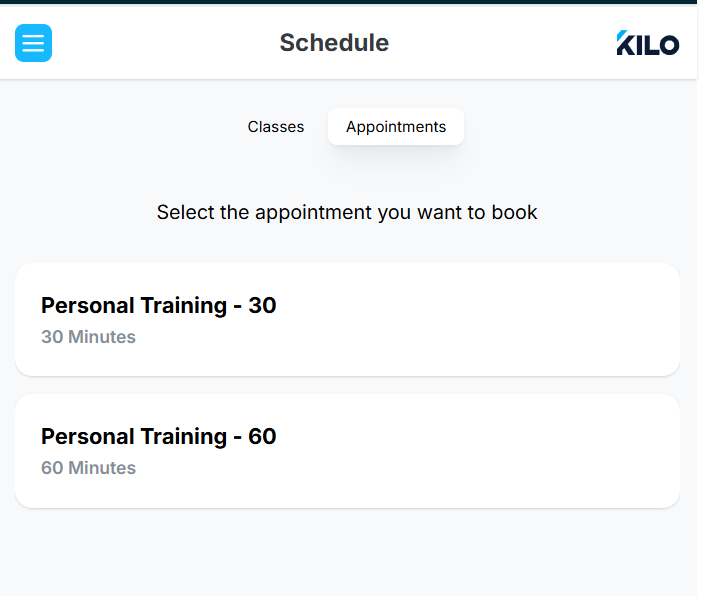
- Athletes navigate to the Appointments tab
- Appointment list is displayed
- All Appointment types with self-booking enabled will be viewable
- Athletes will not be able to schedule an appointment without a valid credit/package.
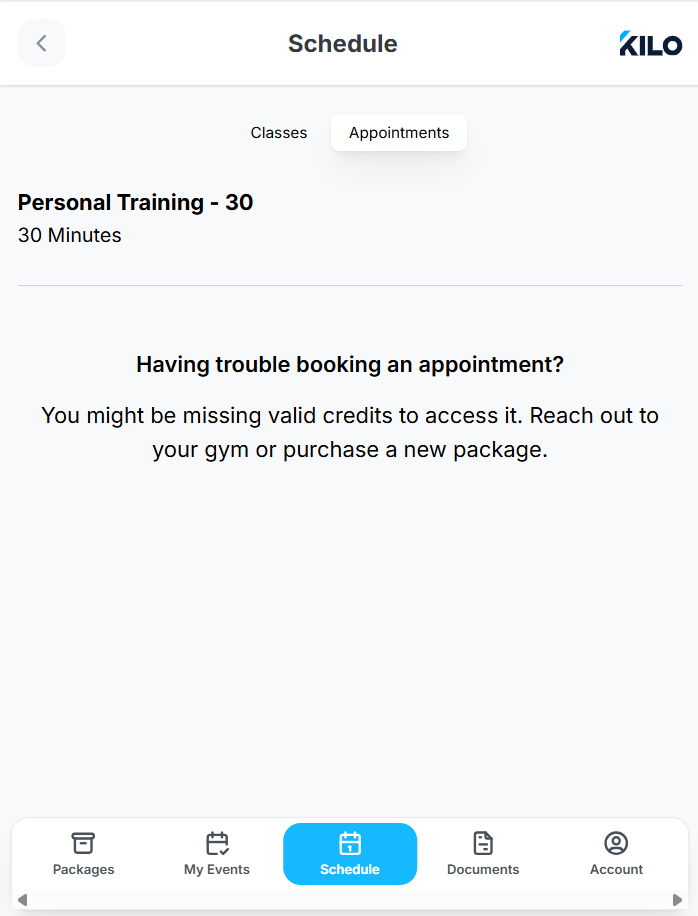
5. Athlete selects an Appointment type
- Athlete selects a coach and a date
- Only coaches configured in self-booking settings and available for that appointment are shown
- Dates without coach availability are disabled
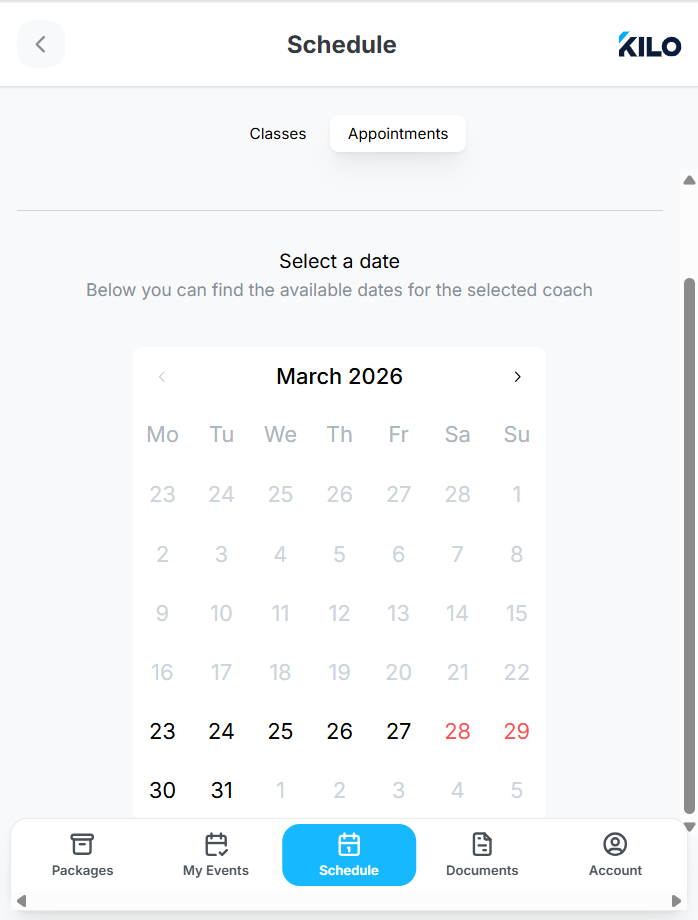
- Upon date selection, the system validates credit for the selected date and appointment
- Available time slots are displayed
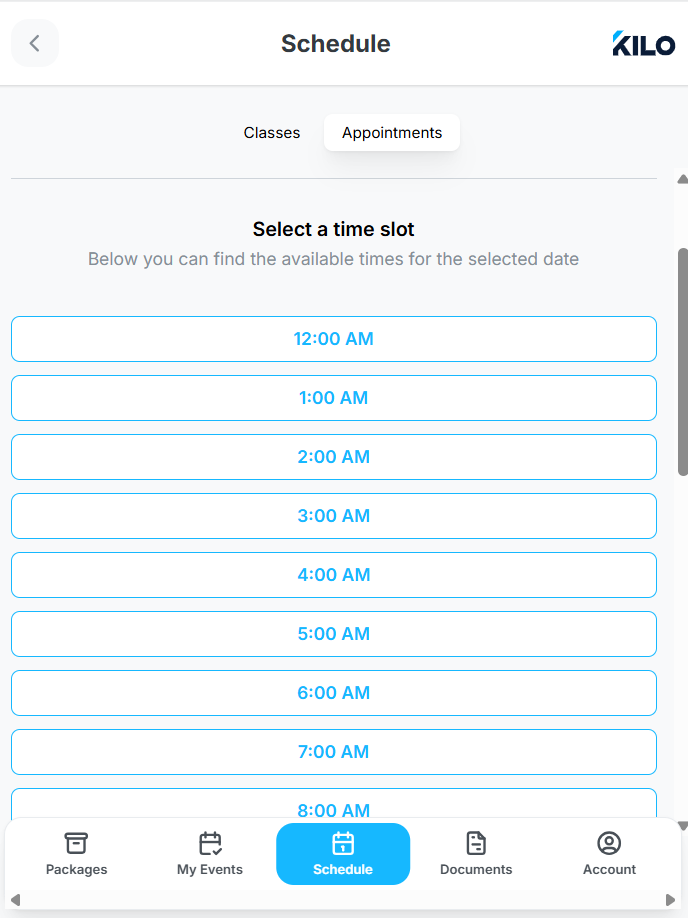
- Athlete selects a time slot and opts to book
- Appointment is immediately created with valid credit
Bulk reservations and shared appointments are not supported for athlete self-booking.
For shared appointments one athlete may self-book; additional attendees must be added manually by coach or Owner.
If you have further questions regarding self-booking appointments in Kilo, please contact the Support team at hello@usekilo.com.