


You can edit the items in your website's navigation bar at the top of your site and in your footer at the bottom of the page, both from the same place in WordPress. Reorder items, remove pages you no longer offer, rename programs, or add new pages, and the changes appear on your live site as soon as you save.
Watch the video below for a walkthrough, or read on for the steps.
What you can do with your site menus
Reorder menu items with drag and drop
Add new pages or posts to a menu
Remove items you no longer want to show
Rename items when a program rebrands
Edit your main (header) menu and footer menu separately
How do I open a menu for editing?
In your WordPress dashboard, hover over Appearance in the left sidebar and click Menus.

At the top of the page, select which menu you want to edit: the Main menu (the navigation bar in the header of your website) or the Footer menu (the links at the bottom of the page). Click the drop-down, choose the menu, and click Select.

The menu structure shows every page that exists as a main menu or submenu item.
What you can change
Reorder items: drag and drop items into a new order. For example, if group training is no longer your main squeeze and you're switching your focus to personal training, or you've become a Hyrox affiliate and want that program showcased, drag it to the top.
Add pages or posts: drag them from the left side to the right side of the menu structure.

Remove items: click the item on the right side and click Delete. For example, if you're no longer offering online training, remove it and it disappears from your navigation bar. The same works in the footer, such as removing the link to your cancellation form.
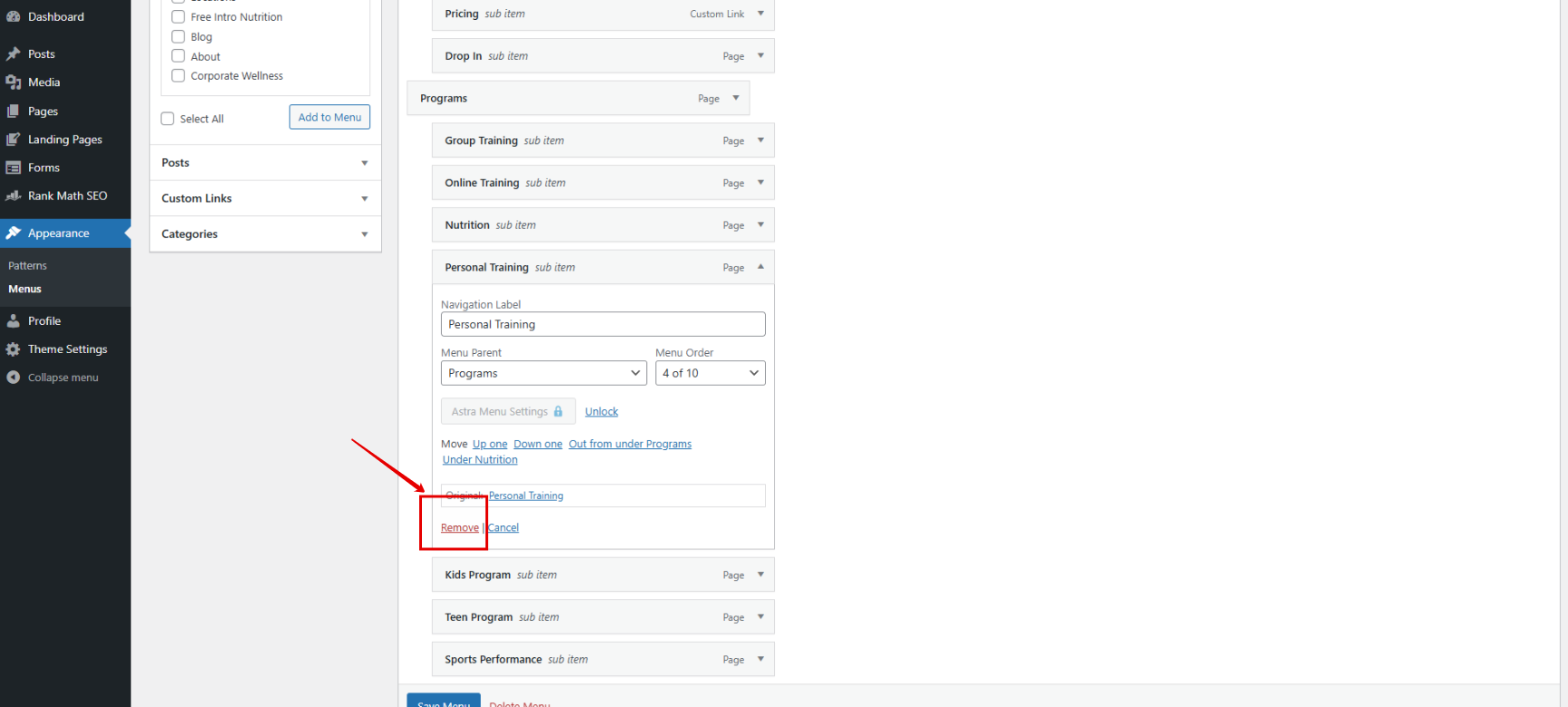
Rename items: click the item and type the new name. For example, if you're no longer doing just group training and are now a CrossFit affiliate, rename the item to "CrossFit Classes" and that's what shows in your navigation bar.
When you're finished, click Save Menu. The changes will be reflected on your website.

A common practice is to order your menu items from most important to least important program, so the offering you most want visitors to see comes first.
When this is most helpful
A program becomes your main focus and deserves the top spot in your navigation
You stop offering a program and want it out of your menus
A program rebrands or changes its name
You become an affiliate (for example, CrossFit or Hyrox) and want the program showcased
You want to declutter your footer, such as removing a cancellation form link
Have questions or want to request a complimentary annual redesign using one of our editable templates? Our Support team is happy to help. Reach us at hello@usekilo.com.