
How to Reset a Package That Started Too Early in GMS
Overview
If a package in Kilo Gym Management (GMS) was started too early and is now in an Active state, it cannot be reverted or extended.
Because of this limitation, the correct resolution is to:
- Cancel the active package early, and
- Recreate the package with the correct start date.
This guide walks through that process step by step, including important billing considerations to ensure the athlete is not charged twice.
Important Things to Know Before You Start
- Active packages cannot be reverted to an Upcoming state
- Active packages cannot have their end date extended
- Cancelling a package does not automatically issue a refund
- You’ll need to be intentional about how billing is handled if the athlete already paid
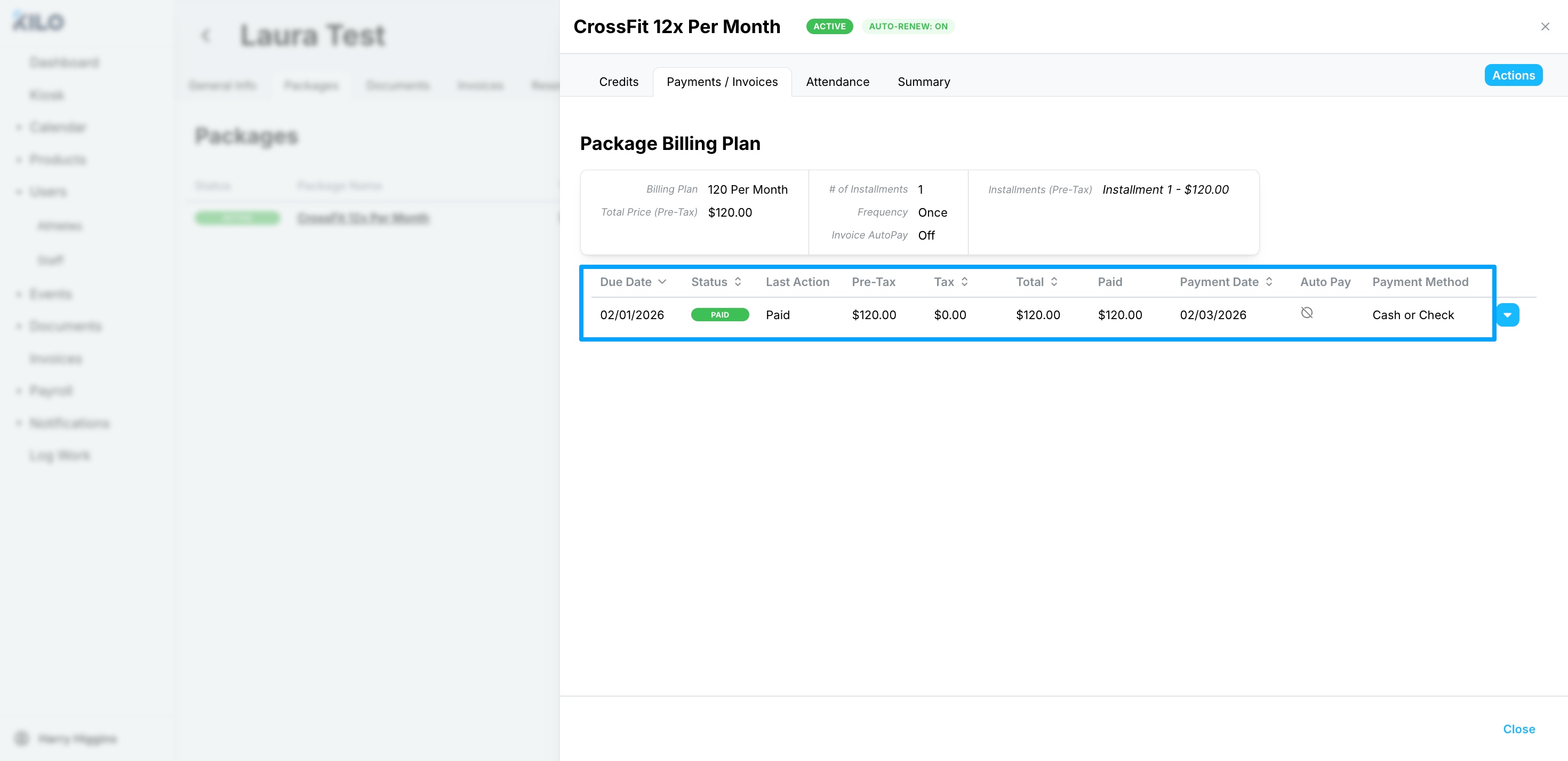
Step 1: Confirm the Athlete’s Payment Status
Before making any changes, check whether the athlete has already paid for the package.
Common scenarios:
- Athlete already paid in full
- Athlete is on a payment plan and has made one or more payments
- Athlete has not been charged yet
This will determine how you handle billing when recreating the package.
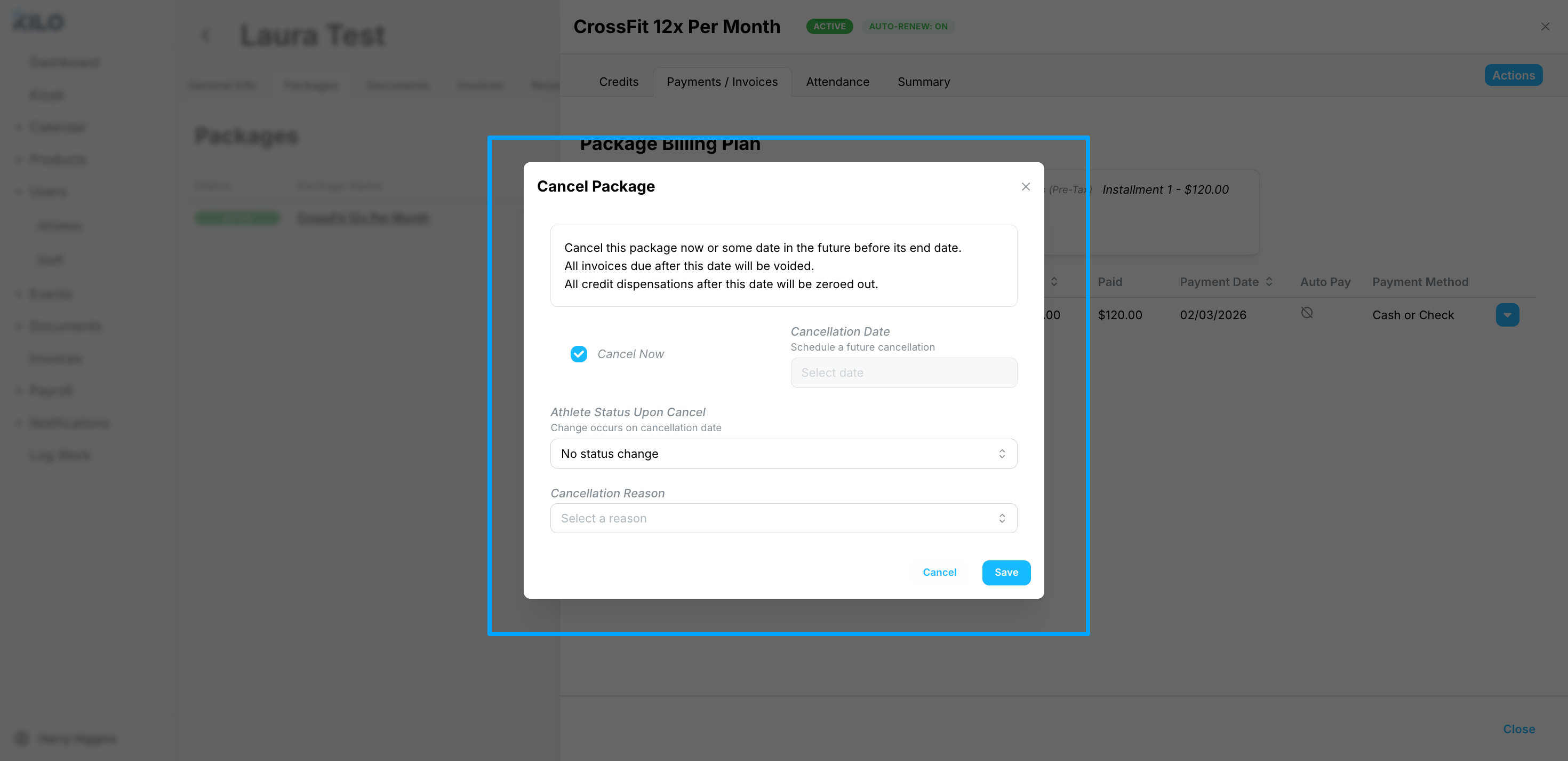
Step 2: Cancel the Active Package Early
- Navigate to the athlete’s profile
- Open the Active Package from the main profile or the Packages tab
- Click on the Actions option and Cancel Package Early
- Confirm the cancellation date (likely Cancel Now) and ensure "No Status Change" is selected
💡 Tip: Cancelling the package stops access and future billing but does not automatically refund past charges.
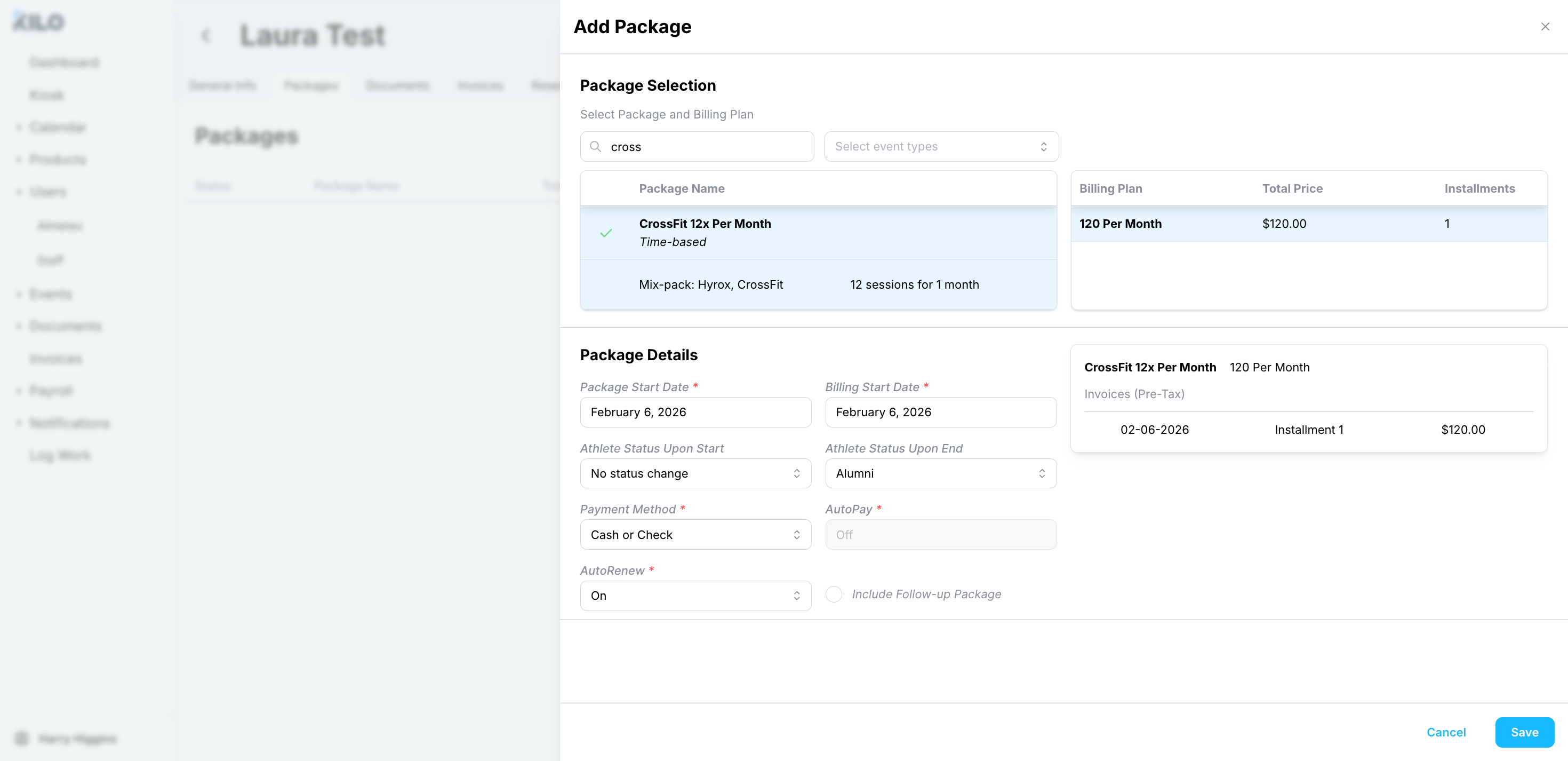
Step 3: Recreate the Package With the Correct Start Date
- From the athlete’s profile, click Add Package
- Select the same package type
- Set the correct Package and Billing start date
- ‼️ Important Note: If the start date of the rescheduled package will be today or in the past you must turn AutoPay off before saving to avoid a double-charge for the athlete.
- Confirm details
- Save the new package, which will generate in the Upcoming state if the start date is now in the future, or in the Active state if you've reset start date of today or in the past.
Step 4: Decide How to Handle Billing
Choose the option below that matches your situation.
Option A: Athlete Already Paid (Most Common)
If the athlete has already paid and should not be charged again:
- Recreate the package to begin on the correct day
- ‼️ Remember to turn AutoPay off before saving if the start date is today or in the past.
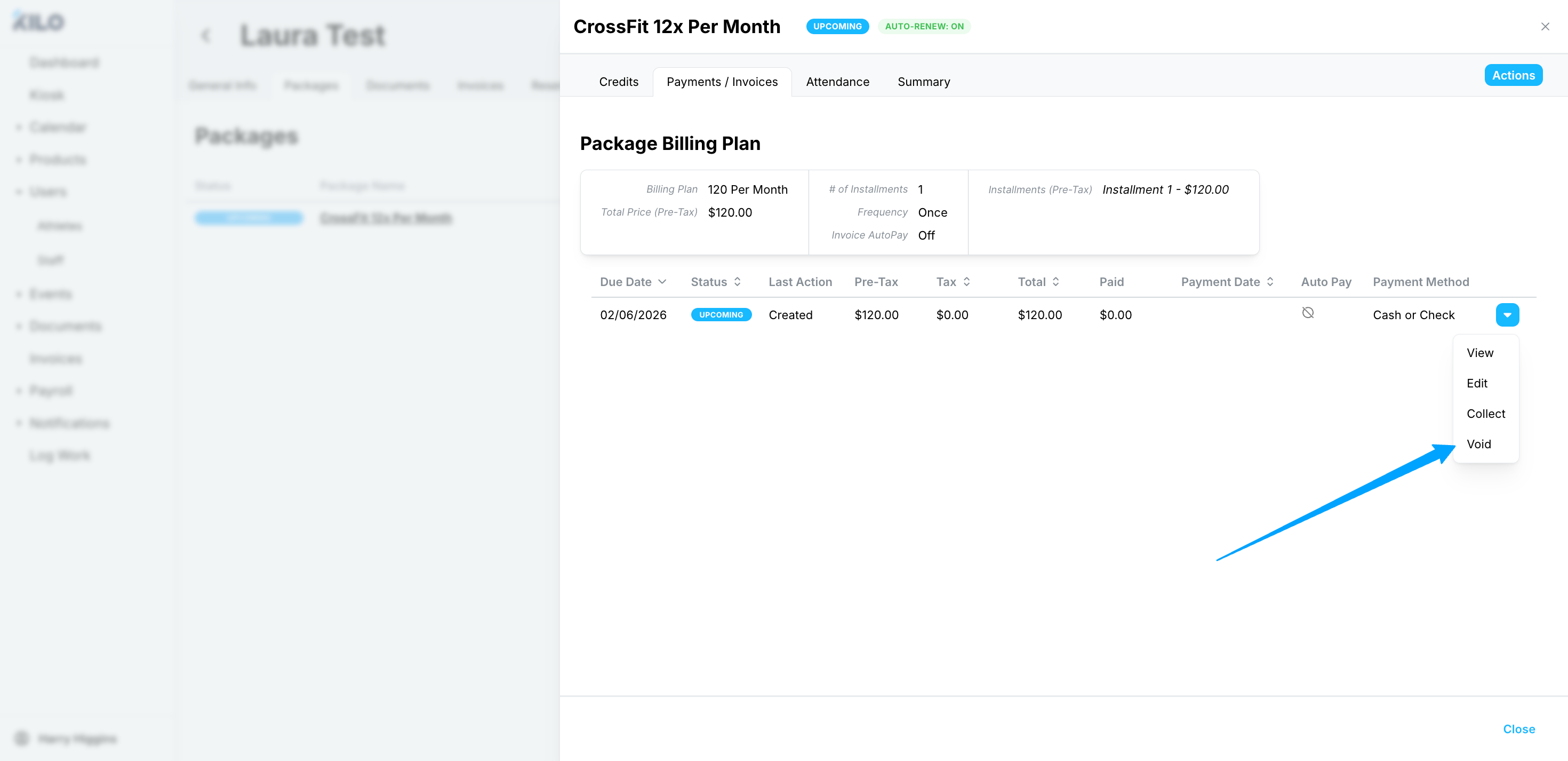
- After the package is recreate created, go to the repeat invoice it generated
- Void the invoice for the new package
Option B: Athlete Is on a Payment Plan
If payments have already started:
- Recreate the package to begin on the correct day
- After the package is created and in the Upcoming state, go to the first Upcoming invoice generated by the package
- Void the first Upcoming invoice for the new package, but allow other installments to run on schedule.
Option C: Athlete Has Not Paid Yet
If no payment has been collected:
- Recreate the package normally, for the correct date
- Keep billing enabled as usual - do not void any invoices
Step 5: Double-Check Access and Billing
After recreating the package, confirm:
- The start and end dates of the Upcoming package are correct
- No duplicate or unexpected charges are scheduled
- AutoPay for the package is turned on if you needed to turn it off to avoid a double-charge
- Go to the packages' Action menu -> choose "Turn AutoPay On"
Need Help?
If you’re unsure how to handle a specific billing scenario, our Support team can review it with you before changes are made. Reach out to Kilo Support at hello@usekilo.com.