
Fix Google Search Console Errors [User Guide]
Fixing Google Search Console Issues
Google Search Console is a free tool from Google that shows how your website appears in search results and alerts you when Google has trouble crawling or indexing your pages.
This guide helps you fix common Search Console issues on your WordPress website. If you would rather not fix these issues yourself, we can help:
- We include Search Console fixes at launch if they can be completed within 30 minutes
- If the work takes more than 30 minutes, we can still handle it as a paid Custom Solution
Start Here: Check the URL Inspection Tool
Before you change anything, confirm what Google sees.
- Open Google Search Console: https://search.google.com/search-console
- Click Start now - that will take you to the sign-in / dashboard area.
- Sign in to the correct Google account
-
Paste the affected URL into the top search bar (URL Inspection)

- Review:
- Whether the URL is on Google
- The indexing status
- Any messages about canonical URLs
- Whether it is blocked by robots.txt or noindex
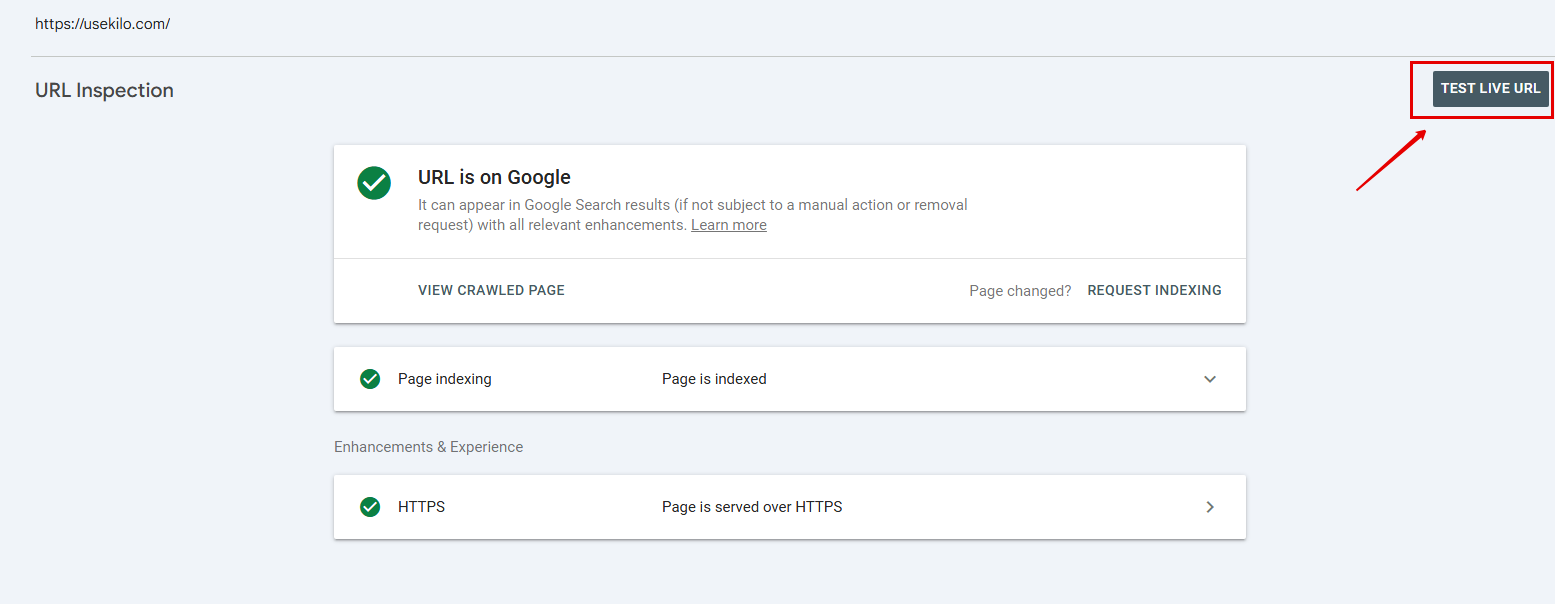
- Click Test Live URL to check the current state
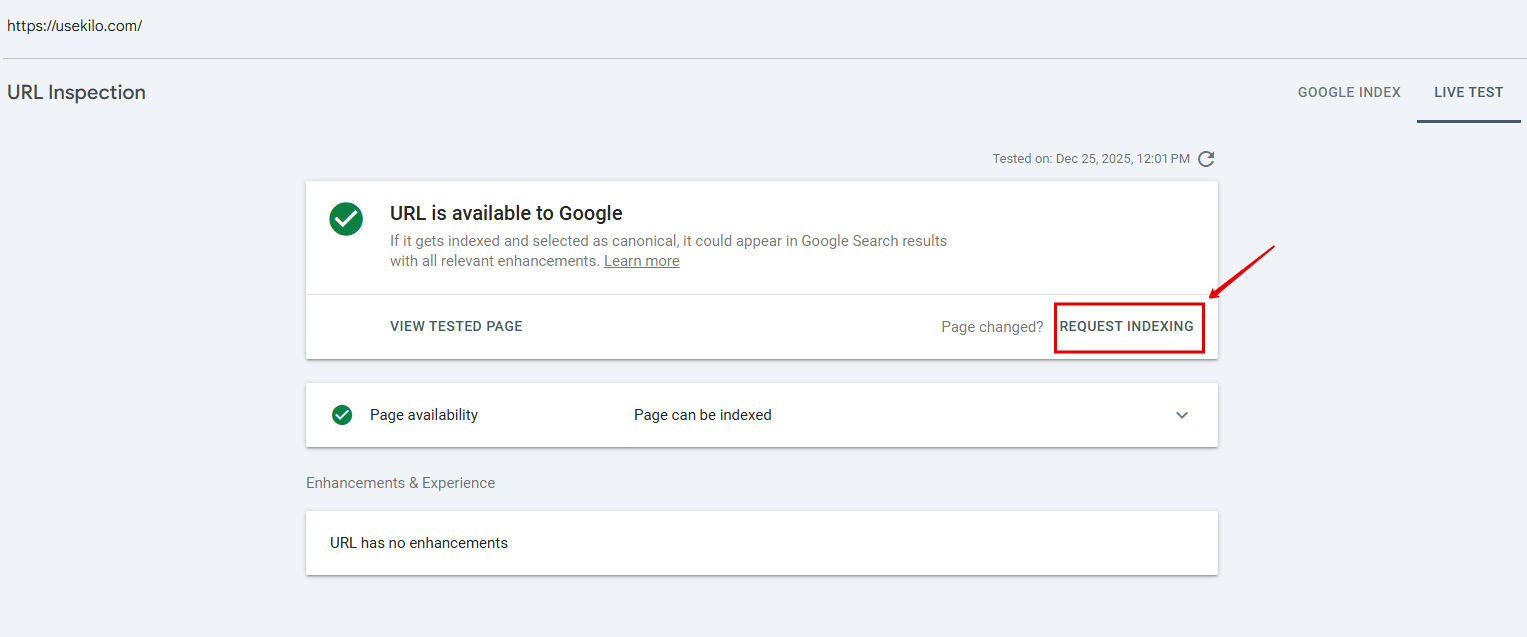
- If you made a fix, click Request Indexing
This prevents guessing and helps you fix the right problem.
Terminology (Quick Definitions)
| Term | What it means | Why it matters |
|---|---|---|
| Crawling | Google visits a page on your website to read it. | If Google cannot crawl a page, it usually cannot index it. |
| Indexing | Google saves your page so it can appear in search results. | Pages that are not indexed will not show up in Google. |
| Indexed vs not indexed | Indexed means Google can show the page. Not indexed means Google is not showing it. | Your key pages should be indexed (Home, About, Programs, Gym Info). |
| Canonical URL | The main version of a page that you want Google to index. | WordPress often creates multiple URLs. Canonicals tell Google which version is the main one. |
| Duplicate page | Another URL that shows the same or very similar content as another page. | Google tries to index only one version, and duplicates can cause indexing confusion. |
| Sitemap | A list of important pages you want Google to crawl and index, usually yourdomain.com/sitemap.xml . |
A clean sitemap helps Google find the right pages. |
| robots.txt | A file that tells search engines which pages they can or cannot crawl, usually yourdomain.com/robots.txt . |
If robots.txt blocks a page, Google may not crawl or index it. |
| Redirect | Automatically sends users and search engines from one URL to another. | Useful when URLs change, but incorrect redirects can cause indexing problems. |
| Redirect chain | A redirect that leads to another redirect (multiple steps). | Chains slow crawling and can cause Google to stop following redirects. |
| 404 error | The page does not exist. | Important pages should not return 404, and 404 URLs should not be in your sitemap. |
| Soft 404 | A page looks missing or unhelpful, but the site returns a normal status code. | Google may treat the page as missing and not index it. |
| 5xx server error | The server failed to load the page properly. | Repeated errors can reduce crawling and affect indexing. |
| 401 and 403 errors | 401 means login required. 403 means access forbidden. | If a public page returns these, Google cannot crawl or index it. |
| noindex | A setting that tells Google not to index a page. | If used by mistake, the page will not appear in search results. |
| Internal links | Links from one page on your website to another page on your website. | Internal links help Google discover pages and understand what is important. |
| Crawl budget | How many pages Google chooses to crawl on your site over time. | Usually not a concern for small sites, but duplicates can waste it. |
| Core Web Vitals (LCP, CLS, INP) | Performance and user experience metrics. LCP is loading speed. CLS is layout stability. INP is interactivity. | Poor performance can affect rankings and conversions, especially on mobile. |
| Structured data (Schema) | Extra code that helps Google understand your page (like location info, FAQs, reviews). | Helps with rich results and clarity, but usually does not block indexing. |
| Manual actions | A penalty applied by Google for violating guidelines. | Can reduce rankings or remove pages from results until fixed. |
| Hacked content and malware | Google believes your site is compromised or unsafe. | Can cause warnings in search results and major traffic loss until resolved. |
A) Indexing and Page Issues (Most Common)
Page with redirect
Example
You changed the URL for your “Membership” page. The old URL now redirects:
- Old URL (not indexed):
https://yourgym.com/memberships/ - Redirects to (indexed):
https://yourgym.com/membership/
Search Console reports “Page with redirect” for the old URL because Google indexes the final destination page.
Example (redirect chain)
-
*<https://yourgym.com/bootcamp/*>redirects to
https://yourgym.com/classes/redirects to
https://yourgym.com/class-schedule/
Google flags the original URL because it has multiple redirect hops.
What it means
Google found a URL, but it redirects to another page. Google usually indexes the final destination page.
How to fix it
- Make sure the redirect goes directly to the correct page (avoid redirect chains)
- Update internal links so they point to the final destination URL
- Remove unnecessary extra redirects
💡 WordPress tip
If you use a redirect plugin (like Redirection) or Redirection option in Rank Math plugin, check that each old URL points to the right final page.
Not found (404)
Example
Your gym used to have a page for a promotion:
- Old URL:
https://yourgym.com/summer-special/ - Page was deleted and now returns: 404
Google still tries to crawl it because:
- it is linked from an old blog post, or
- it is still in your sitemap, or
- other websites still link to it
Search Console reports “Not found (404).”
What it means
Google tried to crawl a page that does not exist.
Common causes
- You deleted an old page
- You changed a URL for a page
- Old blog links still exist
How to fix it
- If the page should exist, restore it
- If the page was removed, redirect it to the closest relevant page
- Remove old URLs from your sitemap
- Fix internal links pointing to the missing page
💡 WordPress tip
If you have many 404s, a redirect plugin or Redirection option in Rank Math plugin can help you clean them up faster.
Soft 404
Example
You have a page that loads, but it displays “No classes found” and has almost no other content.
- URL:
https://yourgym.com/classes/tuesday/
The page returns a normal status (it loads), but Google considers it a “thin” or “empty” result, so it reports “Soft 404.”
Example (custom not found page)
A missing page shows a “Sorry, page not found” message, but the site still returns a normal page status instead of a real 404. Google treats it as a Soft 404.
What it means
Google believes the page is effectively missing or unhelpful, even though it loads.
Common causes
- A page template shows “not found” but returns a normal status code
- A very thin page with no meaningful content
How to fix it
- If the page is truly missing, return a real 404 or 410
- If the page should exist, rebuild it with real content (classes, schedule, FAQs, images)
💡 WordPress tip
Check whether your theme or builder is generating empty pages with “no results” messaging.
Server error (5xx) / Timeout
Example
Google tries to crawl your site, but your server is temporarily down or overloaded.
- URL:
https://yourgym.com/class-schedule/ - Google receives a 500 error or times out
Search Console reports “Server error (5xx)” or “Timeout.”
Example (intermittent issue)
Your site works most of the time, but occasionally fails during high traffic periods. Googlebot crawls during one of those failures and reports the error.
What it means
Google could not load your website due to a server issue.
Common causes
- Hosting is underpowered
- Caching is misconfigured
- Security plugins or firewalls block Googlebot
- The site is intermittently down
How to fix it
- Check hosting uptime and performance
- Clear and rebuild caching
- Ensure Googlebot is not blocked
- If it continues, contact hosting support
💡 Contact KILO support to resolve these issues for you at hello@usekilo.com.
Blocked by robots.txt
Example
Your robots.txt file blocks a folder that contains an important page:
- Page URL:
https://yourgym.com/programs/personal-training/ - robots.txt rule:
Disallow: /programs/
Google cannot crawl any page inside /programs/ , so Search Console reports “Blocked by robots.txt.”
Example (accidental block)
Sometimes robots.txt blocks parts of the site left over from a staging setup, like:
*Disallow: /*
That would block the entire site from crawling.
What it means
Your robots.txt file blocks Google from crawling the page.
How to fix it
- Visit
yourdomain.com/robots.txt - Remove “Disallow” rules affecting public pages
- Keep blocks for private pages (account, checkout, admin)
💡 WordPress tip
Your SEO plugin often controls robots.txt. Check there first.
Blocked by 401/403
Example (401 login required)
Your “Member Portal” page requires a login:
- URL:
https://yourgym.com/member-portal/ - Google receives: 401 Unauthorized
Search Console reports “Blocked by 401/403.”
Example (403 forbidden)
A firewall blocks visitors (including Googlebot) from certain pages:
- URL:
https://yourgym.com/pricing/ - Google receives: 403 Forbidden
This usually needs the access restriction removed for public pages.
What it means
Googlebot cannot access the page because it requires login (401) or access is forbidden (403).
Common causes
- Password protection
- Membership plugins
- Staging environment protection
- Security plugin rules
- Hosting firewalls
How to fix it
- If the page should be public, remove protection or adjust rules so Google can crawl it
- If the page should be private, no action is needed
💡 WordPress tip
If your site is behind a firewall, check if Googlebot is blocked and whitelist it.
Discovered, currently not indexed
Example
You published a new page for a new class:
- URL:
https://yourgym.com/classes/hyrox/
Google knows it exists because it is in the sitemap, but it has not crawled it yet. Search Console reports “Discovered, currently not indexed.”
Example (weak linking)
The page exists but is not linked from anywhere (only accessible if someone knows the URL). Google discovers it through the sitemap or other signals, but does not prioritize crawling it.
What it means
Google knows the URL exists but has not crawled it yet.
Common causes
- Weak internal linking
- Too many low value pages
- Slow site performance
How to fix it
- Add internal links from important pages
- Confirm the page is in your sitemap
- Improve site performance
- Avoid publishing many thin pages at once
💡 WordPress tip
Link new pages from the Home page or Programs page to help Google find them faster.
Crawled, currently not indexed
Example
You have a page that Google crawled:
- URL:
https://yourgym.com/strength-training/
But the page has only a short paragraph and is very similar to another page (like the generic “Programs” page). Google crawls it but decides not to index it, and Search Console reports “Crawled, currently not indexed.”
Example (duplicate content)
You have:
*<https://yourgym.com/classes/*>*<https://yourgym.com/group-fitness/*>
They contain very similar content. Google crawls both but chooses to index only one.
What it means
Google crawled the page but decided it is not valuable enough to index yet.
Common causes
- Thin content
- Content too similar to other pages
- Weak internal links
- Low overall site authority
How to fix it
- Add 300 to 800 words of unique, helpful content
- Add FAQs and supporting images
- Link to the page from key pages
- Confirm the page is set to Index in your SEO plugin
💡 WordPress tip
Page like “Personal Training” often need more detail to get indexed.
Excluded by noindex (Submitted URL marked ‘noindex’)
Example
Your sitemap includes:
*<https://yourgym.com/free-trial/*>
But the page has a noindex directive (often set intentionally for short-term campaigns or by mistake). Google sees “noindex,” so it does not index the page and Search Console reports “Excluded by noindex.”
Example (accidental noindex)
A page was set to noindex during setup, then never changed. Even though it is in the sitemap, Google will not index it.
What it means
The page is in your sitemap, but it tells Google not to index it.
How to fix it
- In WordPress, open the page and check your SEO plugin settings
- Set it to Index if it should appear in Google
- If it should not be indexed, remove it from the sitemap
💡 WordPress tip
This often happens when pages are duplicated, templated, or set to “noindex” during site setup.
B) Canonicals and Duplicate Pages
Alternate page with proper canonical tag
Example
Your class schedule is the main page:
- Canonical (main page):
https://yourgym.com/class-schedule/
But Google also finds a duplicate version like:
- Alternate URL:
https://yourgym.com/class-schedule/?utm_source=facebook
On the alternate URL, the canonical tag correctly points to the main page:
- Canonical tag points to:
https://yourgym.com/class-schedule/
What this looks like in real life
A marketing link (Facebook, email, ads) adds tracking parameters to your URL. Google sees it, but your canonical tells Google to index the clean version.
What it means
Google found a duplicate URL, but your canonical tag correctly points to the main version, so Google indexed the canonical page.
What to do
- Usually nothing
- Confirm canonical tags are correct
- Ensure internal links point to the canonical version
💡 WordPress tip
Most SEO plugins automatically set canonicals, but duplicates can still appear due to parameters or archives.
Duplicate without canonical
Example
Your “Personal Training” content exists on two URLs (often due to a plugin or page builder issue):
- URL A:
https://yourgym.com/personal-training/ - URL B:
https://yourgym.com/personal-training-2/
Both pages show nearly the same content, but neither one has a canonical tag.
What this looks like in real life
This can happen when a page is duplicated in WordPress and published by mistake. Google sees two similar pages and does not know which one should be indexed.
What it means
Google found duplicate URLs and no canonical tag is present.
How to fix it
- Enable canonical tags through your SEO plugin
- Add canonical tags pointing to the preferred URL
- Consider redirecting duplicates if they should not exist
💡 WordPress tip
If you use a custom theme, confirm it is not stripping canonical tags.
Duplicate without user-selected canonical
Example
Your membership page can load in two versions:
- URL A:
https://yourgym.com/membership/ - URL B:
https://www.yourgym.com/membership/
Google sees both, but your site does not clearly declare which is the canonical version. This usually means:
- canonical tags are missing, inconsistent, or conflicting
- internal links point to both versions
What this looks like in real life
Some parts of the site link to the www version, and other parts link to the non-www version.
What it means
Google found duplicates but you did not clearly declare which version is preferred.
How to fix it
- Add canonical tags
- Consolidate or redirect duplicates
- Update internal links to only point to the preferred version
💡 WordPress tip
Category, tag, and author archives can create duplicates. Decide whether those should be indexable.
Duplicate, Google chose different canonical than user
Example
Your site declares this canonical:
- User-declared canonical:
https://yourgym.com/classes/
But Google decides this is the better canonical:
- Google-selected canonical:
https://yourgym.com/group-fitness-classes/
What this looks like in real life
This often happens when:
- the canonical page redirects
- the canonical page is blocked or noindex
- Google thinks another page has stronger content or more internal links
- your “classes” page is thin, but the other page is more detailed
What it means
You declared a canonical, but Google chose a different canonical.
How to fix it
- Ensure the canonical URL is indexable (not blocked, not noindex, not redirected)
- Use consistent internal links pointing to the canonical
- Reduce duplicate versions caused by parameters or archives
💡 WordPress tip
If the canonical page has thin content, Google may choose a stronger duplicate.
Submitted URL not selected as canonical
Example
Your sitemap submits this URL:
- Submitted in sitemap:
https://yourgym.com/trainers/
But Google indexes a different version:
- Google-selected canonical:
https://yourgym.com/coaches/
What this looks like in real life
This usually happens after you rename a page or change a URL, but:
- the sitemap still includes the old version
- internal links still point to the old version
- Google has decided the new version is the canonical
What it means
You submitted a URL (usually via sitemap), but Google indexed a different URL as canonical.
How to fix it
- Submit only canonical URLs in your sitemap
- Fix canonical tags and internal links
- Resubmit the sitemap
💡 WordPress tip
Sitemaps should not include tracking parameter URLs.
Submitted URL not canonical
Example
Your sitemap includes a URL with parameters:
- Submitted in sitemap:
https://yourgym.com/membership/?fbclid=12345
But the canonical version is:
- Canonical:
https://yourgym.com/membership/
What this looks like in real life
This is almost always caused by tracking parameters or plugin-generated URLs getting into the sitemap. A clean sitemap should only include the canonical version of a page.
What it means
You submitted a URL that is not the canonical version.
How to fix it
- Remove non-canonical URLs from the sitemap
- Correct canonical tags
- Ensure internal links point to the canonical version
💡 WordPress tip
This often happens when plugins generate multiple URL versions.
C) Sitemap Issues
404 in sitemap
Example
Your gym used to have a page for an old program, but it was deleted:
- Old page URL:
https://yourgym.com/6-week-challenge/ - That URL now returns: 404 Not Found
Your sitemap still includes that old URL, so Search Console reports “404 in sitemap.”
What this looks like in real life
This often happens after you:
- delete old class or program pages
- change a page slug (URL)
- remove old trainer pages
- migrate content during a redesign
What it means
Your sitemap includes URLs that return 404.
How to fix it
- Restore the page or redirect it
- Remove the URL from the sitemap
- Resubmit the sitemap in Search Console
💡 WordPress tip
If you recently deleted pages, rebuild the sitemap and resubmit.
Sitemap unreadable
Example 1 (sitemap URL changed)
Your sitemap used to be:
- Old sitemap:
https://yourgym.com/sitemap.xml
But after switching SEO plugins, your new sitemap is:
- New sitemap:
https://yourgym.com/sitemap_index.xml
Search Console is still trying to read the old sitemap URL, which now returns a 404, so it shows “Sitemap unreadable.”
Example 2 (blocked by robots.txt)
Your sitemap exists, but robots.txt blocks it:
- Sitemap URL:
https://yourgym.com/sitemap_index.xml -
robots.txt includes a rule like:
*Disallow: /sitemap_index.xml*
Google cannot access it, so Search Console shows “Sitemap unreadable.”
Example 3 (security plugin blocks Googlebot)
Your sitemap loads for you in a browser, but Googlebot gets blocked by a firewall or security plugin, so Google sees a 403 or 503 error and reports “Sitemap unreadable.”
What this looks like in real life
This often happens when:
- you changed SEO plugins (Yoast to Rank Math or similar)
- the sitemap URL is wrong in Search Console
- a caching or security plugin blocks crawlers
- your hosting has intermittent server errors
What it means
Google cannot fetch or read your sitemap.
Common causes
- Sitemap URL returns 404 or 500
- Sitemap is blocked by robots.txt
- Security tools block crawlers
- Sitemap output is broken
How to fix it
- Open your sitemap in a browser and confirm it loads
- Ensure it returns a 200 status code
- Confirm robots.txt does not block it
- Check caching and security tools
- Resubmit the sitemap in Search Console
💡 WordPress tip
If you changed SEO plugins, your sitemap URL may have changed too.
D) Mobile Usability Issues
Content wider than screen
Example
Your “Class Schedule” page embeds a timetable that is wider than a phone screen. On mobile, users have to scroll sideways to see it.
- Page:
https://yourgym.com/class-schedule/ - Problem element: a schedule table or embedded widget that does not resize
Example
A large image is uploaded at full size and the page forces it to display wider than the screen.
- Page:
https://yourgym.com/programs/ - Problem element: an image or banner set to a fixed width
Example
A comparison table for memberships is created with many columns, and it does not collapse on mobile.
- Page:
https://yourgym.com/membership/ - Problem element: a multi-column pricing table
What it means
Your layout is not responsive, and users must scroll sideways.
How to fix it
- Fix wide images, tables, and embedded elements
- Avoid fixed pixel widths on mobile
- Use responsive blocks and containers
💡 WordPress tip
This is common with older page builder layouts and embedded schedule widgets.
Clickable elements too close together
Example
In your mobile header menu, the links are stacked too tightly. A user tries to tap “Schedule” but accidentally taps “Join Now.”
- Page area: mobile menu
- Problem element: navigation links with not enough spacing
Example
On the footer, you have multiple small links next to each other:
- “Instagram” “Facebook” “Directions” “Call”
On a phone, users keep tapping the wrong one.
- Page area: footer
- Problem element: small links too close together
Example
You show class category buttons (HIIT, Yoga, Strength, Bootcamp) in a row on mobile, but the buttons are too small and packed together.
- Page:
https://yourgym.com/classes/ - Problem element: button row with tight spacing
What it means
Buttons and links are too close, which makes the page hard to use on mobile.
How to fix it
- Increase spacing between links and buttons
- Increase button padding
- Improve tap targets for key actions
<aside> 💡
WordPress tip
Start with menu items, footer links, and small button rows.
</aside>
Text too small to read
Example
Your “Pricing” page includes fine print (cancellation policy, membership terms) that looks OK on desktop, but is tiny on mobile.
- Page:
https://yourgym.com/pricing/ - Problem element: paragraph text set to a very small font size
Example
Your contact form labels are too small, making it hard for mobile users to read what each field means.
- Page:
https://yourgym.com/contact/ - Problem element: form text and labels with small font sizes
Example
Your FAQ section uses a small font inside dropdowns, so on a phone it is difficult to read.
- Page:
https://yourgym.com/faq/ - Problem element: accordion text set too small for mobile
What it means
Font sizes are too small on mobile devices.
How to fix it
- Increase base font size and line height
- Adjust typography settings for mobile layouts
💡 WordPress tip
Test on a real phone and focus on paragraphs and form text first.
E) Performance Issues (Core Web Vitals)
LCP issue (Largest Contentful Paint)
Example
Your homepage has a large hero image (or banner) at the top that is very large in file size. On mobile, it takes several seconds to load, so Google reports an LCP issue.
- Page:
https://yourgym.com/ - Largest element: hero image (often the main banner photo)
Example
Your homepage uses a full-width video background. The video loads slowly, and the page appears blank for a moment. Google flags LCP because the main content is delayed.
- Page:
https://yourgym.com/ - Largest element: video background or header section
Example
Your class schedule page loads a heavy third-party schedule widget. The widget is the biggest element on the page and loads slowly, triggering LCP issues.
- Page:
https://yourgym.com/class-schedule/ - Largest element: embedded schedule widget
What it means
The largest visible element takes too long to load, usually a hero image or header section.
How to fix it
- Compress and resize hero images
- Use WebP images
- Reduce heavy scripts and tracking tools
- Use caching and a CDN
- Avoid video backgrounds or load them later
💡 WordPress tip
Large sliders are often the cause. Replace them with a single optimized hero image.
CLS issue (Cumulative Layout Shift)
Example
Your homepage loads with text at the top, then the hero image loads afterward and pushes the content down. Users see the page “jump” while loading. Google reports a CLS issue.
- Page:
https://yourgym.com/ - Cause: images loading without reserved space
Example
A “Get a Free Trial” popup appears after the page loads and pushes content around. Google sees the layout shift and reports CLS.
- Page:
https://yourgym.com/pricing/ - Cause: popup injected after load
Example
A chat widget loads late and changes the page layout when it appears. This can cause CLS on multiple pages.
- Page: multiple pages
- Cause: chat widget loads without reserved space
What it means
The page shifts while loading, which feels unstable.
How to fix it
- Set width and height on images
- Reserve space for banners, popups, and embeds
- Avoid injecting large elements above the fold after load
💡 WordPress tip
Popups and chat widgets can cause CLS if they load without reserved space.
INP issue (Interaction to Next Paint)
Example
On mobile, your “Book a Class” button is slow to respond. When users tap it, the page freezes for a moment before opening the booking modal. Google reports INP issues because interactions are delayed.
- Page:
https://yourgym.com/class-schedule/ - Cause: heavy scripts running when a user taps
Example
Your site loads several tracking scripts and marketing tags. When users tap menu items or buttons, the site feels sluggish. Google flags INP.
- Page:
https://yourgym.com/ - Cause: too many scripts and slow main thread
Example
Your pricing page has multiple sliders, animations, and countdown timers. Scrolling and tapping feels laggy on phones, so Google reports INP problems.
- Page:
https://yourgym.com/pricing/ - Cause: heavy animation and JavaScript
What it means
The site reacts slowly when users tap or interact, usually due to heavy scripts.
How to fix it
- Reduce JavaScript load
- Remove unused plugins
- Reduce third-party widgets
- Improve caching and performance
💡 WordPress tip
If you have many plugins, start by removing what you do not need.
Core Web Vitals issue (general)
Example
Search Console reports a Core Web Vitals issue, but it is not clear which metric is the main problem. You notice pages load slowly on mobile and sometimes jump as they load. This usually means a mix of:
- slow images or slow server response
- heavy scripts
- layout shifts from late-loading elements
- Pages affected: often your home page, schedule page, and pricing page
- Result: Google labels the overall experience as poor
Example
Your site is fast on desktop, but slow on mobile because the main banner image and scripts take too long to load. Search Console flags Core Web Vitals issues that mainly affect mobile users.
- Pages affected: mostly mobile
- Result: general CWV warnings
What it means
Google sees poor performance or stability, but it may not show which metric is causing it.
How to fix it
- Optimize images
- Reduce plugins and scripts
- Enable caching
- Improve hosting quality
💡 WordPress tip
Speed improvements help both SEO and conversions, especially for mobile visitors.
F) Structured Data (Schema) Errors
Structured data errors (Schema errors)
Example (Local Business schema missing required fields)
Your website has Local Business schema, but Google reports errors because required details are missing, such as:
- address
- phone number
- opening hours
Google may still index the page, but it may not be eligible for certain rich results.
- Page:
https://yourgym.com/orhttps://yourgym.com/location/ - Typical error: missing
addressortelephone
Example (FAQ schema formatting problem)
Your “Frequently Asked Questions” page uses FAQ schema, but the markup is invalid because:
- the question and answer text is not formatted correctly
- some fields are empty
- the same question appears twice in the schema
Search Console reports “Invalid object type” or “Missing field” errors.
- Page:
https://yourgym.com/faq/
Example (Breadcrumb schema issues)
Your site displays breadcrumbs like “Home > Programs > Personal Training,” but the breadcrumb schema is missing required fields or has broken URLs in it.
- Page:
https://yourgym.com/personal-training/ - Typical error: missing
itemor invalid@id
Example (Event schema errors for classes)
Your gym site has class listings marked up as events, but the schema is missing required details like:
- start date
- location
- event name
Google flags schema errors, which can prevent event rich results.
- Page:
https://yourgym.com/classes/ - Typical error: missing
startDate
Example (Product or Offer schema for memberships)
Your site marks memberships as an “Offer” or “Product,” but the schema is missing required fields like:
- price
- currency
- availability
Search Console reports errors that may prevent pricing rich results.
- Page:
https://yourgym.com/membership/ - Typical error: missing
priceCurrency
What it means
Your schema markup has missing fields or invalid formatting.
How to fix it
- Open Enhancements in Search Console
- Fix schema in your SEO plugin or theme
- Revalidate the fix
💡 WordPress tip
If you use multiple plugins that output schema, they can conflict. Use one primary source.
G) Security and Penalties (Critical)
Hacked content
Example
Google flags your site because hackers injected spam pages that were never created by you, such as:
*<https://yourgym.com/buy-cheap-viagra/*>*<https://yourgym.com/casino-bonus/*>*<https://yourgym.com/crypto-investment/*>
These pages may appear in Google search results and can damage trust in your brand.
Example
You search your gym name on Google and see spammy titles like:
- “Cheap pills online”
- “Free casino offers”
- “Loan approval guaranteed”
Even though your real website content looks normal, hidden hacked pages may exist.
Example
Search Console shows a Security Issues warning, and Google may display a warning in search results before people can click your site.
What it means
Google detected hacked pages or injected spam.
How to fix it
- Clean the site and remove injected pages
- Remove unknown admin users
- Update WordPress, plugins, and themes
- Reset passwords and enable two-factor authentication
- Request a review in Search Console
💡 WordPress tip
Do not rely only on reinstalling WordPress. You must remove backdoors and malicious users too.
Malware or unwanted software
Example
Google flags your website because visitors are being redirected to a suspicious website, like:
- fake prize pages
- “Your phone is infected” alerts
- app download scams
This often happens only on mobile devices, so you might not notice it on desktop.
Example
Your website loads normally at first, but after a few seconds it sends users to a different site or opens a popup that looks like a scam. Google detects this behavior and reports malware or unwanted software.
Example
Your pages contain scripts that Google identifies as malicious or unsafe, which can cause browser warnings and a drop in search traffic.
What it means
Google detected malware, phishing, or harmful behavior.
How to fix it
- Remove malware
- Secure hosting and update everything
- Remove suspicious plugins
- Request a review in Search Console
💡 WordPress tip
If the infection came from a plugin, remove it and replace it with a trusted alternative.
Manual actions
Example
Google applies a manual action because it believes the site is using “spammy” tactics, such as:
- buying backlinks
- participating in link schemes
- using hidden text or keyword stuffing
- creating many low quality pages just to rank
Search Console will list the exact reason, and your rankings can drop quickly until it is fixed.
Example
Your gym site has a group of thin pages like:
*<https://yourgym.com/best-gym-ljubljana/*>*<https://yourgym.com/best-gym-near-me/*>*<https://yourgym.com/best-gym-in-your-city/*>
All with nearly identical content. Google may consider this doorway content and apply a manual action.
Example
A previous SEO provider created pages or links that violate Google guidelines. Even if you did not do it, the manual action still applies until the issue is corrected and you submit a reconsideration request.
What it means
Google applied a penalty due to guideline violations.
How to fix it
- Open Manual Actions in Search Console to see the reason
- Fix the issue
- Submit a reconsideration request
💡 WordPress tip
Do not submit reconsideration until the issue is fully resolved.
After You Fix Something: Confirm the Fix
- Open URL Inspection for the page
-
Click Test Live URL
-
Click Request Indexing
- If available, click Validate Fix
ℹ️ Search Console updates can take a few days.
What We Fix at Launch vs What Is Paid Support
We want your website to launch smoothly and be easy for Google to index.
Included at launch (if it takes 30 minutes or less)
- Fixing a small number of broken redirects
- Removing accidental noindex settings on key pages
- Sitemap configuration fixes
- Fixing a handful of 404 errors caused by old URLs
- Basic canonical adjustments
Usually paid support (if it takes more than 30 minutes)
- Large redirect cleanups across many old URLs
- Deep performance work (Core Web Vitals)
- Crawl budget and indexing issues across many pages
- Large duplicate content cleanups
- Plugin conflicts that require debugging
- Fixing hundreds of 404 errors or parameter-based duplicates
- Security recovery work (hacked content, malware)
If you have a large number of errors, we can review them and send a quote.
Optional: What to Send Us (So We Can Fix It Faster)
If you contact support, please include:
- A screenshot of the error in Search Console
- The URL(s) affected
- Whether the page should be indexed
- Any recent changes you made (URL changes, new pages)