
How To Enact a Price Change in Kilo GMS
Gyms adjust pricing for many reasons. Some update rates on a regular cadence (such as annually), while others make changes as needed based on offerings or operating costs. Either way, Kilo GMS makes it easy to update pricing at the package level—without manually editing individual invoices.
By updating billing plans within a package, you can ensure that future renewals reflect the new price while leaving current, active packages untouched.
What to Know Before You Start
- Price changes do not affect invoices tied to active packages.
- Updated pricing applies to upcoming renewals only (or newly applied packages).
- If a package has multiple billing plans, each billing plan must be updated individually.
- Timing matters—price changes should be enacted after all packages intended to stay at the old rate have already begun.
Step-by-Step: How to Update a Package Price
- Log into Kilo GMS
-
Navigate to Packages
From the left-hand navigation menu: Products → Packages
-
Select the Package You Want to Update
Click into the package for which you want to change pricing (for example, a CrossFit membership package).
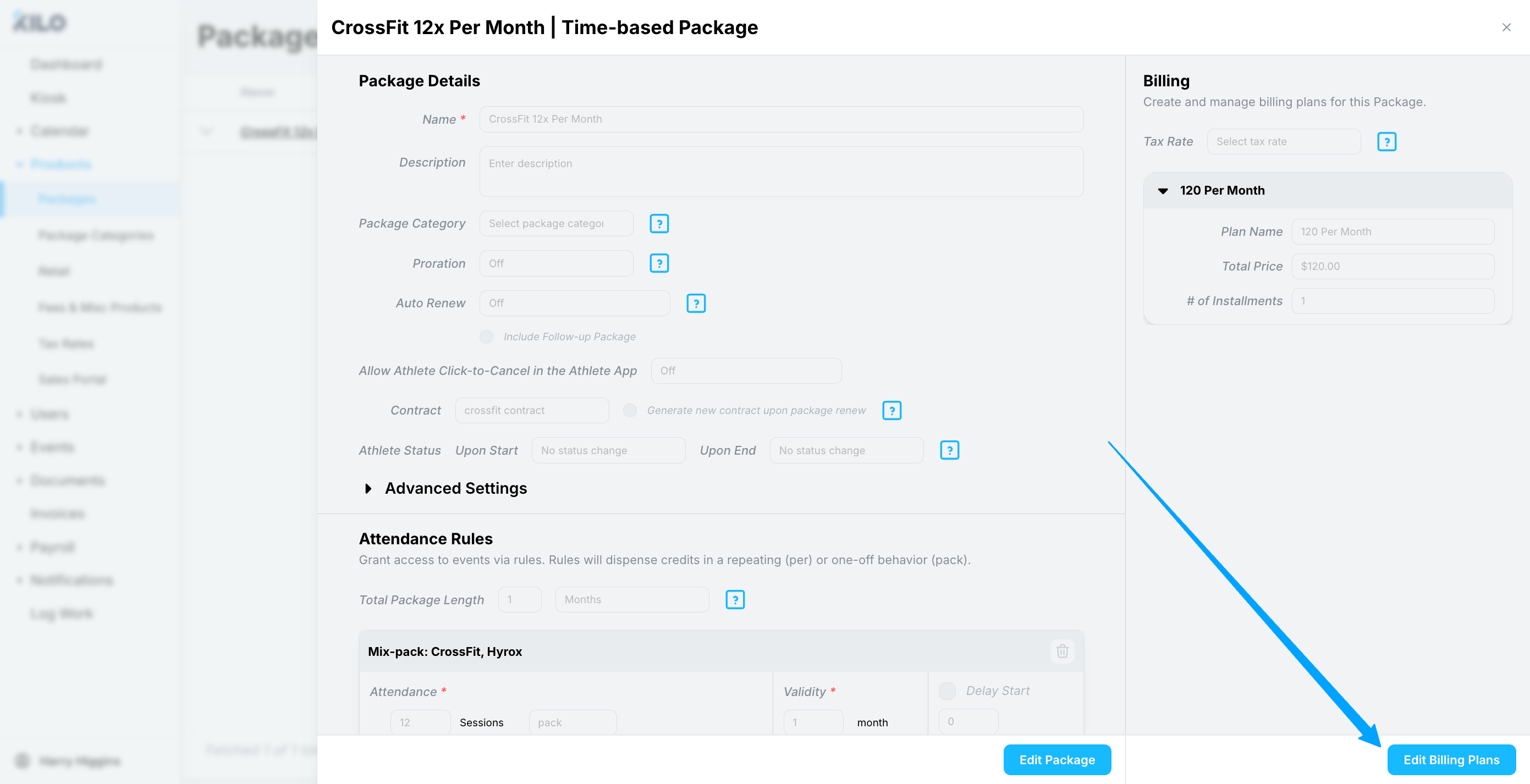
- Edit the Billing Plan
-
Click Edit Billing Plans
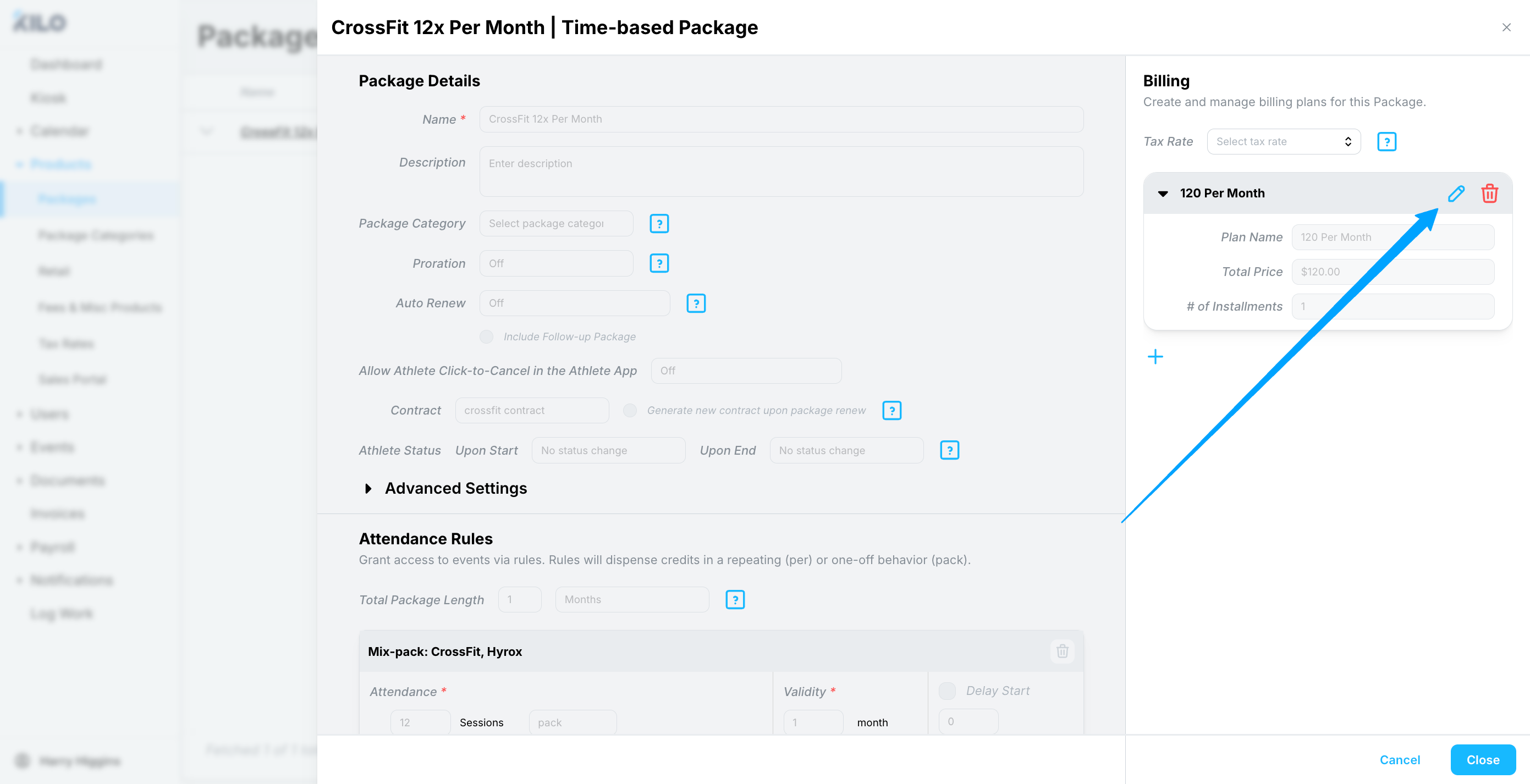
- Locate the billing plan you want to update
-
Click the pencil icon next to that billing plan
-
- Update the Price and Save
- Enter the new billing amount
- Click Save
If the package has more than one billing plan, repeat this process for each plan to ensure all pricing reflects the new rate.
Understanding the Alert Message
After saving, you’ll see an alert explaining that:
- Active packages will not be impacted by this change
- Upcoming renewals of this package will reflect the new pricing
This is expected behavior and ensures pricing changes are applied cleanly and predictably.

Example Use Case: Annual Membership Price Increase
Scenario: Kilo Gym is increasing CrossFit membership pricing for any renewals occurring after January 1.
Steps Taken:
- The gym owner logs into Kilo GMS
- Navigates to Products → Packages
- Opens each CrossFit-related package
- Updates all associated billing plans to the new rates
- Saves the changes
Result:
- All renewals occurring on or after January 1 reflect the new pricing
- No December renewals are affected
Important Timing Note: Be sure to enact the price change after all December packages have already started. This prevents athletes from receiving a price increase earlier than intended.
Special Case: Long-Term Packages (e.g., 12-Month Installments)
If an athlete is on a long-term package—such as a 12-month package paid in installments—those invoices are tied to the active package.
This means:
- The price increase will not apply until the package fully renews
- All scheduled invoices for the active package will remain unchanged, even if they extend beyond the typical price change date
How to Apply New Pricing Sooner (Optional)
If you need the new pricing to take effect before the package naturally renews:
- Cancel the athlete’s current package early
- Schedule a new package with the updated pricing
- Set the new package to start on the athlete’s regular billing cadence
OR
- Manually edit upcoming invoices connected to the active package
This ensures accurate pricing while maintaining a consistent billing schedule.
If you need help reviewing your setup or timing a price change, the Kilo Support team is here to help. Let us know at hello@usekilo.com.