
Webinar Funnels
Getting Started
Accessing Webinar Creation
- Login to your Gym Lead Machine account at app.gymleadmachine.com
- Navigate to Sites in the left sidebar
- Click Webinars
- Select New Webinar Funnel
Initial Setup
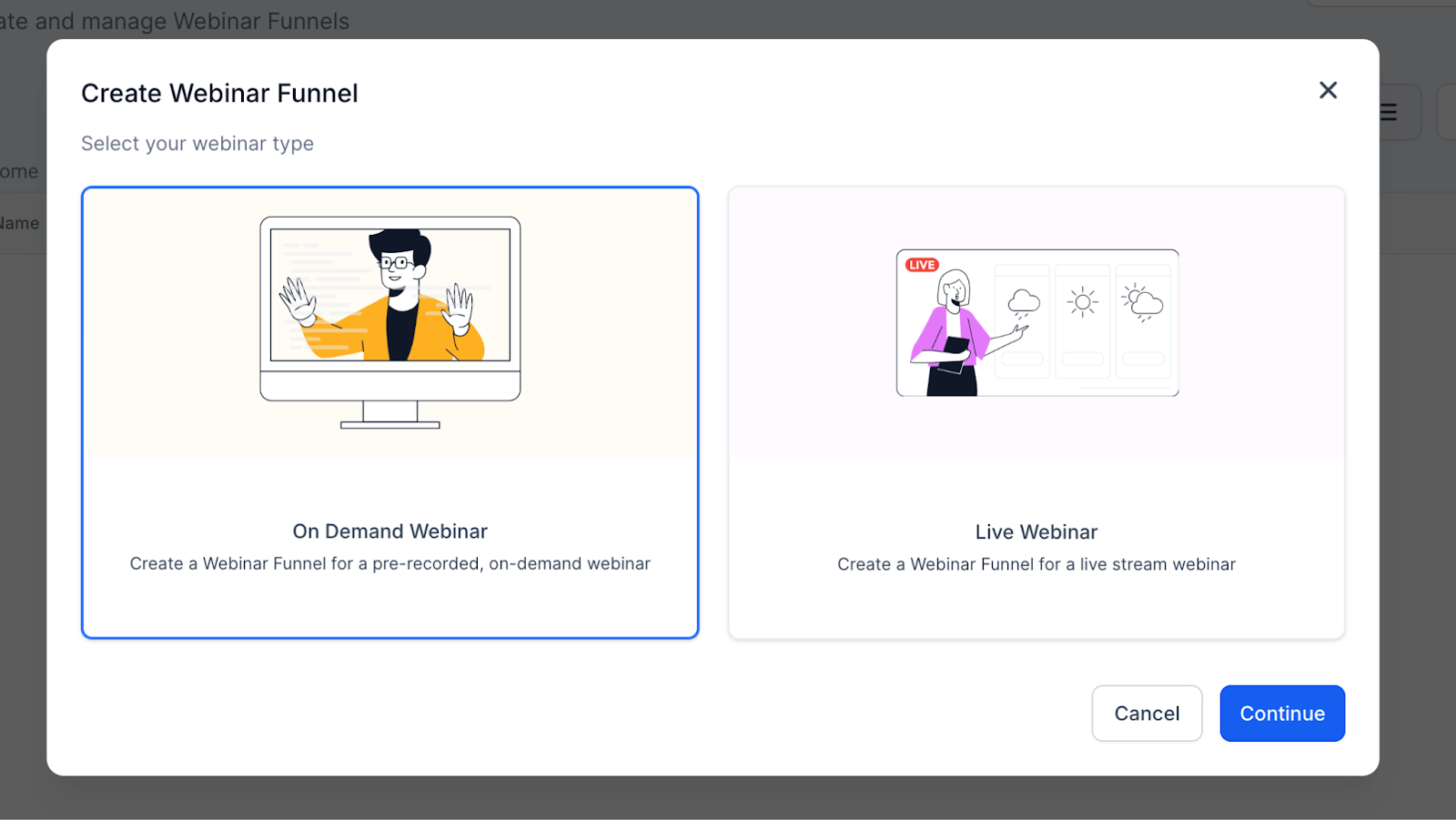
Choose your webinar type:
- On Demand Webinar → Pre-recorded, watch anytime
- Live Webinar → Scheduled event with a set date/time
Live Webinars
Overview
Live webinars are real-time presentations where attendees join at a specific date and time.
4-Step Creation Process
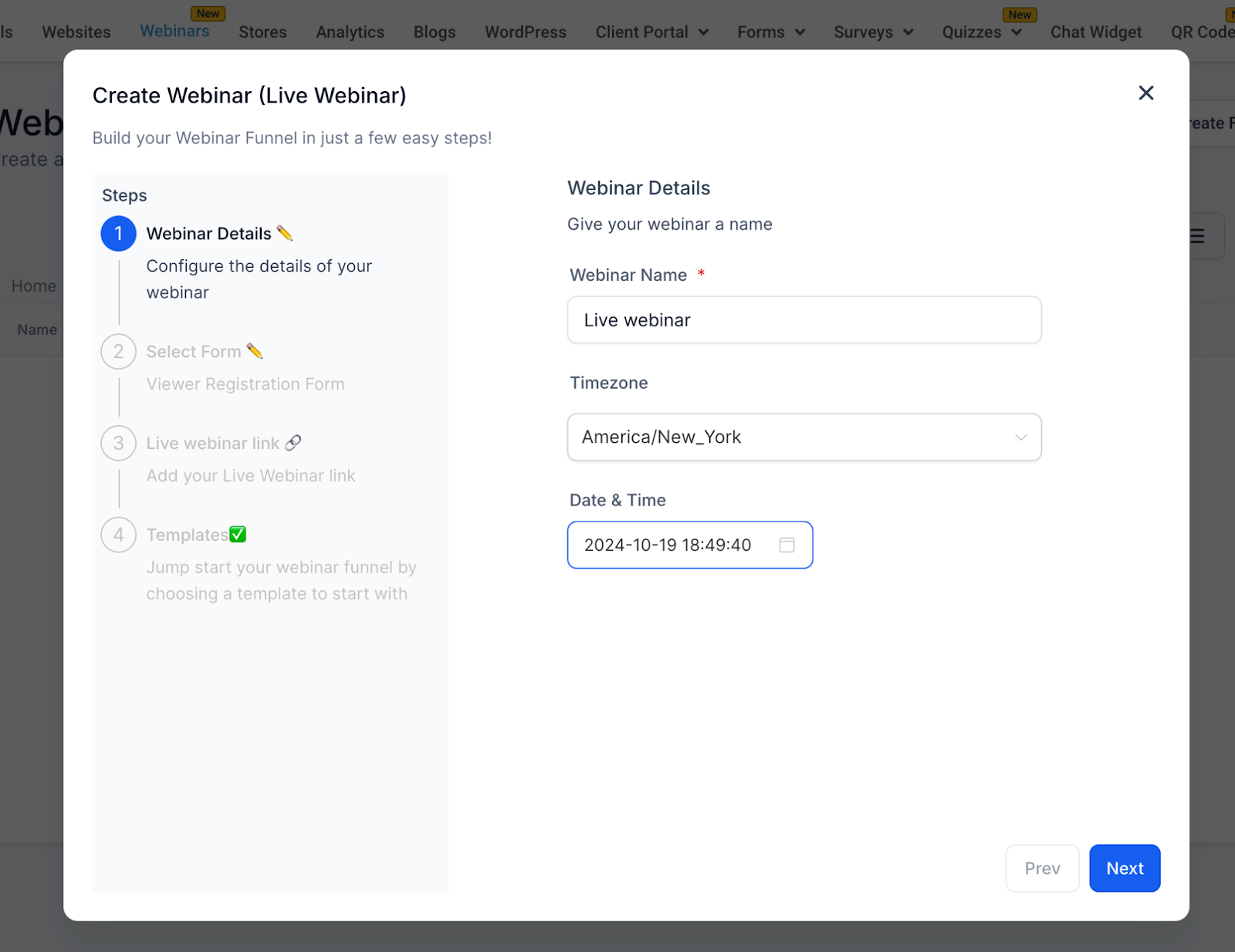
Step 1: Webinar Details
- Webinar Name (Required) — Example: This Awesome Webinar
- Timezone (Required) — Default: America/New_York (changeable)
- Date (Required) — Pick a future date
- Time (Required) — Example: 2:00 PM
Step 2: Select Form
Attendees register via forms created in Sites > Forms.
- Custom Registration Form → Create your own with fields like name, email, phone, etc. Forms must be created before they can be selected in the Webinar Funnel creation process.
- Automation Trigger → Form submissions can also trigger reminder and follow-up workflows (this must be set up separately in automations)
Step 3: Live Webinar Link
Enter your streaming link:
- Zoom →
https://zoom.us/j/123456789 - YouTube Live →
https://youtube.com/watch?v=ABC123
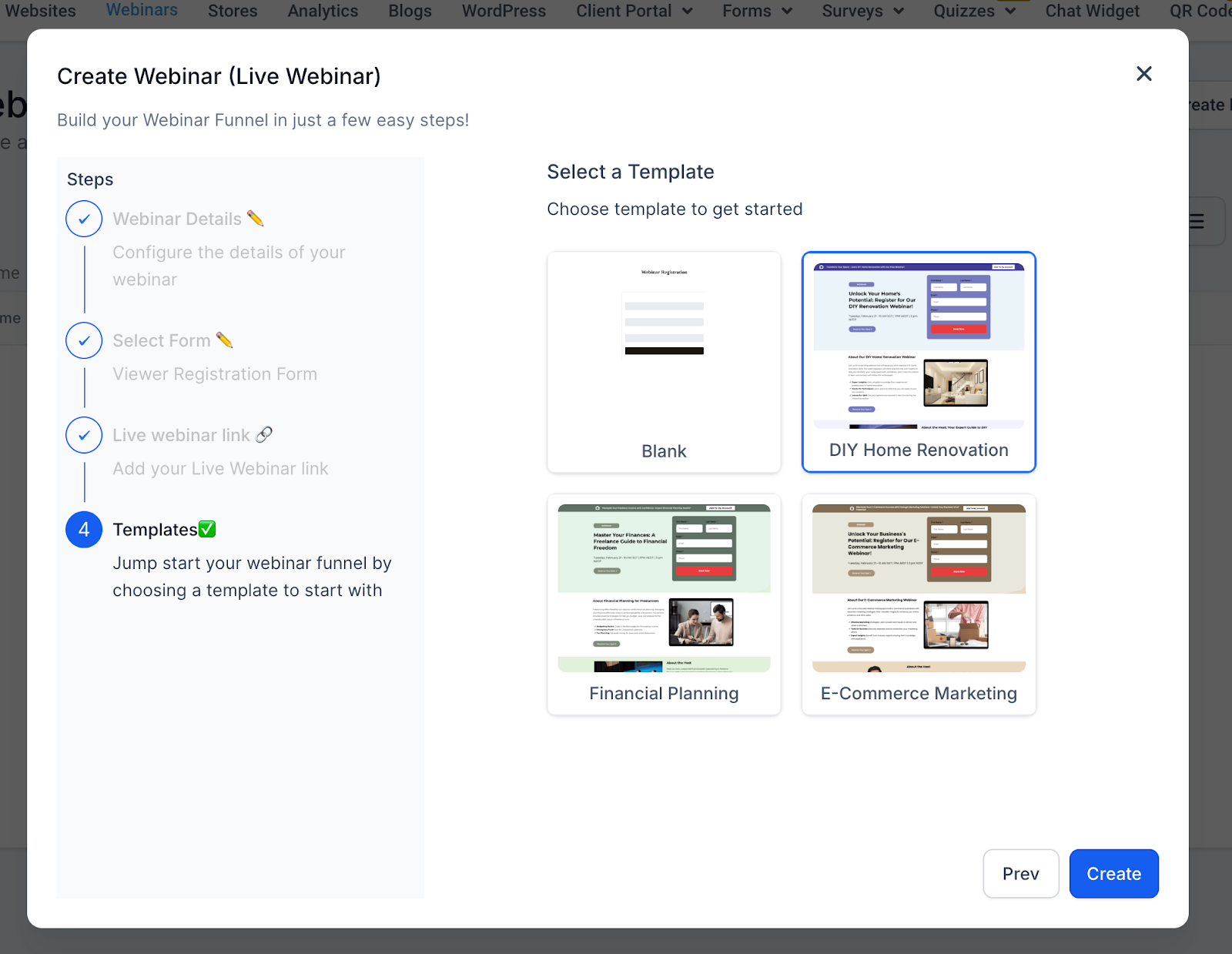
Step 4: Templates
Choose from pre-designed funnel templates, which you'll customize to fit your webinar details.
On Demand Webinars
Overview
On-Demand webinars are pre-recorded sessions that attendees can access anytime after registering.
4-Step Creation Process
Step 1: Webinar Details
- Webinar Name (Required) — Example: This Really Great Webinar
- Note → No timezone, date, or time needed.
Step 2: Select Form
Same as Live Webinars:
- Choose a form from Sites > Forms
- Custom Registration Form → Create your own with fields like name, email, phone, etc. Forms must be created before they can be selected in the Webinar Funnel creation process.
- Automation Trigger → Form submissions can also trigger reminder and follow-up workflows (this must be set up separately in automations)
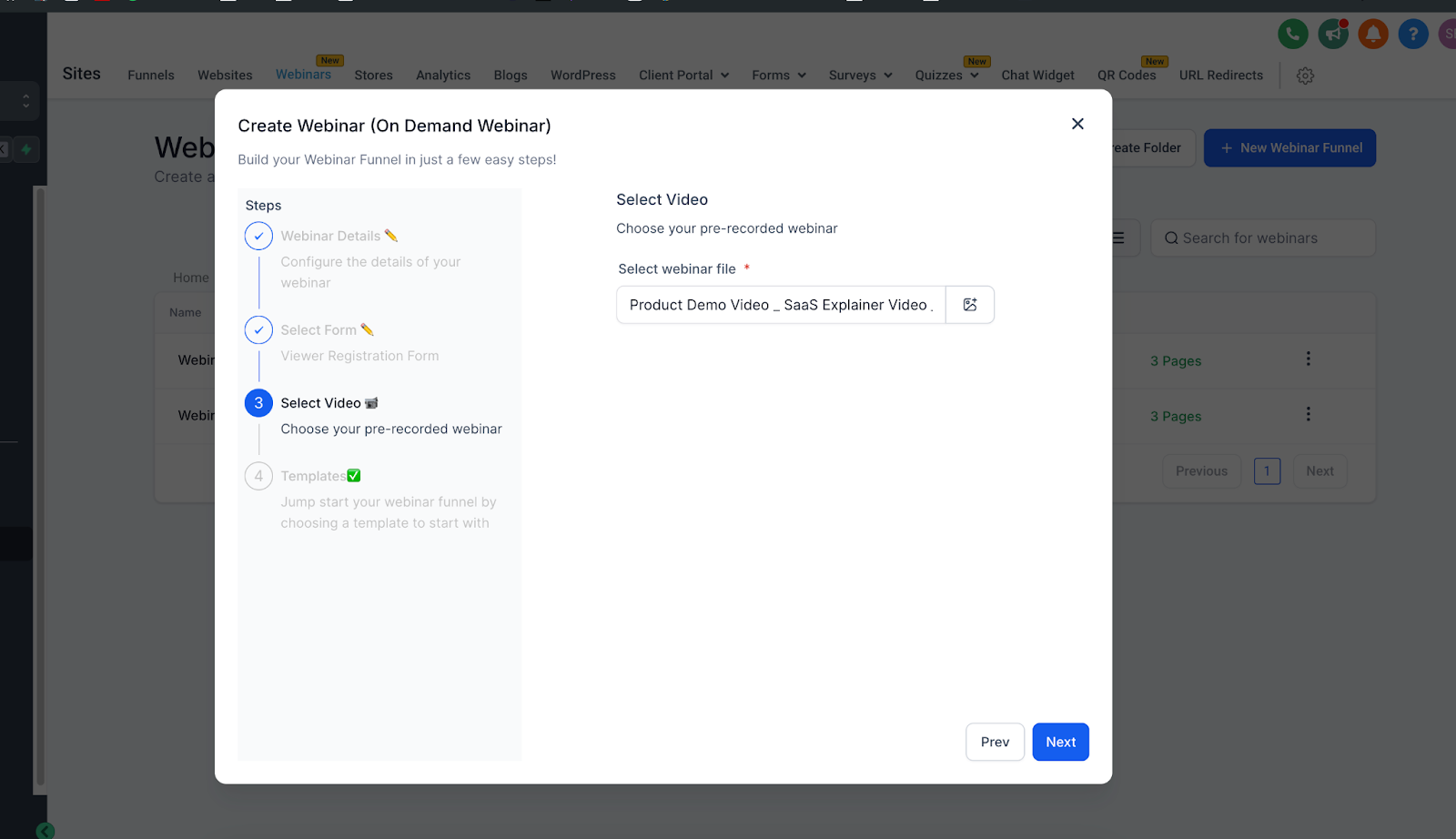
Step 3: Select Video
Upload or select a pre-recorded video:
- Supported formats: MP4, MOV, AVI, etc.
- Upload from your computer or select from the media library
- Required to proceed
Step 4: Templates
Same template library as Live Webinars, optimized for on-demand viewing.
Automations & Reminders
One of the most powerful features of webinar funnels is automation.
- Pre-Built Workflow Recipe → Each webinar funnel comes with an automation recipe for reminders and follow-ups.
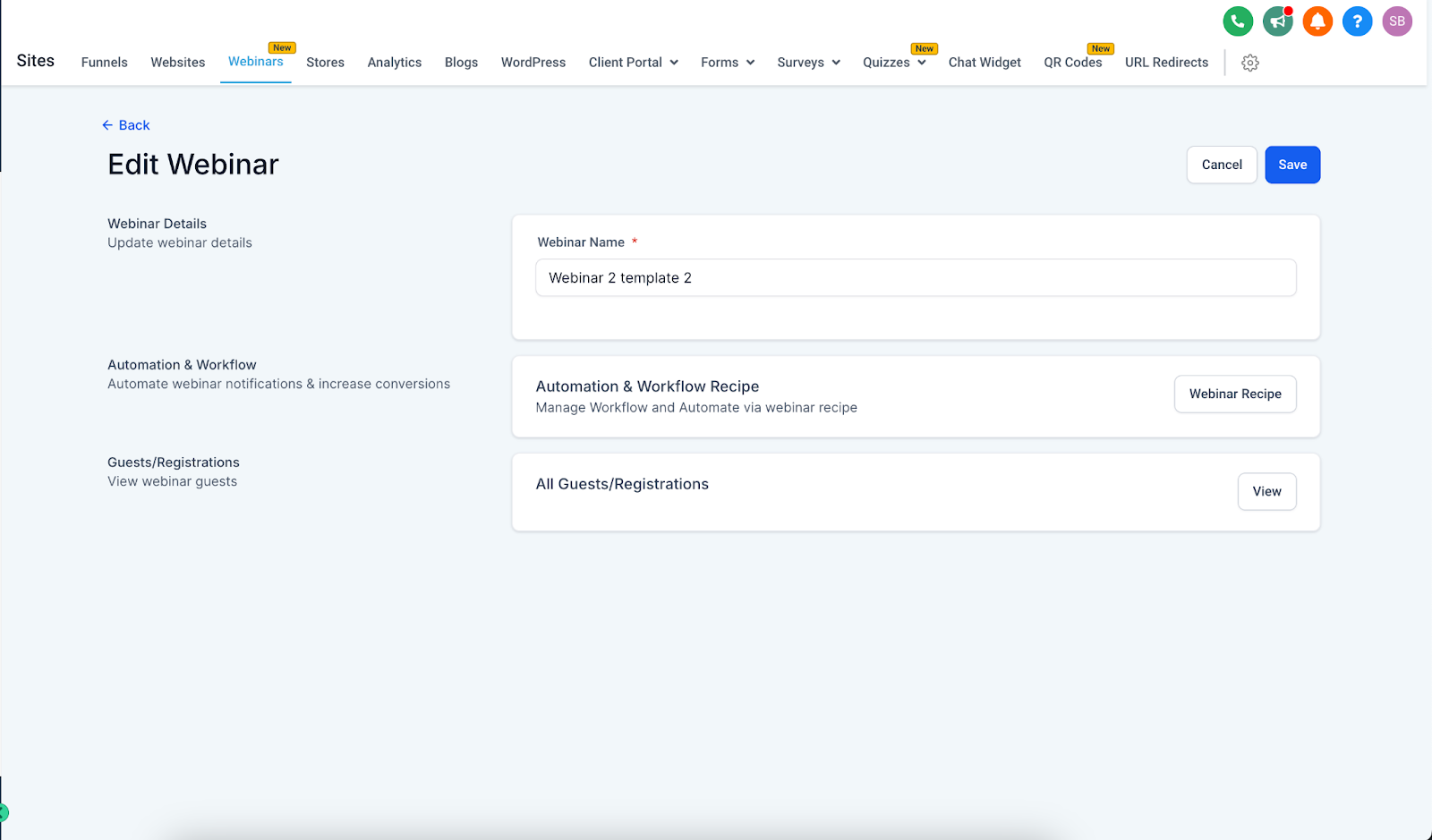
- To access this recipe, go to Automation > + New Workflow > select to add from Template > search for Webinar > select the Webinar template.
-
You can also access the template by clicking "Edit" to the right of any Webinar Funnel, and clicking "Webinar Recipe"
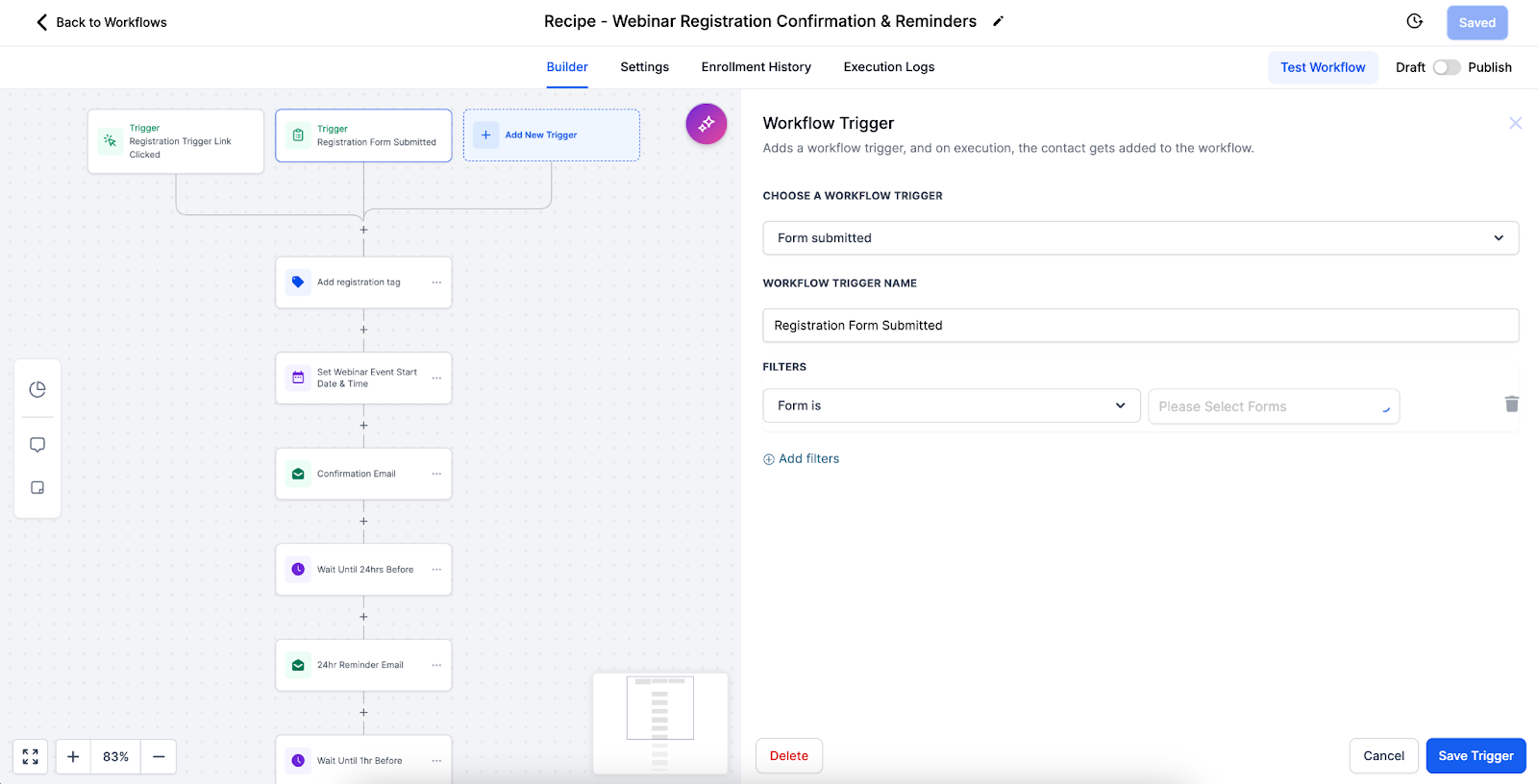
- Once the template workflow is created, add the registration form in the Trigger action.
-
Then, customize the workflow action to fit your tag, event date, and preferred communications.
Best Practices
Live Webinars
- Test setup before the event
- Schedule with audience timezones in mind
- Promote early and often
- Have a backup plan for technical issues
- Encourage interaction (chat, polls, Q&A)
On Demand Webinars
- Use high-quality recordings
- Keep videos concise (30–60 minutes)
- Structure content for self-paced learning
- Keep your media library organized
- Refresh content periodically
Troubleshooting
Live Webinars
- Link not working → Verify format & test before event
- Timezone confusion → Clearly display timezone on registration and confirmation pages
On Demand Webinars
- Upload fails → Check format, file size, and internet connection
- Poor video quality → Upload high-resolution versions
General
- Contacts not tagged or added to workflow → Is the registration for properly on the page and selected in the workflow trigger?
Need more support? Reach out to our Support team at hello@usekilo.com.