
Package Categories
We’re excited to share a new update that will make organizing and managing your packages smoother than ever — Package Categories are here!
With this new feature, you can group your packages into clear categories so everything stays consistent, organized, and easy to find. Whether you’re offering memberships, class packs, specialty programs, or seasonal deals, categories help keep things tidy for you and your team.
Important Note:
For this release, package categories remain optional so existing users aren’t disrupted when editing packages that don’t yet have a category.
Later this week, package categories will become required. Previously created packages will stay uncategorized for now, but you will need to assign a category before any future edits can be saved. Please follow the steps below to update your packages.
Adding Package Categories for New Packages
-
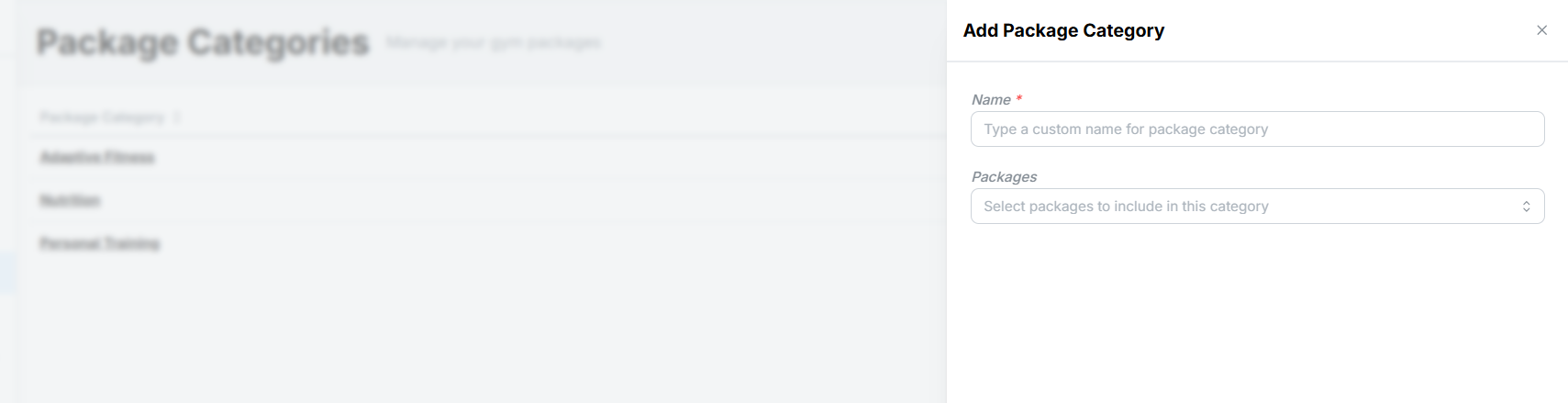
Start by creating your Package Category.
Before you add a new package, make sure you’ve set up at least one or more Package Categories (the list will be empty until you do).
-
Add your new package.
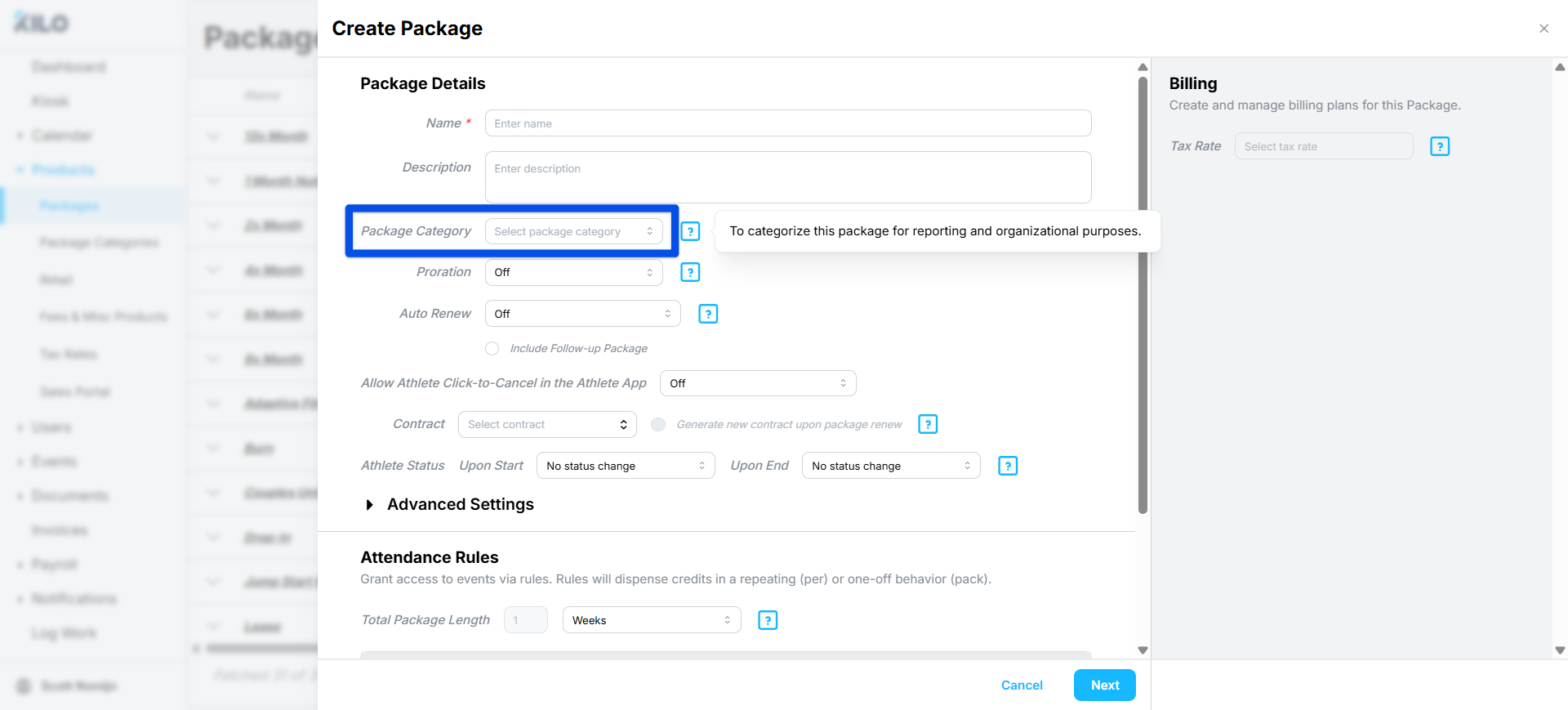
When you create a package, you’ll now be required to select a Package Category.
-
Choose the right category.
Use the dropdown menu to pick from the categories you’ve already created. This helps keep your packages organized and consistent across your account.
How to Create Package Categories for Packages Already Created
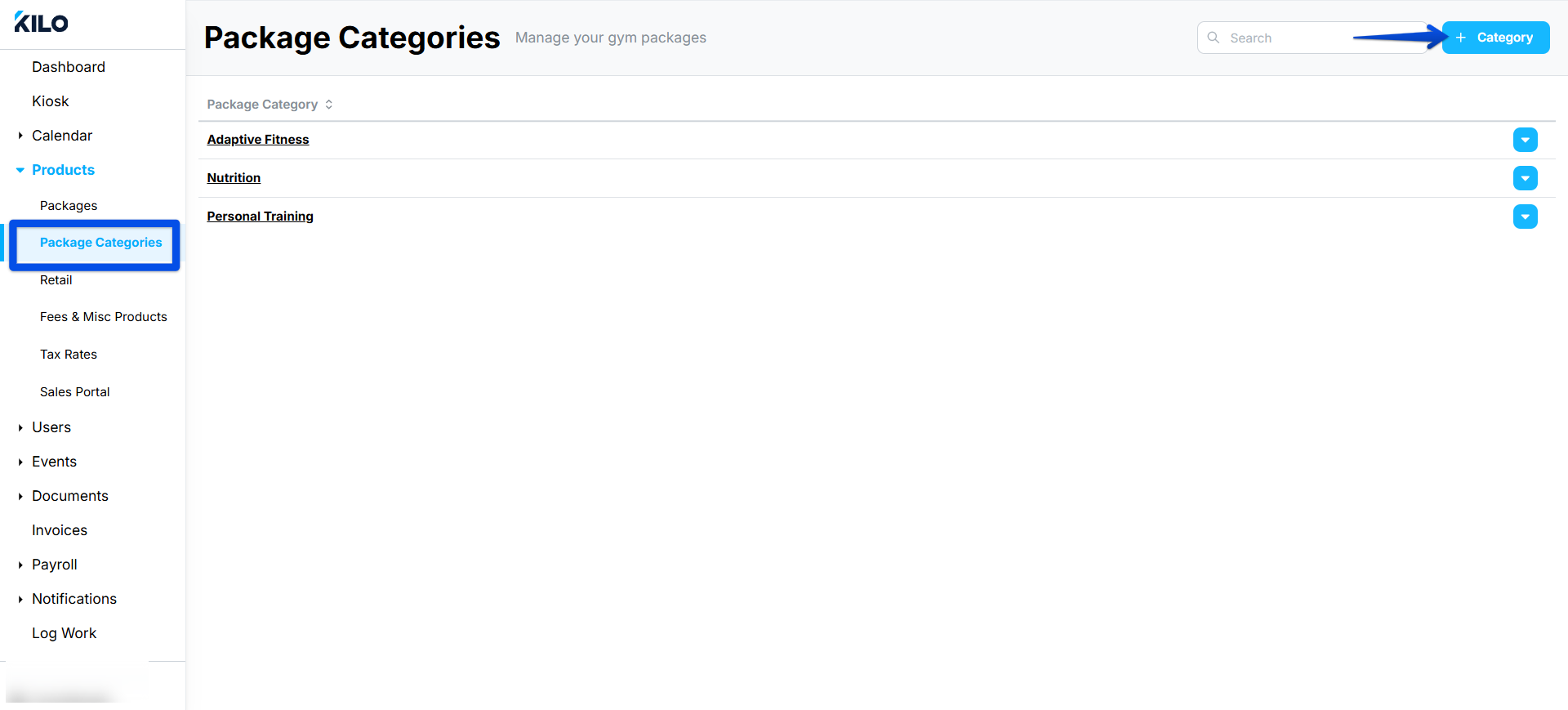
- On the Menu - click Products
- Click - Package Categories
- + Category
- Create a Package Category
- Choose Packages that should be included in this category. You may choose multiple packages in one category.
- Click 'Save'
To Edit a Package Category
As you increase or change your package offerings, you may either re-name the package category, re-assign existing package category to one or multiple packages or delete the category entirely.

Updated View of the Packages Tab
You’ll now see an updated layout on the Packages page. From this view, you can easily review the Package Category, Visibility (Public or Athlete Sales Portal), and Revenue Category columns.
We’ve also added a simple color distinction to help you quickly understand each category's purpose — athlete-facing categories appear in blue, while revenue-facing categories appear in gray.
Plus, the new Visibility column gives you an at-a-glance view of where each package appears (Sales Portal and/or Athlete App) and whether it’s available for purchase based on its Billing Plan settings (Public or Private).
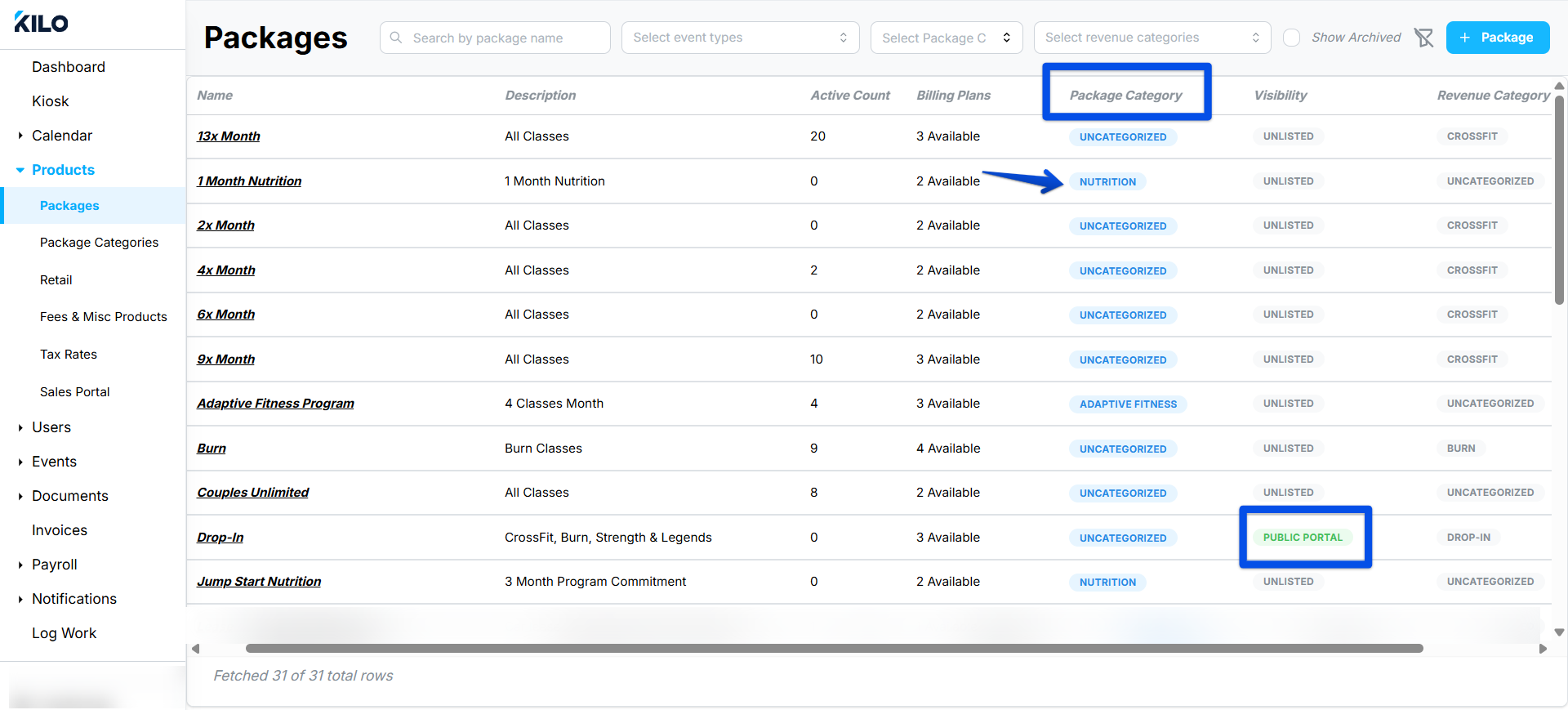
Revenue Categorization can easily be determined now as Packages with no Revenue Category will display an “Uncategorized” tag.
Have more questions about Package Category reporting? Email our Support team at hello@usekilo.com.