
Linq Blue- How to Add a Text Message from Your Linq Blue Number in a Workflow
Need more help? Contact our support team at hello@usekilo.com. We're here for you!
Want to send a text from your Linq Blue number inside a workflow? Gym Lead Machine gives you a special way to do that using Linq Blue’s custom action. This makes sure your messages go out from the right number—and stay out of spam folders.
Here’s how to do it:
✅ Step-by-Step: Add a Linq Blue Text to a Workflow
1. Open Your Workflow
- Log in to your Gym Lead Machine account
- Go to Automation
- Open an existing workflow or click “+ Create Workflow” to start a new one
2. Add a New Action
- Inside the workflow builder, click the “+” button where you want the text to go
- Scroll down to “Linq Blue” in the list of action types
- Choose “Send SMS via Linq Blue” (or similar wording)

3. Customize Your Text Message
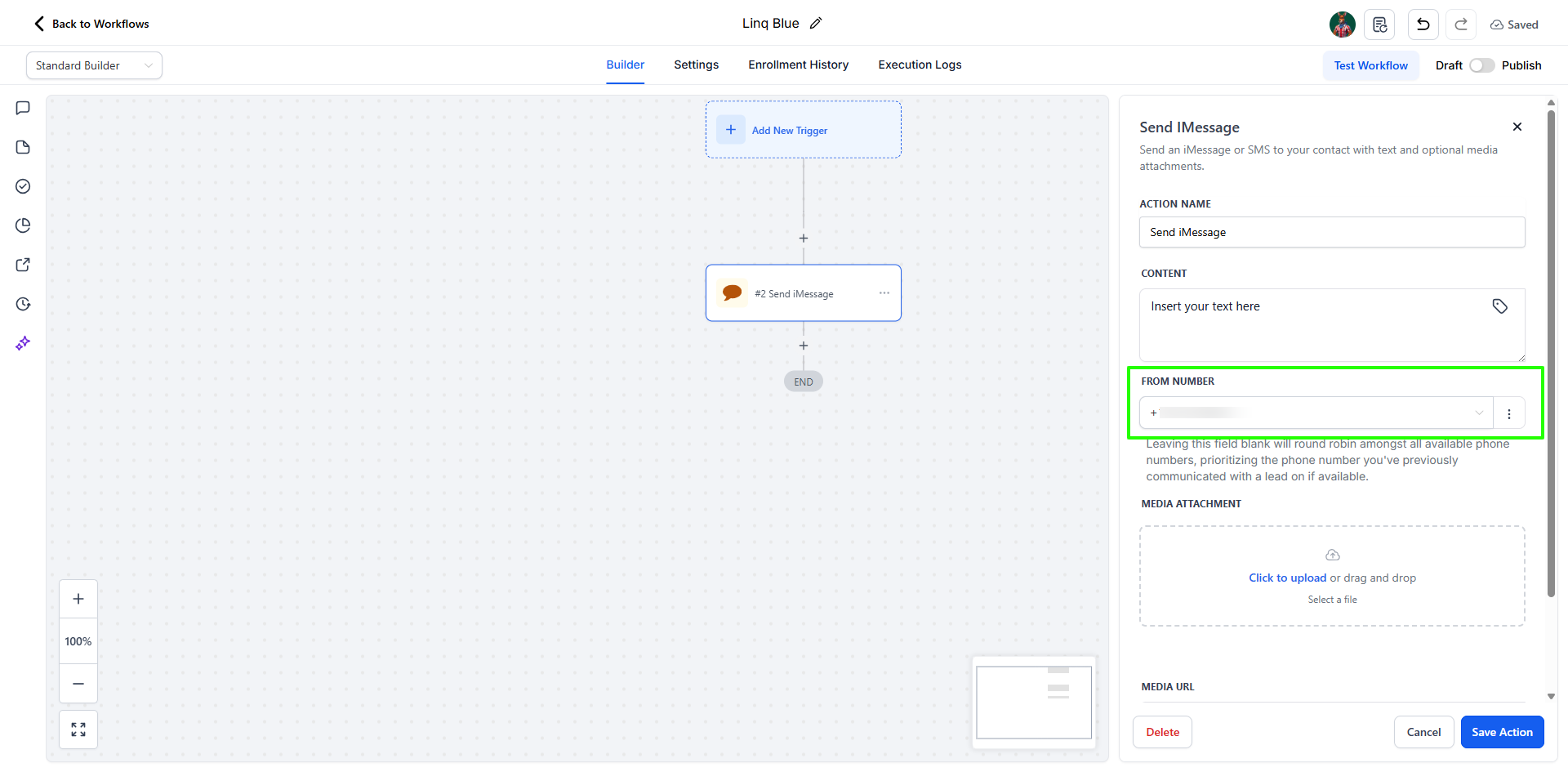
- You’ll see a special Linq Blue message box appear
- Choose the Linq Blue number you want to send from (if you have more than one)
-
-
Type your message in the box
Example:

- You can use personalization fields like {{contact.first_name}} to make it feel personal
4. Save and Publish
- Click Save on the message
- Once your workflow is ready, toggle the switch at the top to Publish
🧠 Why Use the Linq Blue Action?
This special action makes sure:
- The message sends from your Linq Blue number
- It follows all carrier rules to improve deliverability
- You don’t accidentally send from a generic number
Now your workflow will send a professional, automated text from the exact number you want—no confusion, no missed messages.