
Uncredited Reservation Report
To help gym owners stay ahead of booking issues and maintain smoother class operations, we’ve added a new Reservations section to the GMS Dashboard. This update provides complete visibility into uncredited reservations—so you can quickly identify upcoming concerns and take action before they impact attendance or billing.
An uncredited reservation is a reservation made for an athlete who doesn’t currently have an active credit or membership to cover the booking. These are intentionally created by gym staff and can be a helpful tool—allowing you to hold a spot for an athlete, support trials or special circumstances, or manage scheduling during onboarding. While uncredited reservations work exactly as intended, it’s important to keep an eye on them so billing stays aligned and check-in remains smooth.
The new dashboard tools make spotting and resolving these situations fast and simple.
New Reservations Section on the Dashboard
On your GMS Dashboard, you’ll now see a dedicated Reservations section. Click on the Reservations section and you will be directed to a high-level metric card that highlights:
- The total number of uncredited reservations
- A visual indicator so you can quickly gauge whether this number is trending high, low, or improving
This gives you an immediate pulse on upcoming potential issues.
The Uncredited Reservations Report
Clicking the metric card opens the Uncredited Reservations screen, where you’ll find all the details you need to take action.
What This Screen Includes:
1. Uncredited Reservations Count
A clear, up-to-date total of all upcoming reservations without credits.
2. Detailed Athlete Table (Next 7 Days)
A table listing every athlete who has an uncredited reservation within the next seven (7) days. This list helps you identify:
- Athlete reservations that are currently uncredited
- Which Athletes may need proactive outreach
- Any billing or membership adjustments required
Click the down arrow to the left of each athlete’s name to expand their list of uncredited reservations and take any needed actions.
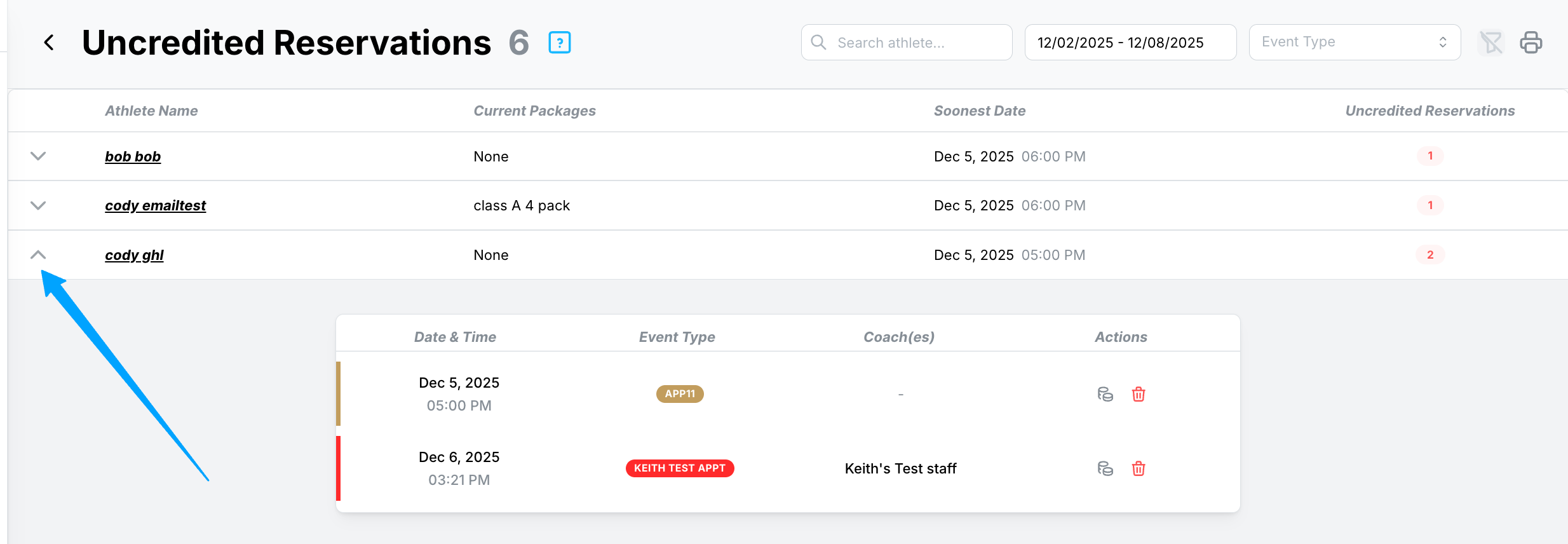
3. Search & Filter Options
Easily narrow down the data using filters for:
- Date range
- Event type (class, appointment, etc.)
- Specific athletes
These tools make it simple to focus on what matters most at any moment.
Staff Permissions: The new Uncredited Reservations Report will be given its own unique permission set that will be added to the staff's dashboard permissions section. To give Staff access to this report, go to
- Users > Staff > Edit Staff Member > Permissions > View Reservation Reports
Taking Action: Prevent & Correct Issues Quickly
To help owners resolve these reservations effectively, the page includes clear call-to-actions for each athlete:
1. Credit Reservation
Apply the appropriate credit or membership to credit a reservation.
2. Delete Reservation from Athlete
Remove the reservation if it was created in error or cannot be honored.
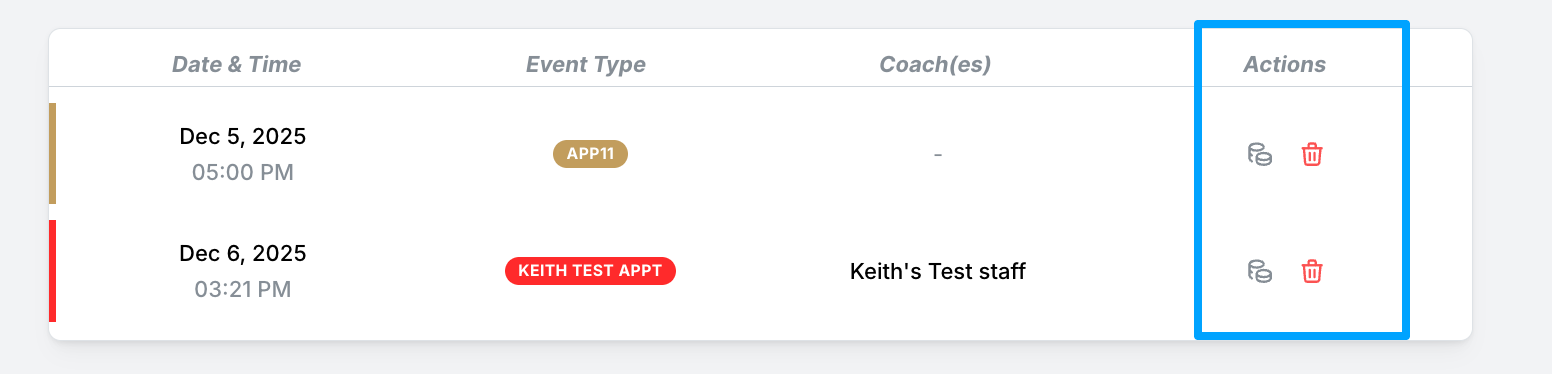
These actions are designed to help you bring your uncredited reservations down to zero—keeping schedules clean and ensuring athletes have the correct access before class.
If you have further questions about Uncredited Reservations in Kilo, please reach out to Support at hello@usekilo.com.