
How To Add a Staff Profile For An Existing Athlete
Sometimes a member of your gym community needs access not just as an athlete, but also as a staff member. Great news—there’s a way to easily add a Staff profile to an existing Athlete profile so the individual can function in both roles seamlessly.
Why This Matters
Many coaches, part-time workers, or volunteers start out as athletes. By adding a staff role to the same profile:
- They use one login for everything
- Their activity and history stay clean and consistent
- The user can toggle between the two accounts without logging in and logging out
- Permissions are applied correctly for their new responsibilities
How to Add Members in Kilo who already has an Athlete profile
- In your Kilo system, go to Users and click to drop down
- Go to Staff
- Select '+ Staff'
- Enter the personal/contact information for the staff member
- Use the same email address as the Athlete account for the Staff account
- Set permissions for this staff member. See this Help Article for a breakdown of the permissions options.
- Save
Toggle between the Staff and Athlete View for Connected Profiles
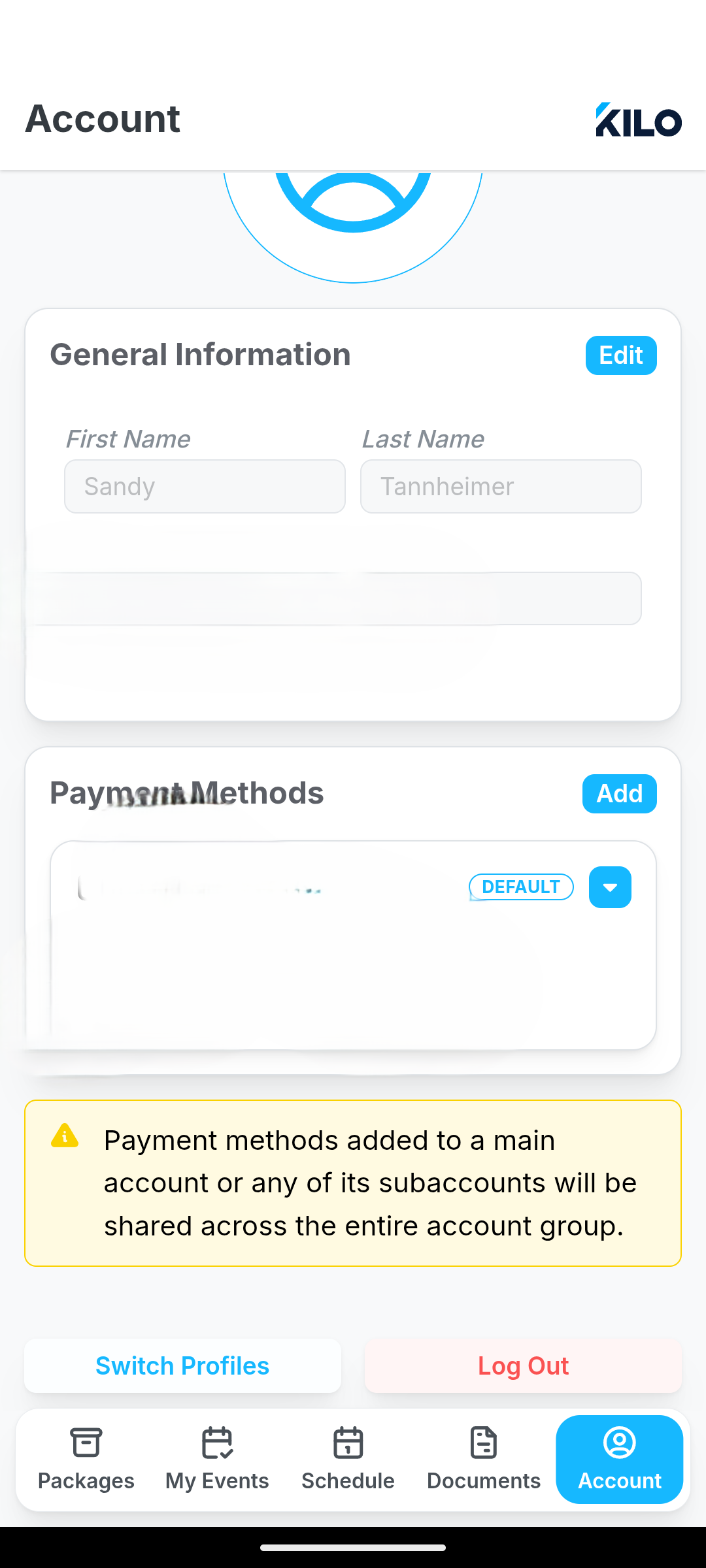
- Staff can proceed to the Account option at the bottom right of their screen,
-
Click "Switch Profiles" button will be at the bottom of the screen,
-
When clicked, "Switch Profiles" you will be directed to a Select a Profile page where both the primary account holder and all linked and dependent profiles can be viewed.
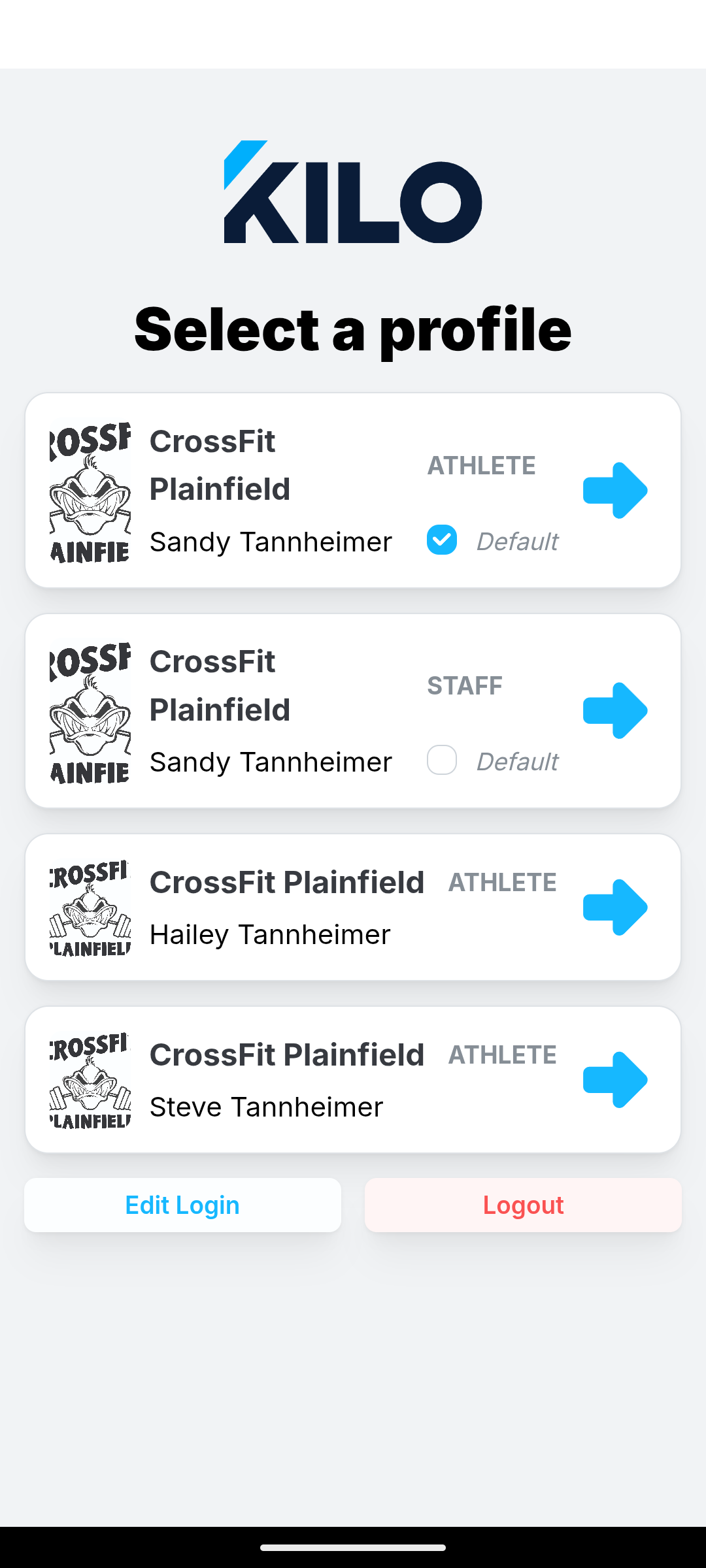
- The primary account holder can select one of the linked accounts.
- The view of the athlete portal will then change to the Athlete view of Kilo GMS.
- The view of the staff portal will change when profile selected.
- Staff members can choose a default setting to open to upon login.
- Back in the Account section, select "Switch Profiles" to return to the view of the primary account holder.
If you have further questions about Adding Staff Profiles in Kilo, please reach out to Support at hello@usekilo.com.