
How to Use GMS Notification Flows for Client Milestones (Based On Check-Ins Completed)
Celebrating athlete milestones is a great way to increase engagement and retention in your gym. With Notification Flows in Kilo GMS, you can automatically send messages when an athlete reaches a specific number of completed check-ins.
These milestone messages can be sent to:
- Athletes (to celebrate progress and keep them motivated)
- Staff (to prompt outreach or recognition from the person who checks the Notification Email in your GMS Settings)
This guide will walk you through setting up Message Templates and Automation Flows to trigger notifications when athletes hit specific check-in milestones.
💡 Important Notes:
- Check-ins are cumulative — they do not reset each month.
- If you imported attendance data when setting up Kilo, your check-in totals will include visits recorded in your previous software.
- If you did not import attendance, your totals will only reflect check-ins recorded within Kilo going forward.
Step 1: Create Your Message Templates
Before building your automation flows, you’ll first create the messages that will be sent when a milestone is reached.
- Log in to your Kilo GMS account.
-
Click Notifications in the navigation bar.
Select Message Templates.
Click Add Template in the upper-right corner.
Choose the notification type:
- SMS
Naming Your Templates (Recommended)
To make templates easy to find later, we recommend using this naming format:
[Recipient] # Check-Ins Completed
Examples:
- [Athletes] 10 Check-Ins Completed
- [Athletes] 50 Check-Ins Completed
- [Staff] 10 Check-Ins Completed
This helps you quickly identify templates when selecting them in the Automation Flow Builder.
Configure the Template
-
Select the trigger “Check-Ins Completed.”
Add the email subject line (for email notifications).
Write the body of the message.
Use the available custom fields to insert dynamic information such as:
- Athlete name
- Contact information
- Other available fields
Tip for Staff Notifications
If the message is being sent to staff, include clear instructions about what action they should take.
Example:
“{{athlete.name}} just completed their 10th check-in. Send them a quick message congratulating them and ask how their training is going.”
- Click Save.
Repeat this process until all milestone templates are created.

Step 2: Create the Automation Flow
Once your message templates are ready, you can create the automation that sends them.
- Go to the Automation Flow Builder.
- Click to create a new flow.
- Search for and select the trigger “Check-Ins Completed.”
Configure the Flow
-
Enter the number of check-ins completed that should trigger the message.
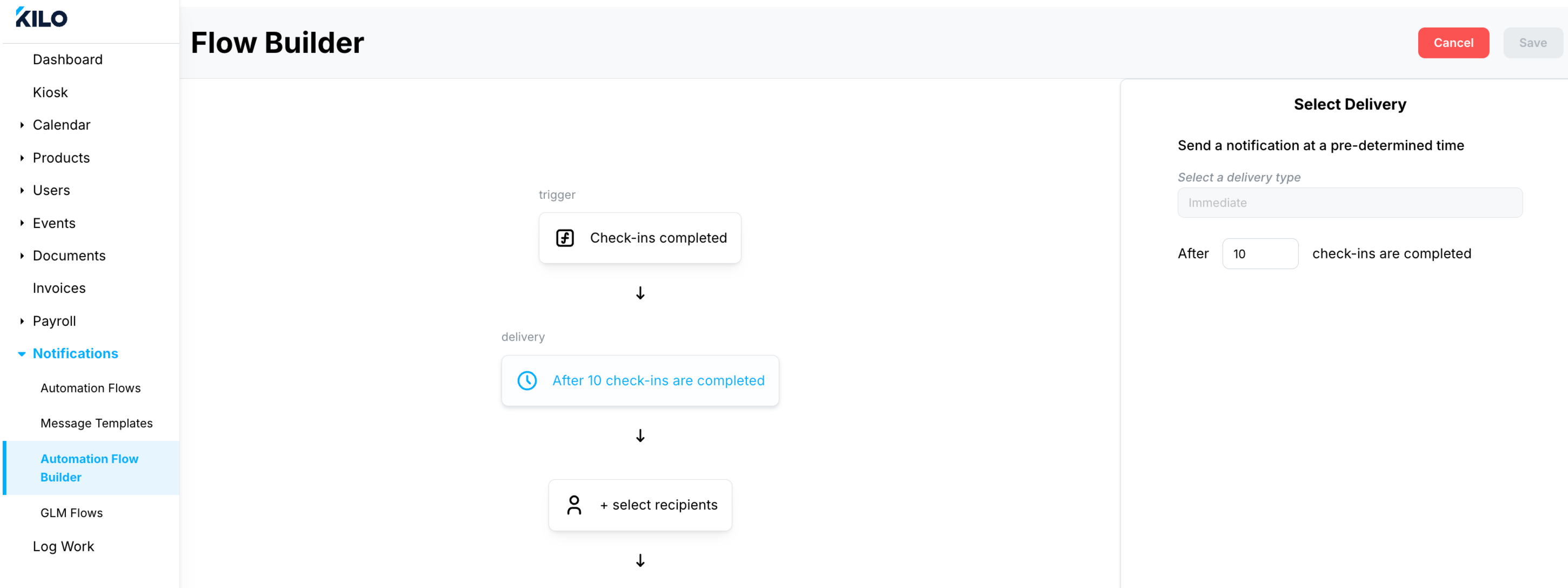
Examples:
- 10
- 25
- 50
- 100
- Select the recipient of the notification:
- Athlete
- Staff (this will send to the notification email configured in your gym settings)
- Select the notification type:
- SMS
-
Choose the message template you created earlier.
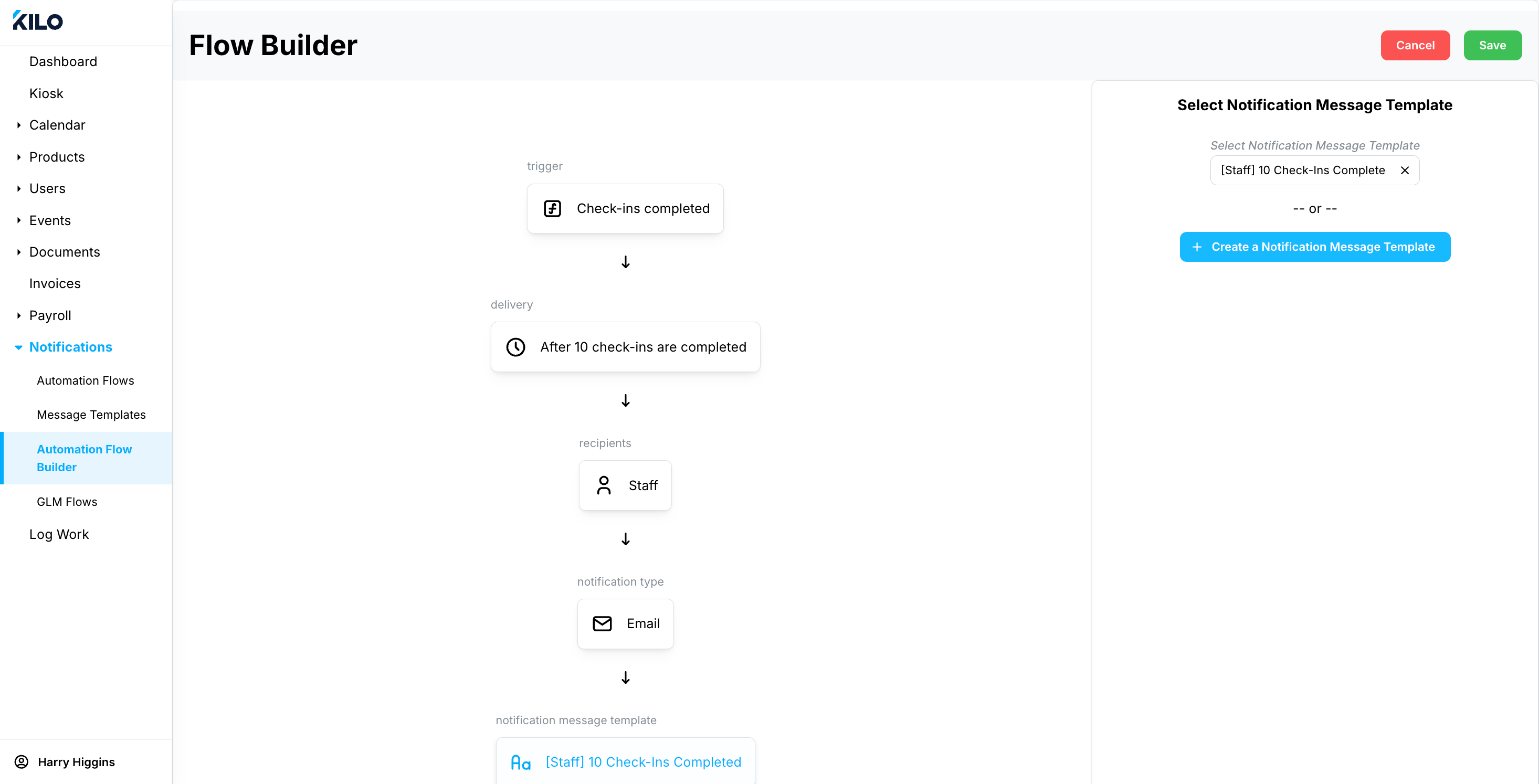
- Click Save.
Step 3: Repeat for Additional Milestones
To build a full milestone system, repeat the process for each milestone you want to celebrate.
Common milestones include:
- 10 check-ins
- 25 check-ins
- 50 check-ins
- 100 check-ins
- 250 check-ins
If you need help setting up milestone notifications, our team is happy to assist. Email hello@usekilo.com for assistance.