
How to Onboard a New Client in Kilo GMS [In-Person]
When a client says “yes,” your onboarding workflow should be straightforward and only take a few minutes — and prevent 95% of future login, payment, and booking issues.
This guide walks you step-by-step from sale → activation → payment → booking if you sell via an introductory conversation.
Overview: What “Complete Onboarding” Looks Like
By the end of onboarding, your new athlete should:
- ✅ Have an active Kilo login
- ✅ Have a payment method on file
- ✅ Be assigned to the correct package
- ✅ Be charged
- ✅ Know how to reserve classes
If all five are done during the intro meeting, you’re set up for success.
Step 1: Make the Sale
Confirm:
- Package
- Price
- Start date
Once they commit, move immediately into system onboarding.
Step 2: Add Them to Kilo
There are two possible workflows depending on your setup.
If You Use the GLM → GMS Integration (Recommended)
If you’ve approved the integration between Gym Lead Machine (GLM) and Kilo GMS:
- Mark the opportunity as Won inside GLM.
- The contact will automatically push into GMS as a new athlete.
No double entry required.
If You Do NOT Use the Integration
- Go directly to Kilo GMS
- Add them manually as a New Athlete
Step 3: Have Them Activate Their Account (Right There With You)
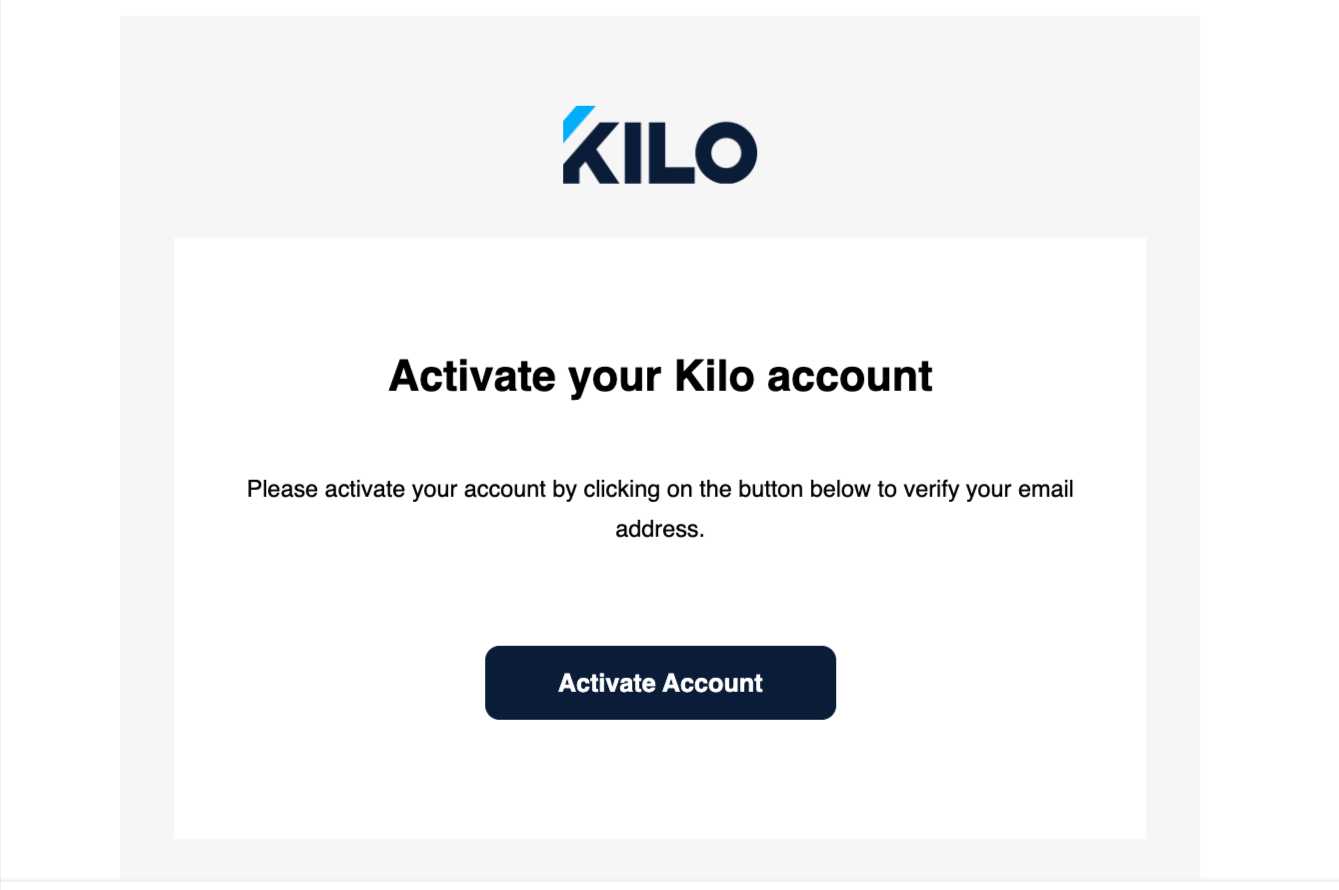
As soon as they are added to GMS — whether manually or through the integration — Kilo automatically sends an Activation Email.
💡 Best Practice: Do this while they’re still sitting in front of you.
Have them:
- Open their email
- Click the activation button
- Set their password
This prevents:
- “I never got the email”
- Forgotten passwords
- Delayed onboarding
- Support tickets later

Step 4: Have Them Log In
Once activated, have them:
-
Download the Kilo app
OR
- Log in via browser
Make sure you physically see them log in successfully.
If they can log in now, they won’t struggle later.
Step 5: Add a Payment Method
Once logged in, guide them to:
- Add their payment method
- Confirm it saves properly
⚠️ Waiting to collect payment details later almost always creates friction and follow-up work.
Collect payment information at the time of sale whenever possible.
Step 6: Assign Their Package + Process Payment
Now that:
- Their account is active
- They’ve logged in
- A payment method is saved
You can:
- Assign their package
- Charge them
At this point, the sale is fully completed inside Kilo.
Step 7: Show Them How to Reserve Classes
Once a package is assigned:
- The schedule will automatically populate with the classes they have access to.
- They can self-reserve immediately.
Take 60 seconds to show them:
- How to reserve a class
- How to cancel
- Booking window rules
- Any waitlist behavior
💡 If you require signed documents before booking, remind them to complete those before leaving.
This moment sets the tone for autonomy and confidence.
What If You Don’t Want to Complete Step 7 During the NSI?
While we strongly recommend completing onboarding during the sale meeting, you can alternatively:
- Mark the opportunity as Won in GLM
- Allow the New Client Campaign in GLM to begin automatically
Many gyms customize one of the early emails in the New Client campaign to include:
- Login instructions
- App download links
- How to add a payment method
- How to reserve classes
- Studio expectations
Even if you complete onboarding in person, reinforcing instructions via email is a smart retention move.
Recommended Best Practice Workflow (Quick Version)
For the cleanest experience:
- Make the sale
- Mark as Won (or manually add in GMS)
- Have them activate immediately
- Have them log in
- Add payment method
- Assign package + charge
- Show them how to reserve
- Allow the New Client campaign in GLM to provide additional information (once you've customized the messaging)